
Einführung
This manual provides essential information for setting up, operating, maintaining, and troubleshooting your Lenovo ThinkCentre M720q Tiny Desktop Computer. Please read these instructions carefully before using your device.

Figure 1: Lenovo ThinkCentre M720q Tiny Desktop Computer - Front View
Installationsanweisungen
1. Auspacken
Carefully remove the computer and all accessories from the packaging. Ensure the following items are present:
- Lenovo ThinkCentre M720q Tiny Desktop Computer
- Netzteil
- Dokumentation (dieses Handbuch, Garantieinformationen)
2. Peripheriegeräte anschließen
Connect your monitor, keyboard, and mouse to the appropriate ports on the computer.
- Anzeige: Connect your monitor using a DisplayPort or HDMI cable. The system supports resolutions up to 3840x2160.
- Tastatur und Maus: Connect USB keyboard and mouse to any available USB ports. The device features multiple USB 3.0 ports.
- Netzwerk: For wired network access, connect an Ethernet cable to the RJ-45 port. For wireless, ensure your Wi-Fi network is available.
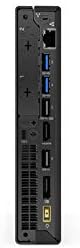
Figure 2: Rear ports of the ThinkCentre M720q, including display outputs and USB ports.

Figure 3: Front ports of the ThinkCentre M720q, including USB and audio jacks.
3. Stromanschluss
Connect the power adapter to the computer's power input, then plug the power cord into a wall outlet.
4. Erster Systemstart und Einrichtung des Betriebssystems
Press the power button located on the front of the computer. The system will boot into Windows 10 Pro. Follow the on-screen instructions to complete the initial setup, including language selection, network connection, and user account creation.
Bedienungsanleitung
Ein-/Ausschalten
- So schalten Sie das Gerät ein: Drücken Sie den Netzschalter auf der Vorderseite.
- So fahren Sie herunter: Klicken Sie in Windows auf die Schaltfläche „Start“ und wählen Sie dann „Ein/Aus“ > „Herunterfahren“.
- Neustarten: Klicken Sie in Windows auf die Schaltfläche „Start“ und wählen Sie dann „Ein/Aus“ > „Neustart“.
Netzwerkkonnektivität
- Kabelgebundenes Netzwerk: If an Ethernet cable is connected, the system should automatically detect the network.
- Drahtloses Netzwerk (Wi-Fi): The ThinkCentre M720q supports 802.11ac wireless. To connect, click the Wi-Fi icon in the system tray, select your network, and enter the password if prompted.
Verwenden von USB-Geräten
The computer is equipped with multiple USB 3.0 ports. Simply plug your USB devices (e.g., external hard drives, flash drives, printers) into any available USB port. Windows will typically install necessary drivers automatically.
Anzeigekonfiguration
The ThinkCentre M720q supports multiple displays. You can configure display settings (resolution, orientation, extended/duplicated desktop) through the Windows Display Settings. Right-click on the desktop and select "Display settings".
Wartung
Computer reinigen
- Always power off the computer and disconnect it from the power outlet before cleaning.
- Mit einem weichen, fusselfreien Tuch leichtampWischen Sie die Außenflächen mit Wasser oder einer milden Reinigungslösung ab.
- Verwenden Sie keine scharfen Chemikalien, Scheuermittel oder Lösungsmittel.
- Verwenden Sie Druckluft, um Staub vorsichtig aus Lüftungsöffnungen und Anschlüssen zu entfernen.
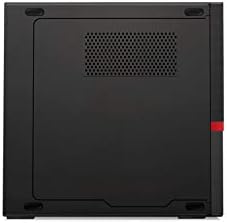
Abbildung 4: Oben view of the ThinkCentre M720q, highlighting ventilation areas.
Software-Updates
Aktualisieren Sie Ihr Windows-Betriebssystem und Ihre Treiber regelmäßig, um optimale Leistung und Sicherheit zu gewährleisten. Windows Update erreichen Sie über Einstellungen > Update und Sicherheit > Windows Update.
Fehlerbehebung
If you encounter issues with your ThinkCentre M720q, refer to the following common solutions:
- Kein Strom: Ensure the power adapter is securely connected to both the computer and a working electrical outlet. Try a different outlet.
- Kein Bildschirm: Verify that the monitor is powered on and correctly connected to the computer. Check the input source on your monitor.
- Systemverlangsamung: Close unnecessary applications. Check for background processes using Task Manager. Ensure sufficient free space on the SSD.
- Periphere Verbindungen nicht erkannt: Try connecting the peripheral to a different USB port. Ensure drivers are installed (if required).
- Netzwerkverbindungsprobleme: For wired connections, check the Ethernet cable. For Wi-Fi, ensure the network is available and you have the correct password. Restart your router if necessary.
For more complex issues, consult the Lenovo support webWebsite oder wenden Sie sich an den Kundendienst.
Technische Daten
| Besonderheit | Detail |
|---|---|
| Marke | Lenovo |
| Serie | ThinkCentre M720q |
| Artikelmodellnummer | ThinkCentre M720q |
| Betriebssystem | Windows 10 Pro |
| Prozessor | Intel Core i5 (1.7 GHz) |
| RAM | 8 GB DDR3 (2666 MHz Speichertakt) |
| Festplatte | 256 GB SSD (Serial ATA-300 Interface) |
| Grafik-Coprozessor | Intel Turbo Boost Technology 2 |
| Beschreibung der Grafikkarte | Integriert |
| Maximale Bildschirmauflösung | 3840 x 2160 |
| Kabelloser Typ | 802.11ac |
| Anzahl der USB 3.0-Anschlüsse | 3 |
| Artikelgewicht | 3 Pfund |
| Produktabmessungen (L x B x H) | 7 x 1.4 x 7.2 Zoll |
| Farbe | Schwarz |
Garantieinformationen
For detailed warranty terms and conditions, please refer to the official Lenovo warranty documentation included with your product or visit the official Lenovo support webDie Garantie deckt in der Regel Material- und Verarbeitungsfehler für einen bestimmten Zeitraum ab Kaufdatum ab.
Kundenservice
If you require technical assistance, have questions about your product, or need to report an issue, please contact Lenovo customer support through their official channels. You can find contact information and online resources on the official Lenovo webWebsite.
Lenovo Official WebWebsite: Www.lenovo.com