
1. Einführung und Endeview
This manual provides detailed instructions for the installation, operation, and maintenance of your XTRONS TM100L car stereo. The TM100L is an advanced in-car entertainment system featuring Android 8.1 Oreo, an Octa Core processor, and a 10.1-inch rotatable touch display. It offers a comprehensive suite of features designed to enhance your driving experience.
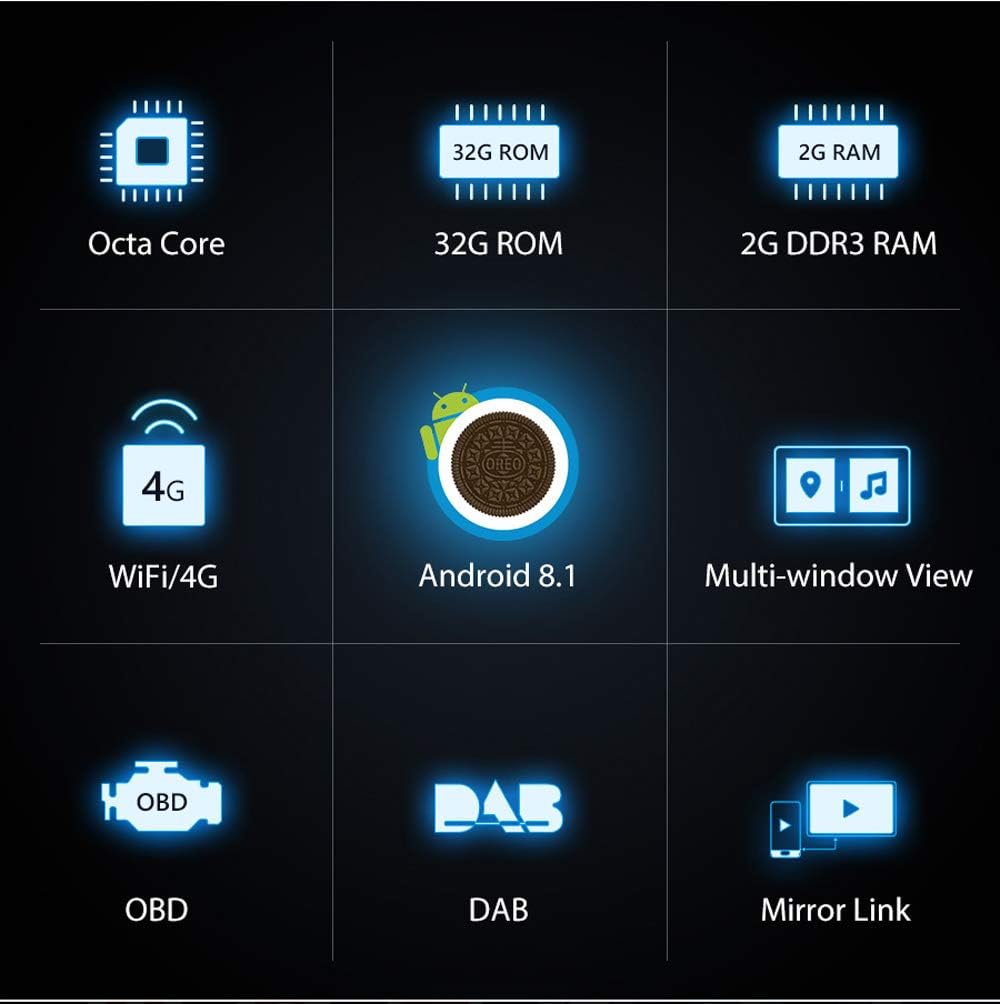
Bild: Überview of the XTRONS TM100L's core features.
2. Produktmerkmale
- Betriebssystem: Android 8.1 Oreo for improved compatibility and features.
- Prozessor & Speicher: Powerful Octa Core Processor with 2GB DDR3 RAM and 32GB ROM for quick app launches and smooth performance.
- Anzeige: 10.1-inch (1024x600 resolution) sensitive and intuitive touch screen with 2.5D curved glass edging. Supports 4K video playback.
- Rotatable Face Panel: Adjustable panel that can be rotated from 0° to 90° horizontally and 0° to 30° vertically for optimal viewwinkeln.
- Konnektivität: Built-in Wi-Fi, supports optional 3G/4G dongle for internet access.
- Bluetooth 5.0: For hands-free calls and audio streaming, including phonebook access and call logs.
- Navigation: Built-in GPS, compatible with various Android navigation software (e.g., iGo, Google Maps).
- Radio-Tuner: Built-in FM/AM tuner with 18 FM and 12 AM station presets. DAB+ tuner ready (optional receiver required).
- Mehrere Fenster View: Run two applications side-by-side on the screen.
- Bildschirmspiegelung: Connect your smartphone (Android USB, Android WiFi, iPhone WiFi) to display content directly on the head unit.
- OBD2-Unterstützung: Diagnose car status with an optional OBD2 device.
- DVR-Eingang: Dedicated input for an optional DVR to record driving events.
- Multi-Color Buttons: Customizable button illumination to match your vehicle's interior.
- Front and Rear Camera Input: Supports external front and reversing cameras for enhanced safety.

Image: The XTRONS TM100L with its rotatable face panel, offering flexible viewwinkeln.

Image: The unit's display showcasing its 4K video playback capability.
Video: Ein überview of the XTRONS TM100L car stereo, highlighting its key features and functionalities.
3. Lieferumfang
The XTRONS TM100L package includes the following components:
- 1 x XTRONS TM100L Head Unit
- 1 x ISO-Kabelbaum
- 1 x GPS-Antenne
- 1 x Benutzerhandbuch
- 2 x Montagesätze
- 6 x Schrauben
- 1 x RCA Kabel
- 1 x USB-Kabel

Image: All components included in the XTRONS TM100L product package.
4. Installation
The XTRONS TM100L is designed for universal fit in both single DIN and double DIN dashboard slots. A universal fitting kit is included. For single DIN installations, an optional fitting cage (XTRONS FRA002) may be required.
4.1. Vorbereitung der Installation
- Vor Beginn der Installation sicherstellen, dass die Zündung des Fahrzeugs ausgeschaltet und die Batterie abgeklemmt ist.
- Identify the appropriate dashboard slot (single DIN or double DIN) in your vehicle.
- Gather all necessary tools, including screwdrivers, wire strippers, and electrical tape.
4.2. Connecting the Face Panel
- Connect the flat cable of the face panel with the head unit. Pinch the clip to unplug the cable when removing the face panel.
- Use both hands to pull the two clips (A, B) to both sides.
- Make the face panel back side get through the head unit's holder from top.
- Installation of the face panel is completed.

Image: The XTRONS TM100L is compatible with both single and double DIN slots.
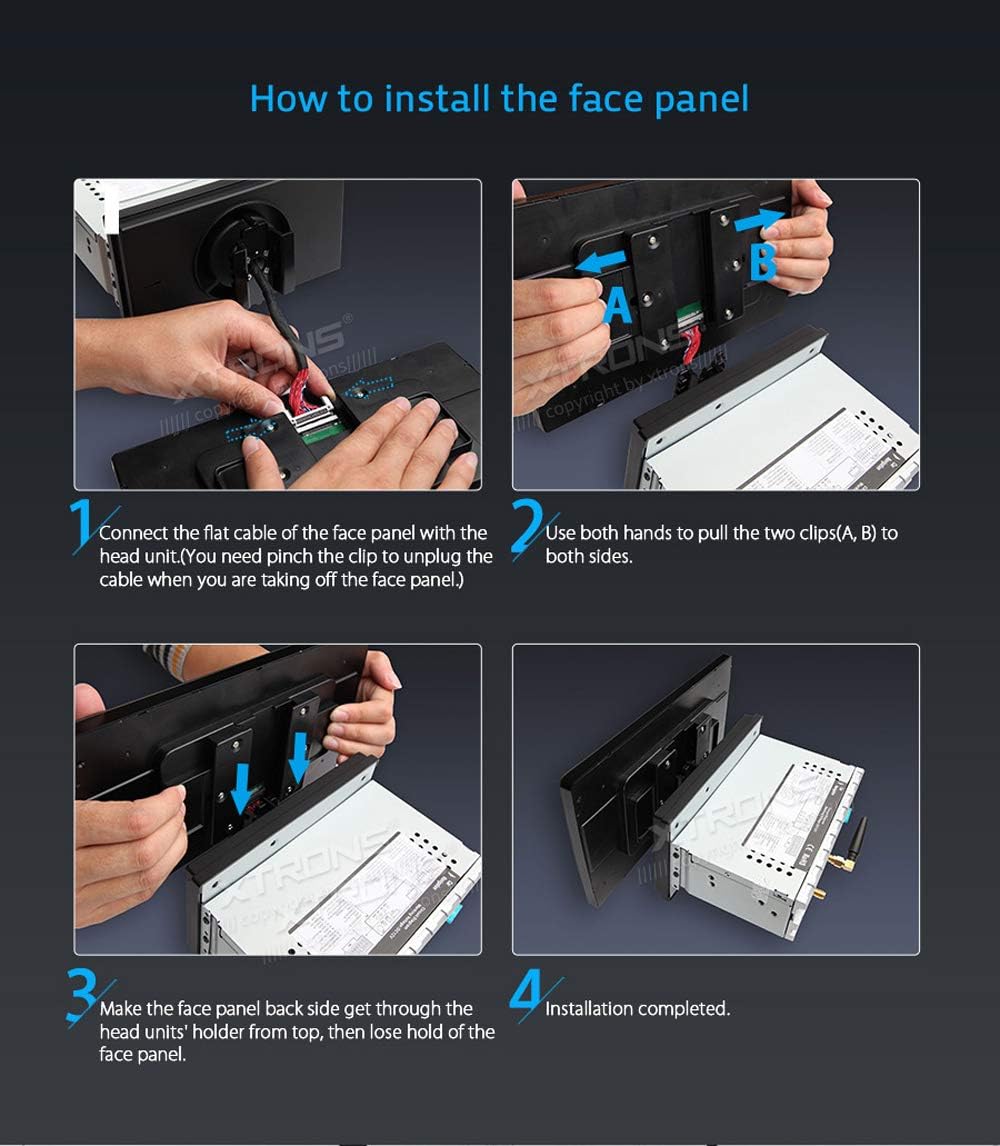
Image: Instructions for installing the rotatable face panel.
4.3. Abmessungen

Image: Physical dimensions of the XTRONS TM100L unit.
5. Einrichtung
5.1. Erstes Einschalten
- Nach erfolgreicher Installation schalten Sie die Zündung Ihres Fahrzeugs ein. Das Gerät sollte sich automatisch einschalten.
- Folgen Sie den Anweisungen auf dem Bildschirm für die Ersteinrichtung, einschließlich Sprachauswahl, Zeitzone und Datum.
5.2. Wi-Fi / 4G Connection
- Navigate to 'Settings' > 'Network & Internet' > 'Wi-Fi'.
- Select your desired Wi-Fi network and enter the password to connect.
- If using an optional 3G/4G dongle, ensure it is properly connected and configured according to its specific instructions.
5.3. Bluetooth-Kopplung
- Gehen Sie zu „Einstellungen“ > „Verbundene Geräte“ > „Bluetooth“.
- Enable Bluetooth on both the car stereo and your mobile device.
- Suchen nach available devices on your mobile phone and select 'CarKit' (or similar device name) to pair.
- Geben Sie bei Aufforderung Ihre PIN ein (Standardwert ist '0000').
6. Bedienungsanleitung
6.1. Navigation
The unit features built-in GPS and supports various Android navigation applications. Access the 'Navi' icon on the home screen to launch your preferred navigation software. Ensure the GPS antenna is properly installed for optimal signal reception.
6.2. Medienwiedergabe
- Musik: Tap the 'Music' icon to play audio files from internal storage, USB drives, or SD cards.
- Video: Tap the 'Video' icon to play video files. The unit supports 4K video playback for high-quality viewing.
- USB/SD-Karte: Insert your USB stick or SD card into the designated ports to access media files.
6.3. Radio
Access the 'Radio' icon to use the built-in FM/AM tuner. You can scan for stations, save presets, and utilize RDS functions where available. For digital radio, connect an optional DAB+ receiver via USB and access it through the 'DAB+' app.
6.4. Bildschirmspiegelung
The screen mirroring function allows you to display your smartphone's screen directly on the head unit. Connect your Android phone via USB or Wi-Fi, or your iPhone via Wi-Fi, and follow the on-screen instructions in the 'EasyConnection' app. This enables viewing messages, videos, and playing games safely on the larger display.
6.5. Multi-Window View
To use the multi-window view, open two desired applications. Then, use the recent apps button (usually a square icon) and drag one app to one side of the screen and the other app to the opposite side. This allows for simultaneous operation, such as navigating while listening to music.
6.6. Lenkradsteuerung
The unit is compatible with existing steering wheel controls in most vehicles. Access the 'Steering Wheel' app in the main menu to configure and map your vehicle's steering wheel buttons to control functions like volume, track skipping, and hands-free calling.
6.7. Car Information Display (OBD2)
With an optional OBD2 diagnostic tool connected via Bluetooth, you can monitor various car information such as engine status, oil level, door status, and more. Use compatible apps like 'Torque' to display this data on the head unit.
6.8. DVR Input
Connect an optional XTRONS DVR (Dedicated Journey Recorder) to the unit's USB port. This allows you to record and capture live events while driving, providing an additional layer of security. Access the DVR functionality through the dedicated app on the head unit.
7. Wartung
7.1. Reinigung
- Verwenden Sie ein weiches, trockenes Tuch, um den Bildschirm und die Außenseite des Geräts zu reinigen.
- Avoid using abrasive cleaners, solvents, or chemical sprays, as these can damage the surface.
7.2. Software-Updates
Überprüfen Sie regelmäßig die offiziellen XTRONS-Websites. website for available software or firmware updates. Updates can improve performance, add new features, and resolve potential issues. Follow the provided instructions carefully when performing updates.
8. Fehlerbehebung
If you encounter issues with your XTRONS TM100L, consider the following basic troubleshooting steps:
- Kein Strom: Prüfen Sie alle Stromanschlüsse und stellen Sie sicher, dass die Zündung des Fahrzeugs eingeschaltet ist. Vergewissern Sie sich, dass die Sicherung intakt ist.
- Kein Ton: Check speaker connections, volume levels, and audio source selection.
- GPS-Signalverlust: Stellen Sie sicher, dass die GPS-Antenne fest angeschlossen ist und eine freie Sicht hat. view des Himmels.
- Probleme mit der Bluetooth-Verbindung: Stellen Sie sicher, dass Bluetooth auf beiden Geräten aktiviert ist, und versuchen Sie, die Kopplung erneut durchzuführen.
- Touchscreen reagiert nicht: Versuchen Sie, das Gerät neu zu starten. Sollte das Problem weiterhin bestehen, ist möglicherweise ein Zurücksetzen auf die Werkseinstellungen erforderlich (Hinweis: Dadurch werden alle Benutzerdaten gelöscht).
- App-Fehlfunktion: Versuchen Sie, den Cache der App zu leeren oder die App neu zu installieren.
For more detailed troubleshooting or persistent issues, refer to the comprehensive user manual included with your product or visit the XTRONS support webWebsite.
9. Spezifikationen
| Besonderheit | Spezifikation |
|---|---|
| Artikelmodellnummer | TM100L |
| Betriebssystem | Android 8.1 Oreo |
| Prozessor | Achtkern |
| RAM | 2 GB DDR3 |
| ROM | 32 GB |
| Anzeigegröße | 10.1 Zoll |
| Bildschirmauflösung | 1024 x 600 |
| Video Support | 4K-Video |
| Konnektivitätstechnologie | Bluetooth, USB, WLAN |
| Bluetooth-Version | 5.0 |
| Audioausgabemodus | Stereo |
| Anzahl der Kanäle | 4 |
| Ausgang Wattage | 50 Watt |
| Artikelgewicht | 3.75 Pfund |
| Verpackungsabmessungen | 13.4 x 9.2 x 8.4 Zoll |
| Datum der ersten Verfügbarkeit | 14. August 2018 |
10. Garantie und Support
For warranty information, please refer to the warranty card included in your product packaging or visit the official XTRONS website. For technical support, product registration, or further assistance, please contact XTRONS customer service through their official channels.
Offizielle XTRONS WebWebsite: www.xtrons.com