
1. Einleitung
This manual provides essential information for setting up, operating, maintaining, and troubleshooting your Casper F600.7200-4L45T-G 15.6-inch laptop. Please read this manual thoroughly before using your device to ensure proper function and longevity.
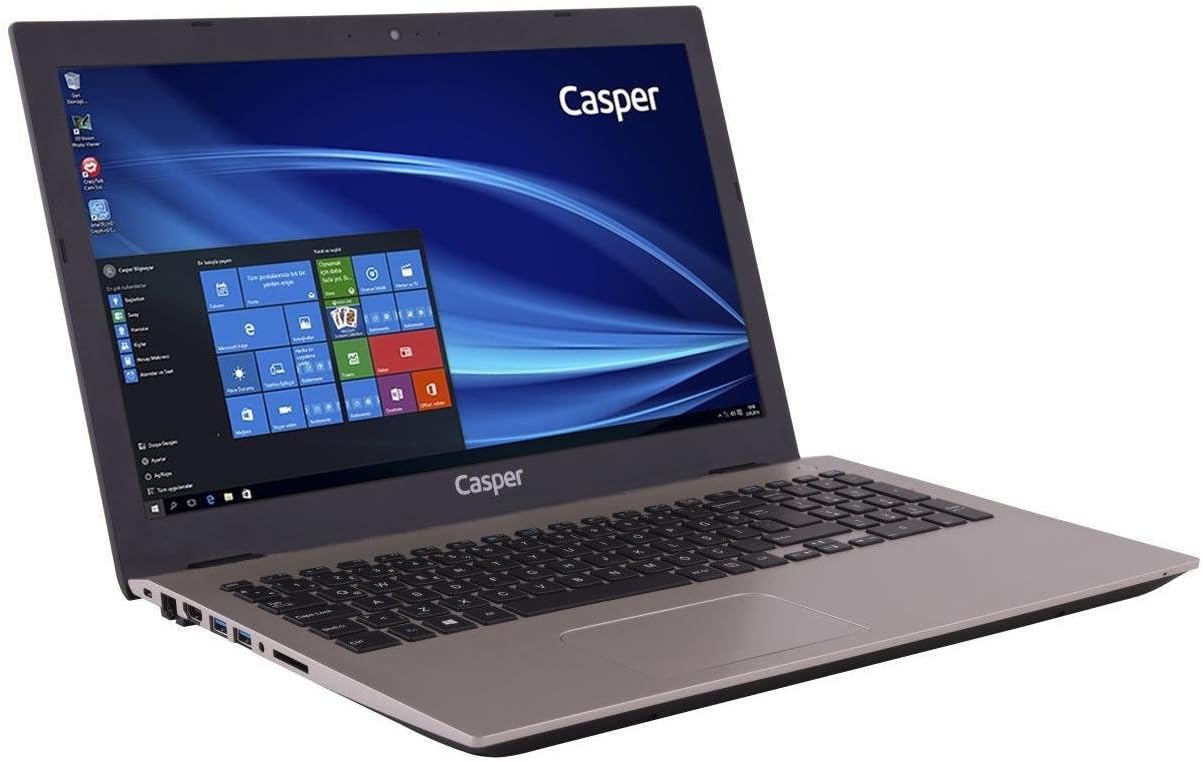
The Casper F600.7200-4L45T-G laptop is equipped with an Intel Core i5-7200U processor, NVIDIA GeForce 940MX graphics, 4GB DDR4 RAM, and a 500GB HDD, running on Windows 10. It is designed for general computing tasks, offering a balance of performance and portability.

2. Packungsinhalt
Überprüfen Sie, ob alle unten aufgeführten Artikel in Ihrem Produktpaket enthalten sind:
- Casper F600.7200-4L45T-G Laptop
- Ladeadapter
- Stromkabel
3. Einrichtung
3.1. Erstes Einschalten
- Packen Sie den Laptop und sämtliches Zubehör aus dem Karton aus.
- Connect the charging adapter to the laptop's power input port.
- Stecken Sie das Netzkabel in eine Wandsteckdose.
- Öffnen Sie den Laptopdeckel und drücken Sie den Ein-/Ausschalter, der sich normalerweise über der Tastatur oder an der Seite befindet.
- Folgen Sie den Anweisungen auf dem Bildschirm, um die Ersteinrichtung von Windows 10 abzuschließen.
3.2. Anschließen des Netzteils
The power adapter connects to the dedicated power input port on the side of the laptop. Ensure the connection is secure to provide stable power and charge the battery.

4. Bedienung Ihres Laptops
4.1. Tastatur und Touchpad
The laptop features a full-sized keyboard and an R-type touchpad for navigation. The touchpad supports multi-touch gestures for enhanced control within Windows 10.
- Tastatur: Standard QWERTY layout with function keys (Fn) for brightness, volume, and other system controls.
- Touchpad: Use single-finger taps for left-click, two-finger taps for right-click, and two-finger scrolling for navigation.

4.2. Anschlüsse und Verbindungen
The laptop provides various ports for connecting external devices and peripherals.
- Anschlüsse auf der linken Seite: Includes the power input, USB 2.0 ports, and an optical drive bay (note: this model does not include an optical drive).
- Anschlüsse auf der rechten Seite: Features USB 3.0 ports, an HDMI output, an Ethernet port, and audio jacks.

4.3. Anzeige
The 15.6-inch HD LED display offers a resolution of 1366 x 768 pixels. Adjust brightness using the function keys on the keyboard.
5. Wartung
5.1. Reinigung
- Verwenden Sie ein weiches, fusselfreies Tuch, um den Bildschirm und die Außenflächen zu reinigen.
- Bei hartnäckigen Flecken leicht dampDas Tuch mit Wasser oder einem für Bildschirme geeigneten Reiniger abwischen.
- Vermeiden Sie es, Flüssigkeiten direkt auf den Laptop zu sprühen.
- Reinigen Sie Tastatur und Touchpad regelmäßig, um Staubansammlungen zu vermeiden.
5.2. Batteriepflege
- Um die Batterielebensdauer zu maximieren, vermeiden Sie häufiges vollständiges Entladen der Batterie.
- Bewahren Sie den Laptop an einem kühlen, trockenen Ort auf, wenn er längere Zeit nicht benutzt wird.
- Bei längerer Lagerung sollte darauf geachtet werden, dass der Akku auf etwa 50 % geladen ist.
6. Fehlerbehebung
In diesem Abschnitt werden häufig auftretende Probleme behandelt, die bei Ihrem Laptop auftreten können.
- Laptop lässt sich nicht einschalten:
Stellen Sie sicher, dass das Netzteil fest mit dem Laptop und einer funktionierenden Steckdose verbunden ist. Prüfen Sie, ob die Steckdose funktioniert. Versuchen Sie gegebenenfalls ein anderes Netzteil. - Bildschirm ist leer:
Check if the laptop is powered on. Adjust screen brightness using the function keys. Connect an external monitor to check if the display output is working. - Tastatur oder Touchpad reagieren nicht:
Restart the laptop. Ensure no external devices are interfering. Check device manager for driver issues in Windows. - Langsame Leistung:
Close unnecessary applications. Check for background updates. Ensure sufficient free space on the hard drive. Run a virus scan. - Akku wird nicht aufgeladen:
Verify the power adapter connection. Check the charging indicator light. If the issue persists, the battery or adapter may require service.
7. Technische Daten
| Besonderheit | Spezifikation |
|---|---|
| Marke | Kasper |
| Modellnummer | F600.7200-4L45T-G |
| Technische Daten | 3.83 x 2.55 x 2.1 cm; 2.82 Kilogramm |
| Farbe | Gold |
| Bildschirmgröße | 15.6 Zoll |
| Bildschirmauflösung | 1366 x 768 |
| Prozessormarke | Intel |
| Prozessortyp | Core i5-7200U |
| Prozessorgeschwindigkeit | 3.1 GHz (Max. Turbo) |
| Anzahl der Prozessoren | 2 |
| RAM-Größe | 4 GB |
| Speichertechnologie | DDR4 SDRAM |
| Festplattengröße | 500 GB |
| Festplattenbeschreibung | Festplatte |
| Grafik-Coprozessor | NVIDIA GeForce 940MX |
| Grafikkartenspeichergröße | 2 GB |
| Konnektivitätstyp | Bluetooth |
| Kabelloser Typ | Bluetooth |
| USB 2.0-Anschlüsse | 1 |
| USB 3.0-Anschlüsse | 2 |
| HDMI-Anschlüsse | 1 |
| Optischer Laufwerkstyp | NEIN |
| Betriebssystem | Windows 10 |
| Durchschnittliche Akkulaufzeit | 8 Stunden |
| Artikelgewicht | 2.82 Kilogramm |
8. Garantie- und Supportinformationen
For warranty details and technical support, please refer to the documentation provided with your purchase or visit the official Casper webBewahren Sie Ihren Kaufbeleg für Garantieansprüche auf.
If you encounter issues not covered in this manual, contact Casper customer support for assistance.