
1. Einleitung
The ANNKE 1080P Indoor Wireless Security Camera (Model 41CJ) provides high-definition video surveillance for your home or business. Featuring pan and tilt capabilities, two-way audio, motion detection, and night vision, this camera offers comprehensive monitoring. It is designed for easy setup and remote access via mobile and desktop applications.

Image 1.1: The ANNKE 1080P Indoor Wireless Security Camera, a compact device for indoor surveillance.
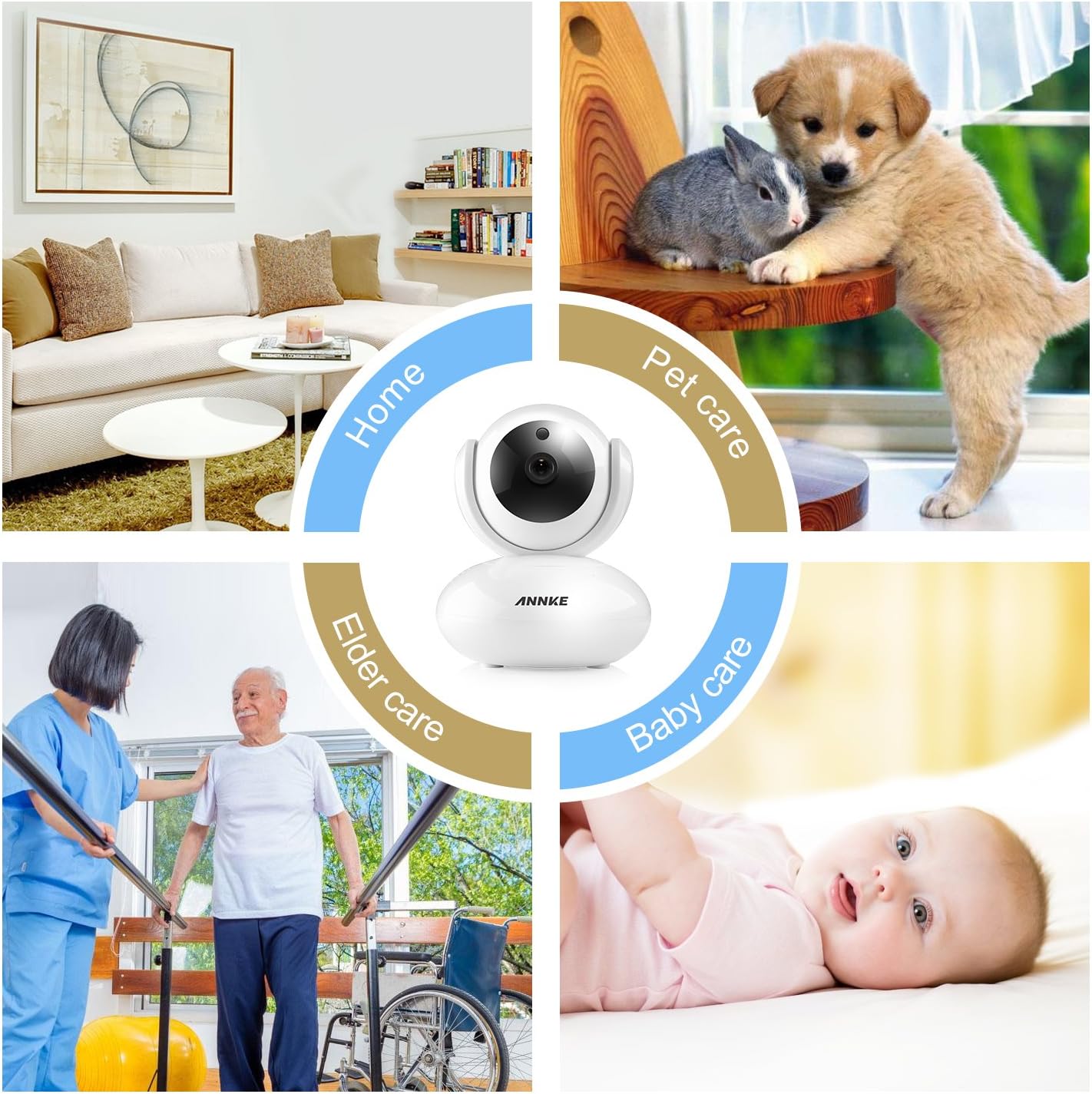
Image 1.2: The camera is suitable for various indoor applications including home security, pet monitoring, elder care, and baby monitoring.
2. Packungsinhalt
Bitte prüfen Sie, ob alle unten aufgeführten Artikel in Ihrem Paket enthalten sind. Sollten Artikel fehlen oder beschädigt sein, kontaktieren Sie bitte unseren Kundenservice.
- 1x Drahtlose Sicherheitskamera
- 1x Benutzerhandbuch
- 1x Netzteil
- 1x CD Software
- 1x Befestigungsschrauben
- 1x Drill Template Sticker
- 1x Ethernet-Kabel
- 1x Montagehalterung
3. Produktmerkmale
- 1080P HD-Video: Experience clear video quality with smooth on-screen movements.
- Schwenk- und Neigefunktion: The camera offers 350° horizontal pan and 100° vertical tilt for a wide monitoring area, eliminating blind spots.
- Zweiwege-Audio: Built-in microphone and speaker with noise reduction allow for clear communication.
- Nachtsicht: Automatic night vision with IR LEDs provides clear visibility up to 33ft (10m) in low-light conditions.
- Motion Detection & Push Alerts: Receive instant alarm push notifications with snapshots and email alerts when unexpected movements are detected.
- Fernzugriff: Access and control the camera remotely using free desktop and mobile applications for smartphones, tablets, and PCs.
- H.264-Komprimierung: Efficient video compression reduces storage space requirements without significant loss of quality.
- Unterstützung für Micro-SD-Karten: Supports up to 64GB Micro SD card for local video storage, useful during network interruptions.
- Online-Firmware-Upgrade: The camera automatically detects and allows for firmware upgrades via your smartphone.

Image 3.1: The camera features 350° horizontal rotation and 100° vertical rotation for comprehensive coverage.

Image 3.2: The camera provides clear 1080P video quality during both day and night conditions.

Image 3.3: Smart motion-triggered push notifications keep you informed of detected activity.
4. Installationsanleitung
Follow these steps to set up your ANNKE 1080P Indoor Wireless Security Camera.
4.1 Ersteinrichtung
- Einschalten: Plug in the power adapter to the camera and a power outlet.
- App herunterladen: Download and install the free 'My ANNKE' app from your device's app store (iOS or Android).
- Kontoregistrierung/Anmeldung: Registrieren Sie ein neues Konto oder melden Sie sich an, falls Sie bereits eines besitzen.
- Kamera hinzufügen: In the app, tap the '+' icon to add a new camera. Select 'PTC cameras'.
- QR-Code scannen: Scan the QR code located on the label at the bottom of the camera to obtain its ID and password.

Image 4.1: The camera is designed for quick and straightforward setup without complicated configurations.
4.2 Network Connection (Wireless or Wired)
The camera supports both wireless (Wi-Fi) and wired (Ethernet) connections. Choose the method that best suits your needs.
Video 4.2: This video demonstrates the process of connecting your ANNKE camera to a Wi-Fi network and via an Ethernet cable.
4.2.1 Drahtlose Verbindung
- Ensure your smartphone is connected to a 2.4GHz Wi-Fi network (5GHz Wi-Fi is not supported by the camera).
- In the app, select 'Wireless Connection'.
- Check the camera's indicator lights and confirm they are blinking as instructed by the app.
- Press the reset button on the camera for 1-2 seconds to enter Wi-Fi connection mode. You will hear a voice prompt.
- Input your Wi-Fi password into the app.
- Move your phone close to the camera, ensuring your phone's speaker is turned on. The app will transmit a sound to pair the camera.
- Warten Sie, bis die Kamera eine Verbindung zum Netzwerk hergestellt hat.
- Once connected, change the default password (admin) for security purposes.
- Bearbeiten Sie den Gerätenamen nach Bedarf.
4.2.2 Kabelverbindung
- Connect one end of the provided Ethernet cable to the camera and the other end to your router.
- In the app, after scanning the QR code, select 'Ethernet Connection'.
- Check the camera's indicator lights as prompted by the app.
- Change the default password (admin) for security.
- Choose an available Wi-Fi network for the camera and configure it if you wish to use Wi-Fi after initial wired setup.
- Bearbeiten Sie den Gerätenamen.
- You can now unplug the Ethernet cable if Wi-Fi was configured, or keep it connected for a more stable network connection.

Image 4.3: The camera can be accessed and controlled remotely via free desktop and mobile applications.
5. Bedienungsanleitung
5.1 Live View und Fernbedienung
Once connected, open the 'My ANNKE' app to view lebe footage from your camera. You can control various functions directly from the app.
- Schwenken und kippen: Use the directional controls within the app to remotely adjust the camera's horizontal (pan) and vertical (tilt) viewwinkeln.
- Zweiwege-Audio: Tap the microphone icon in the app to speak through the camera's speaker, and listen to audio from the camera's environment.
- Snapshots and Video Recording: Nehmen Sie Standbilder auf oder zeichnen Sie Videoclips direkt vom Live-Bildschirm auf. view Schnittstelle.
- HD/SD Quality: Switch between High Definition (HD) and Standard Definition (SD) video quality based on your network conditions.
5.2 Einstellungen zur Bewegungserkennung
Konfigurieren Sie die Bewegungserkennung so, dass Benachrichtigungen bei Aktivitäten im Kamerabereich empfangen werden. view.
- Navigate to the camera settings within the 'My ANNKE' app.
- Locate the 'Motion Detection' or 'Alarm Settings' section.
- Aktivieren Sie die Bewegungserkennung und passen Sie die Empfindlichkeitsstufen nach Bedarf an.
- Set up notification preferences, such as push alerts to your phone or email alerts.
5.3 Micro-SD-Kartenaufzeichnung
Um Videos aufzunehmen footage locally, insert a Micro SD card (up to 64GB, not included) into the camera's designated slot. The camera will automatically begin recording based on your settings (e.g., continuous recording, motion-triggered recording).
6. Wartung
- Firmware-Updates: The camera app will notify you of available firmware updates. It is recommended to keep your camera's firmware updated for optimal performance and security. Follow the in-app instructions to perform updates.
- Reinigung: Reinigen Sie Objektiv und Gehäuse der Kamera vorsichtig mit einem weichen, trockenen Tuch. Vermeiden Sie die Verwendung von scharfen Chemikalien oder scheuernden Materialien.
- Platzierung: Stellen Sie sicher, dass die Kamera in einer stabilen, trockenen Innenumgebung aufgestellt wird, fern von direkter Sonneneinstrahlung, Wärmequellen und übermäßiger Feuchtigkeit.
7. Fehlerbehebung
Sollten Sie Probleme mit Ihrer Kamera haben, beachten Sie bitte die folgenden gängigen Lösungsansätze:
- Kamera stellt keine Verbindung zum WLAN her:
- Ensure your Wi-Fi network is 2.4GHz. The camera is not compatible with 5GHz Wi-Fi connections.
- Überprüfen Sie, ob Ihr WLAN-Passwort korrekt ist.
- Try pairing the camera via a wired Ethernet connection first, then configure Wi-Fi through the app.
- Stellen Sie sicher, dass Ihr Telefon während der Einrichtung mit demselben 2.4-GHz-WLAN-Netzwerk verbunden ist.
- Reset the camera by pressing the reset button for 1-2 seconds and try the setup process again.
- Intermittent Signal or Connection Breaks:
- Inspect your router status and ensure it is functioning correctly.
- Check the network range and signal strength where the camera is placed. Move the camera closer to the router or consider a Wi-Fi extender.
- If possible, use an Ethernet cable for a more stable connection.
- Keine Videoaufzeichnung:
- Ensure a Micro SD card (max 64GB) is properly inserted into the camera.
- Check the recording settings in the app to confirm continuous or motion-triggered recording is enabled.
- Format the SD card through the app if it's a new card or if you're experiencing issues.
- Schlechte Bildqualität:
- Stellen Sie sicher, dass die Kameralinse sauber und frei von Staub und Fingerabdrücken ist.
- Check your network bandwidth. A stable and sufficient internet connection is required for optimal 1080P streaming.
- Switch to HD quality in the app if it's currently set to SD.
8. Technische Daten
| Spezifikation | Detail |
|---|---|
| Modellname | I41CJ-OP |
| Artikelmodellnummer | 41CJ |
| Verwendung im Innen- und Außenbereich | Innenbereich |
| Auflösung der Videoaufnahme | 1080p |
| Effektive Videoauflösung | 1080 Pixel |
| Konnektivitätstechnologie | Drahtlos (Wi-Fi), Kabelgebunden (Ethernet) |
| Drahtlose Kommunikationstechnologie | WLAN (nur 2.4 GHz) |
| Schwenk-/Neigebereich | 350° horizontaler Schwenkbereich, 100° vertikale Neigung |
| Nachtsichtbereich | 33 Fuß (10 m) |
| Speicherunterstützung | Micro-SD-Karte (bis zu 64 GB) |
| Kontrollmethode | App |
| Kompatible Geräte | Desktop, Smartphone, Tablet |
| Technische Daten | 4.7 x 3.6 x 4 Zoll (119.4 x 91.4 x 101.6 mm) |
| Artikelgewicht | 1.21 Pfund (0.55 kg) |
| Montagetyp | Wandhalterung |
| Farbe | Weiß |
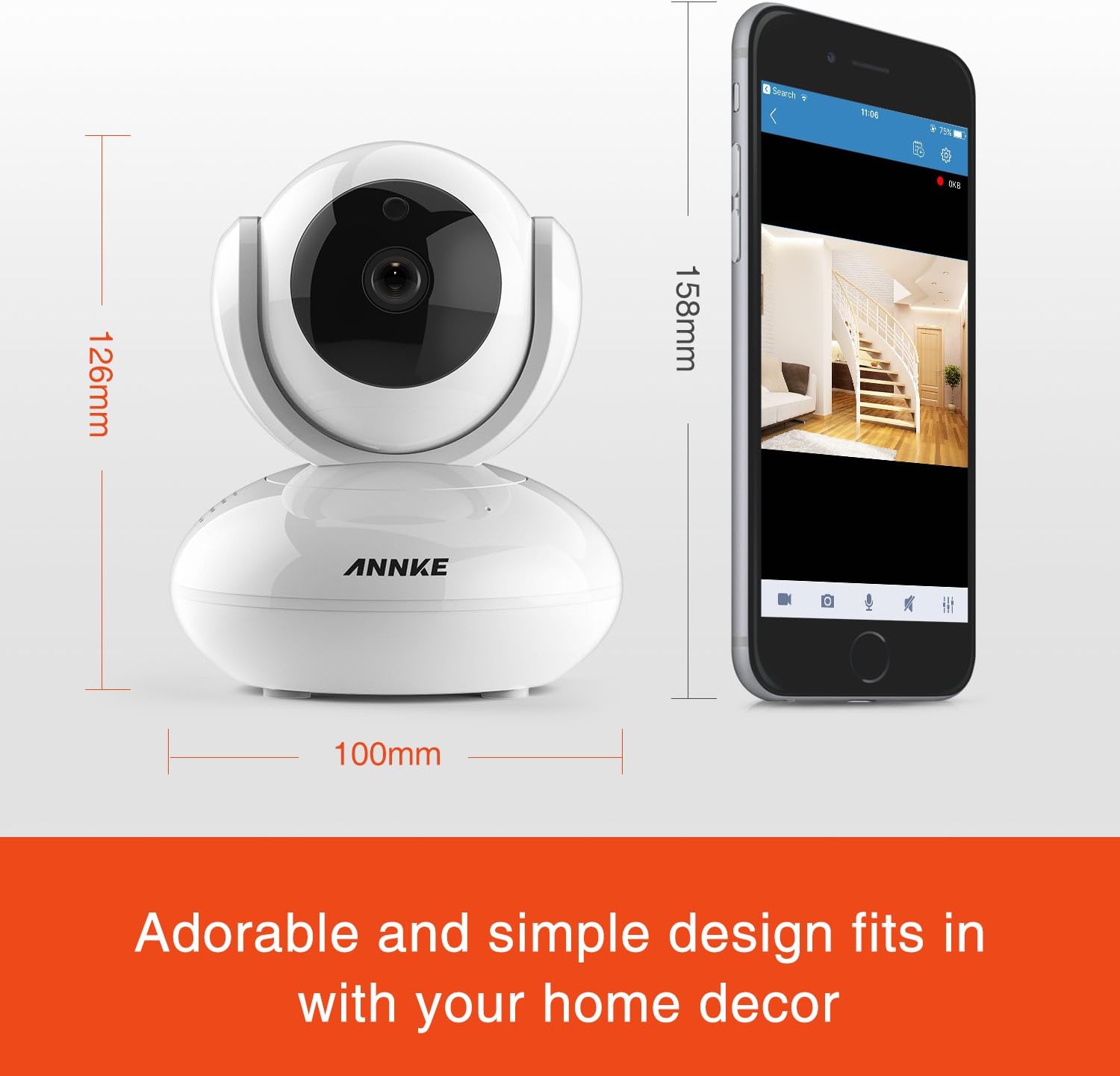
Image 8.1: Detailed dimensions of the ANNKE 1080P Indoor Wireless Security Camera.
9. Kundendienst
For technical assistance, warranty information, or any other inquiries, please contact ANNKE customer service:

Image 9.1: ANNKE Customer Service contact details.
- E-Mail: support@annke.com
- Facebook: @annke.system
- US Number: 404-620-4370 (EST 07:00-11:00 and 20:00-24:00)