
1. Einleitung
This manual provides instructions for the ROCCAT KONE Aimo Gaming Mouse. The KONE Aimo features an Owl-Eye Optical Sensor, customizable RGB AIMO LED illumination, and 23 programmable keys. It is designed for precision and ergonomic comfort during extended use.
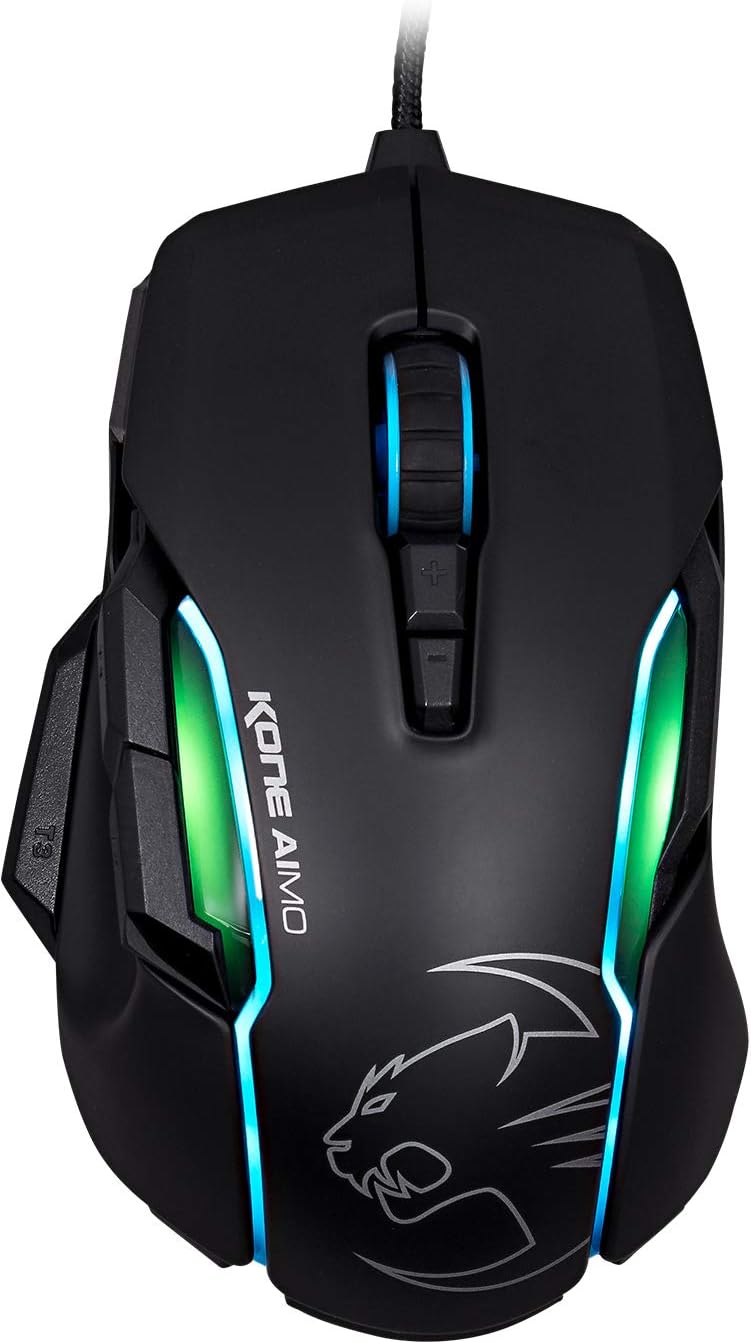
Abbildung 1: Oben view of the ROCCAT KONE Aimo Gaming Mouse, showcasing its ergonomic shape and RGB lighting zones.
2. Packungsinhalt
Überprüfen Sie, ob alle Artikel im Paket vorhanden sind:
- KONE AIMO Mouse with Attached Braided USB Cable
- Kurzanleitung
- ROCCAT-Aufkleber

Figure 2: Retail packaging of the ROCCAT KONE Aimo Gaming Mouse.
3. Einrichtung
- Schließen Sie die Maus an: Plug the USB cable of the ROCCAT KONE Aimo mouse into an available USB port on your computer.
- Treiberinstallation: Your operating system (Windows 7, 8, 8.1, 10) should automatically detect and install the necessary drivers.
- Installieren Sie die ROCCAT Swarm-Software: For full customization of DPI settings, button assignments, and AIMO lighting, download and install the ROCCAT Swarm software from the official ROCCAT website. This software allows you to create and manage profiles.

Figure 3: The ROCCAT KONE Aimo mouse in use on a mouse pad, connected to a computer.
4. Bedienungsanleitung
4.1. Tastenfunktionen
The KONE Aimo features 23 programmable keys, including a tri-button thumb zone and a 4D tilting Titan wheel. These can be customized via the ROCCAT Swarm software.
- Links-/Rechtsklick: Standard-Mausfunktionen.
- Scroll Wheel (4D Titan Wheel): Scrolls vertically and can tilt horizontally for additional functions. Also acts as a clickable button.
- DPI-Einstelltasten: Located above and below the scroll wheel, these buttons allow for on-the-fly DPI sensitivity changes. Settings are configured in the Swarm software.
- Thumb Buttons (T1, T2, T3): Three buttons located on the left side, easily accessible by the thumb. The bottom-most button (T3) is often defaulted to the Easy-Shift[+] function.
- Easy-Shift[+]-Taste: This exclusive ROCCAT feature doubles the number of programmable functions for other buttons when held down, effectively expanding the total programmable keys.

Abbildung 4: Ausführlich view of the programmable thumb buttons (T1, T2, T3) on the left side of the mouse.
4.2. AIMO Lighting System
The AIMO lighting system provides intelligent, reactive RGB illumination across four independently configurable LED light zones and the glowing mouse wheel. It can synchronize with other compatible ROCCAT devices and is programmable through the ROCCAT Swarm software.

Figure 5: The KONE Aimo mouse displaying its multi-zone RGB AIMO illumination.
4.3. Owl-Eye Optical Sensor
The mouse is equipped with the ROCCAT Owl-Eye Optical Sensor, a modified PixArt 3361 sensor, offering adjustable DPI from 100 to 12,000. This sensor provides precise tracking and responsiveness. A built-in tracking distance control unit monitors the lift-off distance for enhanced accuracy.

Figure 6: The bottom of the mouse, highlighting the Owl-Eye Optical Sensor.
4.4. Ergonomie
The KONE Aimo features refined ergonomics designed for comfort during extended use. Its shape provides a natural fit for the hand, with a dedicated thumb rest area.

Figure 7: A hand gripping the KONE Aimo mouse, illustrating its ergonomic design.
5. Wartung
- Reinigung: Reinigen Sie die Mausoberfläche mit einem weichen, trockenen Tuch. Bei hartnäckigem Schmutz kann ein leicht trocknendes Tuch hilfreich sein.amp Es kann ein Tuch verwendet werden, um sicherzustellen, dass keine Feuchtigkeit in die inneren Bauteile eindringt.
- Sensorpflege: Keep the optical sensor on the underside of the mouse clean and free of dust or debris to ensure optimal tracking performance.
- Kabelmanagement: Um Beschädigungen zu vermeiden, sollten Sie scharfe Knicke oder übermäßiges Ziehen am geflochtenen USB-Kabel verhindern.
6. Fehlerbehebung
- Maus reagiert nicht:
- Stellen Sie sicher, dass das USB-Kabel fest an einen funktionierenden USB-Anschluss angeschlossen ist.
- Try a different USB port or another computer to rule out port or system issues.
- Starten Sie Ihren Computer neu.
- Tracking Issues / Inaccurate Movement:
- Reinigen Sie den optischen Sensor an der Unterseite der Maus.
- Stellen Sie sicher, dass Sie die Maus auf einem sauberen, geeigneten Mauspad oder einer geeigneten Oberfläche verwenden.
- Check DPI settings in the ROCCAT Swarm software.
- RGB-Beleuchtung funktioniert nicht / fehlerhaft:
- Vergewissern Sie sich, dass die ROCCAT Swarm-Software ausgeführt wird und auf dem neuesten Stand ist.
- Überprüfen Sie die Beleuchtungseinstellungen in der Swarm-Software.
- Stellen Sie sicher, dass keine andere Software die RGB-Beleuchtung steuert.
- Tasten funktionieren nicht:
- Überprüfen Sie die Tastenbelegungen in der ROCCAT Swarm-Software.
- Ensure the software is not experiencing issues (try restarting it).
7. Spezifikationen
| Besonderheit | Detail |
|---|---|
| Marke | ROCCAT |
| Modellnummer | ROC-11-815-BK |
| Sensor | Owl-Eye Optical Sensor (modified PixArt 3361) |
| DPI-Bereich | 100 bis 12,000 DPI |
| Programmierbare Tasten | 23 (mit Easy-Shift[+]) |
| Beleuchtung | RGBA AIMO LED Illumination (4 independent zones + scroll wheel) |
| Konnektivität | USB (kabelgebunden) |
| Betriebssystemkompatibilität | Windows 7, Windows 8, Windows 8.1, Windows 10 (32-bit and 64-bit versions) |
| Artikelgewicht | 11.2 Unzen (ca. 317.5 Gramm) |
| Produktabmessungen (L x B x H) | 5.12 x 2.95 x 1.57 Zoll (ungefähr 13 x 7.5 x 4 cm) |
8. Garantie und Support
For warranty information, technical support, and additional resources, please visit the official ROCCAT webBesuchen Sie unsere Website oder kontaktieren Sie den ROCCAT-Kundendienst. Bewahren Sie Ihren Kaufbeleg für Garantieansprüche auf.
Besuchen Sie auch die ROCCAT Store auf Amazon für weitere Produktinformationen.