
1. Einleitung
The Rocketek TFU3R is a compact and portable USB 3.0 card reader designed for Micro SD (TF) cards. It allows for high-speed data transfer between your Micro SD card and USB-enabled devices such as laptops and tablets. This device supports plug-and-play functionality and hot-swapping, making it convenient for various applications.
Hauptmerkmale:
- Klein und tragbar: Designed for easy portability, fitting conveniently in a wallet or pocket.
- Plug-and-Play: Für die meisten Betriebssysteme werden keine Treiber benötigt.
- Hot-Swapping: Allows insertion and removal of the device without restarting the computer.
- Stromversorgung über USB: Funktioniert ohne externe Stromversorgung oder Batterien.
- SuperSpeed USB 3.0: Offers data transfer speeds up to 5 Gbps, backward compatible with USB 2.0/1.1.
- Langlebiges Design: Constructed with an aluminum case for enhanced durability and efficient heat dissipation.
2. Einrichtungsanweisungen
Follow these steps to set up and begin using your Rocketek TFU3R Micro SD Card Reader.
2.1 Einlegen der Micro-SD-Karte
- Locate the Micro SD card slot on the Rocketek TFU3R card reader.
- Gently insert your Micro SD (TF) card into the slot until it clicks into place. Ensure the card is oriented correctly to avoid damage.
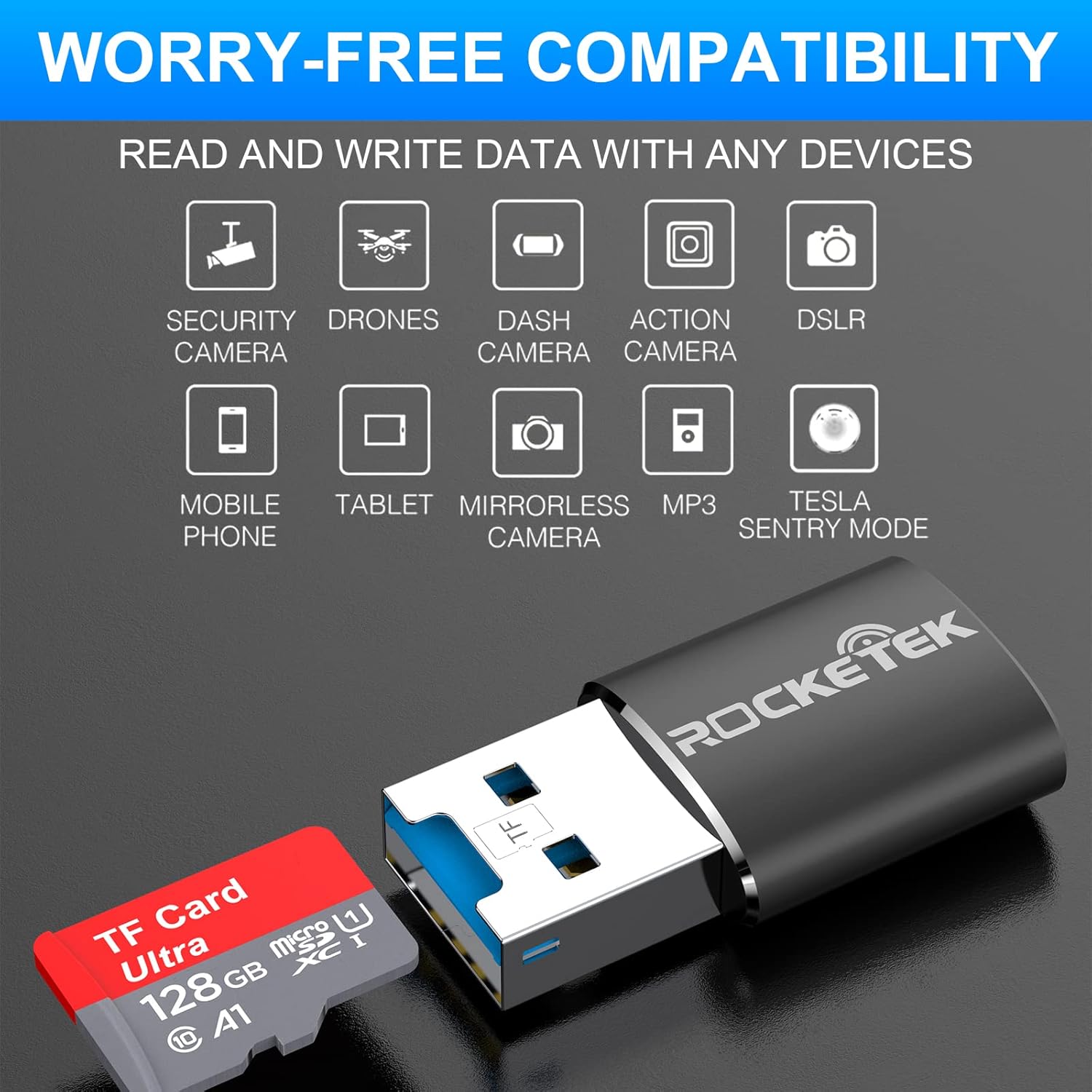
Image: Hands inserting a Micro SD card into the Rocketek TFU3R USB 3.0 card reader.
2.2 Verbindung zu Ihrem Gerät herstellen
- Locate an available USB 3.0 or USB 2.0 port on your computer, laptop, or tablet.
- Plug the Rocketek TFU3R card reader, with the Micro SD card inserted, into the USB port.
- The device is plug-and-play; your operating system should automatically detect it and install any necessary generic drivers.
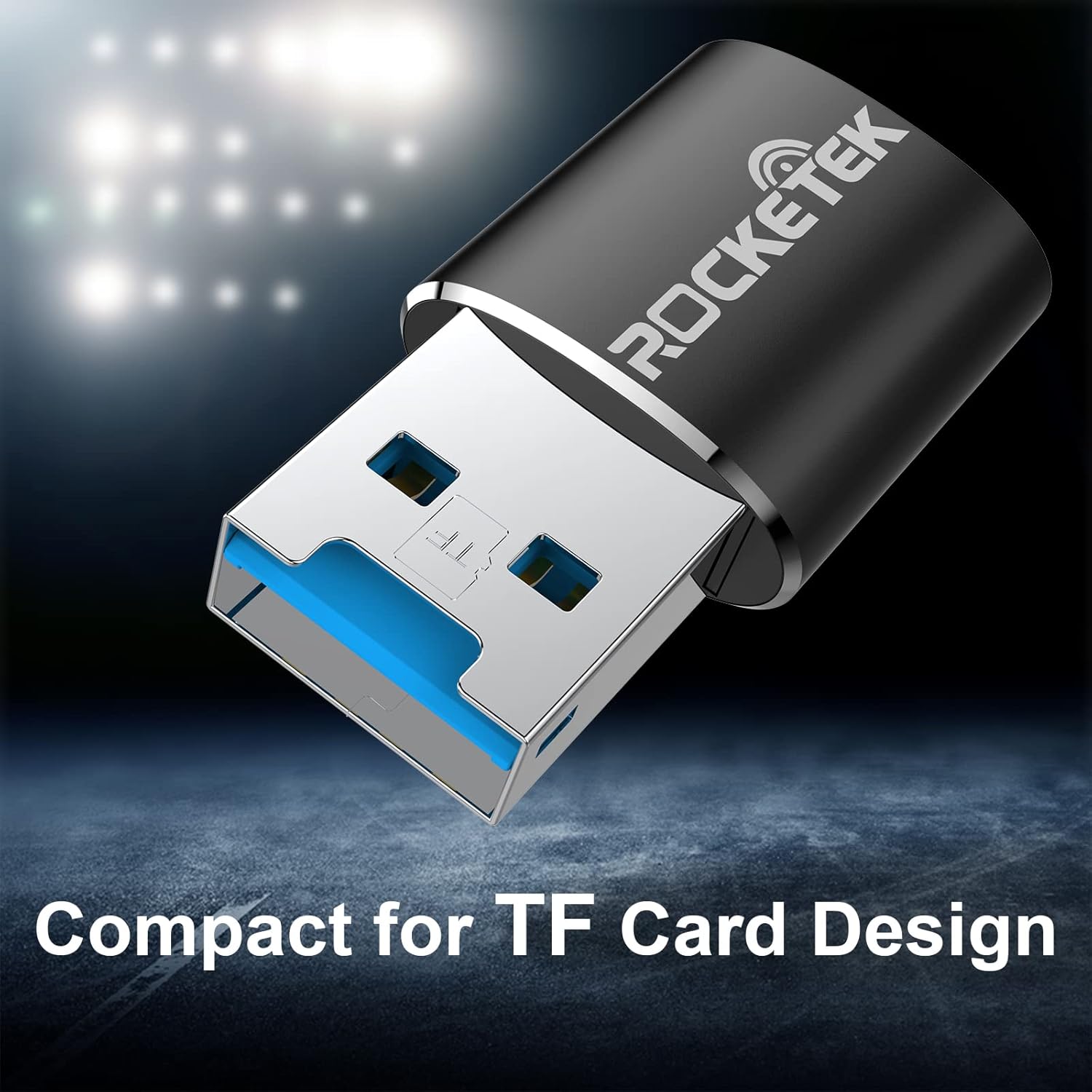
Image: Rocketek TFU3R USB 3.0 card reader plugged into a laptop's USB port, displaying 'Plug & Play'.
Video: A short demonstration showing how to insert a TF card into the Rocketek reader and connect it to a laptop for immediate use, highlighting its portability and plug-and-play functionality.
3. Bedienungsanleitung
Once connected, the Rocketek TFU3R functions like any standard external storage device.
3.1 Datenübertragung
- After connecting the card reader to your device, open your computer's file Explorer (Windows) oder Finder (Mac OS).
- The Micro SD card will appear as a removable drive.
- Sie können jetzt per Drag & Drop files to and from the Micro SD card, or use copy/paste functions to transfer data.
- The USB 3.0 interface provides SuperSpeed data transfer up to 5 Gbps, ensuring quick transfers of large files.
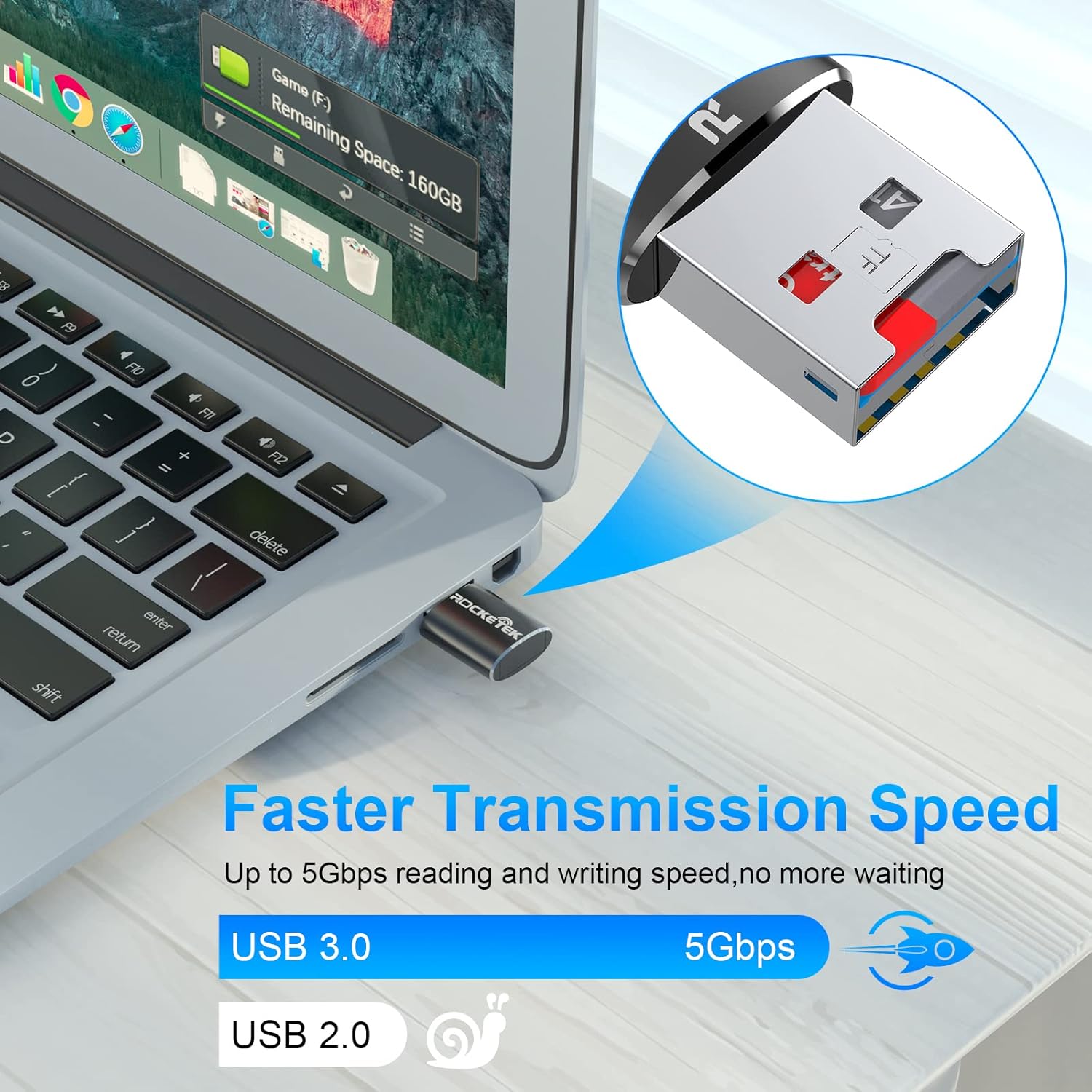
Image: Laptop screen showing file transfer with the Rocketek TFU3R plugged in, indicating 'Faster Transmission Speed' and 'USB 3.0 5Gbps'.
3.2 Sichere Entfernung
To prevent data corruption, always safely remove the card reader before unplugging it from your computer.
- Windows: Right-click on the drive icon in 'This PC' or the taskbar's 'Safely Remove Hardware' icon, then select 'Eject'.
- Mac OS: Drag the drive icon to the Trash or click the Eject button next to the drive name in Finder.
4. Kompatibilität
The Rocketek TFU3R card reader offers broad compatibility with various devices and operating systems.
4.1 unterstützte Geräte
- Laptops
- Tablets
- Desktop-Computer
- Other USB-enabled devices

Image: Diagram illustrating the Rocketek TFU3R's compatibility with tablets and laptops, showing a Micro SD card being inserted.
4.2 Unterstützte Betriebssysteme
- Windows 7 / 8 / 8.1 / 10+
- Mac OS
- Linux

Image: The Rocketek TFU3R is compatible with a wide range of devices, including security cameras, drones, dash cameras, action cameras, DSLRs, mobile phones, tablets, mirrorless cameras, MP3 players, and for Tesla Sentry Mode.
5. Spezifikationen
| Besonderheit | Detail |
|---|---|
| Modellnummer | TFU3R (RT-TFU3R-B) |
| Marke | Rocketek |
| Medientyp | Micro-SD-Karte (TF) |
| Konnektivitätstechnologie | USB |
| Hardware-Schnittstelle | USB 3.0 (abwärtskompatibel mit USB 2.0/1.1) |
| Datenübertragungsrate | Bis zu 5 Gigabit pro Sekunde (USB 3.0) |
| Slot Count | 1 (for Micro SD/TF cards) |
| Besonderheit | Portable, Plug & Play, Hot Swapping |
| Material | Aluminiumgehäuse |
| Betriebssystemkompatibilität | Windows 7/8/8.1/10+, Mac OS, Linux |
6. Fehlerbehebung
If you encounter issues with your Rocketek TFU3R, refer to the following common troubleshooting steps.
6.1 Gerät nicht erkannt
- Verbindung prüfen: Stellen Sie sicher, dass der Kartenleser vollständig in den USB-Anschluss eingesteckt ist.
- Versuchen Sie es mit einem anderen USB-Anschluss: Connect the card reader to a different USB port on your computer.
- Versuchen Sie es mit einem anderen Gerät: Test the card reader on another computer or compatible device to rule out a port issue.
- Check Micro SD Card: Ensure the Micro SD card is properly inserted into the card reader and is not damaged. Test the Micro SD card in another device if possible.
- Starte den Computer neu: Manchmal kann ein einfacher Neustart Erkennungsprobleme beheben.
6.2 Langsame Datenübertragungsgeschwindigkeit
- Verwenden Sie den USB 3.0-Anschluss: For optimal speeds (up to 5 Gbps), ensure the card reader is plugged into a USB 3.0 port (often identified by a blue interior). Connecting to a USB 2.0 port will result in slower speeds.
- Check Micro SD Card Speed Class: The actual transfer speed is also limited by the speed class of your Micro SD card. Use a high-speed card for better performance.
- Vermeiden Sie andere USB-Geräte: Disconnect other high-bandwidth USB devices if you are experiencing unusually slow speeds.
6.3 Karte wird nicht gelesen
- Karte wieder einlegen: Remove and reinsert the Micro SD card, ensuring it is seated correctly.
- Kontakte reinigen: Gently clean the metal contacts on the Micro SD card with a soft, dry cloth.
- Check Card Format: Ensure the Micro SD card is formatted in a file system compatible with your operating system (e.g., FAT32, exFAT, NTFS).
7. Wartung
Proper care and maintenance will extend the lifespan of your Rocketek TFU3R card reader.
- Trocken halten: Vermeiden Sie, das Gerät Feuchtigkeit oder Flüssigkeiten auszusetzen.
- Sanft reinigen: Reinigen Sie die Außenseite mit einem weichen, trockenen Tuch. Verwenden Sie keine scharfen Chemikalien oder Scheuermittel.
- Richtig lagern: Bewahren Sie das Kartenlesegerät bei Nichtgebrauch an einem kühlen, trockenen Ort fern von direkter Sonneneinstrahlung und extremen Temperaturen auf.
- Vorsichtig handhaben: Lassen Sie das Gerät nicht fallen und setzen Sie es keinen starken Stößen aus.
8. Garantie und Support
Rocketek stands behind the quality of its products.
8.1 Garantieinformationen
The Rocketek TFU3R USB 3.0 Micro SD Card Reader comes with a hassle-free 24-month warranty Diese Garantie gilt ab Kaufdatum und deckt Herstellungsfehler ab. Sie gewährleistet zudem eine zuverlässige Funktion bei normalem Gebrauch. Bitte bewahren Sie Ihren Kaufbeleg für Garantieansprüche auf.
8.2 Kundendienst
For technical assistance, warranty claims, or any questions regarding your Rocketek TFU3R, please contact our customer support team:
- E-Mail: support@rocketek.com (Examp(Bitte beachten Sie die E-Mail-Adresse und die Angaben auf der Produktverpackung für die tatsächlichen Kontaktdaten.)
- WebWebsite: Visit the official Rocketek webWebsite mit häufig gestellten Fragen und weiterführenden Informationen.