
1. Einleitung
This manual provides comprehensive instructions for the installation, operation, and maintenance of the Chieftec CI-01B-OP mATX Chasis. This chassis is designed for micro-ATX systems, offering a compact yet versatile solution for PC builders. Please read this manual thoroughly before beginning any installation.

This image displays the Chieftec CI-01B-OP mATX Chasis from a front-side angle, highlighting its black finish and honeycomb mesh front panel design.
2. Packungsinhalt
Please verify that all items listed below are present in your package before proceeding with installation. If any items are missing or damaged, contact your retailer.
- Chieftec CI-01B-OP mATX Chasis
- Satz Befestigungsschrauben
- Staubfilter
- HDD rails
- Montageanleitung (diese Anleitung)
3. Hauptmerkmale
The Chieftec CI-01B-OP mATX Chasis offers several features designed for ease of use and performance:
- Formfaktor: Compact mATX cube design.
- Vorderseite: Honeycomb stamped mesh for optimized airflow.
- E/A-Anschlüsse vorne: 2x USB 3.0, 1x USB 2.0, Mic-in, Audio-out (AZALIA / HD-Audio).
- Laufwerksschächte: 1x 5.25" external, 2x 3.5" internal, 3x 2.5" internal.
- VGA Card Support: Maximale Länge 320 mm.
- CPU Cooler Support: Maximale Höhe von 150 mm.
- Material: Durable 0.6mm thick metal construction.

This image shows a close-up of the top panel of the chassis, detailing the integrated USB 3.0, USB 2.0, microphone, and audio ports.
4. Einrichtung und Installation
Follow these steps for proper component installation. Ensure the system is powered off and unplugged from the wall outlet before beginning any installation to prevent electric shock or damage to components.
4.1. Preparing the Chasis
Remove the side panels and any necessary covers to access the interior. Refer to the chassis diagram for panel removal instructions.
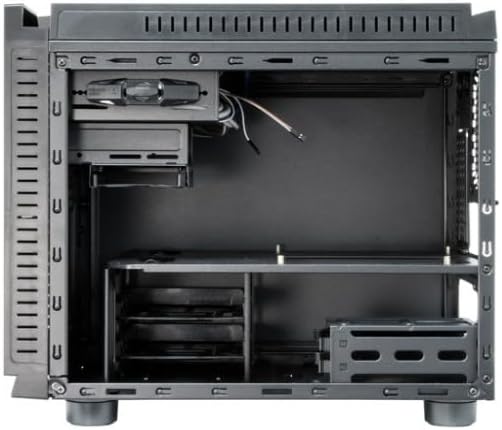
Dieses Bild bietet einen internen Überblick view of the chassis, showing the motherboard tray, drive bays, and general component layout.
4.2. Motherboard-Installation
- Install the I/O shield into the rear opening of the chassis.
- Align your micro-ATX motherboard with the pre-installed standoffs inside the chassis.
- Befestigen Sie das Motherboard mit den mitgelieferten Schrauben. Ziehen Sie die Schrauben nicht zu fest an.
4.3. Installation des Netzteils (PSU)
- Mount the PSU in its designated area, typically at the rear bottom of the chassis.
- Befestigen Sie das Netzteil mit Schrauben von der Rückseite des Gehäuses.
4.4. Laufwerkinstallation
- 3.5"-Festplatten: Attach the provided HDD rails to your 3.5" hard drives and slide them into the internal 3.5" drive bays until they click into place.
- 2.5"-SSDs/HDDs: Secure 2.5" solid-state drives or hard drives into the dedicated 2.5" bays using screws.
- 5.25" ODD: Install 5.25" optical drives into the external bay from the front and secure them with screws or tool-less mechanisms if available.
4.5. Installation der Grafikkarte (VGA).
- Remove the necessary expansion slot covers at the rear of the chassis.
- Insert the graphics card into the appropriate PCIe slot on the motherboard.
- Secure the graphics card with a screw or latch. Ensure the card's length does not exceed 320mm.
4.6. Installation des CPU-Kühlers
Install your CPU cooler according to its manufacturer's instructions. Ensure the cooler's height does not exceed 150mm to allow the side panel to close properly.
4.7. Kabelmanagement
Route power and data cables neatly behind the motherboard tray or through designated cutouts. This improves airflow and maintains a clean interior aesthetic.

This image shows the chassis with its top and side panels opened, revealing the internal structure and providing a clear view of the space available for component installation and cable routing.
4.8. Anschließen der Frontplattenkabel
Connect the front panel USB 3.0, USB 2.0, audio, power switch, reset switch, and LED cables to the corresponding headers on your motherboard. Refer to your motherboard manual for specific header locations and pin assignments.
5. Bedienung
Once all components are securely installed and connected, carefully close and secure the chassis panels. Connect the power cable to the PSU and an electrical outlet. Press the power button on the front panel to start your system.
6. Wartung
Regelmäßige Wartung trägt dazu bei, die optimale Leistung und Langlebigkeit Ihres Chassis und seiner Komponenten zu gewährleisten.
- Staubfilter: Periodically clean the dust filters (e.g., front mesh, bottom PSU filter) to maintain good airflow and prevent dust buildup inside the system. Dust can impede cooling efficiency.
- Innenreinigung: Use compressed air to remove dust from internal components and fans. Ensure the system is powered off and unplugged before cleaning. Avoid using liquid cleaners inside the chassis.
- Außenreinigung: Wischen Sie die Außenflächen mit einem weichen, leicht feuchten Tuch ab.amp Tuch. Vermeiden Sie die Verwendung aggressiver Chemikalien oder Scheuermittel, die die Oberfläche beschädigen könnten.
7. Fehlerbehebung
This section addresses common issues you might encounter during or after installation.
- System lässt sich nicht einschalten:
Check all power connections, including the PSU to the wall outlet, the 24-pin ATX power cable and 8-pin CPU power cable from the PSU to the motherboard, and the front panel power switch cable to the motherboard header. Ensure the PSU switch is in the 'ON' position.
- Keine Bildausgabe:
Ensure the graphics card is properly seated in its PCIe slot and connected to auxiliary power (if required). Verify the monitor cable is securely connected to the graphics card and the monitor is powered on and set to the correct input.
- Die Lüfter drehen sich nicht:
Check all fan connections to the motherboard or any fan controller. Ensure power cables are properly connected to the fans.
- Front USB ports not working:
Verify that the front panel USB cables (USB 3.0 and USB 2.0) are correctly connected to the corresponding USB headers on your motherboard.
8. Technische Daten
| Besonderheit | Spezifikation |
|---|---|
| Modellname | CI-01B-OP |
| Formfaktor | mATX Cube |
| Abmessungen (LxBxH) | 15.75 x 18.11 x 12.99 Zoll (400 x 460 x 330 mm) |
| Artikelgewicht | 11.22 Pfund (5.1 kg) |
| Material | Metal (0.6mm thick) |
| Farbe | Schwarz |
| Externe Laufwerksschächte | 1x 5.25" |
| Interne Laufwerksschächte | 2x 3.5", 3x 2.5" |
| Front I / O Ports | 2x USB 3.0, 1x USB 2.0, Mic-in, Audio-out |
| Motherboard-Kompatibilität | Micro ATX |
| Maximale VGA-Kartenlänge | 320 mm |
| Maximale Höhe des CPU-Kühlers | 150 mm |
| Montage des Netzteils | Hintere Halterung |
| Kühlmethode | Luft |
9. Garantie und Support
For detailed warranty information, technical support, or service inquiries, please refer to the official Chieftec webBesuchen Sie unsere Website oder wenden Sie sich an Ihren Händler vor Ort, bei dem Sie das Produkt gekauft haben. Bitte bewahren Sie Ihren Kaufbeleg für eventuelle Garantieansprüche auf.
Official Chieftec WebWebsite: https://www.chieftec.eu