1. Einleitung
The Mindeo MD61XX MD6100AT is a high-performance 2D camera barcode scanner designed for versatile data capture. This device is capable of reading all major 1D and 2D barcode symbols, including those displayed on electronic screens, and offers flexible scanning modes.
This manual provides essential information for setting up, operating, maintaining, and troubleshooting your Mindeo MD61XX MD6100AT barcode scanner.
2. Einrichtung
2.1 Auspacken und erste Inspektion
Carefully remove all components from the packaging. Verify that all items are present and undamaged. The package should typically include the Mindeo MD61XX MD6100AT scanner and its connecting cable.
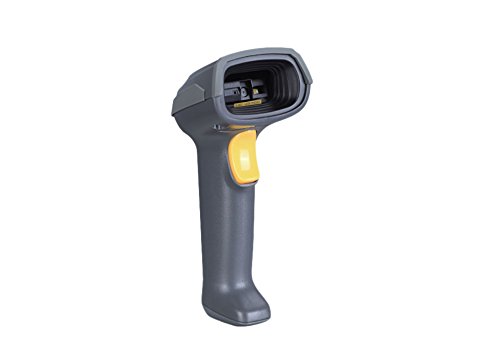
Figure 2.1: Mindeo MD61XX MD6100AT Handheld Barcode Scanner. This image shows the ergonomic design of the scanner with its trigger button.
2.2 Anschließen des Scanners
The MD61XX MD6100AT scanner typically connects via USB. Locate the USB cable provided with your scanner. Insert the smaller end of the cable into the port at the base of the scanner handle. Insert the larger USB-A end into an available USB port on your computer or POS system.
The scanner is designed for plug-and-play operation, meaning drivers are usually installed automatically by your operating system. A successful connection is often indicated by a short beep from the scanner and/or an indicator light turning on.
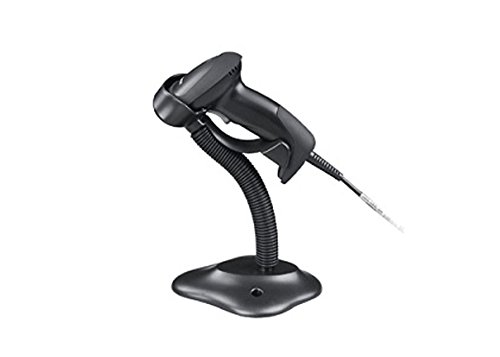
Figure 2.2: Mindeo MD61XX MD6100AT Barcode Scanner with its optional stand. The stand allows for hands-free operation in presentation mode.
3. Bedienungsanleitung
3.1 Scan-Modi
The Mindeo MD61XX MD6100AT supports two primary scanning modes:
- Handheld-Modus: Press and hold the trigger button to activate the scanner. Release the button to stop scanning. This mode is ideal for scanning individual items.
- Presentation Mode (Automatic): When placed in its stand (if applicable) or positioned for continuous scanning, the scanner can automatically detect and scan barcodes presented within its field of view ohne den Abzug betätigen zu müssen.
3.2 Scannen von Barcodes
So scannen Sie einen Barcode:
- Stellen Sie sicher, dass der Scanner angeschlossen und eingeschaltet ist.
- Richten Sie das Scannerfenster auf den Barcode, den Sie scannen möchten.
- In handheld mode, press the trigger button. In presentation mode, simply present the barcode to the scanner.
- Position the barcode within the scanner's aiming pattern. The scanner features omnidirectional scanning, allowing it to read barcodes from various angles.
- A successful scan is typically indicated by a short beep and/or a green indicator light. The scanned data will be transmitted to your connected device.
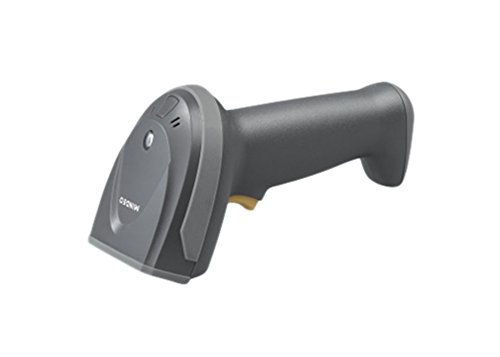
Abbildung 3.1: Seite view of the Mindeo MD61XX MD6100AT Barcode Scanner, highlighting its ergonomic grip.
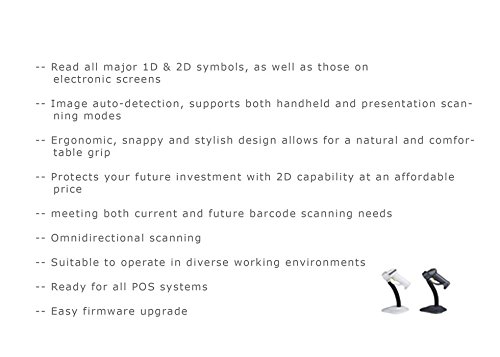
Abbildung 3.2: Vorderseite view of the Mindeo MD61XX MD6100AT Barcode Scanner, showing the scanning window.
3.3 Scanning from Electronic Screens
The MD61XX MD6100AT is capable of reading barcodes directly from smartphone screens, tablet displays, and computer monitors. Ensure the screen brightness is sufficient and avoid glare for optimal scanning performance.
4. Wartung
4.1 Reinigung des Scanners
Um eine optimale Scanleistung zu gewährleisten, halten Sie das Scannerfenster sauber. Verwenden Sie dazu ein weiches, fusselfreies Tuch.ampened with water or a mild, non-abrasive cleaning solution. Do not use harsh chemicals or abrasive materials, as these can damage the scanning window.
4.2 Speicherung
When not in use, store the scanner in a clean, dry environment away from extreme temperatures, direct sunlight, and corrosive materials. If using a stand, ensure the scanner is securely placed.
4.3 Firmware-Aktualisierung
The Mindeo MD61XX MD6100AT supports easy firmware upgrades to ensure compatibility with future systems and to enhance performance. Refer to the official Mindeo website or contact technical support for instructions and available firmware updates.
5. Fehlerbehebung
| Problem | Mögliche Ursache | Lösung |
|---|---|---|
| Der Scanner lässt sich nicht einschalten. | Cable not properly connected; USB port issue; power supply issue. | Stellen Sie sicher, dass das USB-Kabel sowohl mit dem Scanner als auch mit dem Host-Gerät fest verbunden ist. Versuchen Sie es mit einem anderen USB-Anschluss oder einem anderen Host-Gerät. |
| Der Scanner liest keine Barcodes. | Barcode damaged or poorly printed; scanner window dirty; incorrect symbology settings; insufficient lighting. | Clean the scanning window. Ensure the barcode is clear and well-lit. Check if the barcode type is supported. Refer to the programming manual for symbology settings. |
| Die gescannten Daten sind fehlerhaft oder unvollständig. | Partial scan; incorrect data formatting settings. | Ensure the entire barcode is within the scanning area. Check data formatting settings in the scanner's programming manual. |
| Scanner beeps continuously. | Error condition; configuration issue. | Consult the scanner's programming manual for error code interpretations. Disconnect and reconnect the scanner. |
If the problem persists after attempting these solutions, please contact Mindeo technical support for further assistance.
6. Spezifikationen
| Besonderheit | Detail |
|---|---|
| Modell | MD61XX MD6100AT |
| Marke | Mindeo |
| Scanfähigkeit | 1D and 2D barcodes, including those on electronic screens |
| Scanmodi | Handheld, Presentation (Image auto-detection) |
| Konnektivität | USB (RS-232 also mentioned in marketing image, but USB is primary for general use) |
| Omnidirectional Scanning | Ja |
| Artikelgewicht | 220 g |
| Erstes verfügbares Datum | 21. September 2016 |
| Zertifizierungen | FC, CE, RoHS, IP52, GS1 (based on marketing image) |
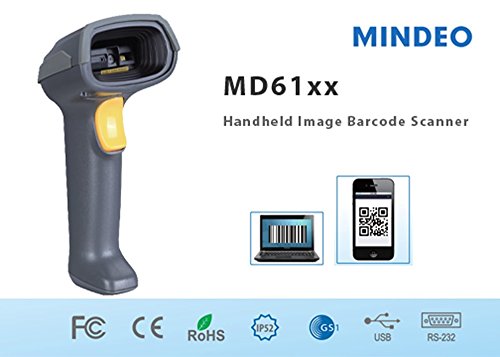
Figure 6.1: Marketing image highlighting key features and certifications (FC, CE, RoHS, IP52, GS1, USB, RS-232) for the Mindeo MD61XX MD6100AT scanner.
7. Garantie und Support
For information regarding product warranty, please refer to the warranty card included with your product or visit the official Mindeo webDie Garantiebedingungen können je nach Region variieren.
For technical support, troubleshooting beyond this manual, or inquiries about firmware updates and accessories, please contact Mindeo customer service or your local distributor. Contact information can typically be found on the Mindeo official webWebsite.
Mindeo Official WebWebsite: www.mindeo.cn (Examp(der tatsächliche Link kann abweichen)