
1. Einleitung
The UGREEN 2-in-1 Flash Drive (Model 30647) is designed to provide convenient external storage and facilitate data transfer between your iOS devices (iPhone, iPad, iPod) and computers (Mac, PC). This manual provides essential instructions for its proper setup, operation, maintenance, and troubleshooting.
2. Produktüberschreitungview
The UGREEN Flash Drive features a dual-interface design, combining a Lightning connector for Apple devices and a USB-A connector for computers. This allows for seamless data exchange without the need for cables or cloud services.

Image: The UGREEN 2-in-1 Flash Drive showcasing its Lightning connector for iOS devices and USB connector for computers, enabling easy data transfer.
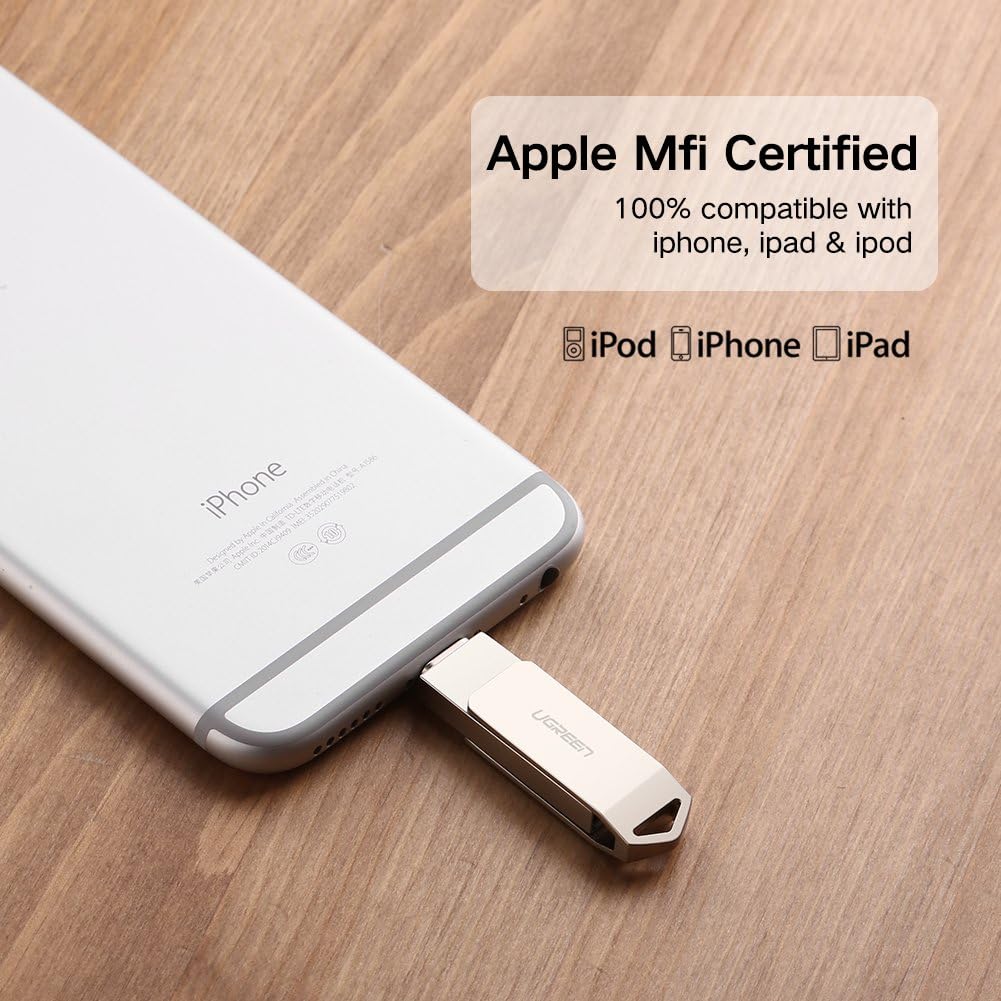
Image: The UGREEN Flash Drive connected to an iPhone, highlighting its Apple MFi certification for guaranteed compatibility with iPhone, iPad, and iPod devices.
3. Einrichtung und Installation
3.1 For iOS Devices (iPhone, iPad, iPod)
- Laden Sie die App herunter: Before connecting the flash drive, download and install the official UGREEN 'Greendisk' application from the Apple App Store. This app is required for the drive to function correctly with your iOS device.
- Schließen Sie das Laufwerk an: Insert the Lightning connector of the UGREEN Flash Drive into your iOS device's Lightning port.
- Starten Sie die App: The 'Greendisk' app should automatically detect the connected drive. If not, open the app manually.
3.2 For Computers (Mac, PC)
- Schließen Sie das Laufwerk an: Insert the USB-A connector of the UGREEN Flash Drive into an available USB port on your Mac or PC.
- Zugang Files: The drive will be recognized as a standard USB storage device. You can access its contents through your computer's file explorer (e.g., Finder on Mac, File Explorer unter Windows).
4. Bedienungsanleitung
4.1 Data Transfer (iOS to Drive)
- Open the 'Greendisk' app on your iOS device.
- Navigieren Sie zum files you wish to transfer (e.g., photos, videos, documents).
- Wählen Sie die files and choose the option to copy or move them to the UGREEN Flash Drive.
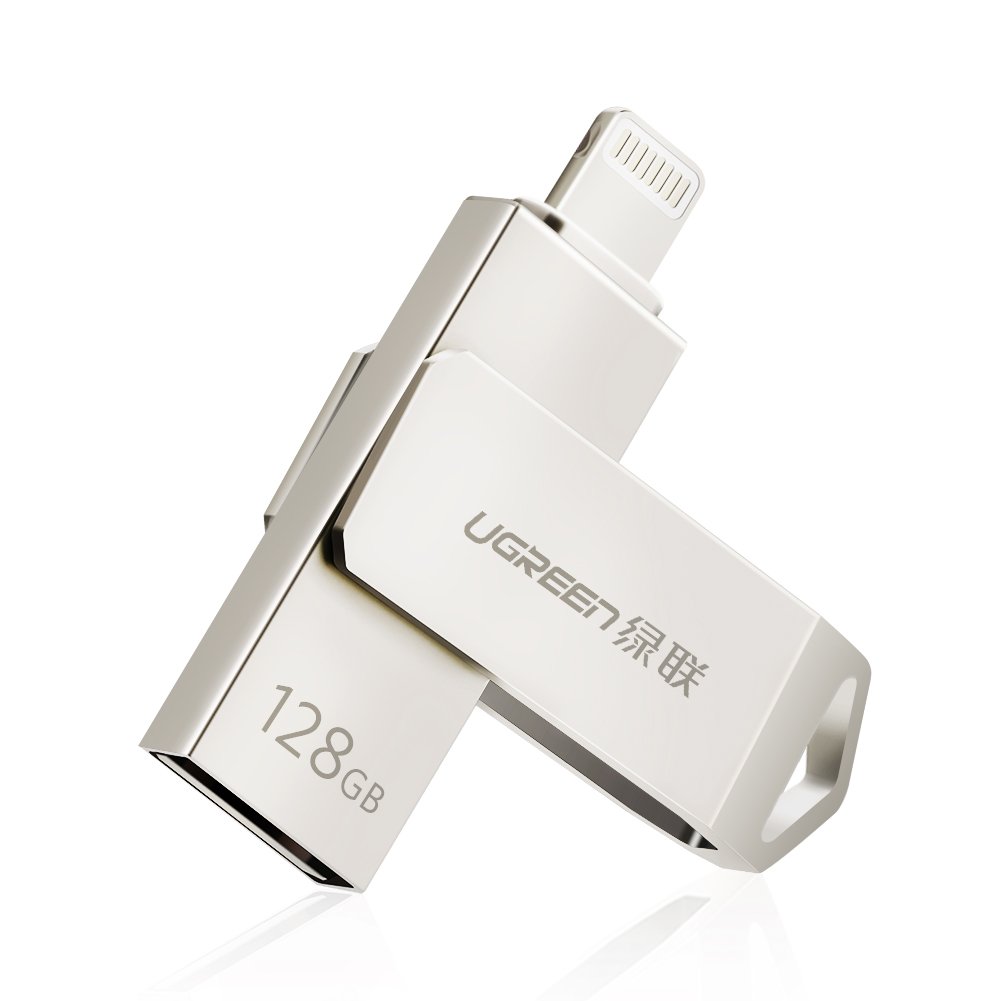
Image: An iPhone with the UGREEN Flash Drive attached, illustrating the ability to save photos directly to the drive, allowing for continuous photo taking without filling device storage.
4.2 Data Transfer (Drive to iOS)
- Open the 'Greendisk' app and access the files stored on the UGREEN Flash Drive.
- Wählen Sie die gewünschte files and choose to copy or move them to your iOS device's internal storage or open them directly within the app.
4.3 Data Transfer (Drive to PC/Mac)
- Connect the USB-A end of the drive to your computer.
- Ziehen und Ablegen files between the flash drive's folder and your computer's folders as you would with any other external drive.
4.4 Datenschutz
The 'Greendisk' app supports fingerprint encryption/decryption for enhanced privacy. You can encrypt specific files or folders on the drive using your device's Touch ID (if available) or a password. This ensures that sensitive data remains secure.

Image: An iPhone displaying the 'Greendisk: Touch ID' prompt, indicating the use of fingerprint encryption for secure access to files on the UGREEN Flash Drive. Note: Encrypted files must be decrypted before use on a PC.
4.5 Expanding Storage Capacity
The UGREEN Flash Drive allows you to significantly expand the storage available for your iOS device, enabling you to store more photos, videos, and documents without consuming your device's internal memory.
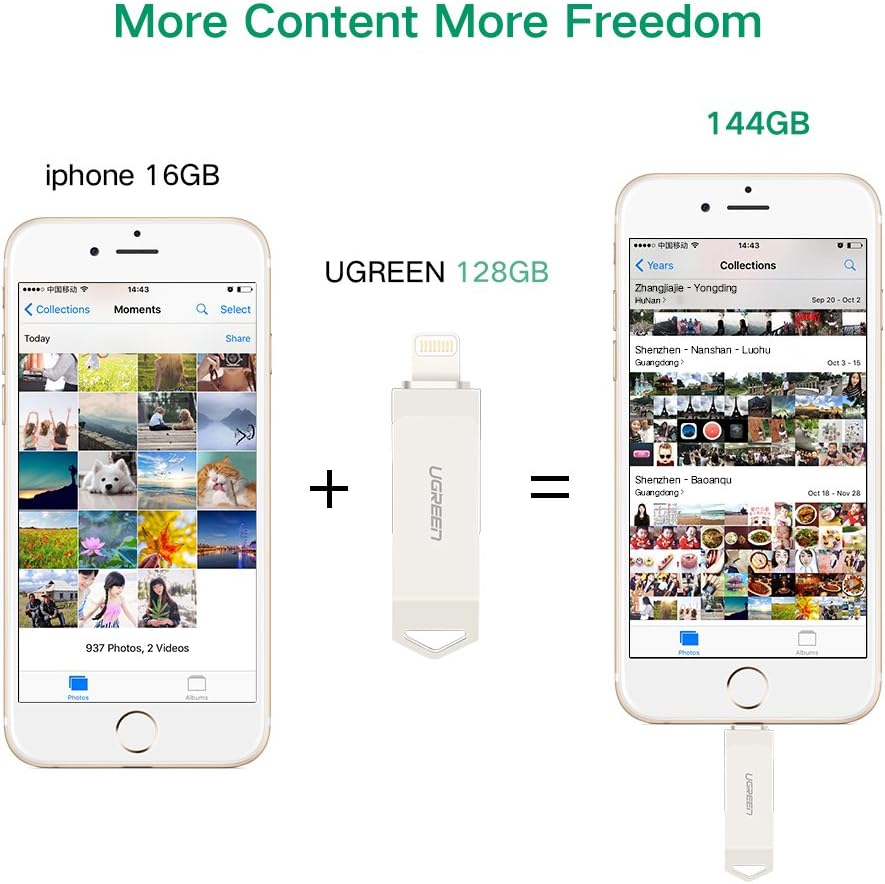
Image: A visual comparison demonstrating how adding a UGREEN 128GB Flash Drive expands an iPhone's effective storage capacity, allowing for more photos and videos.
4.6 Nutzungsszenarien
The portable design of the UGREEN Flash Drive makes it ideal for various situations, including travel, allowing you to access your media and documents offline.

Image: A user accessing content on an iPhone with the UGREEN Flash Drive connected while traveling on an airplane, illustrating its utility for offline entertainment and productivity during commutes.
5. Wartung
- Sichere Entfernung: Always safely eject the flash drive from your computer before physically removing it to prevent data corruption. For iOS devices, ensure no active transfers are occurring before disconnecting.
- Körperliche Pflege: Avoid exposing the drive to extreme temperatures, direct sunlight, moisture, or strong magnetic fields. Do not drop or apply excessive force to the drive.
- Reinigung: Reinigen Sie die Außenseite des Laufwerks mit einem weichen, trockenen Tuch. Verwenden Sie keine flüssigen Reiniger oder Lösungsmittel.
- Steckerschutz: Keep the connectors free from dust and debris. Consider using the included cap (if any) when the drive is not in use.
6. Fehlerbehebung
- Laufwerk wird vom iOS-Gerät nicht erkannt:
- Ensure the 'Greendisk' app is installed and updated to the latest version.
- Verify the Lightning connector is fully inserted into your iOS device.
- Starten Sie Ihr iOS-Gerät neu und versuchen Sie es erneut.
- Laufwerk wird vom Computer nicht erkannt:
- Stellen Sie sicher, dass der USB-A-Stecker vollständig in einen funktionierenden USB-Anschluss eingesteckt ist.
- Um Probleme mit dem USB-Anschluss auszuschließen, versuchen Sie es mit einem anderen USB-Anschluss oder einem anderen Computer.
- Check your computer's Disk Management (Windows) or Disk Utility (Mac) to see if the drive is detected but not assigned a drive letter or mounted.
- Langsame Übertragungsgeschwindigkeiten:
- Transfer speeds can vary based on file size, type, and the device's performance. Large numbers of small files typically transfer slower than a few large files.
- Ensure your computer's USB port is operating at its maximum speed (e.g., USB 3.0 for optimal performance if the drive supports it).
- Zugriff auf verschlüsselte Daten nicht möglich Files auf dem PC:
- Files encrypted via the 'Greendisk' app on an iOS device must be decrypted using the app before they can be accessed on a PC or Mac.
- Incorrect Storage Capacity Displayed:
- Operating systems calculate storage differently than manufacturers, leading to a slightly lower reported capacity. This is normal.
- If the discrepancy is significant (e.g., a 128GB drive showing 64GB), verify the product packaging and contact UGREEN support.
7. Spezifikationen
| Besonderheit | Detail |
|---|---|
| Marke | UGREEN |
| Modellnummer | 30647 |
| Speicherkapazität | 128 GB (Other capacities may be available) |
| Hardware-Schnittstelle | USB-A, Lightning |
| Lesegeschwindigkeit | Bis zu 40 Megabyte pro Sekunde |
| Kompatible Geräte | Mobile (iPhone, iPad, iPod), Tablet, PC, Mac |
| Kompatible Telefonmodelle | iPhone 5, 5s, 6, 6s, 7, 7 Plus; iPad Air, iPad Mini; iPod |
| Konnektivitätstechnologie | USB |
| Artikelgewicht | 7 Gramm |
| Farbe | Silber |
8. Garantieinformationen
UGREEN products are covered by a manufacturer's warranty. For specific details regarding the warranty period and terms, please refer to the warranty card included with your product or visit the official UGREEN webWebsite.
9. Kundendienst
If you encounter any issues or have questions not covered in this manual, please contact UGREEN customer support. You can find contact information on the official UGREEN weboder über den Händler, bei dem Sie das Produkt gekauft haben.


