
1. Einleitung
This manual provides detailed instructions for the setup, operation, and maintenance of your ELECROW 7 Inch 1024x600 IPS Capacitive Touchscreen Monitor. This display is designed for broad compatibility with devices such as Raspberry Pi (5/4/3B+/3B/2B+), BB Black, Banana Pi, Jetson Nano, and Windows 11/10/8/7 systems.
Hauptmerkmale:
- HD-Visuals: 7-inch IPS screen with 1024x600 resolution and 170° wide viewing angle for consistent colors and clear viewing.
- Kapazitiver Touchscreen: Supports up to 5-point touch functionality without requiring driver installation for most compatible systems.
- Plug-and-Play: Simple connectivity via HD (HDMI) and Micro USB ports for immediate use.
- Vielseitige Anwendung: Suitable for use as a Raspberry Pi display, mini PC monitor, gaming console screen, or a computer temperature monitor.
2. Lieferumfang
Bitte überprüfen Sie vor der Installation, ob alle Komponenten vorhanden sind.
- 7 Inch Capacitive Display x 1
- HD-Kabel x 1
- 1 x USB-Kabel
- Micro HD Adapter x 1
- Copper Screws Pack (4pcs) x 1
- DVD x 1 (Contains drivers and documentation)
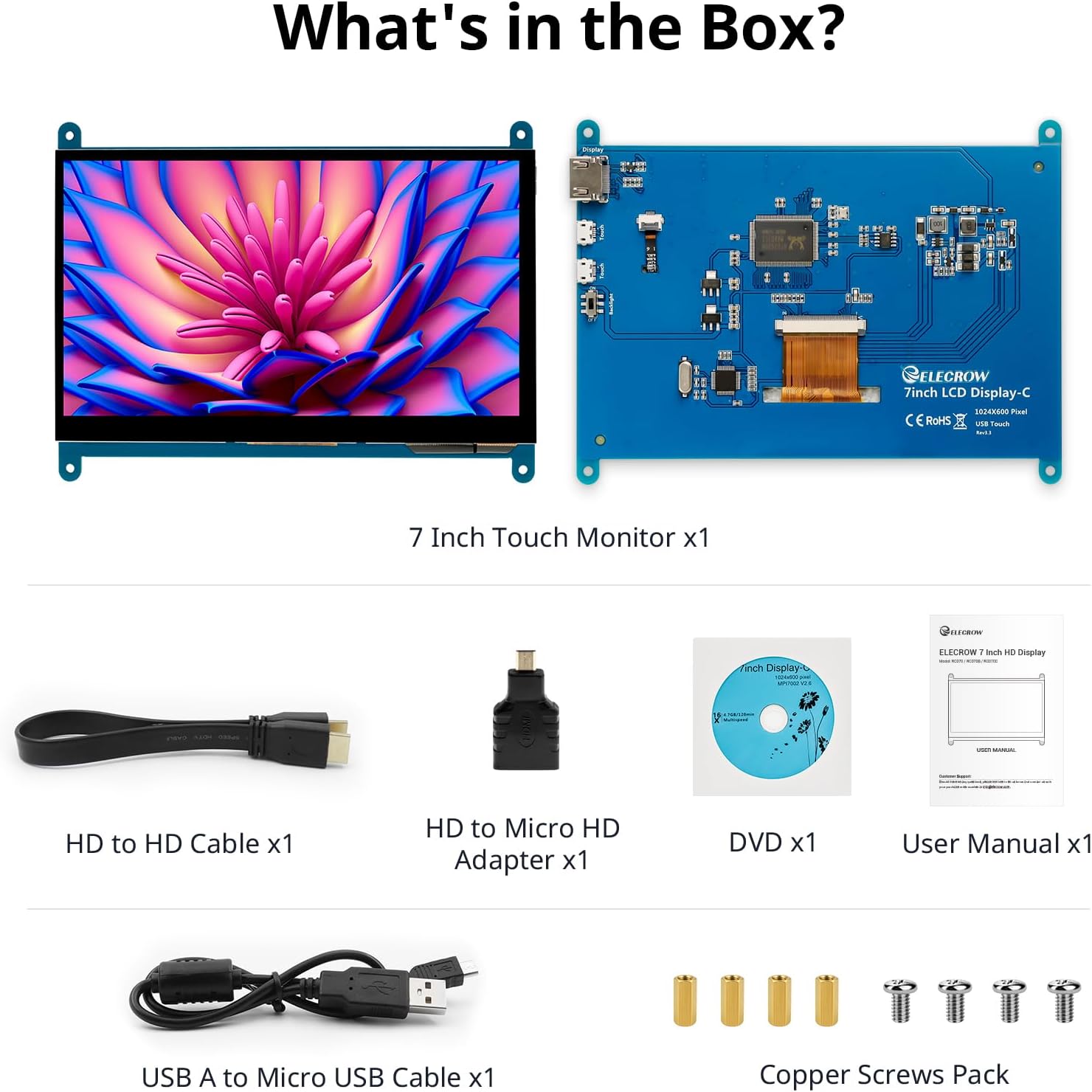
Abbildung: Alle im Produktpaket enthaltenen Komponenten.
3. Einrichtung und Anschlüsse
Follow these steps to connect your ELECROW 7 Inch Touchscreen Monitor to your device.
3.1 Hardwareüberlastungview

Bild: Rückseite view of the monitor highlighting the Standard HD Port, Micro USB Port for touch and power, and Backlight switch.
- Standard HD Port: For video data transfer.
- Micro-USB-Anschluss: Für Touch-Funktionalität und Stromversorgung.
- Hintergrundbeleuchtungsschalter: To turn the display backlight on or off.
3.2 Verbindung zum Raspberry Pi
To connect the monitor to a Raspberry Pi, you will need both the HD cable for video and the USB cable for touch and power.
- Connect one end of the HD cable to the Standard HD Port on the monitor and the other end to the HDMI port on your Raspberry Pi. Use the Micro HD adapter if necessary for your Raspberry Pi model.
- Connect the Micro USB cable to the Micro USB Port on the monitor. Connect the other end of the USB cable to a USB port on your Raspberry Pi for power and touch data.
- Ensure the backlight switch on the monitor is in the 'On' position.
- Power on your Raspberry Pi. The display should automatically detect and show the output.
For touch functionality with Raspberry Pi, power can be supplied via the Raspberry Pi's USB port. If using an external power source for the Raspberry Pi, ensure it is sufficient. For optimal performance, especially with older Raspberry Pi models, an external power supply for the monitor might be beneficial if the Pi cannot provide enough current.
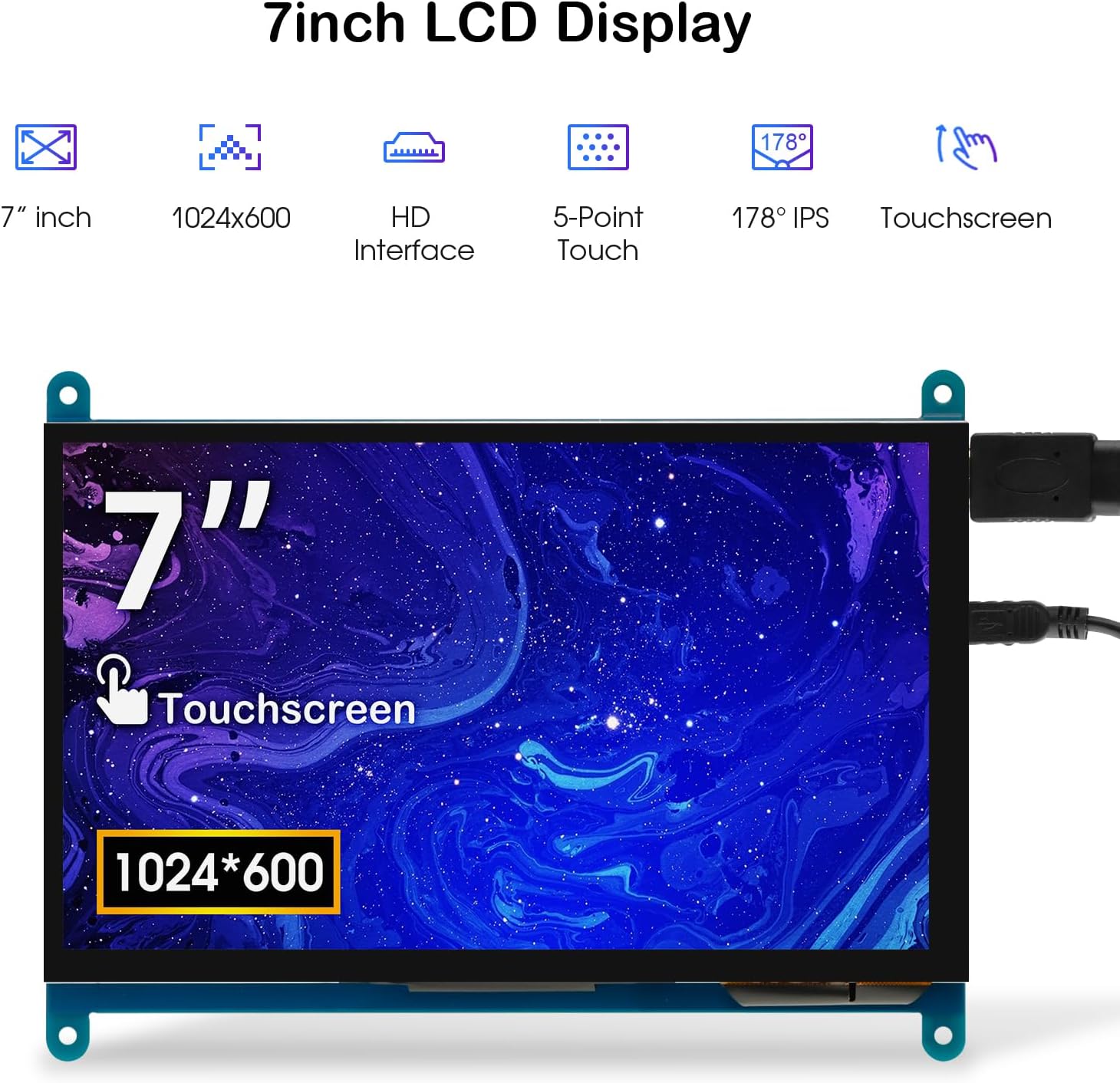
Image: The 7-inch touchscreen connected to a Raspberry Pi board, displaying a graphical user interface.
3.3 Connecting to Windows PC/Laptop
For Windows systems, the monitor functions as a plug-and-play display and touchscreen.
- Connect the HD cable from the monitor's Standard HD Port to an HDMI port on your PC or laptop.
- Connect the Micro USB cable from the monitor's Micro USB Port to a USB-A port on your PC or laptop. This provides power and enables touch functionality.
- Ensure the backlight switch is 'On'.
- Your Windows system should automatically detect the display and touchscreen. No additional drivers are typically required for Windows 7/8/10/11 for basic display and 5-point touch.

Image: The 7-inch touchscreen connected to a laptop, demonstrating seamless connectivity with various operating systems including Windows.
4. Bedienungsanleitung
4.1 Touch-Funktionalität
The monitor supports 5-point capacitive touch, allowing for various gestures.
- Klopfen: Single touch for selection or activation.
- Drücken: Sustained touch for context menus or drag operations.
- Rein / rauszoomen: Pinch gestures with two fingers.
- Mouse Click: A single tap typically registers as a left-click.
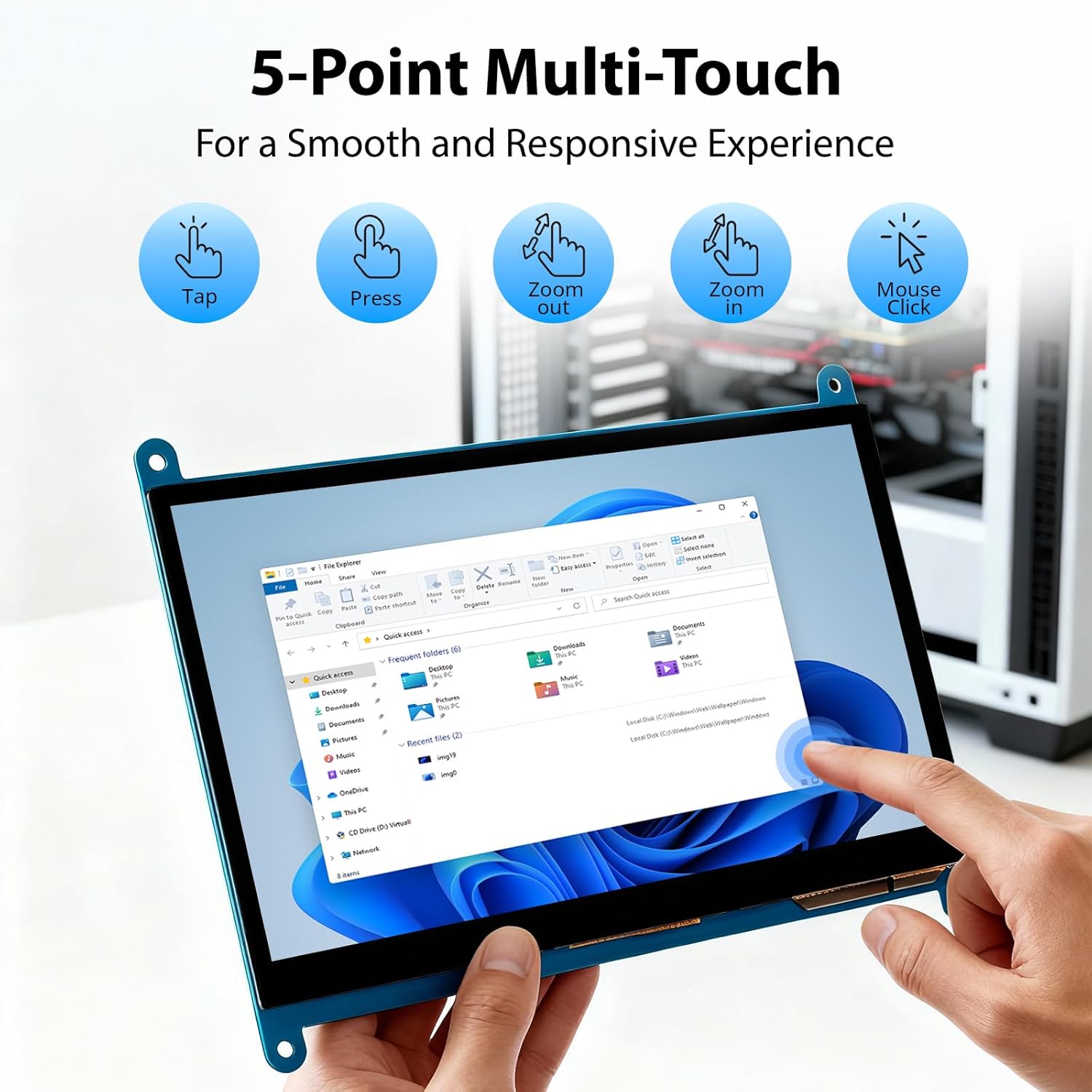
Image: Visual guide to the 5-point multi-touch capabilities of the screen, showing common gestures.
4.2 Anzeigemodi
When connected to a computer, the monitor can operate in several display modes:
- Duplikat-Modus: Der Monitor spiegelt den Inhalt Ihres Hauptbildschirms wider.
- Erweiterungsmodus: The monitor acts as an extension of your primary display, providing additional screen space.
- Zweiter Bildschirmmodus: Der Monitor dient als einziges Display, das Hauptdisplay ist ausgeschaltet.
Diese Modi können in der Regel über die Anzeigeeinstellungen Ihres Betriebssystems konfiguriert werden.

Image: Illustrations demonstrating the three display modes: Duplicate, Extend, and Second Screen, showing how the monitor can be used with a laptop.
4.3 Hintergrundbeleuchtungssteuerung
The monitor features a physical switch to control the backlight. This allows you to turn the display illumination on or off without disconnecting power. Note that there is no granular brightness control; it is an on/off function only.
Video: This video demonstrates the backlight control switch on the ELECROW 7 Inch Touchscreen, showing how to turn the display illumination on and off.
5. Wartung
Durch sachgemäße Wartung wird die Langlebigkeit und optimale Leistung Ihres Monitors sichergestellt.
- Reinigen des Bildschirms: Mit einem weichen, fusselfreien Tuch leichtampMit Wasser oder einem Siebreinigungsmittel abspülen. Scharfe Chemikalien oder scheuernde Materialien vermeiden, die die Sieboberfläche beschädigen könnten.
- Allgemeine Pflege: Keep the monitor in a clean, dry environment. Avoid exposing it to extreme temperatures, direct sunlight, or high humidity.
- Handhabung: Handle the monitor by its edges. Avoid applying excessive pressure to the screen.
6. Fehlerbehebung
Sollten Sie Probleme mit Ihrem Monitor haben, beachten Sie bitte die folgenden häufig auftretenden Probleme und Lösungen.
| Problem | Mögliche Ursache | Lösung |
|---|---|---|
| Kein Bild/Schwarzer Bildschirm |
|
|
| Touchscreen reagiert nicht |
|
|
| Display resolution incorrect |
|
|
| Keine Helligkeitsregelung | The monitor only has an on/off switch for the backlight, not adjustable brightness. | This is expected behavior. The monitor does not support adjustable brightness. |
7. Spezifikationen
Detailed technical specifications for the ELECROW 7 Inch Touchscreen Monitor.
| Besonderheit | Detail |
|---|---|
| Marke | ELEKTROKREUZ |
| Modellname | RC070 |
| Bildschirmgröße | 7 Zoll |
| Maximale Bildschirmauflösung | 1024 x 600 |
| Native Auflösung | 1024 x 600 |
| Anzeigetyp | LCD |
| Display-Technologie | IPS |
| Seitenverhältnis | 1.71:1 |
| Bildwiederholrate | 60 Hz |
| Ansprechzeit | 8 Millisekunden |
| Kontrastverhältnis | 800:1 |
| Helligkeit | 300 lm |
| Viewing-Winkel | 170 Grad |
| Beschreibung der Bildschirmoberfläche | Glänzend |
| Konnektivitätstechnologie | HDMI |
| Hardware-Konnektivität | HDMI, USB |
| Total Number of HDMI Ports | 1 |
| Anzahl USB-Anschlüsse | 2 (Micro USB for power/touch, USB-A for power/touch) |
| Energieaufnahme | 12.5 Watt |
| Bandtage | 5 Volt |
| Artikelabmessungen (T x B x H) | 0.3"T x 6.1"B x 4.8"H |
| Artikelgewicht | 7.36 Unzen |
| Kompatible Geräte | Raspberry Pi, BB Black, Banana Pi, Jetson Nano, Computers, Laptops, Gaming Consoles |
8. Garantie und Support
Your ELECROW 7 Inch Touchscreen Monitor comes with a manufacturer's warranty.
- Garantieart: 1 Jahre Herstellergarantie
- Garantiebeschreibung: 1 Jahre Hersteller
For technical support or warranty claims, please contact ELECROW customer service through their official webWebsite oder Plattform, auf der das Produkt gekauft wurde.