
ZYXEL NAS326
Zyxel NAS326 Persönlicher Cloud-Speicher – Benutzerhandbuch
Model: NAS326
1. Einleitung
The Zyxel NAS326 is a 2-bay personal cloud storage device designed for home use, offering remote access and media streaming capabilities. It allows users to easily back up photos, view and share your videos and photos, grant remote access to friends and family, and stream media to various smart devices. The NAS326 features a high-performance processor for efficient data transfer, supporting up to 105 MB/sec reading and 105 MB/sec writing speeds, ensuring smooth UHD 4K video streaming and quick data retrieval.

Abbildung 1.1: Vorder- und Seitenansicht view of the Zyxel NAS326 Personal Cloud Storage device.
2. Einrichtung
2.1. Festplatteninstallation
The NAS326 supports up to two 6TB hard drives (not included). Follow these steps to install the hard drives:
- Gently remove the front cover of the NAS device.
- Pull out the empty hard drive trays.
- Mount your 3.5-inch or 2.5-inch SATA hard drives onto the trays using the provided screws. Ensure the connectors align correctly.
- Slide the populated trays back into the NAS bays until they click into place.
- Bringen Sie die Frontabdeckung wieder fest an.
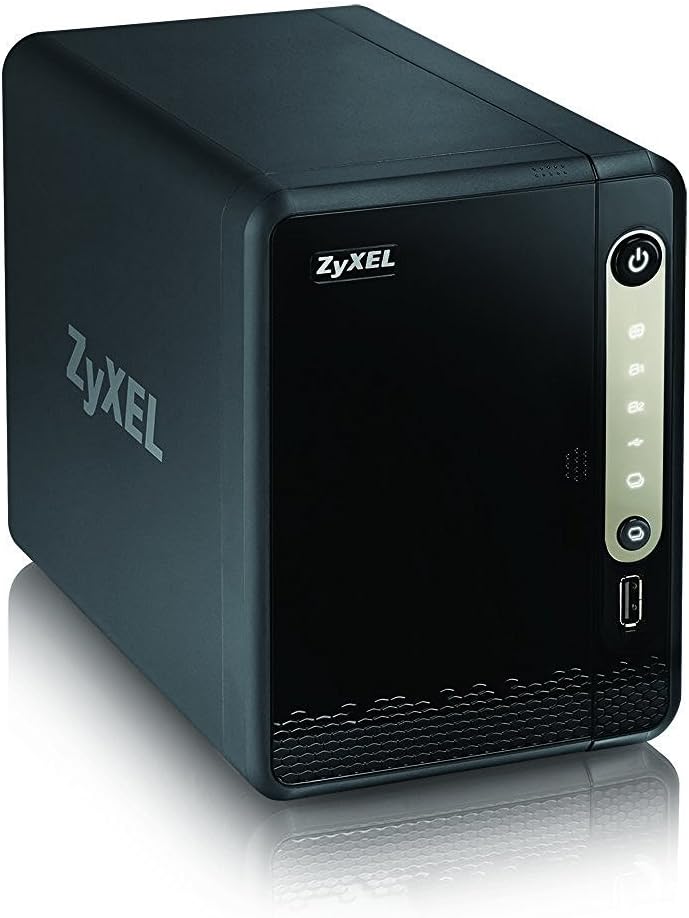
Figure 2.1: Zyxel NAS326 with the front cover removed, revealing the hard drive bays.
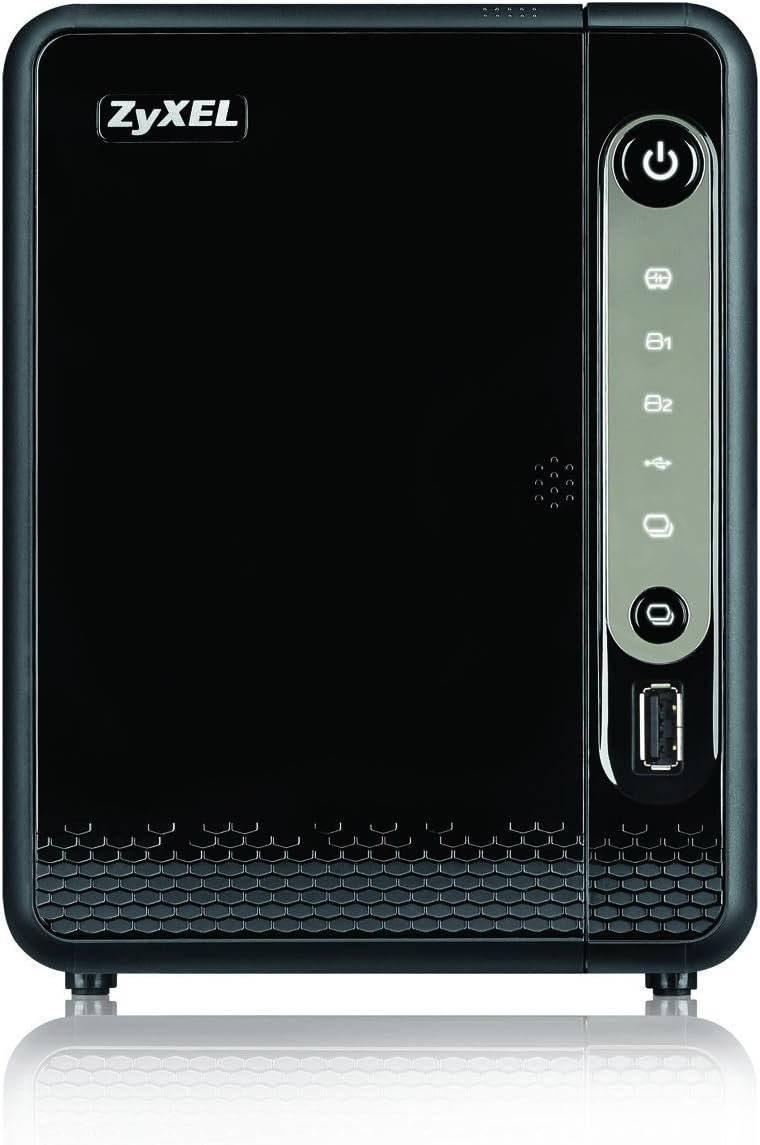
Abbildung 2.2: Vorderseite view of the Zyxel NAS326, highlighting the accessible drive bays for installation.
2.2. Verbindungskabel
After installing the hard drives, connect the necessary cables:
- Connect the power adapter to the DC 12V input port on the rear of the NAS and then plug it into a power outlet.
- Connect one end of the Ethernet cable to the LAN port on the rear of the NAS and the other end to your router or network switch.
- (Optional) Connect USB devices to the available USB 3.0 ports on the rear for external storage or other peripherals.

Abbildung 2.3: Rückseite view of the Zyxel NAS326, indicating the power input, LAN port, and USB 3.0 ports.
Once all connections are made, press the power button on the front of the device to turn it on. The system will initialize, and you can then proceed with network configuration and software setup via your computer or mobile device.
3. Bedienungsanleitung
3.1. User Interface and Basic Operation
The Zyxel NAS326 features an intuitive web-based user interface for easy management. Access the interface through your web browser by entering the NAS's IP address or hostname. From the dashboard, you can monitor system status, manage storage, configure network settings, and access various applications.
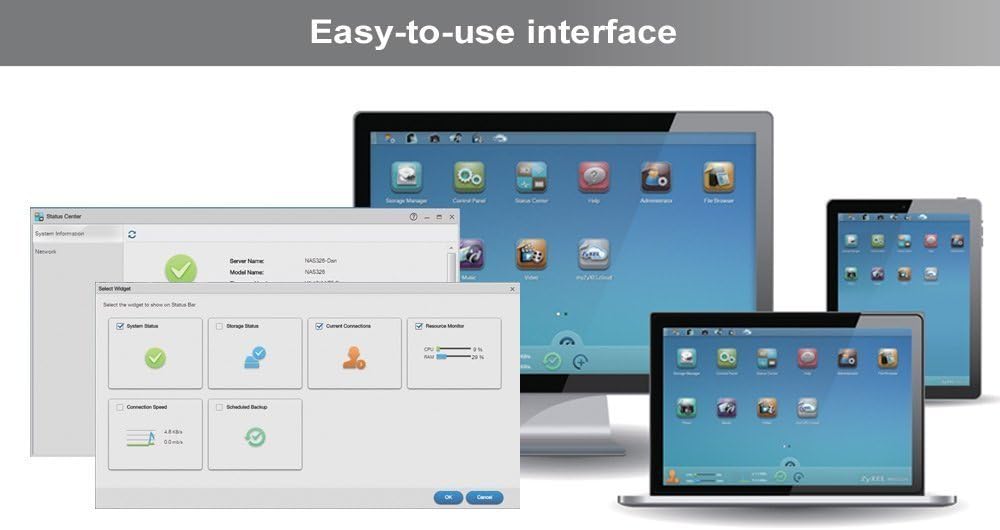
Abbildung 3.1: Screenshot zur Veranschaulichung der einfachen Bedienung web interface of the Zyxel NAS, displaying system status and control panel options.
3.2. Remote Access with ZyXEL Drive
The ZyXEL Drive mobile app allows you to access your personal cloud storage anytime, anywhere. You can easily backup your photos, view and share your videos and photos, and even allow friends and family remote access to their own storage space on your NAS.

Figure 3.2: Diagram demonstrating how the ZyXEL Drive app facilitates easy remote access to your NAS from mobile devices, enabling sharing between users.
3.3. Shared Cloud Space
The NAS326 enables you to create a shared cloud space, allowing multiple users to access and collaborate on files securely. This feature is ideal for families or small teams to centralize data and share it across different locations.

Figure 3.3: Diagram depicting the shared cloud space functionality, emphasizing global access and collaboration capabilities.
3.4. Media Streaming with ZyXEL zCloud App
With the ZyXEL zCloud app, you can stream multimedia content directly from your NAS326 to various devices, including Smart TVs, Apple TV, Roku, Chromecast, and Amazon Fire TV. Enjoy your movies, music, and photos on the big screen without performance stutter.

Figure 3.4: Diagram illustrating the media streaming capabilities of the NAS326 using the ZyXEL zCloud app, enabling content playback on Smart TVs and other streaming devices.
4. Wartung
- Regelmäßige Backups: While the NAS provides data redundancy (e.g., RAID 1), it is crucial to perform regular backups of critical data to an external drive or another cloud service.
- Firmware-Updates: Periodically check for and install the latest firmware updates from the Zyxel webDie Website soll optimale Leistung, Sicherheit und den Zugriff auf neue Funktionen gewährleisten.
- Reinigung: Keep the device clean and free from dust. Use a soft, dry cloth to wipe the exterior. Ensure ventilation openings are not blocked to prevent overheating.
- Ordnungsgemäßes Herunterfahren: Always shut down the NAS properly through the web interface or by pressing the power button briefly (if configured for graceful shutdown) before disconnecting power or moving the device.
- Festplattenzustand: Monitor the health of your hard drives through the NAS management interface. Replace drives showing signs of failure promptly.
5. Fehlerbehebung
5.1. Häufige Probleme und Lösungen
| Ausgabe | Mögliche Ursache | Lösung |
|---|---|---|
| NAS lässt sich nicht einschalten | Power cable loose or power adapter faulty. | Check power connections. Ensure the power outlet is functional. Try a different power adapter if available. |
| Cannot access NAS via network | Netzwerkkabel nicht angeschlossen, falsche IP-Adresse oder Problem mit der Netzwerkkonfiguration. | Verify Ethernet cable connection. Check router settings. Use the Zyxel utility to find the NAS on the network. Restart the NAS and router. |
| Festplatte nicht erkannt | Drive not properly seated or faulty drive. | Ensure hard drive is correctly installed in the tray and the tray is fully inserted. Test the drive in another device if possible. |
| Langsame Datenübertragungsgeschwindigkeiten | Network congestion, old network cables, or drive performance issues. | Use Cat5e or Cat6 Ethernet cables. Ensure your network is not overloaded. Check hard drive health in the NAS interface. |
For more detailed troubleshooting, refer to the comprehensive user manual available on the Zyxel support website or contact Zyxel technical support.
6. Spezifikationen
| Besonderheit | Detail |
|---|---|
| Marke | ZYXEL |
| Modellnummer | NAS326 |
| Festplattenunterstützung | Max Supported 6TB x 2 (No HDD included) |
| USB-Anschlüsse | 2 x USB 3.0-Anschlüsse |
| Artikelgewicht | 2.77 Pfund (1.26 kg) |
| Produktabmessungen (L x B x H) | 8.15 x 4.84 x 6.46 Zoll (20.7 x 12.3 x 16.4 cm) |
| Material | Metall |
| Kompatible Geräte | Server, Laptop, Desktop |
| Montagetyp | Tischplatte |
| RAID Performance | RAID 1 read/write performance at 105/105.8 MB/s |
7. Garantie und Support
7.1. Garantieinformationen
Zyxel products typically come with a limited manufacturer's warranty. For specific warranty terms and conditions applicable to your NAS326, please refer to the warranty card included in your product packaging or visit the official Zyxel webDie Hilfeseite der Website. Bewahren Sie Ihren Kaufbeleg für Garantieansprüche auf.
7.2. Technischer Support
Should you encounter any issues or require assistance with your Zyxel NAS326, please utilize the following support resources:
- Online-Wissensdatenbank: Besuchen Sie den Zyxel-Support. website for FAQs, troubleshooting guides, and product documentation.
- Downloads: Access the latest firmware, utilities, and drivers for your device.
- Kontaktieren Sie den Support: If you cannot resolve the issue using online resources, contact Zyxel technical support directly via phone or email. Contact details are usually available on their official webWebsite.
For the most up-to-date support information, please visit the official Zyxel webWebsite: www.zyxel.com/us/en/support