
TECKNET BC69117
TECKNET Omni Kleine tragbare 2.4-GHz-Funkmaus – Benutzerhandbuch
Model: BC69117 | Brand: TECKNET
Einführung
This manual provides comprehensive instructions for the setup, operation, maintenance, and troubleshooting of your TECKNET Omni Small Portable 2.4G Wireless Optical Mouse. Please read this manual thoroughly before using the product to ensure optimal performance and longevity.

Figure 1: TECKNET Omni Wireless Mouse and USB Nano Receiver.
Hauptmerkmale
- 2.4-GHz-Funkverbindung: Provides a stable and reliable connection up to 10 meters (33 feet) with virtually no delays or dropouts.
- USB-Nano-Empfänger: A tiny, plug-and-play receiver that can be stored inside the mouse for portability.
- Einstellbare DPI-Stufen: Wechseln Sie einfach zwischen 1000, 1500 und 2000 DPI für eine präzise Cursorsteuerung.
- Verlängerte Akkulaufzeit: Up to 18 months of battery life with smart sleep mode to conserve power.
- TruWave Precision: Ensures smoother tracking on various surfaces.
- Co-Link Technology: Automatically pairs the mouse with the nano receiver.
- Langlebige Konstruktion: Primary TeckNet N-Switches rated to a 5.5-million-click lifespan.
- Kompaktes und tragbares Design: Small size fits easily into bags or pockets, ideal for travel.
- Ergonomisches Design: Contoured shape with soft rubber grips for comfortable use.

Abbildung 2: Ergonomisches Design für komfortable Nutzung.

Abbildung 3: Kompaktes und tragbares Design.
Packungsinhalt
Überprüfen Sie, ob alle Artikel in Ihrem Paket vorhanden sind:
- 1 x TECKNET Omni Wireless Mouse
- 1 x USB Nano Receiver (stored inside the mouse's battery compartment)
- 1 x Benutzerhandbuch (dieses Dokument)
- Note: 1 AA battery is NOT included and must be purchased separately.
Installationshandbuch
- Batterie einlegen:
Locate the battery compartment on the underside of the mouse. Open the cover and insert one (1) AA battery, ensuring correct polarity (+/-). Close the battery compartment cover securely.

Figure 4: Battery compartment and nano receiver storage.
- USB-Nano-Empfänger abrufen:
The USB nano receiver is conveniently stored within the battery compartment of the mouse. Gently slide it out from its slot.
- Schließen Sie den Receiver an den Computer an:
Plug the USB nano receiver into an available USB port on your laptop or desktop computer. Your operating system should automatically detect and install the necessary drivers. No additional software installation is required.

Figure 5: Connecting the USB nano receiver to a laptop.
- Start Using the Mouse:
Once the receiver is plugged in and the battery is installed, the mouse is ready for use. The mouse features smart power management and will activate automatically when moved or a button is clicked.
Betrieb
Maustasten und Funktionen

Figure 6: Mouse button layout.
- Linke Taste: Primäre Klickfunktion.
- Rechter Knopf: Sekundärklickfunktion, öffnet typischerweise Kontextmenüs.
- Scrollrad: Schriftrollen und web pages vertically. Can also be clicked for middle-click functionality.
- DPI-Umschalttaste: Changes the cursor speed (DPI).
Anpassen der DPI (Cursorgeschwindigkeit)
The TECKNET Omni mouse offers three adjustable DPI levels to suit your preference for cursor speed and precision. To change the DPI setting, simply press the DPI Switch Button located on the top of the mouse, just behind the scroll wheel.
- Press once to cycle through the available DPI settings: 1000 DPI (default), 1500 DPI, and 2000 DPI.
- The mouse will indicate the current DPI setting, often with a subtle change in cursor speed or a brief LED flash (refer to the Low Battery Indicator for potential dual function).
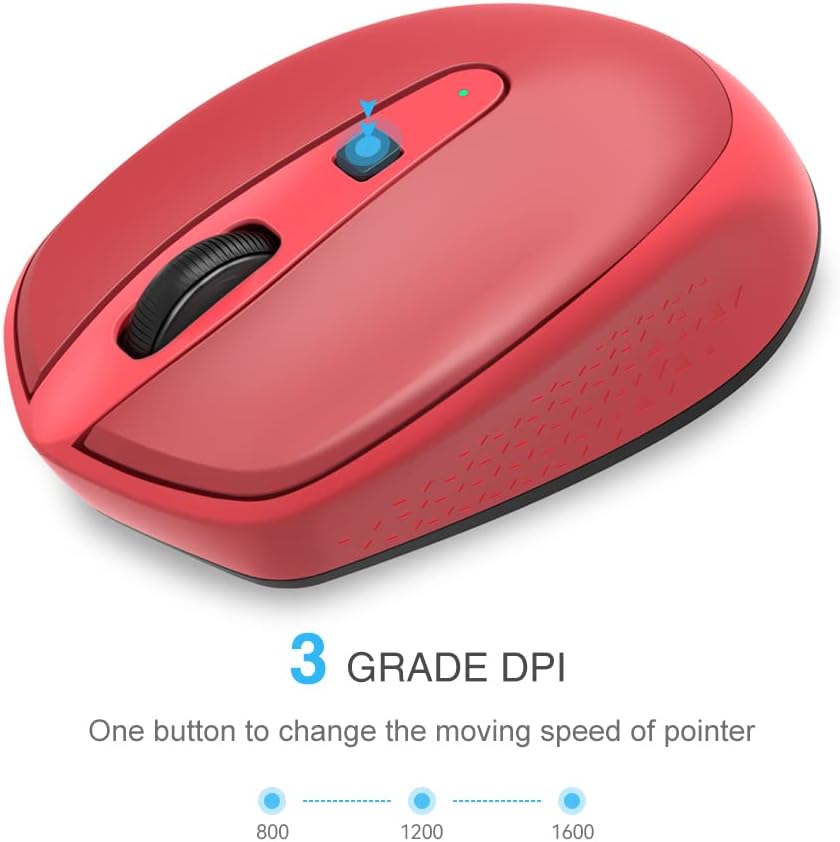
Abbildung 7: DPI-Einstellstufen.
Energieverwaltung
The mouse is equipped with a smart sleep mode to conserve battery life. If the mouse is inactive for a period, it will automatically enter a low-power sleep state. To wake the mouse, simply move it or click any button. There is no manual on/off switch required.
Wartung
Batteriewechsel
When the mouse's performance degrades or the low battery indicator (if present) illuminates, it's time to replace the battery. The TECKNET Omni mouse uses one (1) AA battery.
- Drehen Sie die Maus um und suchen Sie die Abdeckung des Batteriefachs.
- Schieben oder heben Sie den Deckel an, um das Fach zu öffnen.
- Die alte AA-Batterie entfernen.
- Setzen Sie eine neue AA-Batterie ein und achten Sie darauf, dass die positiven (+) und negativen (-) Anschlüsse mit den Markierungen im Batteriefach übereinstimmen.
- Schließen Sie den Batteriefachdeckel fest.
Entsorgen Sie gebrauchte Batterien verantwortungsvoll gemäß den örtlichen Vorschriften.
Reinigung
Um eine optimale Leistung zu gewährleisten, reinigen Sie Ihre Maus regelmäßig:
- Mit einem weichen, fusselfreien Tuch leichtampAnschließend mit Wasser oder einer milden Reinigungslösung abwischen, um die Außenseite der Maus zu reinigen.
- Um den optischen Sensor an der Unterseite zu entfernen, verwenden Sie ein trockenes Wattestäbchen oder Druckluft, um Staub oder Schmutz vorsichtig zu entfernen.
- Vermeiden Sie die Verwendung von aggressiven Chemikalien, Scheuermitteln oder das Eintauchen der Maus in Flüssigkeit.
Fehlerbehebung
| Problem | Mögliche Ursache | Lösung |
|---|---|---|
| Mouse not responding or cursor not moving. |
|
|
| Die Cursorbewegung ist unregelmäßig oder sprunghaft. |
|
|
| DPI setting does not change. |
|
|
If you continue to experience issues, please refer to the support section or visit the TECKNET webWebsite für weitere Unterstützung.
Technische Daten
| Modellnummer | BC69117 |
| Konnektivität | 2.4-GHz-Funk (USB-Nano-Empfänger) |
| Bewegungserkennung | Optisch |
| DPI-Stufen | 1000 / 1500 / 2000 DPI (einstellbar) |
| Anzahl der Tasten | 4 (Left, Right, Scroll Wheel, DPI Switch) |
| Akku-Typ | 1 x AA (nicht im Lieferumfang enthalten) |
| Akkulaufzeit | Bis zu 18 Monate (variiert je nach Nutzung) |
| Klicklebensdauer | 5.5 Millionen Klicks |
| Produktabmessungen (L x B x H) | 4.0 x 2.44 x 1.42 Zoll (102 x 62 x 36 mm) |
| Artikelgewicht | 1.92 Unzen (ca. 54.4 g) |
| Unterstützte Betriebssysteme | Windows 10, 8, 7, Vista, XP, 2008 |

Abbildung 8: Produktabmessungen.
Garantie und Support
TECKNET products are designed for reliability and performance. For specific warranty details, please refer to the warranty card included with your purchase or visit the official TECKNET webWebsite.
For technical support, troubleshooting assistance, or product inquiries, please contact TECKNET customer service through their official website or the contact information provided in your product packaging. When contacting support, please have your product model number (BC69117) and purchase details ready.
Official TECKNET WebWebsite: Visit TECKNET Store on Amazon