
Indledning
This user guide provides essential information for the HP OfficeJet Pro 8125e printer. It covers initial setup, connecting to networks, performing print, scan, and copy functions, routine maintenance, and troubleshooting common issues. Follow these instructions to ensure optimal performance and longevity of your device.
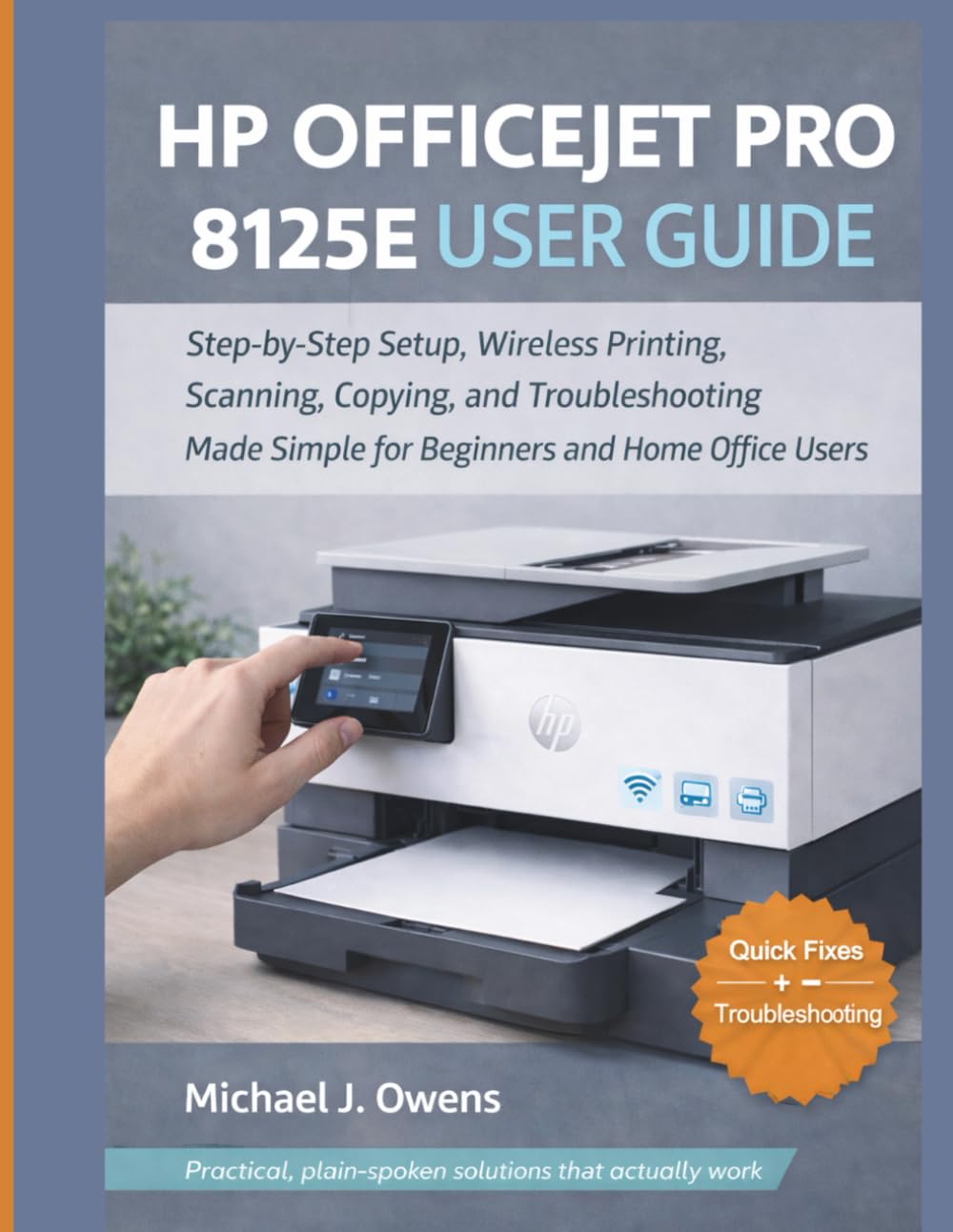
Image: Front cover of the HP OfficeJet Pro 8125e User Guide. This image represents the manual itself, designed to assist users with their printer.
1. Opsætning
1.1 Udpakning og første opstart
- Tag forsigtigt printeren ud af emballagen.
- Fjern al beskyttelsestape og emballage fra printerens yderside og inderside.
- Tilslut netledningen til printeren og derefter til en stikkontakt.
- Tryk på tænd/sluk-knappen for at tænde printeren.
- Follow the on-screen prompts on the printer's control panel to select your language and region.
1.2 Installation af blækpatroner
- Åbn dækslet til blækpatronen.
- Vent på, at printvognen bevæger sig mod midten.
- Unpack the new ink cartridges.
- Sæt hver patron i den tilsvarende holder, og sørg for, at den klikker på plads.
- Luk blækpatronens adgangsdør.
1.3 Ilægning af papir
- Træk inputbakken ud.
- Juster papirstyrene til den korrekte papirstørrelse.
- Load a stack of plain white paper into the tray, print side down.
- Skub papirbakken tilbage i printeren.
- Confirm paper type and size on the printer's control panel if prompted.
1.4 Tilslutning til Wi-Fi
- On the printer's control panel, navigate to the Wireless Setup Wizard.
- Vælg dit Wi-Fi-netværk fra listen over tilgængelige netværk.
- Enter the Wi-Fi password (WPA key) when prompted.
- Confirm the connection. The wireless light on the printer should turn solid blue.
1.5 Driverinstallation
For Windows and Mac computers, download the latest drivers and HP Smart software from the official HP support webFølg instruktionerne på skærmen under installationen.
2. Betjening af printeren
2.1 Udskrivning af dokumenter
- Fra en computer: Open the document, select "Print," choose your HP OfficeJet Pro 8125e, and adjust settings as needed before printing.
- Fra mobile enheder (HP Smart-appen): Install the HP Smart app, add your printer, and use the app to print photos or documents directly from your smartphone or tablet.
- Email Print: If enabled, send documents to your printer's unique email address.
2.2 Scanning af dokumenter
- Placer dokumentet med forsiden nedad på scannerglaspladen eller med forsiden opad i den automatiske dokumentføder (ADF).
- On the printer's control panel or via the HP Smart app/software on your computer, select "Scan."
- Choose scan settings (e.g., color, resolution, destination).
- Start scanningen.
2.3 Kopiering af dokumenter
- Placer originaldokumentet på scannerglaspladen eller i den automatiske dokumentføder.
- On the printer's control panel, select "Copy."
- Adjust settings such as number of copies, color/black & white, and size.
- Tryk på knappen "Start kopiering".
3. Vedligeholdelse
3.1 Cleaning the Print Heads
If print quality degrades (streaks, faded colors), perform a print head cleaning from the printer's control panel or the HP Smart software. This process uses ink, so only perform it when necessary.
3.2 Udskiftning af blækpatroner
When an ink cartridge is low or empty, the printer will notify you. Follow the steps in Section 1.2 to replace cartridges. Use genuine HP ink cartridges for best results.
3.3 Generel rengøring
Tør printerens yderside af med en blød, tør klud.amp, lint-free cloth. Clean the scanner glass regularly with a glass cleaner applied to a cloth (not directly to the glass) to prevent smudges from affecting scan quality.
4. Fejlfinding
| Problem | Løsning |
|---|---|
| Printer Offline Message |
|
| Papirstop |
|
| Dårlig udskriftskvalitet |
|
| HP Smart App Issues |
|
5. Specifikationer
Note: The following specifications are typical for the HP OfficeJet Pro 8125e printer. For precise details, refer to the official HP product page or documentation.
- Funktioner: Print, Copy, Scan, Fax (optional, depending on region/model)
- Printteknologi: HP termisk inkjet
- Udskrivningshastighed (sort/hvid): Up to 22 ppm (ISO)
- Udskrivningshastighed (farve): Up to 18 ppm (ISO)
- Print Resolution (Best): Op til 4800 x 1200 optimeret dpi farve
- Scan Resolution (Optical): Op til 1200 dpi
- Forbindelse: Wi-Fi 802.11a/b/g/n, Ethernet, USB 2.0
- Papirhåndtering: 250-sheet input tray, 60-sheet output tray, 35-sheet ADF
- Duplex udskrivning: Automatisk (standard)
- Vise: Farvetouchscreen
6. Garanti og support
For warranty information, please refer to the documentation included with your printer or visit the official HP support website. HP provides various support resources, including online FAQs, driver downloads, and contact options for technical assistance.
Image: Back cover of the HP OfficeJet Pro 8125e User Guide. This image provides additional information and ISBN details for the manual.