
1. Introduktion
This manual provides essential information for setting up, operating, maintaining, and troubleshooting your HP 14-em 14-inch HD Laptop. Please read this guide thoroughly to ensure optimal performance and longevity of your device.
The HP 14-em laptop features an AMD Athlon Silver 7120U processor, 4GB RAM, 512GB eMMC storage, and runs on Windows 11 Pro. It is designed for everyday tasks, offering a balance of performance and portability.
2. Opsætning
2.1 Udpakning og første inspektion
Tag forsigtigt den bærbare computer og alt tilbehør ud af emballagen. Kontroller, at alle komponenter er til stede:
- HP 14-inch Laptop
- Strømadapter
- Mytrix 2.4GHz Wireless Gaming Headset
- Dokumentation
Undersøg den bærbare computer for fysiske skader. Kontakt din forhandler med det samme, hvis der findes skader.
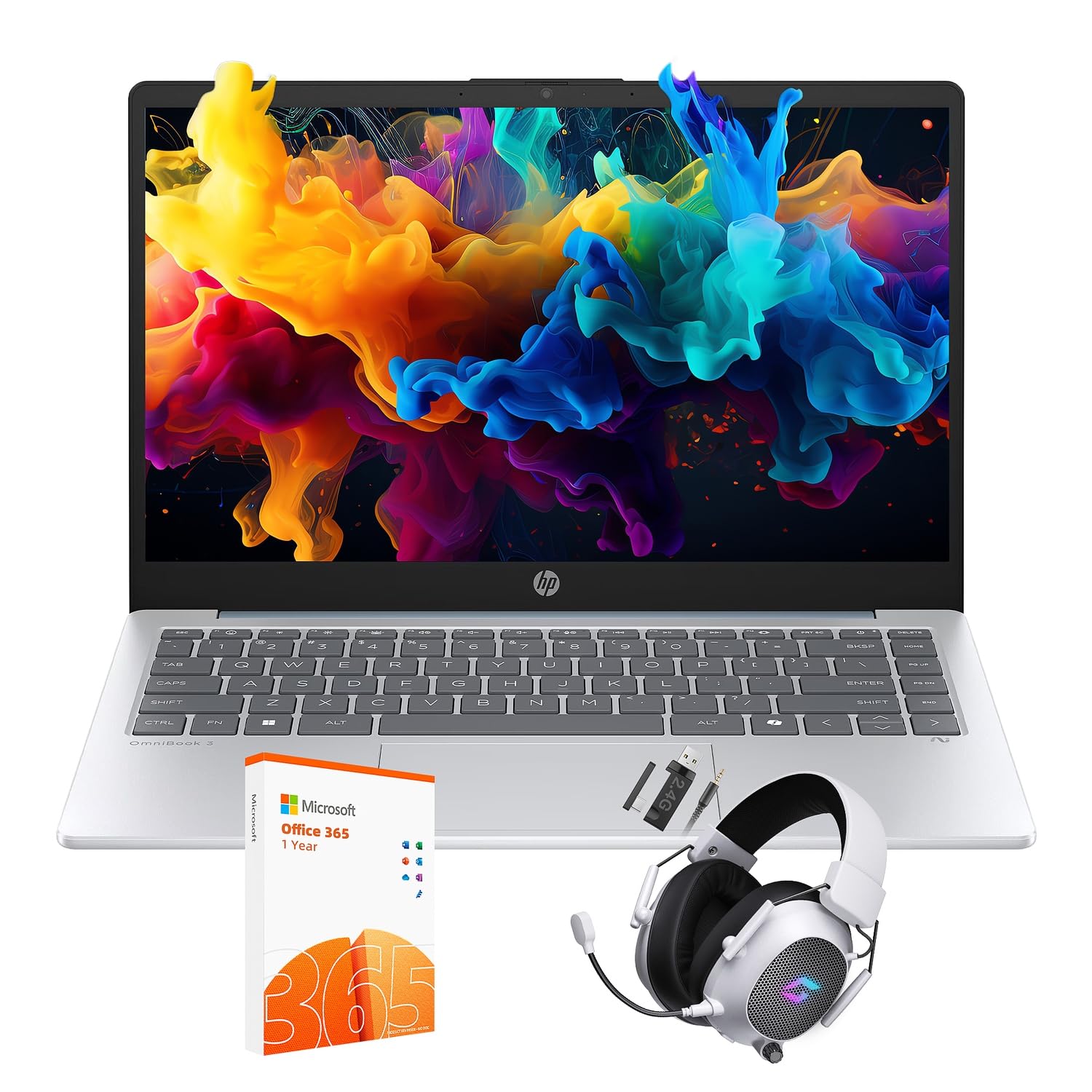
Figure 2.1: The HP 14-inch HD Laptop in Moonlight Blue, showcasing dens elegante design.
2.2 Tilslutning af strømadapteren
Connect the power adapter to the laptop's power port and then plug it into a wall outlet. It is recommended to fully charge the battery before initial use.
2.3 Initial Power On and Windows 11 Pro Setup
Press the power button located on the keyboard deck. The laptop will boot up and guide you through the Windows 11 Pro setup process. Follow the on-screen instructions to:
- Vælg din region og dit sprog.
- Opret forbindelse til et Wi-Fi-netværk.
- Accepter licensvilkårene.
- Opret en brugerkonto, eller log ind med en Microsoft-konto.
- Konfigurer privatlivsindstillinger.
2.4 Setting up the Mytrix Wireless Gaming Headset
Refer to the separate instructions provided with the Mytrix 2.4GHz Wireless Gaming Headset for detailed setup. Generally, this involves:
- Oplader headsettet.
- Connecting the wireless dongle to an available USB port on the laptop.
- Powering on the headset and ensuring it pairs with the dongle.
- Configuring audio input/output settings in Windows 11 Pro.
3. Betjening af den bærbare computer
3.1 Strømstyring
- Tænd: Tryk på tænd/sluk-knappen.
- Sove mode: Luk låget, eller vælg "Søvn" i startmenuen.
- Luk ned: Vælg "Luk ned" fra Start-menuen.
- Genstart: Vælg "Genstart" fra Start-menuen.
3.2 Brug af touchpad'en
Touchpad'en understøtter multi-touch-bevægelser til navigation. Almindelige bevægelser inkluderer:
- Tryk på: Venstreklik ved at trykke med én finger.
- Tryk med to fingre: Højreklik.
- Rul med to fingre: Rul op eller ned.
- Knib for at zoome: Zoom ind eller ud.
3.3 Connecting to Networks (Wi-Fi 6 and Bluetooth 5.4)
Sådan opretter du forbindelse til et Wi-Fi-netværk:
- Klik på Wi-Fi-ikonet i proceslinjen.
- Vælg det ønskede netværk fra listen.
- Indtast netværksadgangskoden, hvis du bliver bedt om det.
Sådan tilslutter du en Bluetooth-enhed:
- Gå til Indstillinger > Bluetooth og enheder.
- Sørg for, at Bluetooth er tændt.
- Select "Add device" and follow the pairing instructions for your device.
3.4 External Port Usage
Din bærbare computer er udstyret med forskellige porte til tilslutning af eksterne enheder:

Figure 3.1: Available ports on the HP 14-inch HD Laptop.
- USB Type-A: For connecting standard USB devices like mice, keyboards, and external storage.
- USB Type-C: Til dataoverførsel.
- HDMI: Til tilslutning til eksterne skærme eller projektorer.
- Hovedtelefon/mikrofon-kombination: For connecting a headset or external speakers/microphone.
3.5 Windows 11 Pro-funktioner
Windows 11 Pro offers advanced security, management tools, and productivity features. Explore the Start Menu, Taskbar, and Settings app to customize your experience. The laptop also supports a 180-degree hinge for flexible viewing vinkler.
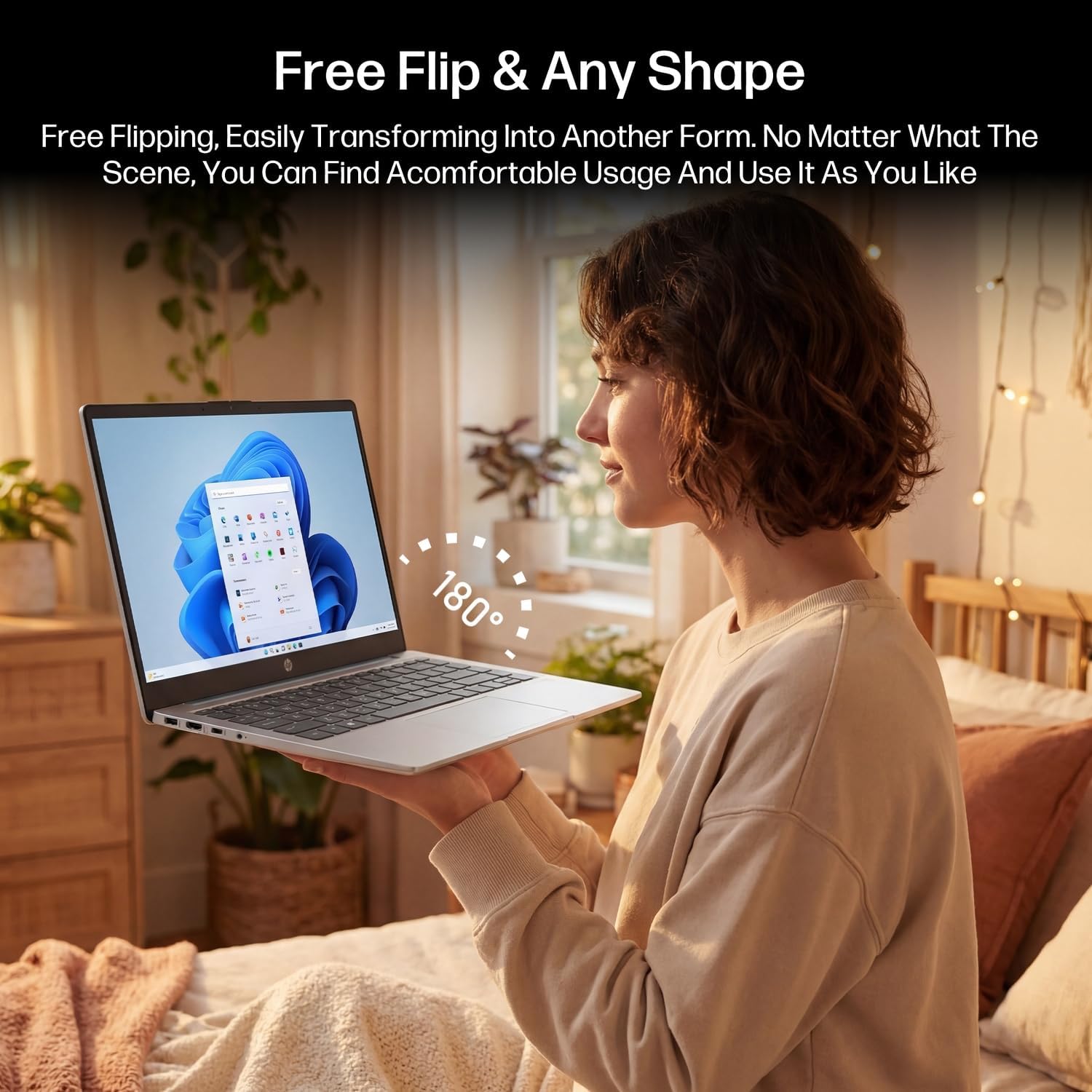
Figure 3.2: The laptop's 180-degree hinge for versatile use.

Figure 3.3: The HP laptop efficiently handles daily tasks.
4. Vedligeholdelse
4.1 Rengøring af den bærbare computer
- Skærm: Brug let en blød, fnugfri klud dampskylles med vand eller en skærmrens. Spray ikke rengøringsmiddel direkte på skærmen.
- Kabinet og tastatur: Brug en blød, tør klud. Til genstridigt snavs, en let tør klud.amp klud kan bruges. Undgå for meget fugt.
- Porte: Brug trykluft til forsigtigt at fjerne støv fra portene.
4.2 Pleje af batterier
For at maksimere batterilevetiden:
- Undgå ekstreme temperaturer.
- Lad ikke batteriet aflades helt ofte.
- Utilize HP Fast Charge technology for quick recharging when needed.
4.3 Softwareopdateringer
Søg regelmæssigt efter og installer Windows-opdateringer for at sikre, at dit system har de nyeste sikkerhedsrettelser og forbedringer af ydeevnen. Gå til Indstillinger > Windows-opdatering.
4.4 Lagerstyring
The 512GB eMMC storage provides fast boot-ups and file access. To maintain performance, periodically:
- Slet unødvendigt files.
- Afinstaller ubrugte programmer.
- Use Windows' built-in Disk Cleanup tool.
5. Fejlfinding
This section addresses common issues you might encounter. For more complex problems, refer to HP's official support resources.
5.1 Bærbar computer tænder ikke
- Sørg for, at strømadapteren er korrekt tilsluttet både den bærbare computer og en fungerende stikkontakt.
- Kontroller, at stikkontakten fungerer ved at tilslutte en anden enhed.
- Hvis batteriet er helt afladet, skal du lade det oplade i mindst 30 minutter, før du forsøger at tænde det igen.
5.2 Problemer med Wi-Fi-forbindelse
- Kontroller, om Wi-Fi er aktiveret i Windows-indstillingerne.
- Genstart din router og dit modem.
- Glem netværket og genopret forbindelsen, og indtast adgangskoden igen.
- Ensure your laptop is within range of the Wi-Fi signal.
5.3 External Display Not Detected
- Ensure the HDMI cable is securely connected to both the laptop and the external display.
- Check the input source on your external display (e.g., HDMI 1, HDMI 2).
- Trykke Windows-tasten + P and select a display option (Duplicate, Extend, Second screen only).
5.4 Lydproblemer
- Check volume levels in Windows and on any connected external audio devices.
- Ensure the correct audio output device is selected in Windows sound settings.
- If using the Mytrix headset, ensure it is powered on and properly paired.
6. Specifikationer
Detailed technical specifications for your HP 14-em 14-inch HD Laptop:
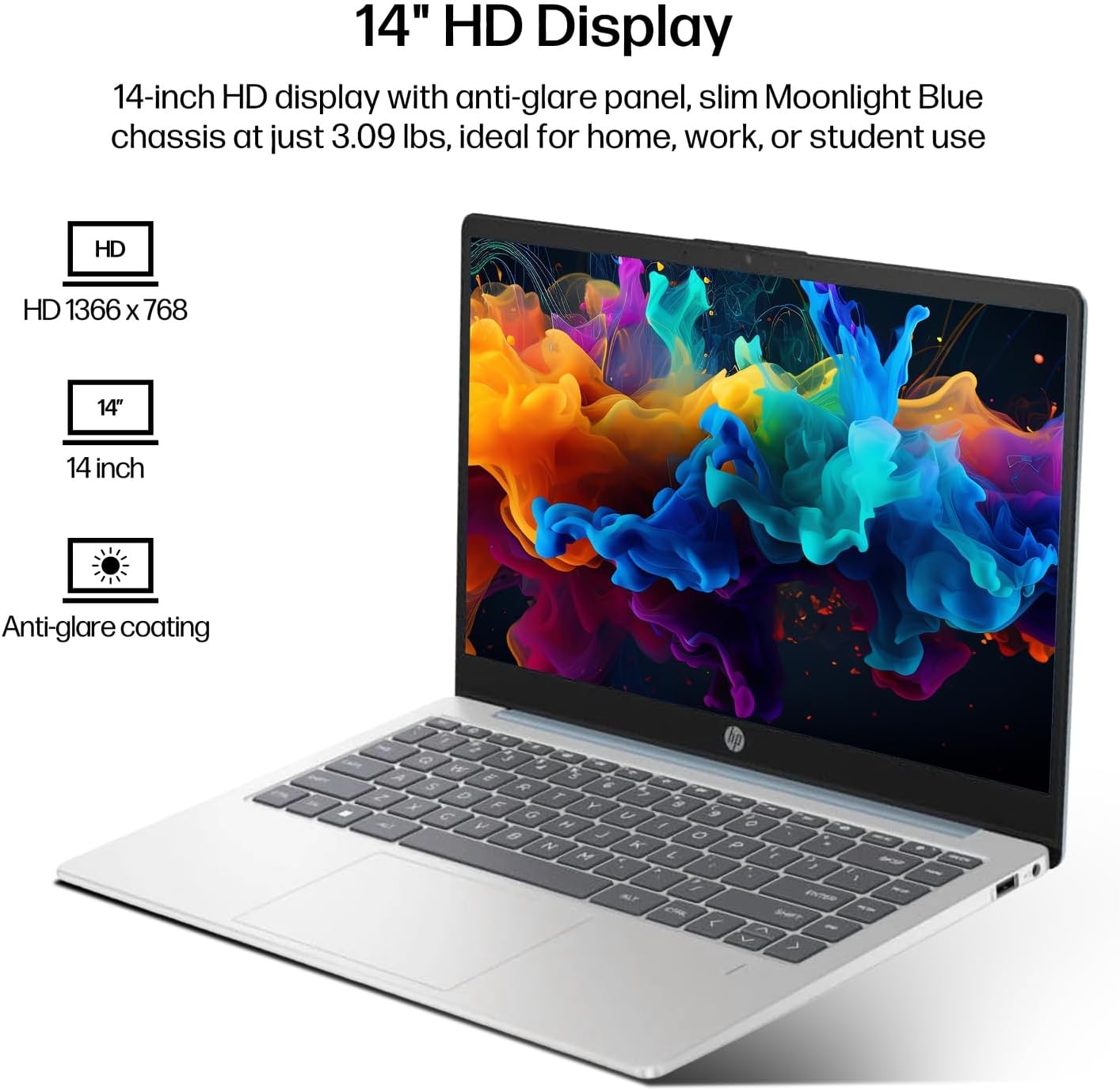
Figure 6.1: The 14-inch HD display features a resolution of 1366 x 768 pixels and an anti-glare coating.

Figure 6.2: The laptop is powered by an AMD Athlon Silver 7120U Processor with integrated AMD Radeon Graphics.
| Feature | Specifikation |
|---|---|
| Mærke | HP |
| Modelnavn | 14-em |
| Processor | AMD Athlon Silver 7120U (2 Cores, 2 Threads, up to 3.5 GHz Boost Clock) |
| Grafik | AMD Radeon-grafik (integreret) |
| VÆDDER | 4 GB DDR4 SODIMM |
| Opbevaring | 512 GB eMMC (Solid State) |
| Vise | 14-inch HD (1366 x 768) LED, Anti-Glare |
| Operativsystem | Windows 11 Pro |
| Trådløs forbindelse | Wi-Fi 6 (802.11ax), Bluetooth 5.4 |
| Havne | 2x USB Type-A, 1x USB Type-C (Data Transfer), 1x HDMI, 1x Headphone/Microphone Combo |
| Kamera | Fremadvendte |
| Lyd | HD lyd |
| Dimensioner (L x B x H) | 12.74 cm x 8.46 cm x 0.7 cm |
| Vægt | Cirka 3.09 lbs |
| Inkluderet tilbehør | Mytrix 2.4GHz Wireless Gaming Headset |

Figure 6.3: Physical dimensions of the HP 14-inch HD Laptop.
7. Garanti og support
7.1 Produktgaranti
Your HP 14-em laptop comes with a 12-month manufacturer's warranty. This warranty covers defects in materials and workmanship under normal use. For specific terms and conditions, please refer to the warranty documentation included with your product or visit the official HP support webwebsted.
7.2 Teknisk support
For technical assistance, troubleshooting beyond this manual, or warranty claims, please contact HP Customer Support. You can find contact information on the official HP website or through the support application pre-installed on your laptop.
Additional protection plans are available for purchase, including 2-Year and 4-Year Protection Plans, and a monthly Complete Protect plan. Details can be found where you purchased the product.