
1. Introduktion
This manual provides essential information for the setup, operation, and maintenance of your Lenovo ThinkStation P2 Gen 2 30JQ002TUS Workstation. The ThinkStation P2 Gen 2 is engineered to deliver high performance, versatility, and reliability for demanding professional workflows. Its modular design facilitates easy upgrades and customization.
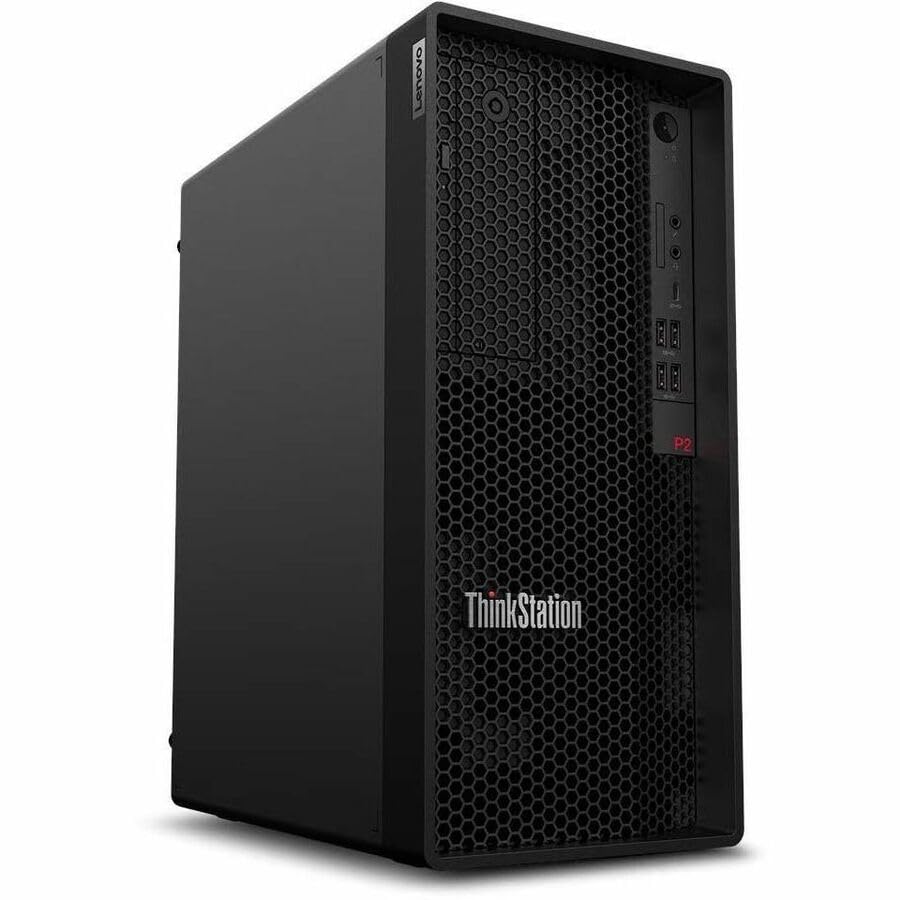
Figure 1: Lenovo ThinkStation P2 Gen 2 Workstation
2. Opsætning
2.1 Udpakning
Fjern forsigtigt alle komponenter fra emballagen. Sørg for, at følgende dele er til stede:
- ThinkStation P2 Tower Gen 2 30JQ002TUS
- Tastatur
- Mus
- Strømkabel
2.2 Tilslutning af eksterne enheder
Connect your keyboard, mouse, and monitor to the workstation. Refer to the images below for port locations.

Figure 2: Front Panel. Features USB ports, audio jacks, and optical drive bay (if equipped).
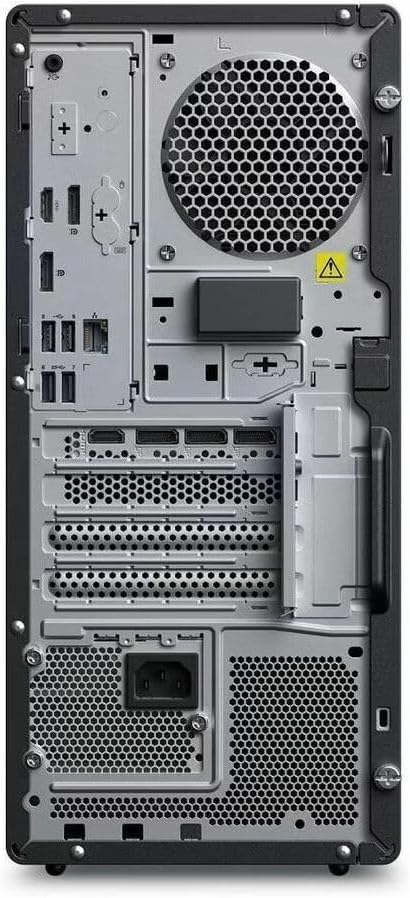
Figure 3: Rear Panel. Includes DisplayPort, HDMI, multiple USB ports (USB 2.0, USB Type C), Ethernet, and power input.
- Tastatur og mus: Connect to any available USB ports.
- Overvåge: Connect your display using either the HDMI or DisplayPort outputs.
- Netværk: For wired internet, connect an Ethernet cable to the RJ-45 port. For wireless, ensure Wi-Fi antennas are properly connected (if external) or that the internal Wi-Fi is enabled.
2.3 Tænd
- Connect the power cable to the workstation's power input and then to a power outlet.
- Press the power button located on the front panel of the workstation.
2.4 Indledende opsætning af operativsystem
Upon first boot, the Windows 11 Pro operating system will guide you through the initial setup process, including language selection, network configuration, and user account creation.
3. Betjening af arbejdsstationen
3.1 Strømstyring
- Tænd: Tryk på tænd/sluk-knappen.
- Luk ned: I Windows skal du gå til Start > Strøm > Luk ned.
- Genstart: I Windows skal du gå til Start > Strøm > Genstart.
- Sove: I Windows skal du gå til Start > Strøm > Slumretilstand.
3.2 Operating System
Your ThinkStation P2 Gen 2 comes pre-installed with Windows 11 Pro, offering advanced features for productivity, security, and management. Familiarize yourself with the Windows interface and its functionalities.
3.3 Ydeevnefunktioner
The workstation is equipped with an Intel Core Ultra 5 (Tetradeca-core) processor, 16 GB of DDR5 RAM, and a 512 GB SSD. These components ensure efficient data handling, quick transfers, optimized system responsiveness, and the ability to manage multiple programs simultaneously without performance degradation.
3.4 Forbindelse
The workstation supports various connectivity options:
- Trådløs: Integrated Wi-Fi for high-speed internet and Bluetooth for connecting wireless peripherals.
- wired: Ethernet port for stable wired network connections.
- USB-porte: Multiple USB 2.0, USB 3.2 Gen 1, and USB Type-C ports for connecting external devices.
- Videooutput: DisplayPort and HDMI for connecting multiple monitors.
4. Vedligeholdelse
4.1 Rengøring
- Ydre: Brug en blød, damp klud til at rengøre de udvendige overflader. Undgå skrappe kemikalier.
- Ventilation: Regularly check and clean the ventilation grilles to prevent dust buildup, which can impede airflow and cause overheating. Use compressed air to gently clear dust.
4.2 Softwareopdateringer
Keep your operating system and drivers updated to ensure optimal performance and security. Windows Update will manage OS updates, and Lenovo's official support website provides the latest drivers for your hardware.
4.3 Hardwareopgraderinger
The ThinkStation P2 Gen 2 features a modular design, allowing for straightforward upgrades. You can expand RAM up to 128 GB (DDR5) and add additional storage drives (SSD/HDD) as needed. Refer to the official Lenovo service manual for detailed instructions on component installation.
5. Fejlfinding
5.1 Ingen strøm
- Ensure the power cable is securely connected to both the workstation and the power outlet.
- Kontroller, at stikkontakten fungerer ved at tilslutte en anden enhed.
- Kontroller strømforsyningsenhedens (PSU) blæser for drift.
5.2 Ingen visning
- Confirm the monitor is powered on and connected correctly to the workstation's video output (HDMI or DisplayPort).
- Ensure the monitor's input source is set to the correct port.
- Test med en anden skærm eller et andet videokabel, hvis det er muligt.
5.3 Systemnedgang
- Luk unødvendige programmer, der kører i baggrunden.
- Tjek Jobliste (Ctrl+Shift+Esc) for processer, der bruger meget CPU eller RAM.
- Sørg for tilstrækkelig ledig plads på SSD'en.
- Kør en systemscanning for malware.
5.4 Forbindelsesproblemer
- Kablet netværk: Kontroller Ethernet-kabelforbindelsen og routerens status.
- Wi-Fi: Verify Wi-Fi is enabled in Windows settings and that you are connected to the correct network. Restart your router if necessary.
- Bluetooth: Ensure Bluetooth is enabled and devices are properly paired.
6. Specifikationer
| Feature | Detalje |
|---|---|
| Mærke | Lenovo |
| Modelnavn | ThinkStation P2 Gen 2 |
| Modelnummer | 30JQ002TUS |
| Operativsystem | Windows 11 Pro |
| CPU model | Intel Core Ultra 5 (Tetradeca-core) |
| CPU hastighed | Op til 5.5 GHz |
| RAM-hukommelse installeret | 16 GB DDR5 |
| Maksimal RAM-hukommelsesstørrelse | 128 GB |
| Opbevaring | 512 GB SSD |
| Grafik coprocessor | Intel Graphics (Integreret) |
| Hardware-interface | Bluetooth, DisplayPort, HDMI, USB, USB 2.0, USB Type C |
| Samlet USB-porte | 9 |
| Video Output Interface | DisplayPort, HDMI |
| Forbindelsesteknologi | Bluetooth, Ethernet, USB, Wi-Fi |
| Strømforbrug | 500 Watts (PSU) |
| Varedimensioner (L x B x H) | 12.4 x 6.7 x 14.8 tommer |
7. Garantioplysninger
The Lenovo ThinkStation P2 Gen 2 30JQ002TUS Workstation comes with a 3 års producentgaranti. For detailed terms and conditions, including coverage and service procedures, please refer to the official warranty documentation provided with your product or visit the Lenovo support webwebsted.
8. Support
For further assistance, technical support, driver downloads, or additional documentation, please visit the official Lenovo support website. You can typically find support resources by searching for your specific model number (30JQ002TUS) on their site.
Lenovo Support Webwebsted: https://support.lenovo.com