
1. Introduktion
Thank you for choosing the XINDADA VP29 Smart Watch. This device combines advanced communication, navigation, and health monitoring features in a sleek, wearable design. Please read this manual carefully to ensure proper setup and optimal use of your new smartwatch.
2. Nøglefunktioner
- 4G/5G LTE SIM Card Support: Stay connected with independent calling capabilities.
- 2.29-inch AMOLED HD Large Screen: Enjoy vibrant visuals with 490*580 high-resolution display.
- 180-degree Telescopic Rotating Camera: Capture photos and videos from various angles.
- GPS & WiFi Connectivity: Accurate navigation and internet access.
- Android 9.0-operativsystem: Access a wide range of applications.
- Hukommelsesmuligheder: Available in 3GB+32GB or 4GB+64GB configurations.
- Sundhedsovervågning: Includes heart rate sensor and step counting.
- Vandtæt niveau: IP67 klassificeret til beskyttelse mod støv og vand.
- Yderligere funktioner: Compass, barometer, accelerometer, gyroscope, Bluetooth 4.1.
3. Opsætning
3.1 Installation af SIM -kort
The XINDADA VP29 Smart Watch supports 4G/5G LTE SIM cards for independent communication. Follow these steps to install your SIM card:
- Find SIM-kortstikket på siden af uret.
- Carefully open the SIM card tray using the provided tool or by gently prying it open.
- Insert your Nano-SIM card into the tray, ensuring the gold contacts face upwards and the card is correctly oriented.
- Skub forsigtigt bakken tilbage i åbningen, indtil den klikker på plads.
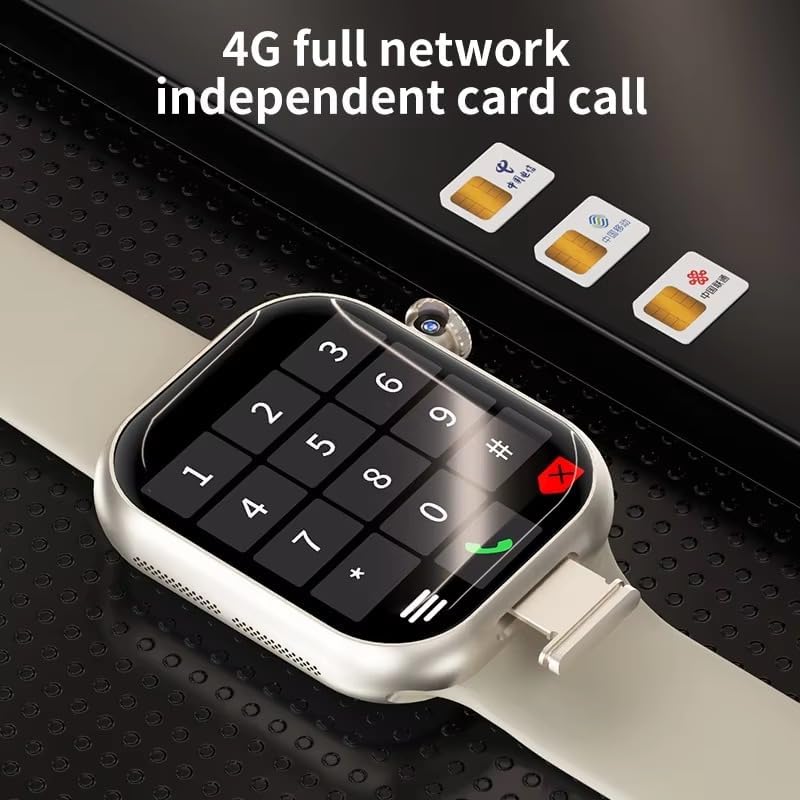
Image: The XINDADA VP29 Smart Watch displaying a dial pad, with three SIM cards shown in the background, illustrating the watch's 4G full network independent card call capability.
Video: A general guide demonstrating SIM card installation, app pairing, and basic settings for a smartwatch. While the watch model shown may differ, the process for SIM card insertion and initial setup is similar.
3.2 App-parring
To unlock the full potential of your VP29 Smart Watch, pair it with your smartphone using the dedicated companion app. The app allows for advanced settings, data synchronization, and remote control features.
- Scan the QR code displayed on your watch or in the manual to download the recommended app.
- Install the app on your smartphone and create an account if prompted.
- Open the app and follow the on-screen instructions to add your device. This typically involves scanning a QR code on the watch or selecting it from a list of nearby devices.
- Bekræft parringsanmodningen på både din smartphone og smartwatch.
3.3 Sprogindstillinger
You can change the language of your smartwatch through the settings menu:
- Navigate to the 'Settings' menu on your smartwatch.
- Look for 'Language' or 'Bahasa' (if applicable) and select it.
- Vælg dit foretrukne sprog blandt de tilgængelige muligheder.
3.4 Tilpasning af urskive
Personalize your smartwatch by changing the watch face:
- On your smartwatch, long-press the current watch face to enter customization mode.
- Swipe left or right to browse through pre-installed watch faces.
- Alternatively, use the companion app on your smartphone to access a wider selection of watch faces or create custom ones using your own photos.
- Select your desired watch face to apply it.
Video: A general demonstration of how to change the watch face on a smartwatch, including selecting from pre-installed options and customizing with personal images via a companion app.
4. Betjeningsvejledning
4.1 Grundlæggende navigation
The VP29 Smart Watch features a multi-touch AMOLED display. Swipe up, down, left, or right to navigate through menus, notifications, and apps. Tap to select an item or open an application.
4.2 Foretage og modtage opkald
With an installed SIM card, your VP29 Smart Watch can make and receive calls independently:
- Foretage opkald: Open the 'Phone' app, dial the number, and tap the call icon. You can also access your contacts.
- Modtagelse af opkald: When a call comes in, tap the green answer icon on the screen.
4.3 Using GPS
The integrated GPS allows for accurate location tracking and navigation:
- Access the 'Maps' or 'Navigation' app on your watch.
- Indtast din destination, eller vælg et interessepunkt.
- Follow the on-screen directions for turn-by-turn navigation.

Image: The XINDADA VP29 Smart Watch showing a map with a navigation route, indicating its multiple positioning capabilities.
4.4 kamera funktionalitet
The unique 180-degree telescopic rotating camera allows for versatile photo and video capture:
- Åbn appen 'Kamera'.
- Rotate the camera module to your desired angle.
- Tryk på skærmen for at tage et billede eller starte/stoppe videooptagelse.
- View your media in the 'Gallery' app.
4.5 Sundhedsovervågning
Monitor your health with the built-in sensors:
- Puls: Open the 'Heart Rate' app to measure your current heart rate.
- Skridttælling: Uret sporer automatisk dine skridt i løbet af dagen. View your daily activity in the 'Step' app or the companion app.
4.6 App-brug
As an Android-powered device, the VP29 Smart Watch supports various applications:
- Access pre-installed apps like Clock, SMS, Browser, Calendar, E-Mail, Music, Alarm, etc.
- Download additional apps from the 'Application Market' to expand functionality.
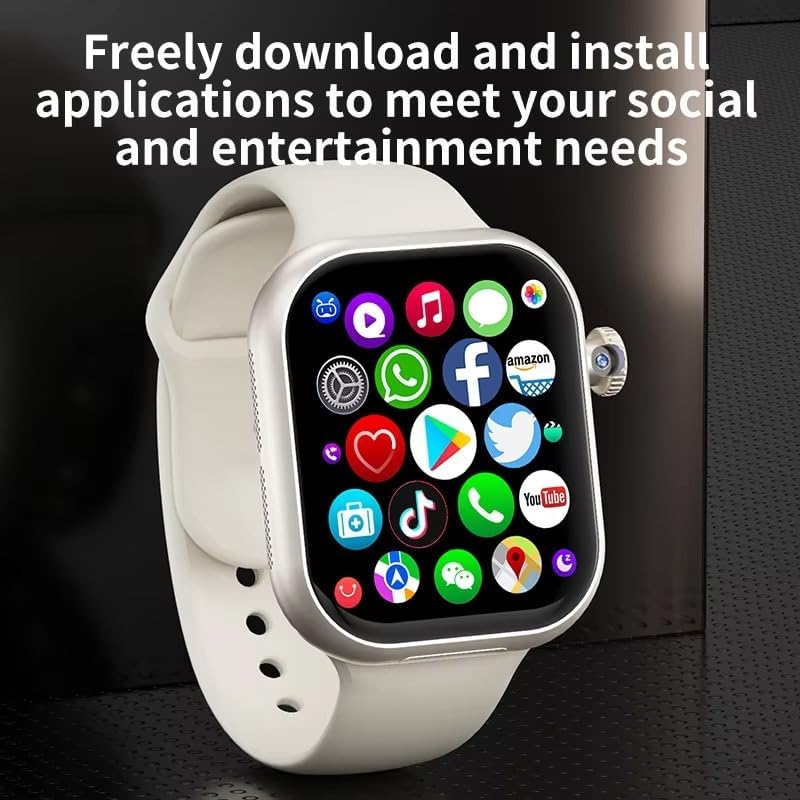
Image: The XINDADA VP29 Smart Watch displaying a grid of application icons, including social media, shopping, and utility apps, highlighting its ability to download and install applications.
Video: En general overview of a 4G LTE smartwatch, showcasing various features such as calling, health tracking, and app usage. This video provides a visual representation of common smartwatch functionalities.
5. Vedligeholdelse
- Rensning: Tør uret og remmen regelmæssigt af med en blød kludamp klæde. Undgå skrappe kemikalier.
- Opladning: Use only the provided charging cable and a compatible power adapter. Ensure charging contacts are clean and dry.
- Vandtæthed: The watch is IP67 waterproof. Avoid prolonged submersion or exposure to high-pressure water jets. Ensure the SIM card slot cover is securely closed.
- Softwareopdateringer: Keep your watch's software updated for optimal performance and new features. Check for updates via the companion app or the watch's settings.
6. Fejlfinding
- Uret tænder ikke: Sørg for, at uret er fuldt opladet. Tilslut det til opladeren i mindst 30 minutter.
- Kan ikke foretage/modtage opkald: Check if the SIM card is correctly installed and activated. Verify network signal strength.
- GPS'en virker ikke: Ensure GPS is enabled in settings. Use GPS in an open area with a clear view af himlen.
- Problemer med Bluetooth-forbindelse: Ensure Bluetooth is enabled on both the watch and your smartphone. Try unpairing and re-pairing the devices.
- Skærmen reagerer ikke: Restart the watch. If the issue persists, perform a factory reset (note: this will erase all data).
7. Specifikationer
| Feature | Specifikation |
|---|---|
| Mærke | XINDADA |
| Model | VP29 |
| Vise | 2.29 inch AMOLED HD (490*580 resolution) |
| Operativsystem | Android 9.0 |
| Forbindelse | 4G/5G LTE (B1,B3,B5,B7,B8,B20,B38,B39,B40,B41), GPS, WiFi, Bluetooth 4.1 |
| Hukommelse (RAM+ROM) | 3 GB + 32 GB eller 4 GB + 64 GB |
| Kamera | 180-degree Telescopic Rotating Camera |
| Batteri | 1380mAh |
| Sensorer | Accelerometer, Gyroscope, Step Counting, Heart Rate Sensor, Barometer, Compass |
| Vandmodstand | IP67 |
| Lydformater | MP3/AAC/AAC+/WMA/DRA/AMR-NB |
| Billedformater | JPG, JPEG, BMP |
8. Garanti og support
For warranty information and customer support, please refer to the documentation included with your product or contact the retailer where you purchased the XINDADA VP29 Smart Watch. Keep your proof of purchase for warranty claims.