
Phomemo A30 Bluetooth Thermal Label Printer Instruction Manual
Model: A30
1. Produktet er slutview
The Phomemo A30 is an updated Bluetooth thermal label printer designed for creating custom labels. It supports both continuous labels and label tapes, featuring a high-tech thermal print head for clear and consistent print quality. Its compact and portable design makes it suitable for various labeling needs.
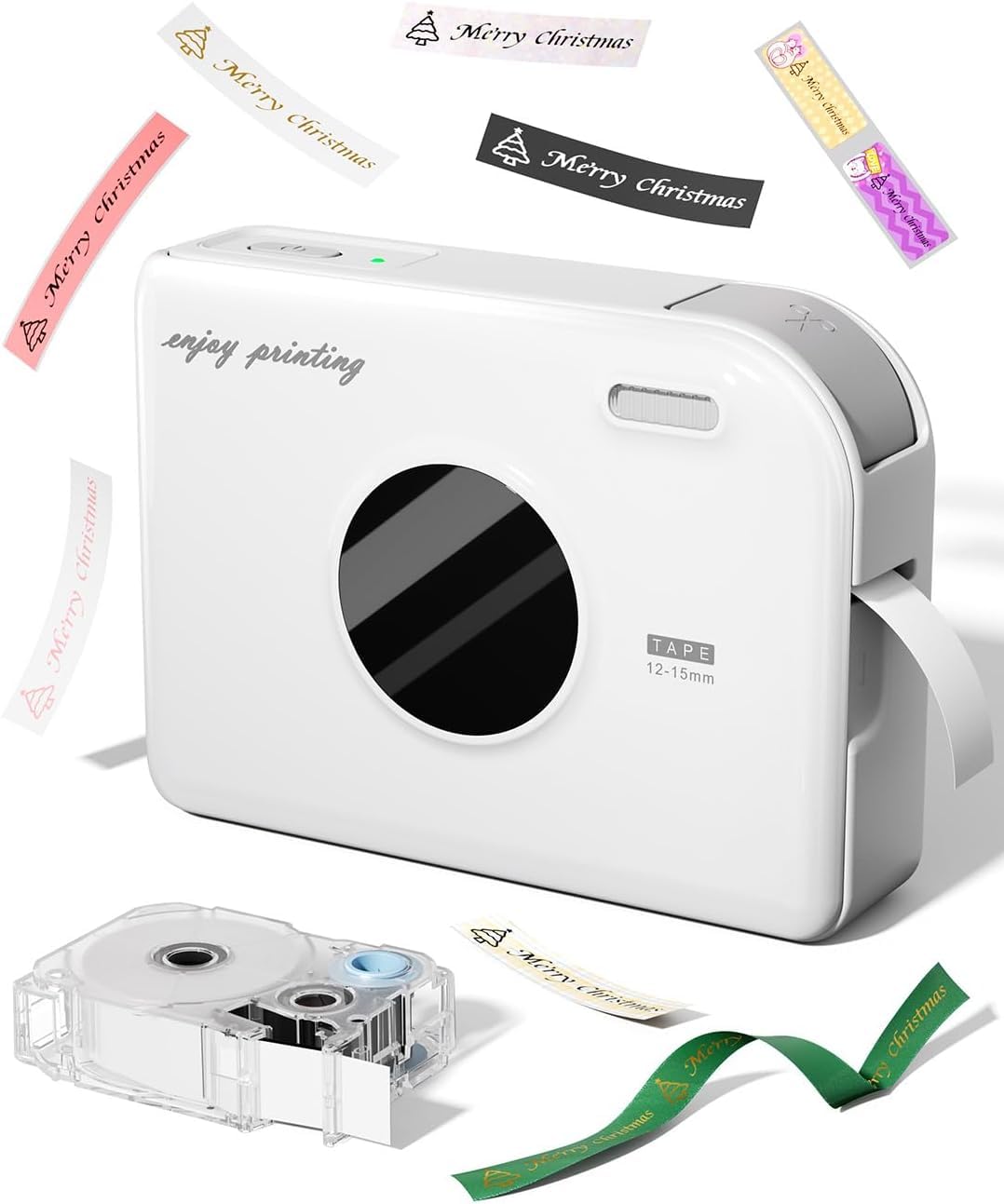
Image 1.1: Phomemo A30 Label Printer with a roll of white label tape.
2. Pakkens indhold
Bekræft at alle varer er til stede i pakken:
- Phomemo A30 Label Printer (1 unit)
- White Label (15 mm * 4 m) (1 roll)
- USB-Type-C Data Cable (1 unit)
- Brugsanvisning (1 enhed)
3. Opsætning
3.1 Opladning af enheden
Before initial use, fully charge the Phomemo A30 printer. Connect the provided USB-Type-C cable to the printer and a power source. The device features a 1200 mAh rechargeable lithium battery, offering approximately 4 hours of continuous use or 7 days of standby time on a full charge.
3.2 Appinstallation
Download the "Print Master" application from your device's app store (compatible with iOS and Android). This app is essential for connecting your phone to the printer and creating custom labels.
3.3 Bluetooth-forbindelse
- Sørg for, at Bluetooth er aktiveret på din smartphone eller tablet.
- Åbn appen "Print Master".
- The app will automatically detect and connect to the Phomemo A30 printer. If prompted, allow location services for Bluetooth functionality.
- Upon first connection, the app may suggest a firmware update. Follow the on-screen instructions to complete the update, which is managed automatically via Bluetooth.

Image 3.3: Screenshot of the 'Print Master' app interface for label creation.
3.4 Ilægning af etiketter
Open the printer cover and insert the label roll. The Phomemo A30 features an automatic paper detection system that helps prevent jams and ensures correct label alignment. Ensure the label tape is properly fed through the output slot.

Image 3.4: The Phomemo A30 printer with label tape correctly loaded and extending from the output slot.
4. Betjeningsvejledning
4.1 Creating Labels with the App
The "Print Master" app provides extensive customization options:
- Skabeloner: Access numerous pre-designed label templates.
- Skrifttyper og stilarter: Choose from over 200 fonts and 600 symbols, and more than 200 frames.
- Elementer: Add icons, text, emojis, logos, timestamps, and import data from Excel.
- OCR Scanning: Utilize OCR functionality for text recognition.
- Sprog: Supports multiple languages for text input.

Billede 4.1: Overview of the 'Print Master' app's features, including fonts, borders, icons, and language options.
4.2 Udskrivning af etiketter
Once your label design is complete in the app, select the print option. The printer will produce labels with superior clarity and consistent quality. The integrated cutter allows for precise trimming of labels after printing.

Image 4.2: The Phomemo A30 printer producing various personalized labels, demonstrating its versatility.
4.3 Etikettyper og anvendelser
The Phomemo A30 supports a variety of label materials and applications:
- Standard Labels: For general organization, such as food expiration dates, cosmetic selection, and document management.
- Kontinuerlige etiketter: Allows for custom length labels.
- Specialmærker: Includes colored, magnetic, glitter, glow-in-the-dark, and iron-on fabric labels.
- Ribbon Printing: Customize ribbons for gift wrapping and decorative purposes.

Billede 4.3: Eks.amples of Phomemo A30 labels used for organizing clothing, storage, files, and home items.

Image 4.4: Gift boxes adorned with custom-printed ribbons, showcasing the ribbon printing capability.
5. Vedligeholdelse
5.1 Rengøring af printeren
To maintain optimal print quality, periodically clean the print head and the interior of the printer. Use a soft, lint-free cloth, slightly dampened with isopropyl alcohol, to gently wipe the print head. Ensure the printer is turned off and disconnected from power before cleaning.
5.2 Pleje af batterier
To prolong battery life, avoid fully discharging the battery frequently. Charge the device regularly, especially if it will be stored for an extended period. Store the printer in a cool, dry place.
6. Fejlfinding
6.1 Forbindelsesproblemer
- Ensure Bluetooth is active on your mobile device and the printer is powered on.
- Genstart både printeren og din mobilenhed.
- Verify that the "Print Master" app has the necessary permissions (e.g., location services) enabled.
6.2 Dårlig udskriftskvalitet
- Check if the label tape is correctly installed and not damaged.
- Rengør printhovedet som beskrevet i afsnittet Vedligeholdelse.
- Ensure you are using genuine Phomemo A30 compatible labels for optimal results.
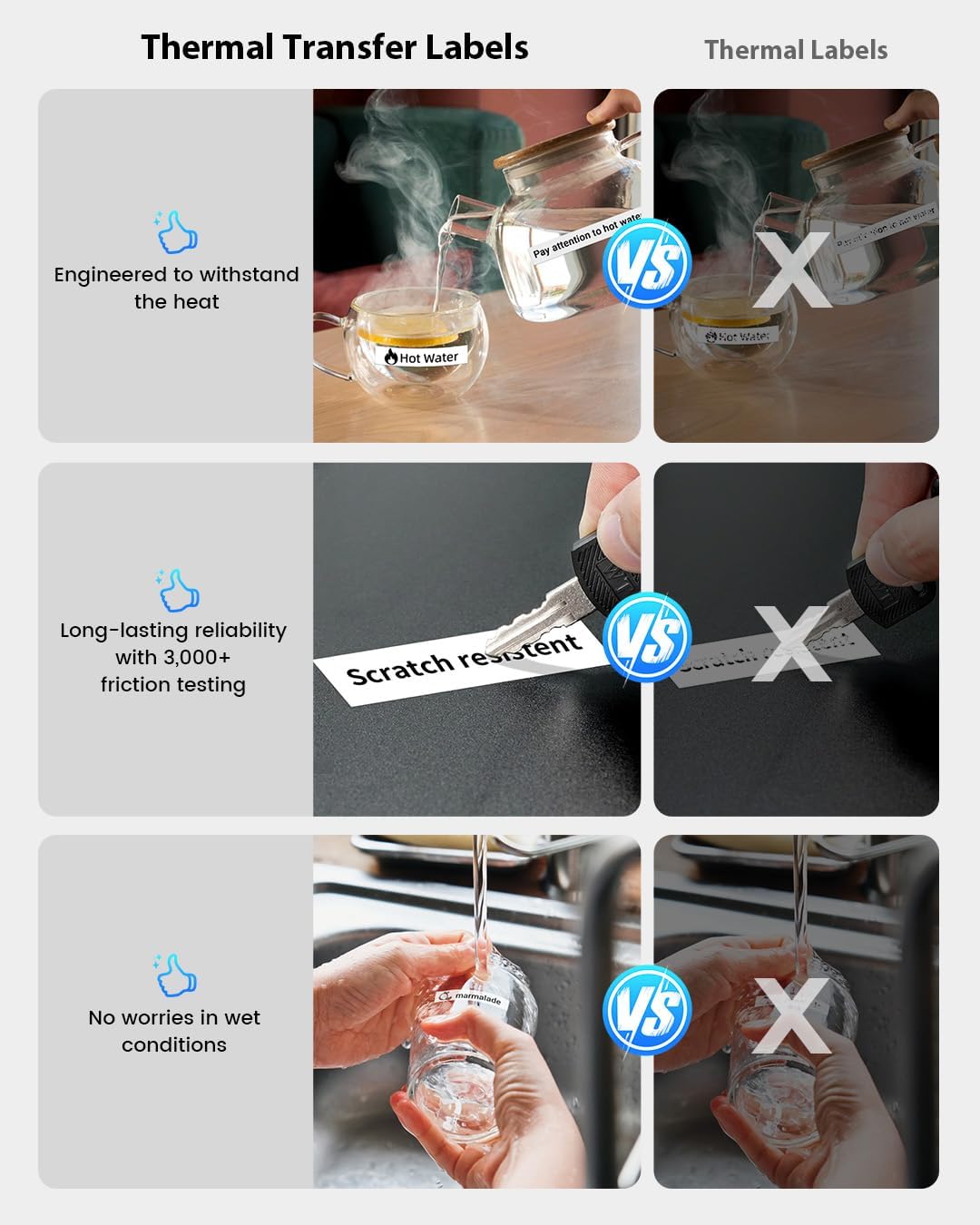
Image 6.2: Comparison illustrating the durability of thermal transfer labels against standard thermal labels, highlighting resistance to heat, scratches, and water.
6.3 Label Jams
- Sluk printeren, og åbn forsigtigt dækslet.
- Remove any jammed label material.
- Re-insert the label roll, ensuring it is properly aligned with the automatic detection system.
7. Specifikationer
| Mærke | Phomemo |
| Modelnavn | DE-A30-WH-PRIMTER |
| Forbindelsesteknologi | Bluetooth |
| Printteknologi | Termisk |
| Printer output | Monokrom |
| Max Print Speed (B&W) | 60 sider i minuttet |
| Maksimal udskriftsopløsning | 300 dpi |
| Maks. papirstørrelse | 15 mm |
| Produktdimensioner | 4P x 10L x 8H cm |
| Batteri | 1200 mAh genopladeligt lithium batteri |
8. Garanti og support
Phomemo offers excellent and professional customer service. If you encounter any issues before or after your purchase, please do not hesitate to contact us through Amazon. Refer to the product packaging or the official Phomemo webwebstedet for specifikke garantioplysninger og kontaktoplysninger.