
1. Produktet er slutview
The KVAGO Keyboard Case is designed to enhance your iPad experience by providing a protective cover and a versatile detachable Bluetooth backlit keyboard. This accessory transforms your tablet into a more productive workstation, offering a comfortable typing experience and multiple viewing vinkler.
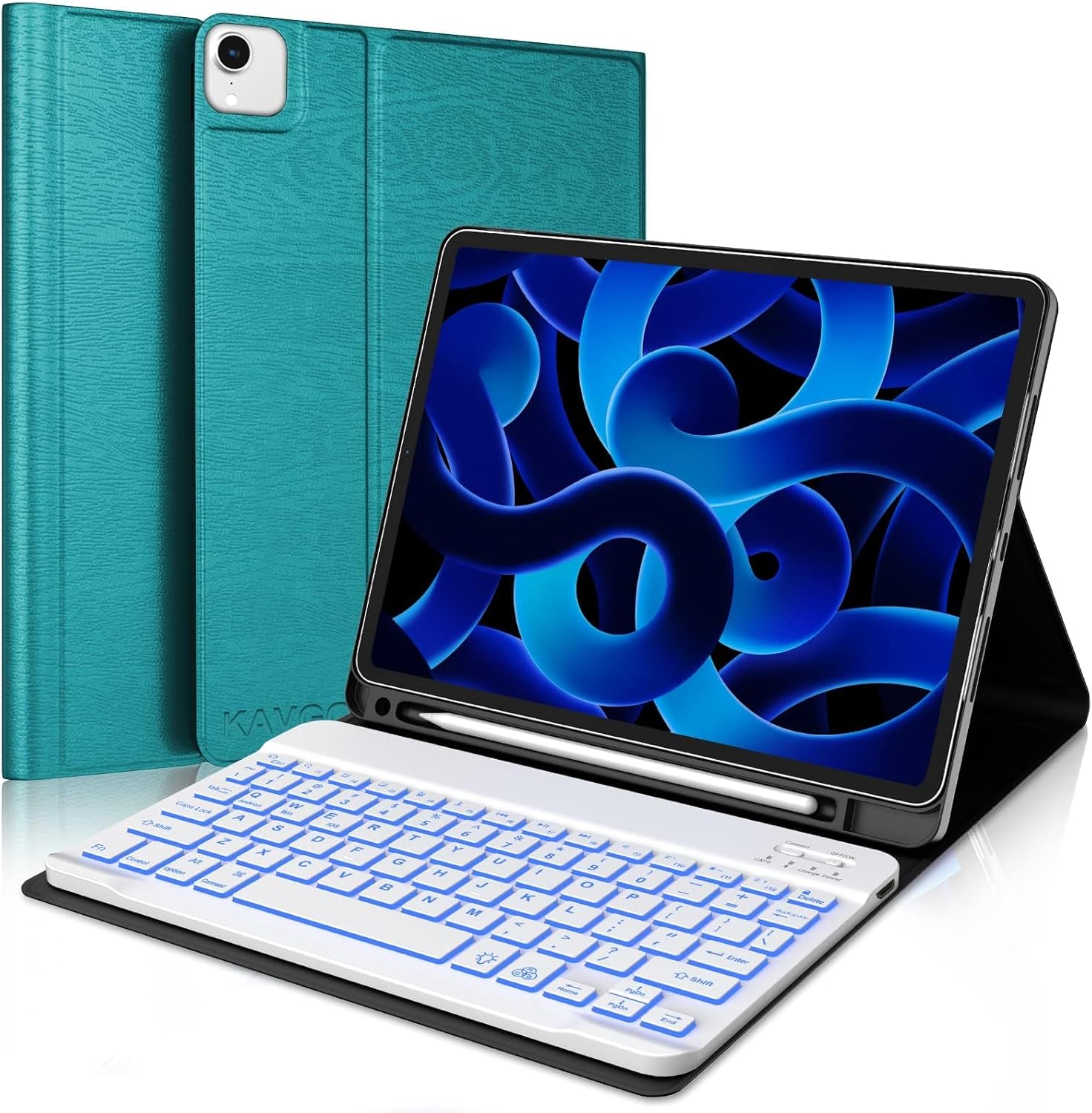
Image: KVAGO Keyboard Case with an iPad, showcasing the backlit keyboard and the case's design.
The case features a special process on PU leather for a luxurious feel, magnetic auto sleep/wake functionality to conserve battery life, and a detachable keyboard for flexible use. Its anti-slip groove design allows for easy adjustment to various comfortable viewing angles, ideal for working, writing, or watching videos.
2. Kompatibilitet
This keyboard case is compatible with a range of iPad models. Please verify your iPad's model number on the back of your device to ensure compatibility.
- iPad Air 11-inch (M3) 2025 (Models: A3266 / A3267 / A3270)
- iPad Air 11-inch (M2) 2024 (Models: A2902 / A2903 / A2904)
- iPad Air 5th Generation 10.9-inch 2022 (Models: A2588 / A2589 / A2591)
- iPad Air 4th Generation 10.9-inch 2020 (Models: A2072 / A2316 / A2324 / A2325)
- iPad Pro 11-inch 4th Generation 2022 (Models: A2759 / A2435 / A2761 / A2762)
- iPad Pro 11-inch 3rd Generation 2021 (Models: A2377 / A2459 / A2301 / A2460)
- iPad Pro 11-inch 2nd Generation 2020 (Models: A2228 / A2068 / A2230 / A2231)
- iPad Pro 11-inch 1st Generation 2018 (Models: A1980 / A2013 / A1934)
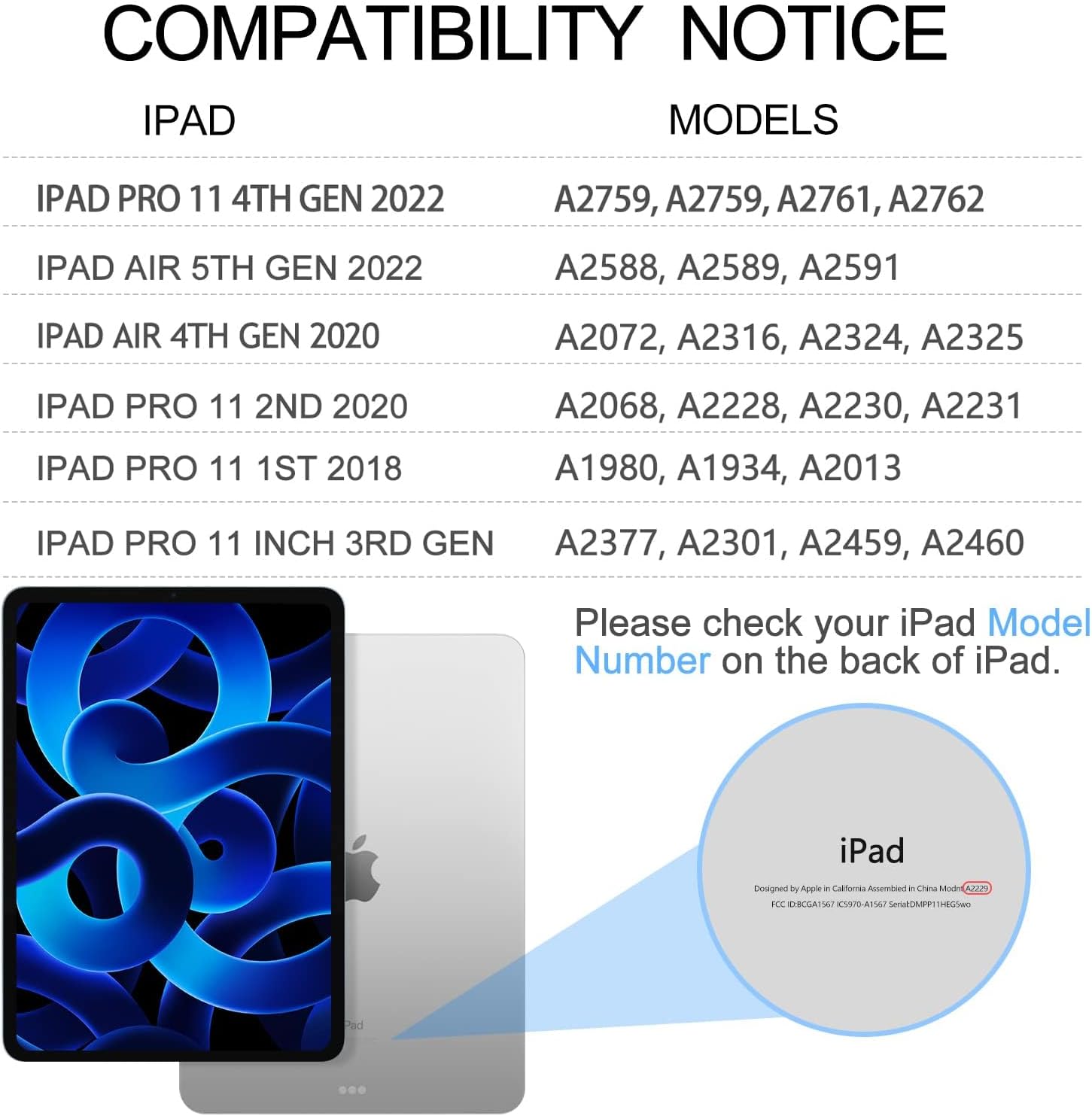
Image: A detailed chart showing compatible iPad models and their corresponding model numbers.
3. Nøglefunktioner
- 7 farver baggrundsbelyst tastatur: Enjoy typing in low-light conditions with 7 adjustable backlight colors and 3 brightness levels.
- Detachable Bluetooth Keyboard: The keyboard attaches magnetically to the case, allowing you to remove it when not needed.
- Auto Sleep / Wake Function: Automatically puts your iPad to sleep when the case is closed and wakes it upon opening, preserving battery life. (Note: It is recommended to remove the keyboard for normal function of auto sleep/wake.)
- Multi Viewi vinkler: Features anti-slip grooves supporting three viewing angles (120°, 125°, 130°) for comfortable use.
- Omfattende beskyttelse: Premium PU leather cover and soft, microfiber-lined interior protect your tablet from collisions. Honeycomb heat dissipation design maintains optimal iPad temperature.
- Præcise udskæringer: Ensures perfect access to all ports, camera, speakers, and volume buttons.
- Multi Operating Systems: The keyboard is compatible with iOS, Android, and Windows systems.
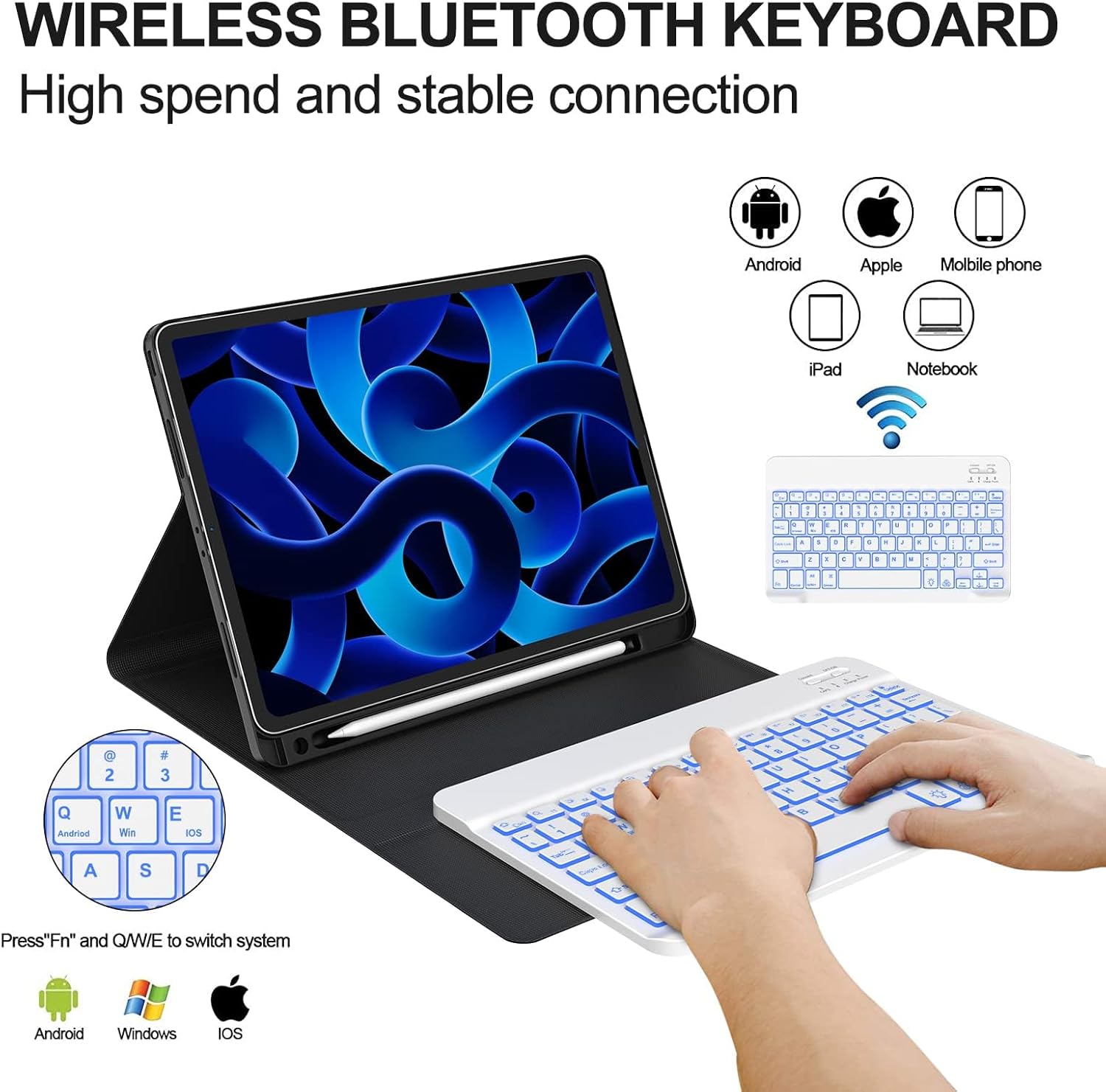
Image: Illustration of the wireless Bluetooth keyboard's compatibility with various operating systems and devices.
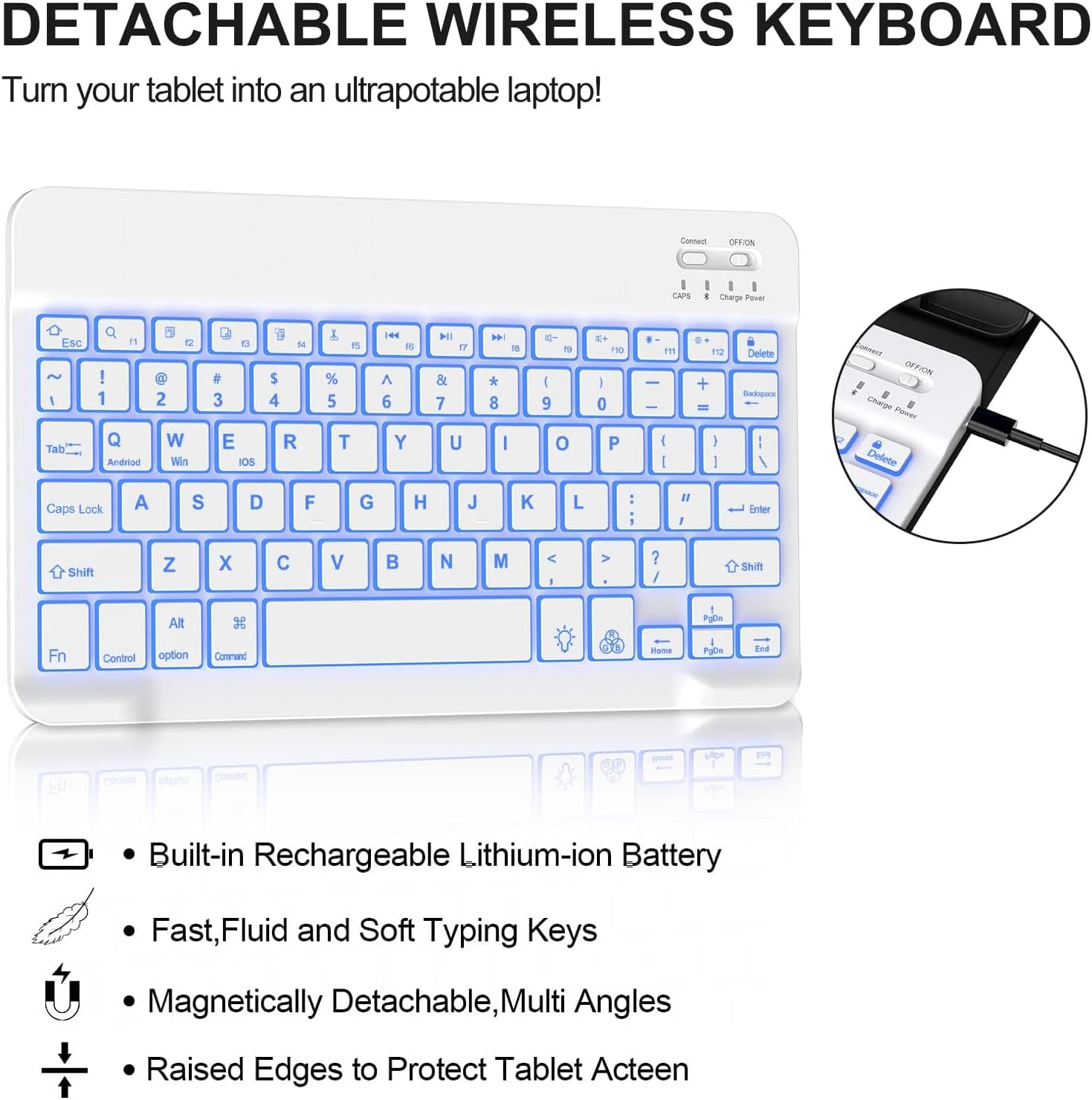
Image: Close-up of the detachable keyboard highlighting its built-in rechargeable battery, fluid typing keys, magnetic attachment, and raised edges for screen protection.
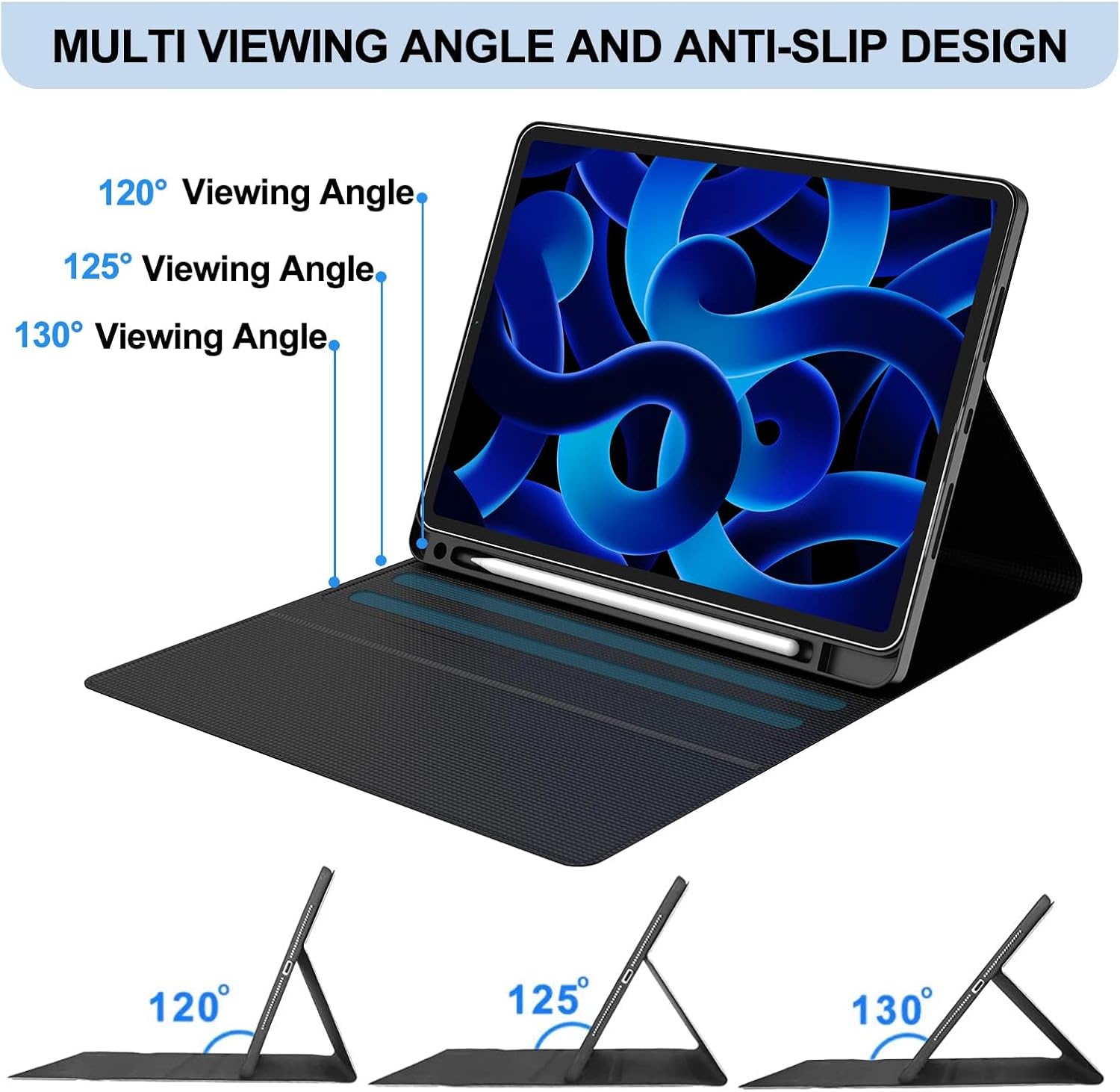
Image: Demonstrates the three adjustable viewing angles (120°, 125°, 130°) provided by the case's anti-slip design.

Image: Shows the precise cutouts on the case, ensuring easy access to all iPad ports and buttons.

Image: Illustrates the automatic sleep/wake function, where closing the magnetic folio puts the iPad to sleep and opening it wakes it up.
4. Setup Guide: Connecting the Keyboard
Follow these steps to pair your KVAGO Bluetooth Keyboard with your iPad:
- Fully charge the keyboard before first use and turn it on.
- Press the 'Connect' button on the keyboard to activate its Bluetooth pairing mode.
- On your iPad, go to 'Settings', then tap on 'Bluetooth'.
- Look for 'Bluetooth 3.0 Keyboard' in the list of available devices and select it to connect.
Vigtige bemærkninger:
- For first-time use, charge the keyboard for 2 to 4 hours.
- When you turn on the keyboard, the power indicator will flash for approximately 3 seconds and then turn off.
- For subsequent uses, simply ensure your iPad's Bluetooth is on and the keyboard is powered on. Press any key on the keyboard, and it will automatically reconnect.
5. Betjeningsvejledning
Once connected, your KVAGO keyboard offers a seamless typing experience similar to a laptop. Here are some operational tips:
- Baggrundslys kontrol: Use the dedicated backlight key (often indicated by a light bulb icon) to cycle through colors and adjust brightness levels.
- Multi-OS Switching: To switch between operating systems (Android, Windows, iOS), use the 'Fn' key in combination with 'Q' (Android), 'W' (Windows), or 'E' (iOS).
- Viewi vinkler: Adjust your iPad to the desired viewing angle by utilizing the anti-slip grooves within the case.
- Automatisk dvale/vågne: The case's magnetic closure automatically puts your iPad to sleep when closed and wakes it when opened.
6. Vedligeholdelse og opladning
To ensure the longevity and optimal performance of your KVAGO Keyboard Case, follow these maintenance guidelines:
- Opladning: Use the provided USB charging cord to charge the keyboard. Connect it to a standard USB power adapter or a computer's USB port. A full charge typically takes 2-4 hours.
- Rensning: Wipe the case and keyboard with a soft, damp klæde. Undgå at bruge skrappe kemikalier eller slibende rengøringsmidler.
- Opbevaring: When not in use for extended periods, store the keyboard and case in a cool, dry place.
- Batterilevetid: For at forlænge batteriets levetid skal du slukke for tastaturet, når det ikke er i brug.
7. Fejlfinding
If you encounter any issues with your KVAGO Keyboard Case, consider the following:
- Tastatur forbinder ikke:
- Sørg for, at tastaturet er fuldt opladet.
- Make sure the keyboard's power switch is in the 'ON' position.
- Tryk på knappen 'Forbind' på tastaturet for at aktivere parringstilstand.
- On your iPad, turn Bluetooth off and then on again. Forget the 'Bluetooth 3.0 Keyboard' device if previously paired, then attempt to re-pair.
- Genstart din iPad.
- Taster reagerer ikke:
- Check if the keyboard battery is low and charge it.
- Sørg for, at tastaturet er korrekt forbundet via Bluetooth.
- Automatisk dvale/opvågning virker ikke:
- Ensure the keyboard is detached from the case when using this feature, as recommended.
- Verify that the iPad's 'Lock/Unlock' setting is enabled under 'Display & Brightness' (or 'General' > 'Lock/Unlock' on older iOS versions).
Hvis problemerne fortsætter, henvises der til afsnittet om garanti og support for yderligere assistance.
8. Produktspecifikationer
| Produktdimensioner | 11.3 x 8.46 x 1.26 tommer |
| Varens vægt | 1.69 pund |
| Fabrikant | KVAGO |
| Varemodelnummer | iPad Pro 11 M4 |
| Forbindelsesteknologi | Bluetooth |
| Tastaturbeskrivelse | Multifunktionel |
| Farve | Grøn |
| Antal nøgler | 78 |
| Strømkilde | Batteridrevet |
9. Pakkens indhold
Upon opening your KVAGO Keyboard Case package, you should find the following items:
- 1 x Case for iPad 10.9 inch/11 inch
- 1 x Removable Bluetooth Keyboard
- 1 x USB-opladerledning
- 1 x Brugermanual (dette dokument)
10. Garanti og support
KVAGO products are built to last and are backed by our commitment to quality. We strive to provide reliable products and excellent customer service.
For any issues, questions, or concerns regarding your KVAGO Keyboard Case, please do not hesitate to contact our 24/7 customer service team. We are dedicated to ensuring your purchase remains a reliable choice and will assist with necessary replacements or support.
Please refer to your purchase documentation or the KVAGO official webwebstedet for specifikke garantivilkår og kontaktoplysninger.