
Logitech Keys-To-Go 2 Universal Pale Gray
Logitech Keys-to-GO 2 Portable Compact Wireless Keyboard User Manual
Model: Keys-To-Go 2 Universal Pale Gray
Mærke: Logitech
1. Introduktion
The Logitech Keys-to-GO 2 is a slim, portable wireless keyboard designed for on-the-go productivity. It offers a comfortable typing experience across multiple operating systems and features a built-in protective cover.
Nøglefunktioner:
- Types Beautifully: Perfectly spaced scissor keys for a roomy, comfortable typing experience.
- For Any Screen, Any OS: Compatible with Windows, Android, macOS, and ChromeOS.
- Keeps You Covered: Built-in cover protects the compact keyboard from damage.
- Ultra Portable Keyboard: Super slim, lightweight design for easy transport.
- Pair up to Three Devices: Seamlessly switch between three different devices with a single key tap.

Figure 1: Logitech Keys-to-GO 2 Portable Compact Wireless Keyboard with its cover open, showcasing dens slanke design.
2. Opsætning og tilslutning
2.1. Indledende opsætning
- Pak tastaturet ud af emballagen.
- Ensure the pre-installed coin cell batteries are properly seated.
- Locate the On/Off switch on the keyboard and slide it to the 'On' position.
2.2. Bluetooth-parring
The Keys-to-GO 2 can connect to up to three devices simultaneously via Bluetooth. Follow these steps to pair your keyboard:
- Tænd tastaturet ved hjælp af tænd/sluk-knappen.
- Press and hold one of the Easy-Switch keys (labeled 1, 2, or 3) for three seconds until the LED indicator above the key starts blinking rapidly. This indicates the keyboard is in pairing mode.
- On your device (tablet, phone, or computer), navigate to the Bluetooth settings.
- Select "Keys-to-GO 2" from the list of available devices.
- If prompted, enter the pairing code displayed on your screen using the Keys-to-GO 2 keyboard and press Enter.
- Once paired, the LED indicator will glow solid for a few seconds and then turn off, indicating a successful connection.
2.3. Skift mellem enheder
To switch between paired devices, simply press the corresponding Easy-Switch key (1, 2, or 3) for the desired device. The keyboard will automatically connect to that device.
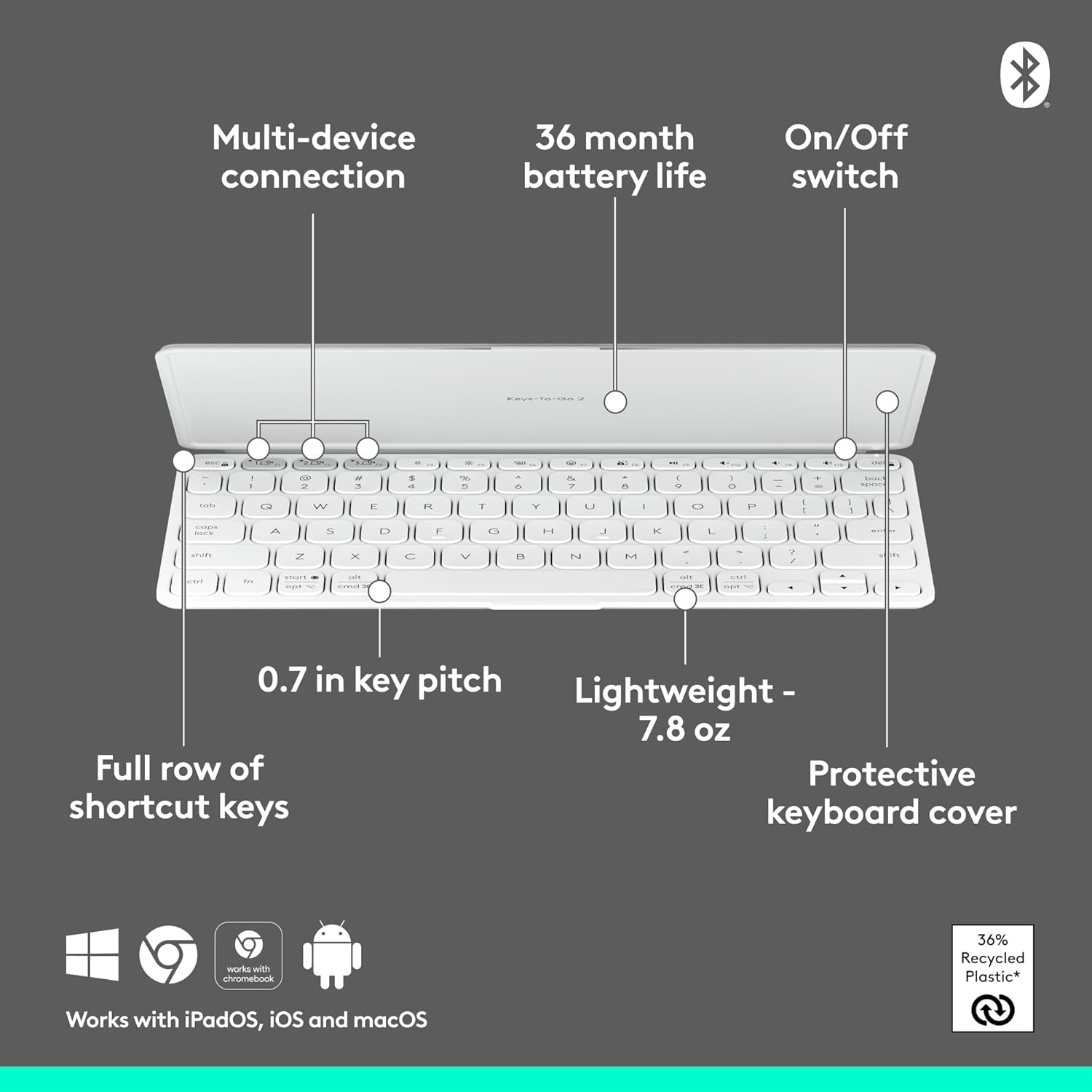
Figure 2: Diagram highlighting key features including multi-device connection and On/Off switch for easy setup.
3. Betjening af tastaturet
3.1. Skriveerfaring
The Keys-to-GO 2 features well-spaced scissor keys designed for comfortable and efficient typing. The low-profile keys provide a satisfying tactile response, making it ideal for extended use.

Figure 3: User typing comfortably on the Keys-to-GO 2 keyboard, highlighting its ergonomic design.
3.2. Genvejstaster
The keyboard includes a full row of shortcut keys for quick access to various functions, such as media controls, screen brightness, and more. These keys are customizable on Windows and macOS for personalized workflow.
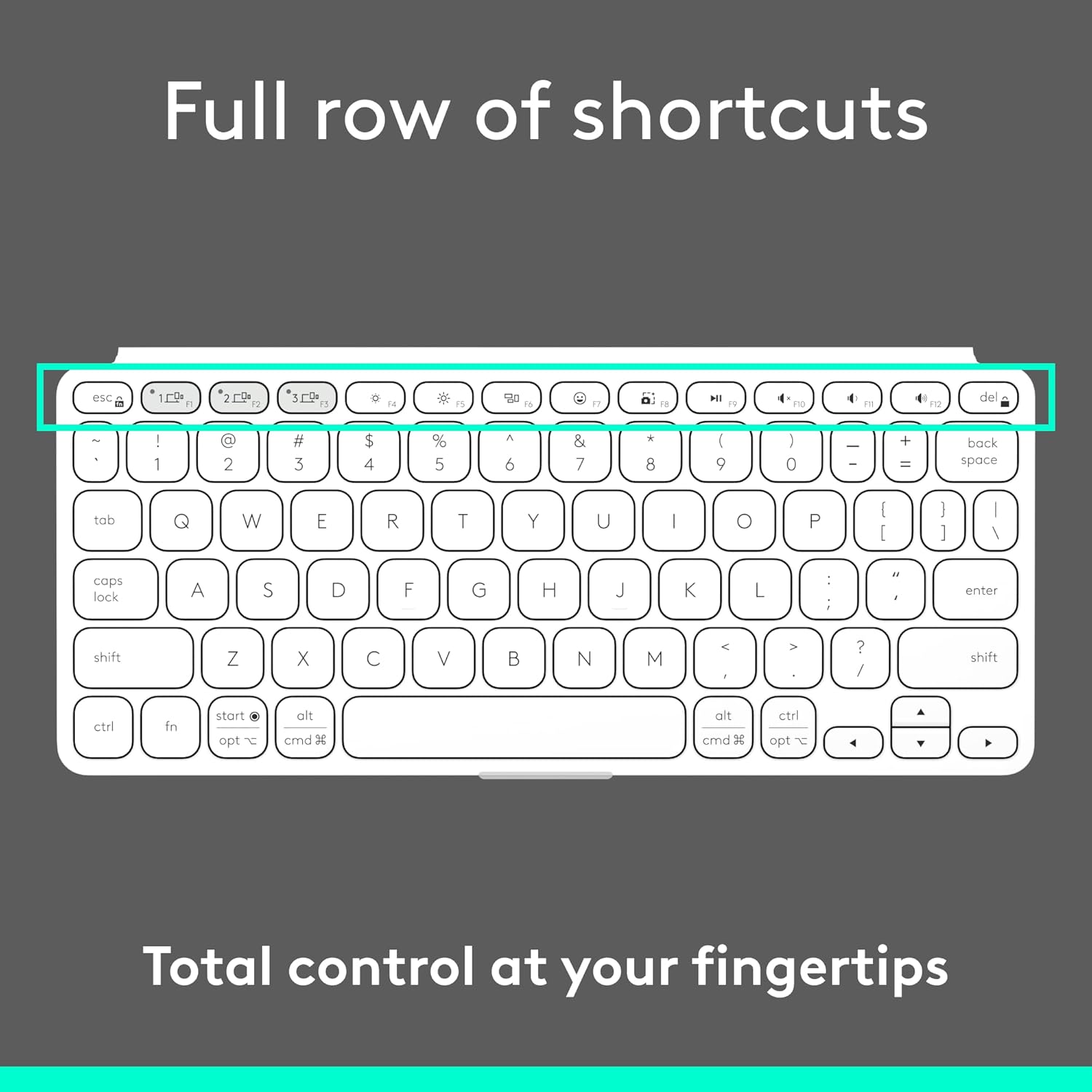
Figur 4: Detaljeret view of the full row of shortcut keys on the Keys-to-GO 2, offering total control at your fingertips.
3.3. Kompatibilitet med flere operativsystemer
The Keys-to-GO 2 is designed to work seamlessly with a variety of operating systems, ensuring broad compatibility across your devices:
- Android
- ChromeOS
- Windows
- iPadOS
- iOS
- macOS

Figure 5: The Keys-to-GO 2 keyboard connected to a tablet, illustrating its versatile multi-OS support.
4. Vedligeholdelse
4.1. Batterilevetid og udskiftning
The Keys-to-GO 2 is powered by pre-installed coin cell batteries, offering up to 3 years of battery life under typical usage conditions. When the battery is low, the LED indicator will signal this. To replace the batteries:
- Find batterirummet på tastaturet.
- You will need a T5 screwdriver to open the battery compartment.
- Carefully remove the old coin cell batteries.
- Insert new coin cell batteries, ensuring correct polarity.
- Securely close the battery compartment using the T5 screwdriver.
Note: Battery life may vary based on usage and computing conditions.

Figure 6: The Keys-to-GO 2 is designed for long battery life, allowing for extended use without frequent battery changes.
4.2. Rensning
For at rengøre dit tastatur skal du forsigtigt tørre overfladen af med en blød kludamp klæde. Undgå at bruge skrappe kemikalier eller slibende materialer.
5. Fejlfinding
| Problem | Mulig årsag | Løsning |
|---|---|---|
| Tastaturet tænder ikke. | Battery is dead or improperly seated. | Check the On/Off switch. Replace batteries if necessary, ensuring they are correctly inserted. |
| Kan ikke parres med enheden. | Keyboard not in pairing mode; Bluetooth off on device; device too far. | Ensure keyboard is in pairing mode (blinking LED). Turn on Bluetooth on your device. Move keyboard closer to device. |
| Tasterne reagerer ikke, eller der opstår skrivefejl. | Low battery; interference; software issue on device. | Replace batteries. Move away from other wireless devices. Restart your device. Re-pair the keyboard. |
| Tastaturet afbrydes ofte. | Low battery; interference; device power saving settings. | Replace batteries. Reduce interference. Check device power saving settings that might disconnect Bluetooth devices. |
6. Specifikationer
- Mærke: Logitech
- Model: Keys-To-Go 2 Universal Pale Gray
- Forbindelse teknologi: Bluetooth
- Operativsystemkompatibilitet: Android, iOS, macOS, Windows, ChromeOS
- Varens vægt: 7.8 ounces (ca. 222 g)
- Produktmål (LxBxH): 4.13 x 0.17 x 9.84 tommer
- Antal nøgler: 78
- Tastaturbeskrivelse: Membran
- Strømkilde: Batteridrevet (1 ikke-standardbatteri inkluderet)
- Batterilevetid: Up to 3 years (pre-installed coin cell batteries)
- Materiale: Plastic (36% recycled plastic)
- Farve: Bleg grå
7. Garanti og support
For garantioplysninger og teknisk support, besøg venligst den officielle Logitech-supportside webwebstedet eller kontakt deres kundeservice. Gem din købskvittering til garantikrav.
Officiel Logitech-support: www.logitech.com/support
Ask a question about this manual
Ask about setup, troubleshooting, compatibility, parts, safety, or missing instructions. Manuals+ will review the question and use this page’s manual context to help answer it.