
Vigtige sikkerhedsoplysninger
- Læs alle instruktioner omhyggeligt, før du bruger produktet.
- Gem denne vejledning til fremtidig reference.
- Udsæt ikke enheden for fugt eller ekstreme temperaturer.
- Brug kun den medfølgende strømadapter.
- Avoid placing the frame near heat sources or in direct sunlight.
- Forsøg ikke selv at adskille eller reparere enheden. Kontakt kundesupport for at få hjælp.
1. Opsætning
1.1 Pakkens indhold
Bekræft at alle varer er til stede i pakken:
- NexFoto 32-inch Digital Picture Frame
- Fjernbetjening
- 64 GB USB-flashdrev
- Wall Adapter (with US plug)
- Rotatable Wall Mount (100x100 VESA Compatible)
- Brugervejledning & hurtigstartguide

NexFoto 32-inch Digital Picture Frame package contents including frame, remote, USB drive, wall adapter, and user manual.
1.2 Fysisk opsætning
The NexFoto digital picture frame offers versatile placement options:
- Stativ: The frame includes a built-in kickstand for tabletop or shelf placement. This allows for both vertical and horizontal orientation.
- Vægbeslag: For a gallery-like experience, use the included VESA-compatible wall mount. The frame features pre-drilled holes for easy installation.

NexFoto 32-inch Digital Picture Frame mounted on a wall, showing its sleek profile.

Bag view of the NexFoto 32-inch Digital Picture Frame, highlighting the kickstand and wall mounting holes.
1.3 Indledende tænding
- Tilslut strømadapteren til DC IN-porten på bagsiden af rammen.
- Plug the power adapter into a wall outlet. The frame will automatically power on.
- Følg vejledningen på skærmen for at vælge dit sprog og din tidszone.
1.4 Netværksforbindelse
Connect your frame to a Wi-Fi network for photo sharing and smart features:
- Navigate to the 'Settings' menu on the frame.
- Select 'Wi-Fi' and choose your desired network (supports 2.4GHz and 5GHz).
- Indtast Wi-Fi-adgangskoden ved hjælp af skærmtastaturet og fjernbetjeningen.

Image showing the NexFoto Digital Picture Frame connected to both 2.4GHz and 5GHz Wi-Fi networks.
1.5 Appinstallation
Download the companion app to easily manage and share photos:
- Søg efter the 'Vphoto' app in your smartphone's app store (iOS or Android).
- Download og installer appen.
- Follow the in-app instructions to pair your smartphone with the NexFoto frame.

Illustration of a hand downloading the Vphoto app to a smartphone.
2. Betjeningsvejledning
2.1 Fjernbetjeningsfunktioner
The included remote control allows for easy navigation and control of the frame's features:
- Navigationsknapper: Use the arrow keys to move through menus and select options.
- OK knap: Bekræfter valg.
- Tilbage knap: Vender tilbage til den forrige skærm.
- Power knap: Turns the frame on or off.
- Lydstyrkeknapper: Adjusts audio volume for videos or music.

Hand holding the remote control for the NexFoto Digital Picture Frame, pointing towards the screen.
2.2 Upload af fotos og videoer
You can add media to your frame using the following methods:
- Via Vphoto App: Share photos and videos directly from your smartphone to the frame using the Vphoto app. This allows family and friends to share memories remotely.
- Via USB-flashdrev: Insert a USB flash drive into the Type-C port (an external adapter may be required, not included) to transfer media. The frame has 64GB of internal memory and supports up to 64GB expansion via USB or Micro SD card.

A smartphone screen showing photos being shared to the NexFoto Digital Picture Frame via an app.
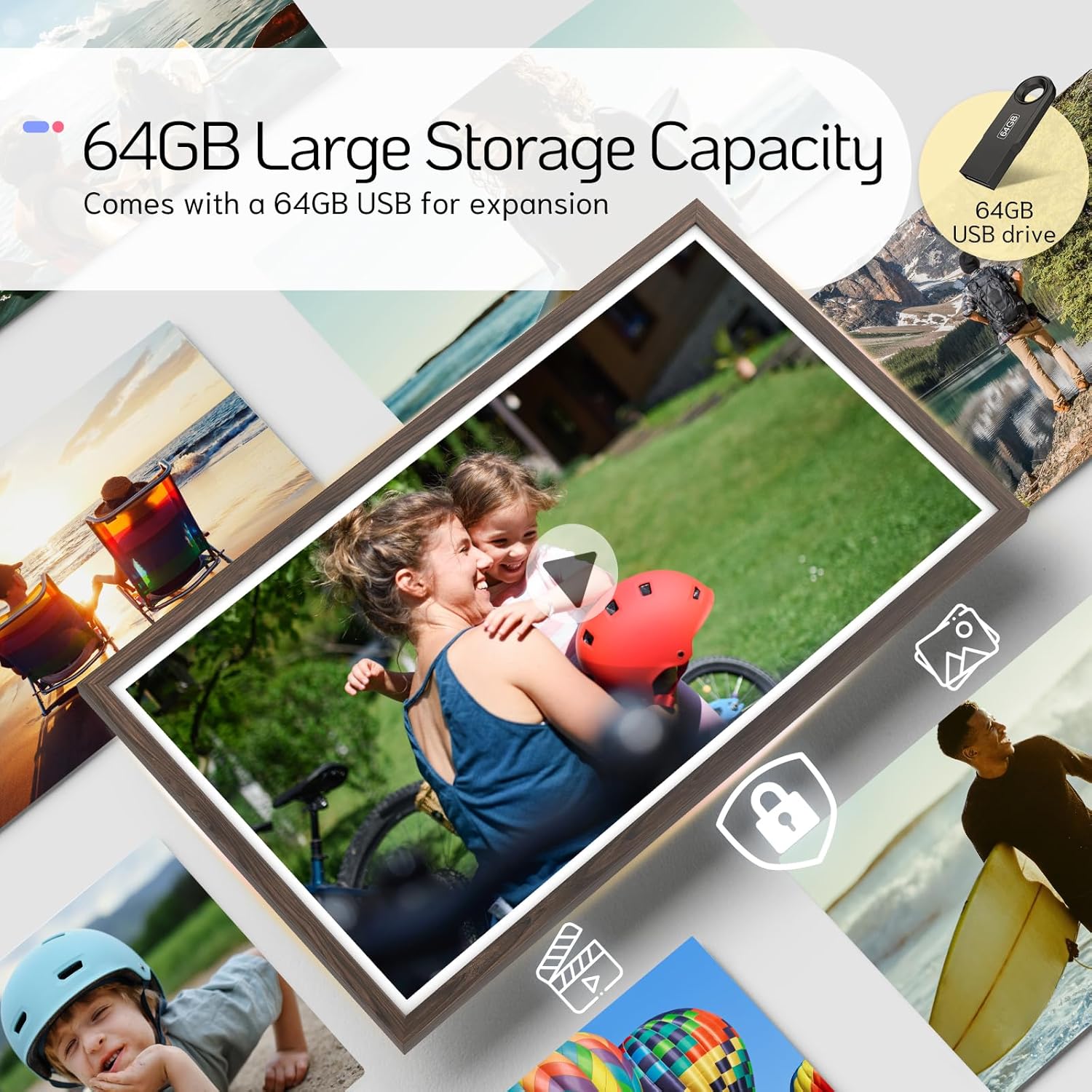
NexFoto Digital Picture Frame displaying photos, with a USB flash drive icon indicating external storage.
2.3 Slideshow Settings
Tilpas din slideshow-oplevelse:
- Access 'Slideshow Settings' in the main menu.
- Adjust photo display intervals.
- Select transition effects.
- Choose playback order (sequential, random).
2.4 Skærmtilstande
The frame supports both vertical and horizontal display, with an auto-rotate function:
- The frame automatically adjusts the orientation of photos and videos based on its physical position.
- Ensure the auto-rotate feature is enabled in settings for seamless transitions.
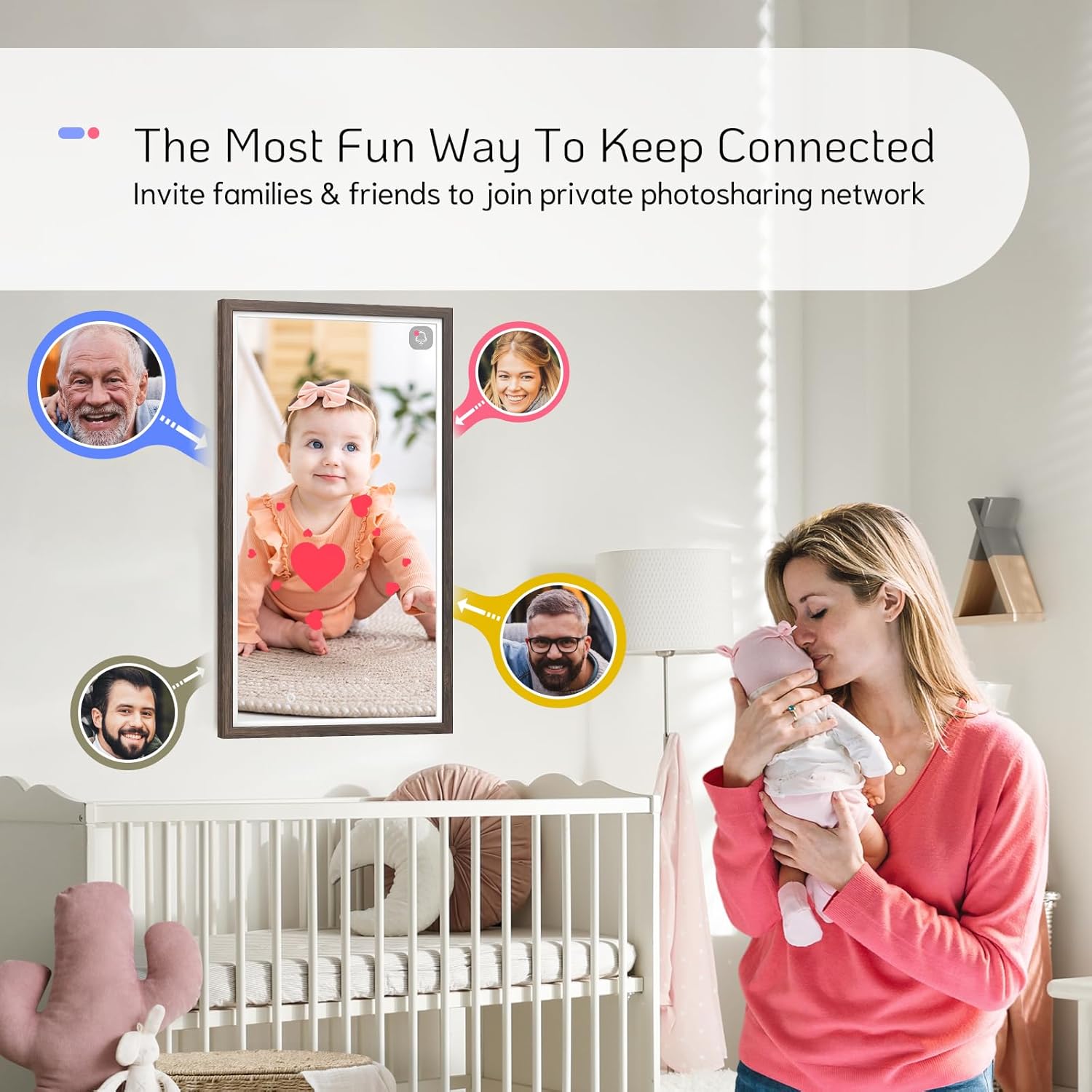
NexFoto Digital Picture Frame displaying a vertical image of a baby, positioned vertically on a surface.

NexFoto Digital Picture Frame displaying a horizontal image of a family, positioned horizontally on a surface.
3. Yderligere funktioner
Beyond displaying photos, the NexFoto frame includes several smart functions:
- Vejr: Viser aktuelle vejrforhold og prognoser.
- Kalender: Provides a digital calendar view.
- Ur: Viser det aktuelle tidspunkt.
- Alarm: Indstil alarmer for påmindelser.
- Bluetooth-højttaler: Connect to external Bluetooth audio devices.

Graphic illustrating the various smart features of the NexFoto Digital Picture Frame, including Bluetooth Speaker, Calendar, Clock, Alarm, Weather, and Slideshow.
4. Vedligeholdelse
To ensure the longevity and optimal performance of your NexFoto Digital Picture Frame, follow these maintenance guidelines:
- Rensning: Brug en blød, tør klud til at rengøre skærmen og rammen. Undgå slibende rengøringsmidler eller opløsningsmidler.
- Softwareopdateringer: Periodically check for and install software updates through the settings menu to ensure the best performance and access to new features.
- Opbevaring: If storing the frame for an extended period, disconnect it from power and store it in a cool, dry place.
5. Fejlfinding
If you encounter issues with your NexFoto Digital Picture Frame, refer to the following troubleshooting steps:
5.1 Ingen strøm
- Sørg for, at strømadapteren er korrekt tilsluttet både stellet og en fungerende stikkontakt.
- Kontroller, at stikkontakten fungerer ved at tilslutte en anden enhed.
- If the frame does not power on using the power button or remote, try unplugging and replugging the power adapter.
5.2 Problemer med Wi-Fi-forbindelse
- Check if your Wi-Fi router is working correctly and within range.
- Indtast din Wi-Fi-adgangskode igen for at sikre, at den er korrekt.
- Genstart rammen og din Wi-Fi-router.
- Ensure the frame is not too far from the router or obstructed by thick walls.
5.3 Image Display Issues
- If images appear pixelated, ensure the original image resolution is high enough for the 1920x1080 FHD display.
- Tjek billedet file format; the frame supports common formats like JPEG, PNG, and MP4.
- Adjust display settings (brightness, contrast) in the 'Settings' menu.
5.4 Fjernbetjeningen reagerer ikke
- Sørg for, at der ikke er nogen forhindringer mellem fjernbetjeningen og rammens IR-modtager.
- Udskift batterierne i fjernbetjeningen.
5.5 Nulstilling af rammen
If the frame is unresponsive or experiencing persistent software issues, a reset may resolve the problem:
- Locate the small reset hole on the back of the photo frame (often near the charging port).
- Gently insert a thin object, such as a needle or paperclip, into the reset hole and press firmly until you feel a click.
- The frame will restart, and you may need to reconfigure initial settings.
6. Specifikationer
| Mærke | Nexbillede |
| Modelnummer | W320D |
| Skærmstørrelse | 32 tommer |
| Opløsning | 1920x1080 (FHD) |
| Aspektforhold | 16:9 |
| Hukommelseslagringskapacitet | 64 GB (expandable up to 64GB via USB/Micro SD) |
| Forbindelsesteknologi | Wi-Fi (2.4 GHz og 5 GHz) |
| Kontrolmetode | Fjernbetjening |
| Rammemateriale | Plast |
| Strømkilde | Elektrisk med ledning |
7. Garanti og kundesupport
NexFoto is committed to providing quality products and support.
- Garanti: Dette produkt leveres med et års garanti fra købsdatoen.
- Kundesupport: For any questions, technical assistance, or warranty claims, please contact NexFoto customer support. Refer to the contact information provided in your Quick Start Guide or on the official NexFoto webwebsted.
8. Produktvideo
Officiel videoshowasing the NexFoto Digital Picture Frame as an art decor piece, highlighting its aesthetic integration into various home settings.