
Fnatic BOLT
Fnatic BOLT Wireless Gaming Mouse User Manual
Indledning
This manual provides detailed instructions for the setup, operation, maintenance, and troubleshooting of your Fnatic BOLT Wireless Gaming Mouse. Please read this manual thoroughly before using the product to ensure optimal performance and longevity.
Produkt overview
The Fnatic BOLT is a lightweight wireless gaming mouse designed for high performance. It features a durable construction and versatile connectivity options.
Komponenter
- Venstre- og højreklikknapper
- Scrollhjul
- DPI Cycle Button (typically located on the bottom or top)
- Sideknapper (frem/tilbage)
- USB-C opladningsport
- Wireless Receiver (dongle)

Figur 1: Øverst view of the Fnatic BOLT Wireless Gaming Mouse, showing the main click buttons and scroll wheel.

Figur 2: Vinklet view of the Fnatic BOLT Wireless Gaming Mouse, highlighting the two programmable side buttons.

Figur 3: Forside view of the Fnatic BOLT Wireless Gaming Mouse, displaying the USB-C charging port.
Opsætning
1. Første opladning
Before first use, it is recommended to fully charge the Fnatic BOLT mouse.
- Connect the provided USB-C cable to the charging port on the front of the mouse.
- Connect the other end of the USB-C cable to a powered USB port on your computer or a USB wall adapter.
- The mouse's indicator light will show charging status (refer to product documentation for specific light patterns). A full charge typically takes a few hours.
2. Tilslutning til din computer
The Fnatic BOLT supports two wireless connection modes: 2.4 GHz wireless (via USB dongle) and Bluetooth.
2.1. 2.4 GHz trådløs forbindelse
- Locate the USB wireless receiver (dongle) that came with your mouse.
- Sæt USB-modtageren i en ledig USB-port på din computer.
- Tænd musen ved hjælp af tænd/sluk-knappen, der er placeret på undersiden af musen.
- The mouse should automatically connect to the receiver. The indicator light will confirm a successful connection.
2.2. Bluetooth-forbindelse
- Sørg for, at din computers Bluetooth er aktiveret.
- Turn on the mouse and switch it to Bluetooth mode (refer to the mouse's bottom switch or button for mode selection).
- Gå til Bluetooth-indstillinger på din computer, og søg efter nye enheder.
- Select "Fnatic BOLT" from the list of available devices to pair.
- Musens indikatorlampe bekræfter vellykket parring.
Betjeningsvejledning
DPI justering
The Fnatic BOLT mouse allows you to adjust its Dots Per Inch (DPI) sensitivity. This mouse features 4 preset DPI levels.
- Locate the DPI cycle button, typically on the bottom of the mouse.
- Press the DPI button to cycle through the available sensitivity settings.
- An indicator light (often on the scroll wheel or top of the mouse) may change color or flash to indicate the current DPI level.
Knap funktioner
- Venstre klik: Primær handling, valg.
- Højreklik: Kontekstmenu, sekundær handling.
- Klik med scrollhjulet: Mellemklik, bruges ofte til at åbne links i nye faner eller specifikke funktioner i spillet.
- Rul op/ned: Navigating documents or web sider.
- Sideknapper: Default to Forward/Back in web browsers. These can often be customized via software (if available).
Strømstyring
- To conserve battery life, turn off the mouse using the power switch when not in use for extended periods.
- The mouse may enter a sleep mode after a period of inactivity. Move the mouse or click a button to wake it up.
- Monitor the battery indicator (if available) to know when to recharge.
Opretholdelse
Rensning
- Regularly clean the mouse surface with a soft, dry, lint-free cloth.
- Til genstridigt snavs, let dampRengør kluden med vand eller en mild rengøringsopløsning. Undgå skrappe kemikalier.
- Clean the optical sensor on the bottom of the mouse with a cotton swab to ensure accurate tracking.
- Lad ikke væsker trænge ind i musens indre komponenter.
Batteripleje
- Undgå at aflade batteriet helt ofte.
- Opbevar musen et køligt og tørt sted, når den ikke er i brug i længere perioder.
- Udsæt ikke musen for ekstreme temperaturer.
Fejlfinding
Musen reagerer ikke
- Tjek batteri: Ensure the mouse is charged. Connect it to the USB-C cable and allow it to charge for a period.
- Afbryderen: Verify the mouse's power switch is in the "ON" position.
- Trådløs forbindelse (2.4 GHz):
- Sørg for, at USB-modtageren er korrekt tilsluttet en fungerende USB-port. Prøv en anden USB-port.
- Ensure the mouse is within range of the receiver.
- Undgå interferenskilder (f.eks. andre trådløse enheder, store metalgenstande).
- Bluetooth-forbindelse:
- Sørg for, at din computers Bluetooth er aktiveret.
- Check if the mouse is in Bluetooth pairing mode or already paired. Re-pair if necessary.
- Remove and re-add the device in your computer's Bluetooth settings.
- Genstart: Genstart din computer.
Unøjagtig sporing
- Rengør sensor: Rengør den optiske sensor på undersiden af musen.
- Overflade: Ensure you are using the mouse on a suitable surface. Highly reflective or uneven surfaces can affect tracking. A mouse pad is recommended.
- DPI -indstilling: Juster DPI-indstillingen til et niveau, der passer til dine præferencer og opgaven.
Kort batterilevetid
- Opladning: Sørg for, at musen er fuldt opladet.
- Sluk: Remember to turn off the mouse when not in use.
- Anvendelse: High-intensity usage or certain settings might consume more power.
Specifikationer
| Feature | Detalje |
|---|---|
| Mærke | Fnatic |
| Modelnavn | FnaticGear BOLT |
| Varemodelnummer | BOLT |
| Farve | hvid |
| Forbindelsesteknologi | Bluetooth, Wi-Fi (2.4 GHz Wireless) |
| Bevægelsesdetekteringsteknologi | Optisk |
| Antal knapper | 6 |
| Håndorientering | Højre |
| Særlige funktioner | Letvægts |
| Strømkildetype | Wireless (Rechargeable Battery) |
| Batterier medfølger | Ja (1 litiummetalbatteri) |
| Lithium batteri energiindhold | 470 mioamp Timer (mAh) |
| Produktdimensioner | 12.5 x 6.5 x 0.1 cm; 69 g |
| Kompatible enheder | Bærbar, personlig computer |
| Operativsystemer | Linux, Windows 7, Windows XP (and newer) |
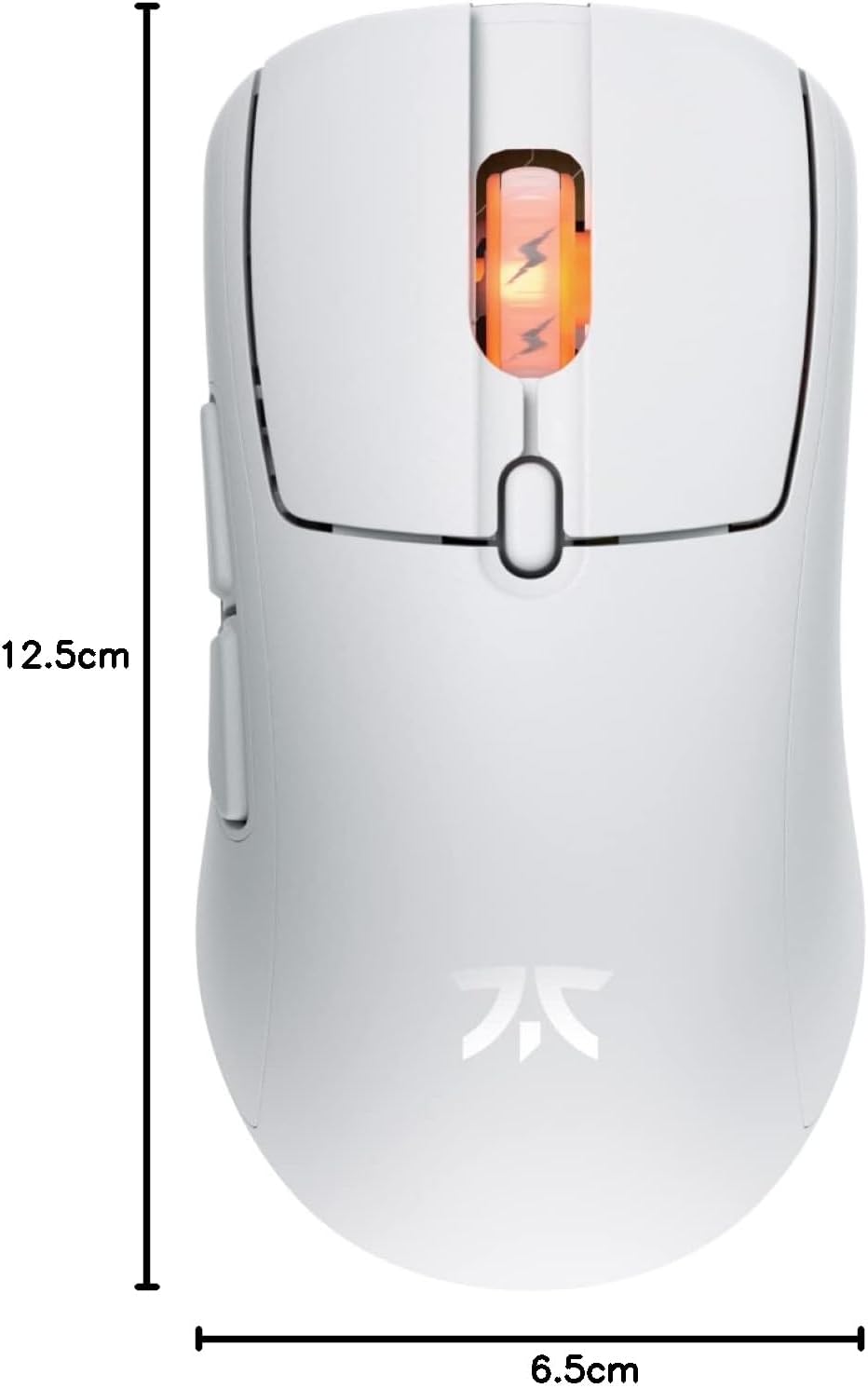
Figure 4: Diagram showing the dimensions of the Fnatic BOLT Wireless Gaming Mouse.
Garanti og support
For information regarding warranty coverage and technical support, please refer to the official Fnatic webwebstedet eller garantikortet, der følger med dit produkt.
You can typically find support resources, FAQs, and contact information on the manufacturer's official support pages.
Ask a question about this manual
Ask about setup, troubleshooting, compatibility, parts, safety, or missing instructions. Manuals+ will review the question and use this page’s manual context to help answer it.