
1. Introduction
The FIBARO Yubii Home is a compact, intuitive, and affordable Z-Wave 700 gateway designed for smart home automation in small to medium-sized apartments and houses. This hub allows you to control various smart devices, including switches, dimmers, outlets, radiator thermostats, security sensors, locks, cameras, and multimedia systems.
It supports Z-Wave devices and integrates with numerous complementary solutions. The Yubii Home system provides remote access to your home from anywhere via a free mobile application available for iOS and Android devices. It also supports hands-free control through voice assistants like Google Assistant, Amazon Alexa, and Siri.
This manual provides essential information for setting up, operating, and maintaining your FIBARO Yubii Home hub to ensure optimal performance and security.
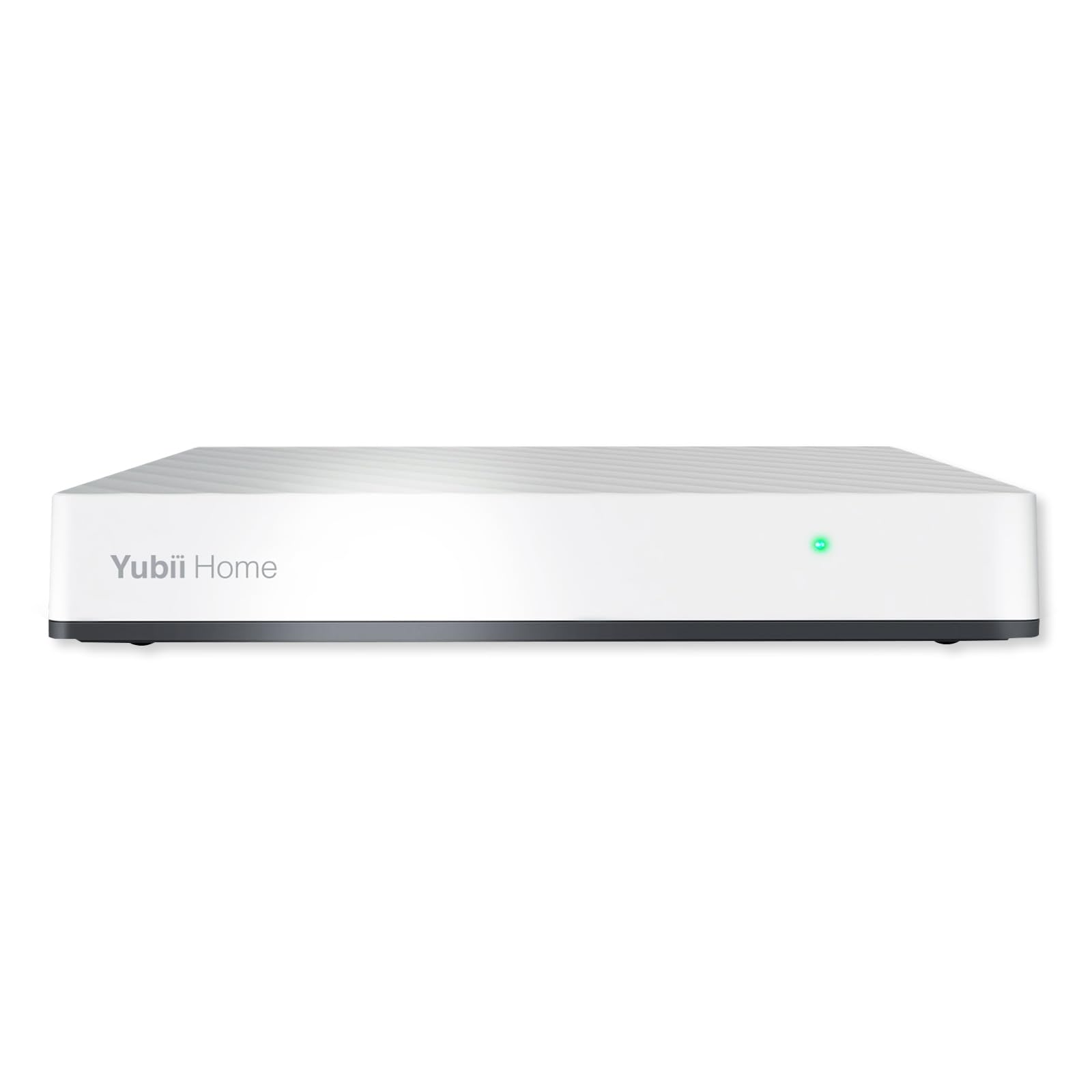
Figure 1: FIBARO Yubii Z-Wave 700 Smart Home Hub (Model YH-001)
2. Safety Information
Please read this manual carefully before using the device. Failure to follow the instructions may be dangerous or cause a violation of the law. The manufacturer, Fibar Group S.A., will not be held responsible for any loss or damage resulting from not following the instructions of this operating manual.
- Do not attempt to disassemble or repair the device yourself. This may void the warranty and pose safety risks.
- Keep the device away from water, moisture, and extreme temperatures.
- Use only the power adapter supplied with the device.
- Ensure proper ventilation around the device to prevent overheating.
- This device is intended for indoor use only.
3. Package Contents
Verify that all components are present in the box:
- FIBARO Yubii Home Hub
- User Manual
- Power Adapter (not explicitly listed but implied for operation)
- Ethernet Cable (not explicitly listed but implied for wired connectivity)
4. Setup
4.1. Physical Placement
Place the FIBARO Yubii Home hub in a central location within your home to ensure optimal Z-Wave and Wi-Fi signal coverage for all your smart devices. Avoid placing it near large metal objects or other electronic devices that may cause interference.
4.2. Power Connection
- Connect the provided power adapter to the power port on the back of the Yubii Home hub.
- Plug the power adapter into a wall outlet. The hub will power on automatically.
4.3. Network Connection
The Yubii Home hub supports both wireless (Wi-Fi 5, 802.11ac dual-band) and wired (10/100/1000 Mbps LAN) connectivity.
- Wired Connection: Connect an Ethernet cable from your router to the LAN port on the Yubii Home hub.
- Wireless Connection: During the initial setup via the Yubii app, you will be guided to connect the hub to your Wi-Fi network.
4.4. Yubii App Installation & FIBARO ID
- Download the free Yubii mobile application from the App Store (iOS) or Google Play Store (Android).
- Open the Yubii app and follow the on-screen instructions to create a FIBARO ID account or log in if you already have one. A FIBARO ID is required for system registration and cloud services.
- The app will guide you through the process of discovering and adding your Yubii Home hub to your account.
4.5. Adding Z-Wave Devices
Once your hub is connected and registered, you can begin adding Z-Wave devices:
- In the Yubii app, navigate to the device inclusion section.
- Follow the specific instructions provided by the manufacturer of your Z-Wave device to put it into inclusion mode. This usually involves pressing a button on the device.
- The Yubii Home hub will detect and add the device to your smart home network.
- Assign a name and room to the newly added device for easy management.
5. Operation
5.1. Controlling Devices via Yubii App
The Yubii app provides a centralized interface to control all connected smart devices:
- Dashboard: View the status of your devices and scenes at a glance.
- Rooms: Organize devices by room for intuitive control.
- Scenes: Create automated sequences of actions (e.g., "Good Morning" scene to turn on lights and adjust thermostat).
- Device Control: Tap on a device icon to turn it on/off, adjust dimming levels, set thermostat temperatures, or lock/unlock doors.
5.2. Remote Access
With your FIBARO ID and the Yubii app, you can access and control your smart home system from anywhere with an internet connection. Ensure your hub is connected to the internet for remote functionality.
5.3. Voice Control Integration
The Yubii Home hub integrates with popular voice assistants:
- Google Assistant: Link your Yubii account in the Google Home app.
- Amazon Alexa: Enable the FIBARO skill in the Alexa app.
- Apple Siri: Utilize Siri Shortcuts for quick commands.
Refer to the respective voice assistant's documentation for detailed setup instructions.
6. Maintenance
6.1. Software Updates
Regularly check for and install software updates for your Yubii Home hub. Updates provide new features, performance improvements, and security enhancements. You can typically find update options within the Yubii app or the hub's web interface.
6.2. Data Backup
The Yubii Home system ensures data security through encrypted software, system files, and communication. It supports multiple backup options:
- Cloud Backup: Your system configuration and data are securely stored in the cloud, accessible via your FIBARO ID.
- Local Backup: Perform local backups to an external storage device (if supported) or download configuration files through the web interface.
It is recommended to perform regular backups to protect your smart home configuration.
7. Troubleshooting
If you encounter issues with your FIBARO Yubii Home hub, consider the following:
- No Power: Ensure the power adapter is securely connected to the hub and a working power outlet.
- No Internet Connection: Check your router and internet service. If using Wi-Fi, ensure the hub is within range and connected to the correct network. For wired connections, verify the Ethernet cable.
- Device Not Responding: Check the device's power supply and its proximity to the hub. Try re-including the device if necessary.
- App Issues: Ensure your Yubii app is updated to the latest version. Try restarting the app or your mobile device.
- FIBARO ID Login Problems: Verify your internet connection and ensure you are using the correct credentials. Use the password recovery option if needed.
For persistent issues, refer to the official FIBARO support resources or contact customer service.
8. Specifications
| Feature | Detail |
|---|---|
| Brand | FIBARO |
| Model Name | FIBARO Yubii Home, Z-Wave 700 Smart Home Hub |
| Model Number | YH-001 |
| Connectivity Technology | Wireless (Wi-Fi, Z-Wave) |
| Wireless Communication Standard | 802.11ac (Wi-Fi 5) |
| Frequency Band Class | Dual Band |
| LAN Port Bandwidth | 10/100/1000 megabits per second |
| Connectivity Protocol | Z-Wave |
| Control Method | Application |
| Compatible Devices | Smartphone, Tablet |
| Recommended Use | Home |
| Special Feature | Remote Access |
| Security Protocol | WPS |
| Color | White |
| Manufacturer | Fibar Group S.A |
9. Warranty and Support
9.1. Warranty Information
FIBARO products are covered by a limited warranty. Please refer to the warranty card included with your product or visit the official FIBARO website for detailed warranty terms and conditions specific to your region.
9.2. Customer Support
For technical assistance, troubleshooting, or any questions regarding your FIBARO Yubii Home hub, please visit the official FIBARO support website. You may also find helpful resources, FAQs, and community forums there. Ensure you have your FIBARO ID and product model number (YH-001) ready when contacting support.
Online Resources: www.fibaro.com/support


