
1. Introduktion
This manual provides detailed instructions for the installation, operation, and maintenance of your EZoneTronics Android 10.1 2DIN Car Stereo. This unit features a 9-inch capacitive touchscreen, Android 10.1 operating system, GPS navigation, Bluetooth 4.0, Wi-Fi, AM/FM/RDS radio, and support for Mirror Link, Apple CarPlay, and Android Auto. Please read this manual thoroughly before using the product to ensure proper function and safety.
2. Køretøjskompatibilitet
This car stereo is designed for specific Mercedes-Benz models:
- Mercedes-Benz ML-W164 / ML300 / ML350 / ML450 / ML500 / ML320 / ML63 AMG (2005-2012)
- Mercedes-Benz GL-X164 / GL320 / GL350 / GL420 / GL450 / GL500 (2005-2012)
Vigtig bemærkning: If your vehicle is equipped with a Harman, Kardon, or BOSE amplification system, an additional fiber optic decoder box (e.g., ASIN B08K49SQSM) may be required for proper audio functionality. Consult a professional installer if you are unsure.
3. Pakkens indhold
Bekræft, at alle nedenstående varer er inkluderet i din pakke:
- 1 x EZoneTronics Android Car Stereo Unit
- 1 x GPS-antenne
- 1 x strømsele
- 1 x RCA Output Cable
- 2 x USB-adaptere
- 1 x kameraindgangskabel
- 1 x Brugermanual (dette dokument)
- 1 x Canbus Box
4. Opsætning og installation
Installation of this car stereo requires technical knowledge and experience with automotive electrical systems. Professional installation is highly recommended to prevent damage to the unit or your vehicle.
4.1 Kontrol før installation
- Sørg for, at køretøjets tænding er slukket, og at batteriet er frakoblet, før installationen påbegyndes.
- Bekræft at alt indhold i pakken er til stede.
- Review your vehicle's wiring diagram for specific connections.
4.2 Installationstrin (generelt)
- Carefully remove the original car stereo unit from your dashboard.
- Tilslut det medfølgende strømkabel til køretøjets ledninger. Sørg for, at alle forbindelser er sikre.
- Tilslut GPS-antennen, og før den til en placering med en fri bane view af himlen (f.eks. hjørnet af instrumentbrættet).
- Connect the USB adapters and route them to an accessible location (e.g., glove compartment).
- If installing a rear camera, connect the camera input cable and route it to the camera location.
- Connect the RCA output cable for external amplifiers or subwoofers, if applicable.
- Connect the Canbus box as per the wiring diagram to enable steering wheel controls and other vehicle-specific functions.
- Carefully slide the new EZoneTronics unit into the dashboard opening.
- Fastgør enheden på plads.
- Tilslut køretøjets batteri igen, og test enhedens funktionalitet.

Figur 4.1: Comparison of the car dashboard before and after the EZoneTronics car stereo installation. The top image shows the new unit installed, while the bottom images show the original radio (left) and the new unit (right) for direct comparison.
5. Betjeningsvejledning
5.1 Grundlæggende betjening
- Tænd/sluk: Tryk og hold tænd/sluk-knappen nede (normalt på frontpanelet) for at tænde eller slukke for enheden. Et kort tryk slår typisk lyden fra/til.
- Touchskærm: The 9-inch capacitive touchscreen responds to touch gestures similar to a smartphone. Tap to select, swipe to scroll.
- Startskærm: The main interface provides access to various functions like Radio, Music, Navigation, Bluetooth, and Apps.
5.2 Radio (AM/FM/RDS)
The unit features a built-in AM/FM/RDS radio tuner for clear signal reception.
- Accessing Radio: Tryk på ikonet 'Radio' på startskærmen.
- Scanning: Use the 'Scan' or 'Seek' buttons on the screen to automatically search for available stations.
- Gem forudindstillinger: Once a station is tuned, press and hold a preset number button on the screen to save it.
- RDS-funktion: Radio Data System (RDS) displays station information like song title or program type where available.

Figur 5.2: The FM/AM/RDS Radio interface on the EZoneTronics car stereo, showing frequency display and preset buttons for easy station selection.
5.3 Bluetooth 4.0
Tilslut din smartphone via Bluetooth for håndfri opkald og streaming af lyd.
- Parring: Go to the 'Bluetooth' menu on the stereo. Enable Bluetooth on your phone and search for available devices. Select 'EZoneTronics' (or similar name) and confirm the pairing code.
- Håndfri opkald: Once paired, you can make and receive calls directly from the stereo screen. Your phone's contact list may sync automatically.
- Lydstreaming (A2DP): Play music from your phone through the car stereo speakers. Control playback (play/pause, skip) from the stereo.

Figur 5.3: The Bluetooth 4.0 interface showing music playback controls and icons for phone video, dial-up, hang-up, and phone music functions.
5.4 GPS-navigation
The unit includes an integrated GPS receiver and comes with Google Maps pre-installed. Other navigation apps can be downloaded from the Google Play Store.
- Online navigation: Connect to Wi-Fi to use online maps and real-time traffic information.
- Offline-navigation: Download offline map data for specific regions via Wi-Fi for navigation without an internet connection.
- Using Navigation Apps: Tap the 'Navigation' icon to launch the default map application. Follow on-screen prompts to enter destinations and start routes.
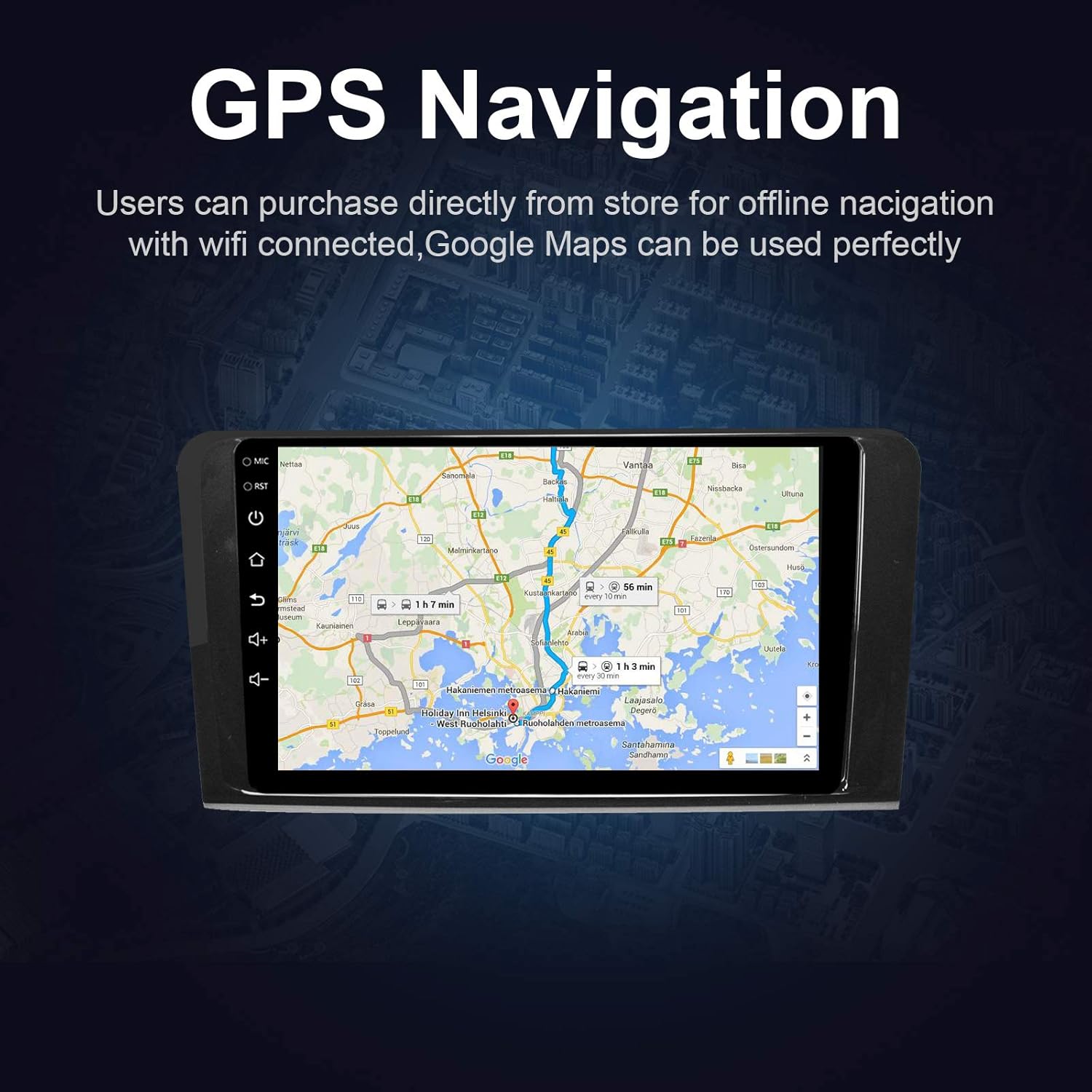
Figur 5.4: The GPS Navigation screen showing a map with a highlighted route and estimated travel time.
5.5 Apple CarPlay og Android Auto
Enheden understøtter både trådløs Apple CarPlay og kablet Android Auto, hvilket muliggør problemfri integration med din smartphone.
- Apple CarPlay (Trådløs): Connect your iPhone via Bluetooth and Wi-Fi. Follow the on-screen prompts to enable CarPlay.
- Android Auto (kablet): Connect your Android phone via a USB cable. Ensure Android Auto is installed on your phone.
- Funktioner: Access phone calls, messages, music, and navigation apps directly from the car stereo interface, optimized for driving.
5.6 Spejllink
Med Mirror Link kan du vise din smartphones skærm direkte på bilstereoen.
- Til iOS-enheder: Supports AirPlay mirroring wirelessly.
- For Android-enheder: Connect via a USB cable.
- Aktivering: Select the 'Mirror Link' app on the stereo and follow the instructions for your specific phone model.

Figur 5.6: The Mirror Link function showing a smartphone screen mirrored onto the car stereo display.
5.7 Opdelt skærmfunktion
The Android 10.1 system supports multitasking, allowing you to run two applications simultaneously on the screen.
- Aktivering: While one app is open, press and hold the recent apps button (or swipe up from the bottom and hold, depending on the Android version) and drag another compatible app to the other half of the screen.
- Anvendelse: F.eksample, you can use navigation on one side and play music or radio on the other.

Figur 5.7: The Split Screen function in action, showing a navigation map on one side and a music player on the other, enabling multitasking.
5.8 Digital Sound Processor (DSP) / Equalizer
Customize your audio experience with the built-in 14-band equalizer and sound processor.
- Accessing EQ: Tap the 'Equalizer' or 'Sound Settings' icon from the home screen or audio playback interface.
- Justeringer: Adjust individual frequency bands (bass, treble, mid-range) to your preference.
- Presets: Select from various pre-defined sound modes (e.g., Pop, Rock, Classic, Jazz) or create custom profiles.
- Volume/Fader/Balance: Control overall volume, and adjust audio distribution between front/rear and left/right speakers.

Figur 5.8: The Digital Sound Processor (DSP) system interface, showing a 14-band equalizer for precise audio adjustments.
5.9 Multimedieafspilning (USB)
Afspil lyd og video files fra USB-lagerenheder.
- Tilslutning af USB: Insert a USB drive into one of the provided USB ports.
- Adgang Files: The unit will automatically detect the USB device. Navigate to the 'Music' or 'Video' app to browse and play files.
- Understøttede formater: The unit supports various audio and video formats, including high-definition 1080P video.

Figur 5.9: The car stereo displaying high-definition 1080P video content, demonstrating its multimedia playback capabilities.
6. Vedligeholdelse
Korrekt vedligeholdelse sikrer din bilstereos levetid og optimale ydeevne.
- Rengøring af skærm: Brug en blød, fnugfri klud lidt damprengøres med vand eller en skærmrens, der er specielt designet til elektronik. Brug ikke slibende rengøringsmidler eller opløsningsmidler.
- Generel rengøring: Wipe the unit's exterior with a soft, dry cloth. Avoid getting liquids into openings.
- Softwareopdateringer: Periodically check for available software updates through the unit's settings menu (requires Wi-Fi connection) to ensure optimal performance and access to new features.
- Undgå ekstreme temperaturer: Udsæt ikke enheden for ekstrem varme eller kulde i længere perioder, da dette kan påvirke ydeevne og levetid.
7. Fejlfinding
If you encounter issues with your EZoneTronics car stereo, refer to the following common problems and solutions:
| Problem | Mulig årsag | Løsning |
|---|---|---|
| Enheden tænder ikke. | Forkert ledningsføring, sprunget sikring, bilbatteri frakoblet. | Check power connections and fuses. Ensure battery is connected. Consult a professional installer. |
| Ingen lyd. | Volume too low, mute activated, incorrect speaker wiring, fiber optic box needed. | Increase volume, check mute status. Verify speaker connections. If your car has a premium sound system, ensure a fiber optic decoder box is installed. |
| GPS-signalet er svagt eller ikke fundet. | GPS-antennen er ikke korrekt installeret eller blokeret. | Sørg for, at GPS-antennen er placeret et sted med frit lys view af himlen og er sikkert forbundet. |
| Problemer med Bluetooth-forbindelse. | Telefonen er ikke i parringstilstand, forkert parringskode, interferens. | Ensure Bluetooth is enabled on both devices and in pairing mode. Re-pair the devices. Restart both the stereo and phone. |
| Ratbetjeningen virker ikke. | Canbus box not connected or configured correctly. | Verify the Canbus box connection and ensure it is properly configured in the unit's settings. Refer to installation instructions. |
| Berøringsskærmen reagerer ikke eller er langsom. | Temporary software glitch, excessive background apps. | Restart the unit. Close unnecessary background applications. If the issue persists, perform a factory reset (note: this will erase all user data). |
8. Specifikationer
Key technical specifications of the EZoneTronics Android Car Stereo:
| Feature | Specifikation |
|---|---|
| Modelnummer | RMCT-BENZ-ML05-2G16-IP |
| Operativsystem | Android 10.1 |
| Skærmstørrelse | 9 tommer LCD |
| Skærmtype | Kapacitiv berøringsskærm |
| Opløsning | 1024 x 600 pixels |
| Processor | Quad Core 1.3G |
| VÆDDER | 2GB DDR3 |
| Intern opbevaring | 32 GB flashhukommelse |
| Forbindelse | Bluetooth 4.0 (A2DP, Hands-free), Wi-Fi, USB (2 rear inputs) |
| GPS-modtager | Built-in, compatible with Waze, Google Maps, etc. |
| Radio Tuner | AM/FM/RDS |
| Lydudgang | 4 x 45W Power Output, 2.1 Channel RCA/Sub Output |
| Video input | 1 Channel (for rear camera) |
| Lydindgang | 2 kanal |
| Særlige funktioner | Steering Wheel Control, Mirror Link, CarPlay, Android Auto, Multi-EQ Presets, Spotify, Digital Sound Processor |
| Produktmål (L x B x H) | 32 x 26 x 13 cm |
| Vægt | 1.38 kg |
9. Garanti og support
9.1 Produktgaranti
This EZoneTronics car stereo comes with a 1 års producentgaranti fra købsdatoen. Denne garanti dækker defekter i materialer og udførelse ved normal brug. Den dækker ikke skader forårsaget af forkert installation, misbrug, ulykker eller uautoriserede ændringer.
9.2 Teknisk support
For technical assistance, troubleshooting beyond this manual, or warranty claims, please contact our support team:
- E-mail: sales2@rhythmhk.com
When contacting support, please provide your product model number (RMCT-BENZ-ML05-2G16-IP) and a detailed description of the issue.