
Iproda T1045A
iProda T1045A 10.1 inch Android Tablet User Manual
Comprehensive instructions for your iProda T1045A Android Tablet.
1. Introduktion
This manual provides detailed instructions for the setup, operation, maintenance, and troubleshooting of your iProda T1045A 10.1 inch Android Tablet. Please read this manual thoroughly before using your device to ensure proper functionality and to maximize your user experience.
The iProda T1045A is a 10.1-inch tablet featuring an HD IPS display with 1280x800 resolution, powered by a 64-bit Quad-core processor running Android 9 Pie. It includes 3GB RAM, 64GB internal storage expandable up to 128GB via TF card, dual-band Wi-Fi, HDMI output, and a 5000mAh battery for extended use.
2. Produktet er slutview
2.1 Pakkens indhold
Når du åbner pakken, skal du kontrollere, at alle varer er til stede:
- iProda T1045A 10.1 inch Android Tablet
- USB kabel
- Strømadapter
- Brugervejledning (dette dokument)

Image: Contents of the iProda T1045A tablet package.
2.2 Enhedslayout
Familiarize yourself with the physical components and ports of your tablet:
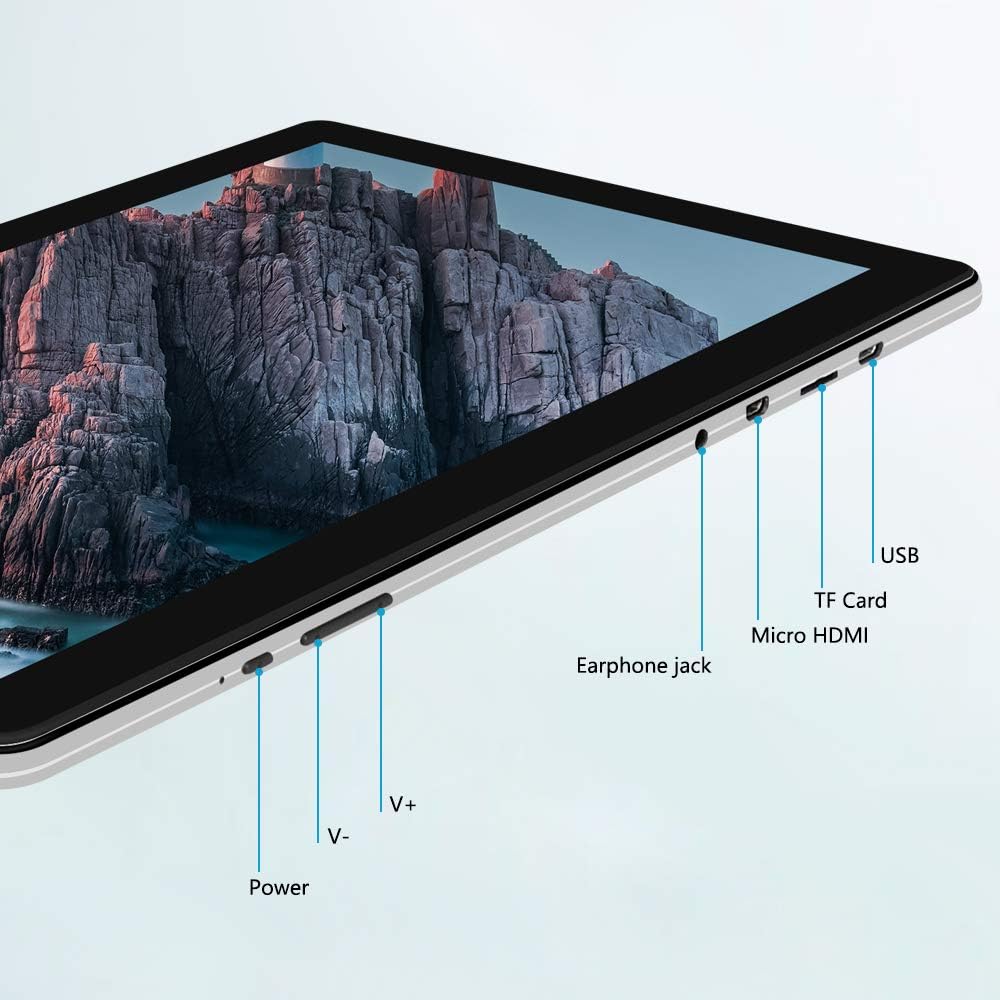
Billede: Side view of the iProda T1045A tablet highlighting port locations.
- Power knap: Tryk og hold nede for at tænde/slukke eller genstarte tabletten. Tryk kort for at tænde/slukke skærmen.
- Volume Buttons (V+, V-): Juster lydstyrken.
- Stik til øretelefoner: Tilslut 3.5 mm hovedtelefoner.
- TF-kortslot: Indsæt et microSD-kort for udvidelig lagring (op til 128 GB).
- Micro HDMI-port: Connect to an external display using a Micro HDMI to HDMI cable.
- USB-port: Connect to a computer for data transfer or for charging the device.
3. Opsætning
3.1 Indledende opladning
Before first use, fully charge the tablet. Connect the provided USB cable to the tablet's USB port and the power adapter, then plug the adapter into a wall outlet. The charging indicator will typically illuminate. A full charge may take several hours.
3.2 Tænd/sluk
- For at tænde: Tryk og hold tænd/sluk-knappen nede, indtil skærmen lyser.
- For at slukke: Tryk på tænd/sluk-knappen og hold den nede, indtil en tænd/sluk-menu vises på skærmen. Vælg "Sluk", og bekræft.
- For at genstarte: Vælg "Genstart" i tænd/sluk-menuen.
- Skærm til/fra: Briefly press the Power button to turn the screen off (sleep mode) or wake it up.
3.3 Guide til indledende opsætning
The first time you power on the tablet, you will be guided through an initial setup process. Follow the on-screen prompts to:
- Vælg dit foretrukne sprog.
- Opret forbindelse til et Wi-Fi-netværk.
- Set up your Google account (optional, but recommended for app downloads).
- Konfigurer indstillinger for dato og klokkeslæt.
3.4 Inserting a TF Card (MicroSD)
To expand the tablet's storage:
- Find TF-kortstikket på siden af tabletten.
- Carefully insert a microSD card (up to 128GB) into the slot with the gold contacts facing down until it clicks into place.
- For at fjerne det skal du forsigtigt skubbe kortet indad, indtil det springer ud.
4. Betjeningsvejledning
4.1 Grundlæggende navigation
The iProda T1045A uses a touch-sensitive screen for navigation:
- Tryk på: Vælg et element, eller åbn et program.
- Tryk og hold: Få adgang til kontekstmenuer eller flyt ikoner.
- Stryg: Rul gennem lister eller skift mellem startskærme.
- At klemme: Zoom ind eller ud på billeder og web sider.
4.2 Wi-Fi-forbindelse
For at oprette forbindelse til et trådløst netværk:
- Gå til Indstillinger > Netværk og internet > Wi-Fi.
- Slå Wi-Fi til/fra On.
- Vælg det ønskede netværk fra listen.
- Indtast adgangskoden, hvis du bliver bedt om det, og tryk derefter på Forbinde.
The tablet supports both 2.4G and 5G dual-band Wi-Fi for faster and more stable connections.
4.3 Bluetooth -parring
To pair with Bluetooth devices (e.g., headphones, speakers):
- Gå til Indstillinger > Tilsluttede enheder > Bluetooth.
- Slå Bluetooth til/fra On.
- Sørg for, at din Bluetooth-enhed er i parringstilstand.
- Vælg din enhed fra listen over tilgængelige enheder, og følg eventuelle vejledninger på skærmen for at fuldføre parringen.
4.4 Brug af kameraerne
Tabletten er udstyret med et 2MP frontkamera og et 5MP bagkamera.
- Åbn Kamera application from the app drawer.
- Tryk på kameraikonet for at skifte mellem forreste og bageste kamera.
- Tryk på udløserknappen for at tage billeder eller starte/stoppe videooptagelse.

Image: Tablet in use, showcasing its camera capabilities.
4.5 Tilslutning til en ekstern skærm (HDMI)
To display your tablet's screen on a larger monitor or TV:
- Connect one end of a Micro HDMI cable to the tablet's Micro HDMI port.
- Connect the other end of the cable to an HDMI input on your external display.
- Select the correct HDMI input source on your external display.
- The tablet's screen content should now be mirrored on the external display.
4.6 App-administration
The tablet runs Android 9 Pie and supports applications from the Google Play Store.
- Installation af apps: Åbn Play Butik app, search for your desired application, and tap Installere.
- Afinstallation af apps: Tap and hold an app icon on the home screen or in the app drawer, then drag it to "Uninstall" or select "App info" and choose "Uninstall". Alternatively, go to Indstillinger > Apps og notifikationer, vælg appen, og tryk på Afinstaller.
5. Vedligeholdelse
5.1 Rengøring af enheden
Sådan rengør du din tablet:
- Sluk tabletten før rengøring.
- Brug en blød, fnugfri klud, let drænetamprengøres med vand eller en skærmrens for at tørre skærmen og kabinettet af.
- Undgå at bruge skrappe kemikalier, slibende rengøringsmidler eller for meget fugt.
5.2 Softwareopdateringer
Periodically check for software updates to ensure optimal performance and security:
- Gå til Indstillinger > System > Fremskreden > Systemopdatering.
- Follow the on-screen instructions to download and install any available updates. Ensure your tablet is sufficiently charged or connected to power during updates.
5.3 Lagerstyring
To manage internal storage and the TF card:
- Gå til Indstillinger > Opbevaring.
- Her kan du view storage usage, free up space, and manage files on both internal storage and the inserted TF card.
6. Fejlfinding
This section addresses common issues you might encounter with your iProda T1045A tablet.
6.1 Enheden tændes ikke
- Ensure the tablet is sufficiently charged. Connect it to the power adapter and allow it to charge for at least 30 minutes before attempting to power on again.
- Prøv at holde tænd/sluk-knappen nede i 10-15 sekunder for at fremtvinge en genstart.
6.2 Problemer med Wi-Fi-forbindelse
- Bekræft at Wi-Fi er aktiveret i Indstillinger.
- Sørg for, at du indtaster den korrekte Wi-Fi-adgangskode.
- Genstart din Wi-Fi-router og tabletten.
- Try connecting to a different Wi-Fi network to determine if the issue is with the tablet or the network.
6.3 Langsom ydeevne
- Luk unødvendige baggrundsapplikationer.
- Clear cached data for apps in Indstillinger > Apps og notifikationer > [Appnavn] > Lagring og cache > Ryd cache.
- Ensure sufficient free storage space. Uninstall unused apps or move large files to a TF card.
- Genstart tabletten.
6.4 Hurtig batteridræning
- Reducer skærmens lysstyrke.
- Deaktiver Wi-Fi, Bluetooth og GPS, når de ikke er i brug.
- Close background apps that consume significant power.
- Tjek batteriforbruget i Indstillinger > Batteri at identificere strømkrævende apps.
- Ensure the tablet is not allowed to run below 15% charge frequently, as this can impact battery longevity.
6.5 Fabriksindstilling
Hvis der opstår vedvarende problemer, kan en fabriksnulstilling muligvis løse dem. Advarsel: Dette vil slette alle data på din tablet. Sikkerhedskopier vigtige data, før du fortsætter.
- Gå til Indstillinger > System > Fremskreden > Nulstil muligheder.
- Vælge Slet alle data (gendan fabriksindstillinger).
- Bekræft din beslutning, og følg instruktionerne på skærmen.
7. Specifikationer
Below are the technical specifications for the iProda T1045A tablet:
| Modelnavn | T1045A |
| Operativsystem | Android 9 Pie |
| Skærmstørrelse | 10.1 tommer |
| Skærmopløsning | 1280 x 800 pixels (HD IPS) |
| Processor | MediaTek Quad-core 1.5Ghz |
| VÆDDER | 3 GB |
| Intern opbevaring | 64 GB SSD |
| Udvidelig opbevaring | Up to 128 GB via TF Card (MicroSD) |
| Grafik coprocessor | ARM Mali-T720 MP2 |
| Bagkamera | 5 MP |
| Forreste kamera | 2 MP |
| Batterikapacitet | 5000 mAh Lithium Polymer |
| Gennemsnitlig batterilevetid | Op til 8 timer |
| Trådløs forbindelse | Dual-Band Wi-Fi (802.11a/b/g/n), Bluetooth 4.0 |
| Havne | 1x USB 2.0, 1x Micro HDMI, 3.5mm Earphone Jack, TF Card Slot |
| Dimensioner | 34.5 x 19.7 x 5.5 cm |
| Vægt | 550 g |

Image: Key performance specifications of the tablet.

Image: Tablet portability and battery details.
8. Garanti og support
8.1 Produktgaranti
The iProda T1045A tablet comes with a 12 måneders garanti fra købsdatoen. Denne garanti dækker fabrikationsfejl og funktionsfejl ved normal brug. Den dækker ikke skader forårsaget af misbrug, ulykker, uautoriserede reparationer eller normal slitage.
8.2 Kundesupport
If you encounter any issues not covered in the troubleshooting section or require further assistance, please contact iProda customer support. Refer to your purchase documentation or the iProda official webwebsted for kontaktoplysninger.
When contacting support, please have your tablet's model number (T1045A) and purchase details readily available.
Ask a question about this manual
Ask about setup, troubleshooting, compatibility, parts, safety, or missing instructions. Manuals+ will review the question and use this page’s manual context to help answer it.