
Konec produktuview
The EWEADN C98 Wired Keyboard and Mouse Combo is designed for comfortable and efficient use with various computer systems. This set includes a wired keyboard with a detachable wrist rest, RGB backlighting, double-shot keycaps, and a multimedia knob, along with a wired mouse featuring adjustable DPI settings.
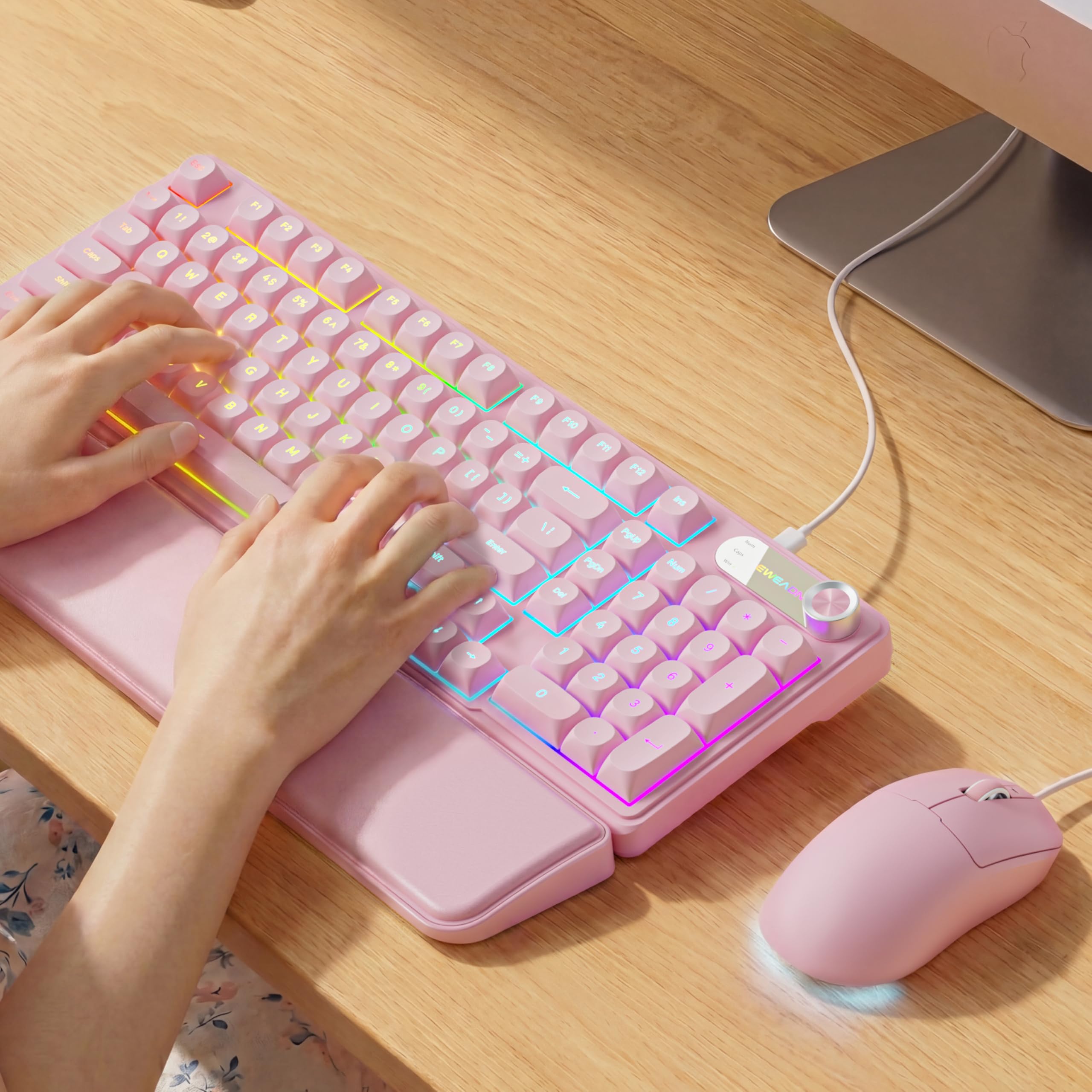
Image: EWEADN C98 Wired Keyboard and Mouse Combo in Pink. This image displays the full keyboard and mouse set, highlighting its ergonomic design and color.
Obsah balení
Ověřte, zda jsou v balení přítomny všechny položky:
- EWEADN C98 Wired Keyboard
- Wired Mouse
- Odnímatelná opěrka zápěstí
- USB kabel (integrovaný)
- Uživatelská příručka (tento dokument)
Pokyny pro nastavení
Follow these steps to set up your EWEADN C98 Keyboard and Mouse Combo:
- Připojení klávesnice: Locate an available USB-A port on your computer (Laptop, PC, Desktop, Gaming Console). Insert the USB-A connector from the keyboard into the port.
- Připojte myš: The mouse is typically connected via the same USB cable as the keyboard or has its own integrated USB-A connector. Insert the mouse's USB-A connector into another available USB-A port on your computer.
- Připevnění opěrky zápěstí: Align the detachable wrist rest with the front edge of the keyboard and gently attach it.
- Rozpoznávání systému: Your operating system (Windows, Linux, macOS) should automatically detect and install the necessary drivers. No additional software installation is typically required for basic functionality.
- Mac Compatibility Note: For macOS devices, a USB-A to Type-C adapter is required if your Mac only has Type-C ports. This adapter is not included with the product.

Image: Close-up of the keyboard's USB connection and the detachable wrist rest. This illustrates how the keyboard connects and the wrist rest attaches for ergonomic support.

Image: Diagram showing dual-system compatibility. The image indicates how to switch between Windows (FN + A) and Mac (FN + S) layouts for optimal functionality.
Návod k obsluze
Funkce klávesnice
- RGB podsvícení: The keyboard features 12 active RGB lighting modes.
- Barva světla přepínače: Stiskněte FN + INS to cycle through different lighting colors.
- Upravit jas: Stiskněte FN + PGUP pro zvýšení jasu a FN + PGDN ke snížení jasu.
- Multimedia Knob: The 2-in-1 rotary knob provides quick control over media and lighting.
- Ovládání hlasitosti: Rotate the knob to adjust system volume.
- Funkce ztlumení: Press the knob once to mute/unmute audio.
- Přepnout režim: Press and hold the knob for 3 seconds to switch between volume control mode and lighting adjustment mode. In lighting mode, rotate to adjust brightness or press to switch light effects.
- Ergonomický design: The keyboard includes a detachable PU leather wrist rest for comfortable typing posture and foldable stands to adjust the typing angle (up to 8 degrees).
- Tiché psaní: The membrane keys are designed for low-noise operation, suitable for quiet environments.
- Dvojité klávesy: Characters are injection molded for durability and fade resistance, allowing backlighting to shine through clearly.

Image: Illustration of RGB backlight controls. This image shows the FN + INS and FN + PGUP/PGDN key combinations for adjusting keyboard lighting.

Image: Diagram detailing the 2-in-1 multimedia knob functions. It shows how to adjust volume, mute, and switch between lighting and volume modes.
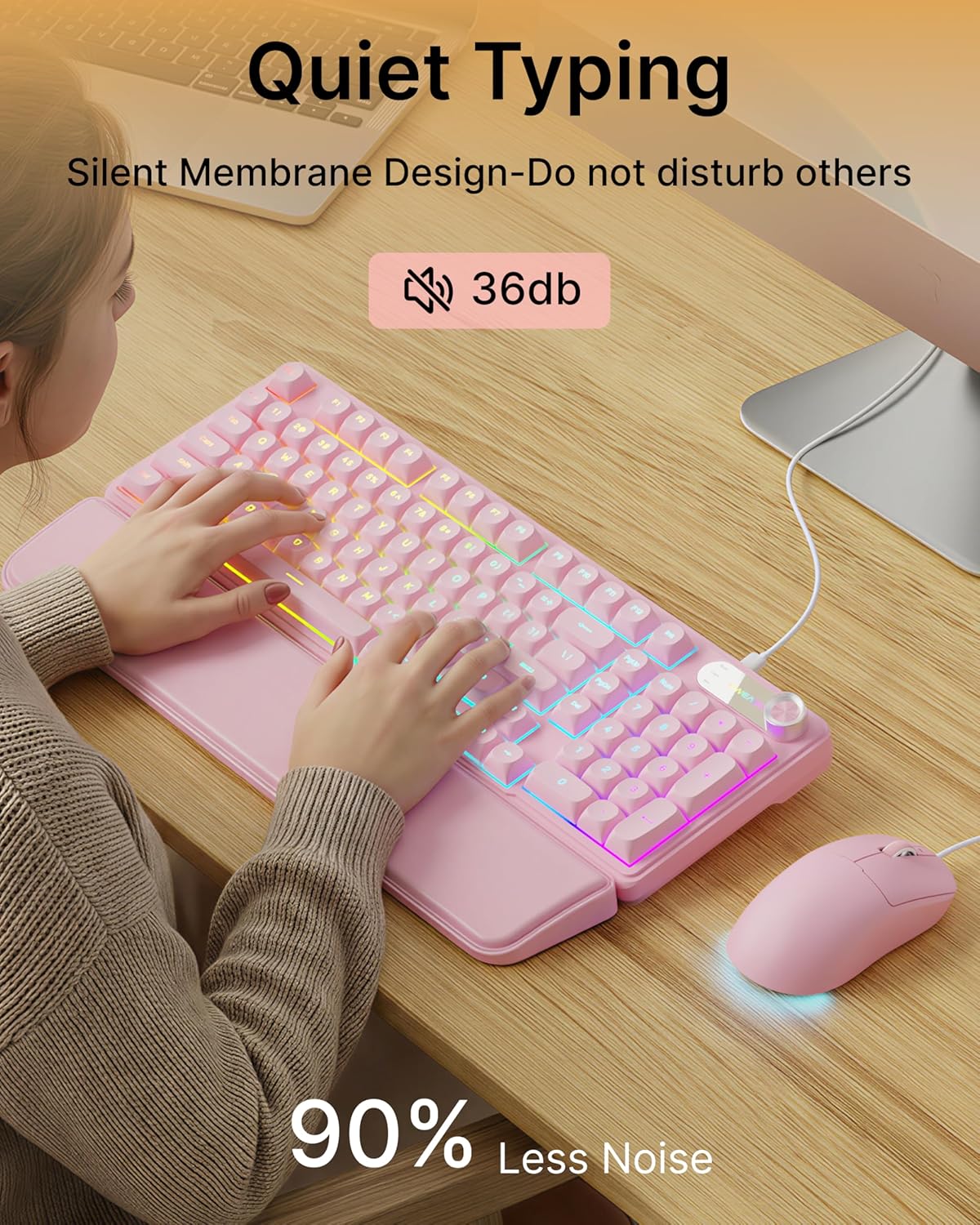
Image: Visual representation of the quiet typing feature. This image highlights the low noise level (36dB) of the keyboard during use.
Funkce myši
- Nastavitelné DPI: The mouse offers 4 adjustable DPI levels for precision control.
- DPI levels typically range from 800 to 4800.
- Press the DPI button (usually located behind the scroll wheel) to cycle through the available sensitivity settings.
- Tiché kliknutí: Tlačítka myši jsou navržena pro tichý chod.
- Ergonomický design: Designed for a comfortable palm grip.

Image: Diagram illustrating the 4-level DPI adjustment for the mouse. It shows the different DPI settings (800, 1600, 3200, 4800) and the ergonomic palm grip design.
Údržba
To ensure the longevity and optimal performance of your EWEADN C98 Keyboard and Mouse Combo, follow these simple maintenance guidelines:
- Čištění: K otření povrchů klávesnice a myši použijte měkký, suchý hadřík. V případě odolné nečistoty lehceampOmyjte hadřík vodou nebo jemným, neabrazivním čisticím prostředkem. Zabraňte nadměrné vlhkosti.
- Odstranění prachu: K odstranění prachu a nečistot z prostoru mezi klávesami použijte stlačený vzduch.
- Vyhněte se tekutinám: While the product has some water resistance, avoid spilling liquids directly onto the keyboard or mouse. If a spill occurs, disconnect immediately and allow to dry completely before reconnecting.
- Skladování: Store the combo in a clean, dry environment away from extreme temperatures.
Odstraňování problémů
If you encounter issues with your EWEADN C98 Keyboard and Mouse Combo, refer to the following common solutions:
- Klávesnice nebo myš nereaguje:
- Ensure the USB-A connector(s) are securely plugged into your computer's USB port(s).
- Try plugging the USB connector(s) into a different USB port on your computer.
- Restartujte počítač.
- Pokud používáte USB rozbočovač, zkuste jej připojit přímo k počítači.
- Podsvícení nefunguje:
- Ujistěte se, že je klávesnice správně připojena.
- Stiskněte FN + PGUP multiple times to increase brightness, as it might be set to the lowest level.
- Stiskněte FN + INS to cycle through lighting modes, ensuring a mode with backlighting is selected.
- Multimedia Knob Not Functioning:
- Ujistěte se, že je klávesnice správně připojena.
- Press and hold the knob for 3 seconds to switch between volume and lighting modes. Verify you are in the desired mode.
- Mouse Cursor Movement is Erratic or Slow:
- Clean the mouse sensor on the underside with a soft cloth.
- Ujistěte se, že myš používáte na vhodném povrchu (např. podložce pod myš).
- Stisknutím tlačítka DPI upravte citlivost.
- Kompatibilita se systémem Mac: If using with a Mac and experiencing connection issues, confirm you are using a USB-A to Type-C adapter if your Mac lacks standard USB-A ports.
Specifikace
| Značka | EWEADN |
| Číslo modelu | C98 |
| Technologie připojení | USB-A (kabelové) |
| Kompatibilní zařízení | Laptop, PC, Desktop, Windows, Linux, Gaming Consoles |
| Popis klávesnice | Membrane, 98-key layout |
| Speciální funkce | RGB Backlit, Ergonomic, Detachable Wrist Rest, Multimedia Knob, Double-Shot Keycaps, Quiet Typing |
| Keyboard Backlight Color Support | RGB (12 režimů) |
| Úrovně DPI myši | 4 adjustable levels (up to 4800 DPI) |
| Materiál | Plastic (Keyboard), PU Leather (Wrist Rest) |
| Úroveň odolnosti proti vodě | Waterproof (general resistance, not submersible) |
| Barva | Růžový |

Image: Detailed dimensions of the EWEADN C98 keyboard, mouse, and wrist rest. This image provides measurements in inches for each component.
Záruka a podpora
Specific warranty details are not provided in the product information. For warranty claims or technical support, please refer to the retailer's return policy or contact EWEADN customer service directly through their official channels. Typically, products purchased through Amazon.sg may be subject to a 30-day return policy.


