
1. Introduction
The MageGee GK960 is a versatile wireless gaming keyboard designed for optimal performance and user comfort. Featuring triple-mode connectivity (Wired USB-C, 2.4GHz Wireless, and Bluetooth), vibrant RGB backlighting, a multi-functional rotary knob, and a 98% layout with a number pad, this keyboard is suitable for various computing environments and tasks. Its ergonomic design and anti-ghosting capabilities enhance the typing and gaming experience.

Image 1.1: MageGee GK960 Wireless Gaming Keyboard highlighting key features such as Tri-Mode Connection, Side-Printed Keycaps, Knob Control, RGB Backlit, Win/Mac Support, and 19-Key Anti-Ghosting.
2. Package Contents
Please verify that all items listed below are included in your package:
- 1 x MageGee GK960 Wireless Gaming Keyboard
- 1 x User Manual
- 1 x USB-C Charging Cable
- 1 x 2.4G USB Receiver
- 1 x User Guide (Quick Start)
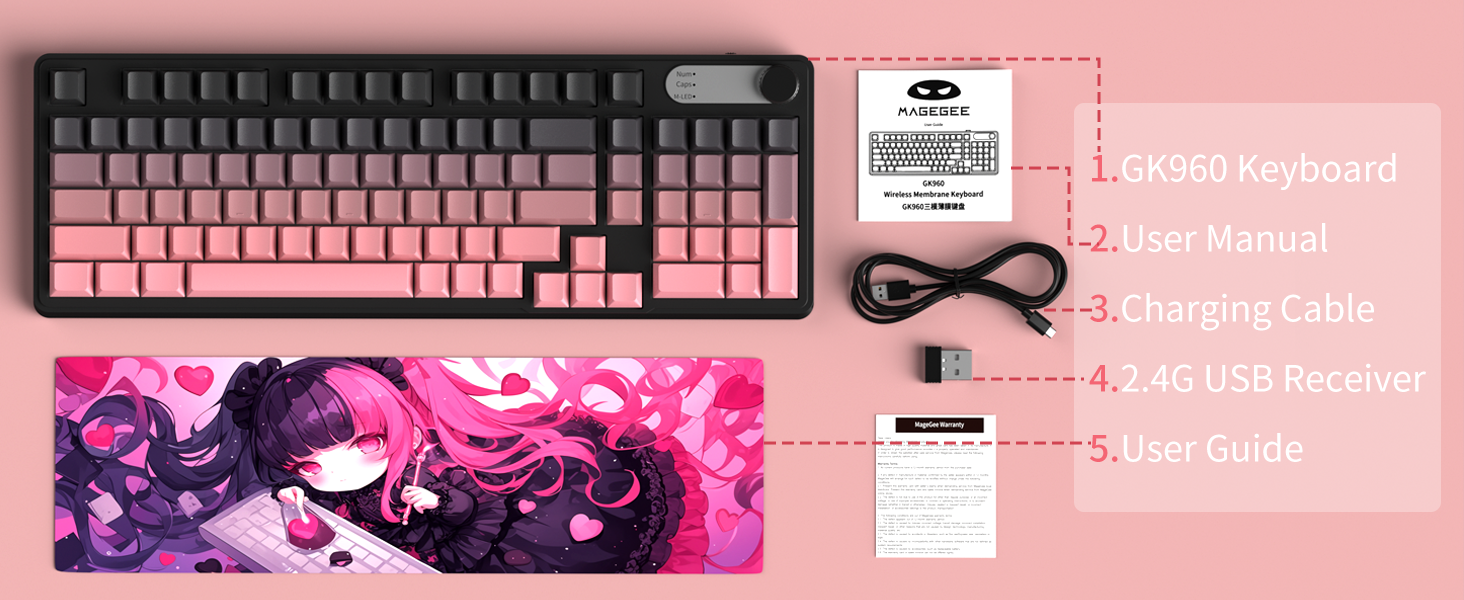
Image 2.1: Visual representation of the MageGee GK960 keyboard and its included accessories: user manual, charging cable, 2.4G USB receiver, and user guide.
3. Setup: Connectivity Modes
The GK960 keyboard offers three connectivity options: Wired USB-C, 2.4GHz Wireless, and Bluetooth. You can connect up to 5 devices simultaneously (1 wired, 1 via 2.4G, and up to 3 via Bluetooth).

Image 3.1: Diagram illustrating the three connection modes: Wired Type-C, 2.4GHz Wireless, and Bluetooth (BT FN+1/2/3).
3.1. Wired USB-C Connection
- Locate the USB-C port on the keyboard.
- Connect the provided USB-C cable to the keyboard and the other end to an available USB port on your computer.
- The keyboard will be automatically recognized and ready for use.
3.2. 2.4GHz Wireless Connection
- Locate the 2.4G USB receiver (dongle) in the package.
- Plug the 2.4G USB receiver into an available USB port on your computer.
- Ensure the keyboard's mode switch (located on the back or side) is set to 2.4G mode.
- The keyboard should connect automatically.
3.3. Bluetooth Connection
The keyboard supports connecting to up to three Bluetooth devices.
- Ensure the keyboard's mode switch is set to Bluetooth mode.
- To pair with a device, press and hold FN + 1, FN + 2, or FN + 3 for 3-5 seconds until the corresponding indicator light flashes rapidly. This indicates pairing mode.
- On your device (computer, tablet, smartphone), open Bluetooth settings and search for new devices.
- Select "MageGee GK960" from the list of available devices to complete the pairing process. The indicator light will stop flashing once connected.
- To switch between paired Bluetooth devices, simply press FN + 1, FN + 2, or FN + 3 (short press).
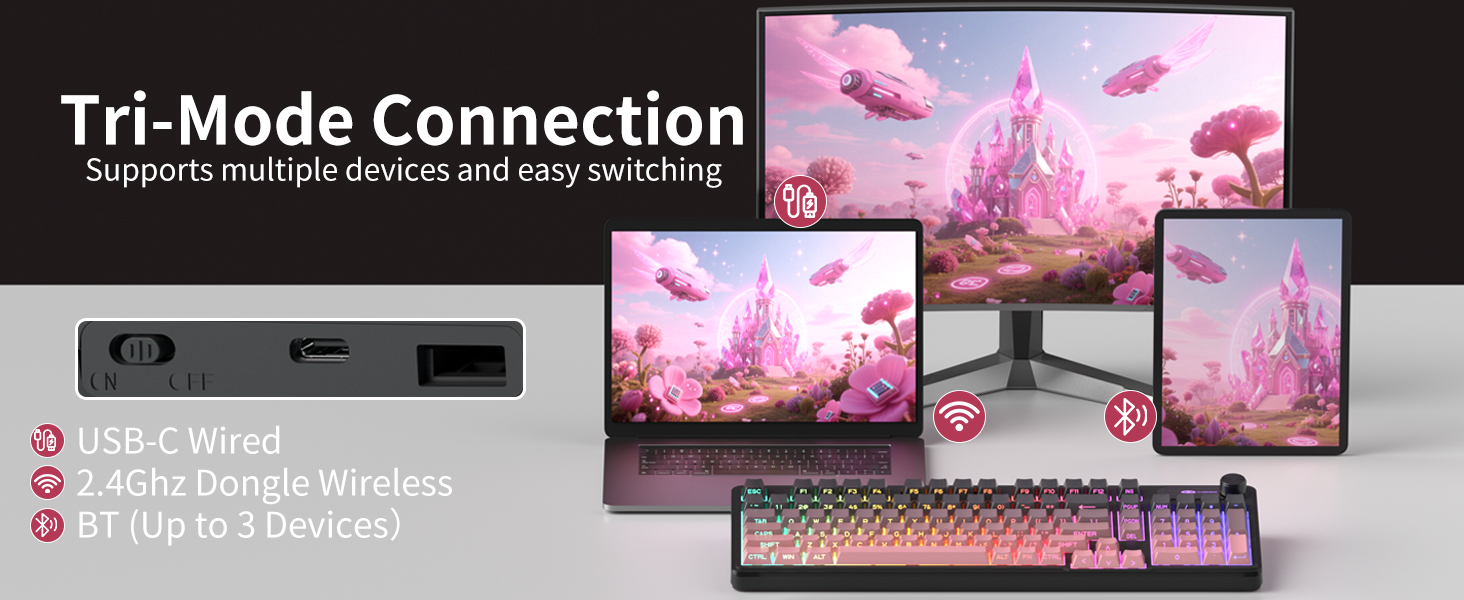
Image 3.2: The keyboard's connectivity switch, allowing selection between USB-C Wired, 2.4GHz Dongle Wireless, and Bluetooth modes.
4. Operating Instructions
4.1. Dual-Mode Rotary Knob
The multi-functional knob provides quick control over volume and lighting settings.
- Toggle Modes: Long-press FN + Knob for 5 seconds to switch between Volume Mode and Light Mode.
- Volume Mode:
- Twist the knob clockwise to increase volume.
- Twist the knob counter-clockwise to decrease volume.
- Press down on the knob to mute/unmute audio.
- Light Mode:
- Twist the knob clockwise to increase backlight brightness.
- Twist the knob counter-clockwise to decrease backlight brightness.
- Press down on the knob to cycle through different lighting effects.
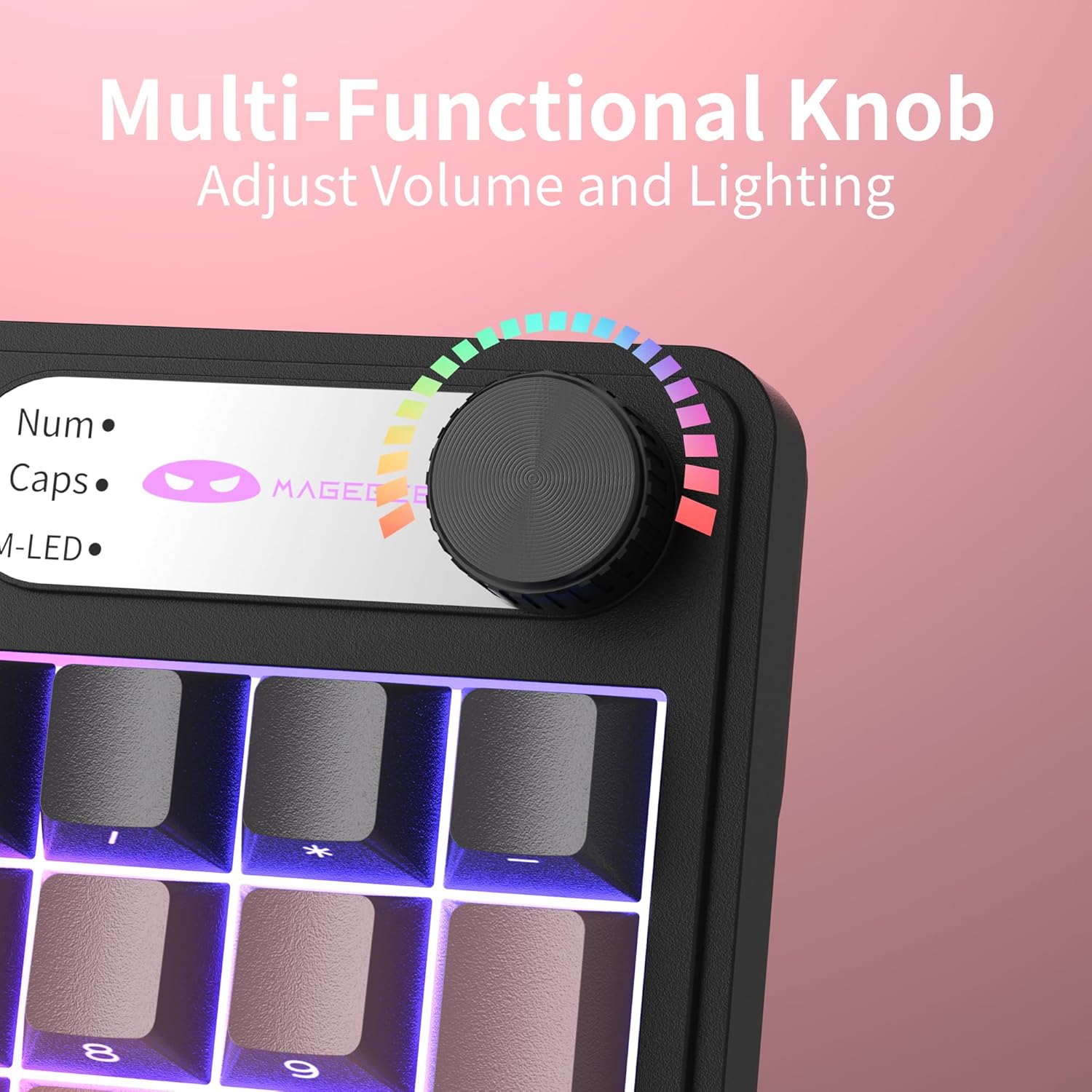
Image 4.1: Close-up view of the multi-functional rotary knob, indicating its use for adjusting volume and lighting.
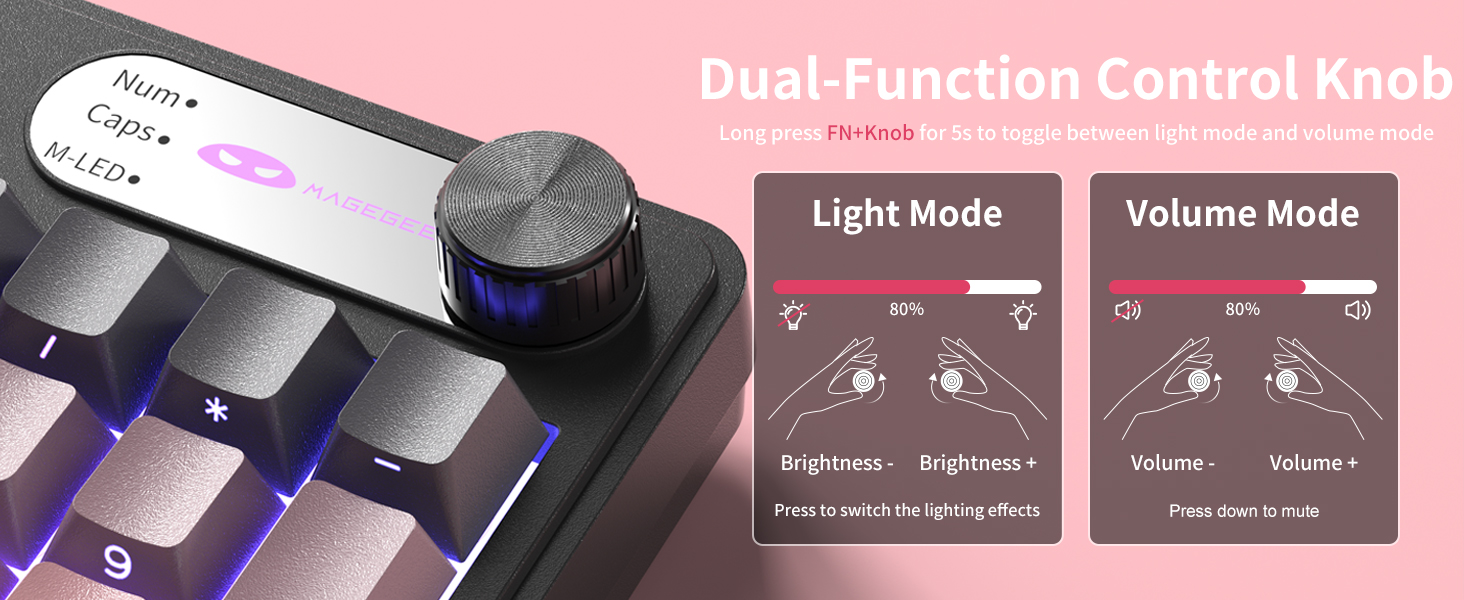
Image 4.2: Detailed illustration of the knob's functions in Light Mode (brightness adjustment, effect cycling) and Volume Mode (volume adjustment, mute).
4.2. RGB Backlighting Control
The GK960 features vibrant RGB backlighting with adjustable settings.
- FN + Ins: Switch between different light modes.
- FN + Backspace: Turn the backlight on/off.
- FN + - / = +: Adjust light speed.
- FN + PgUp / PgDn: Adjust light brightness.
- FN + P: Toggle the logo color.
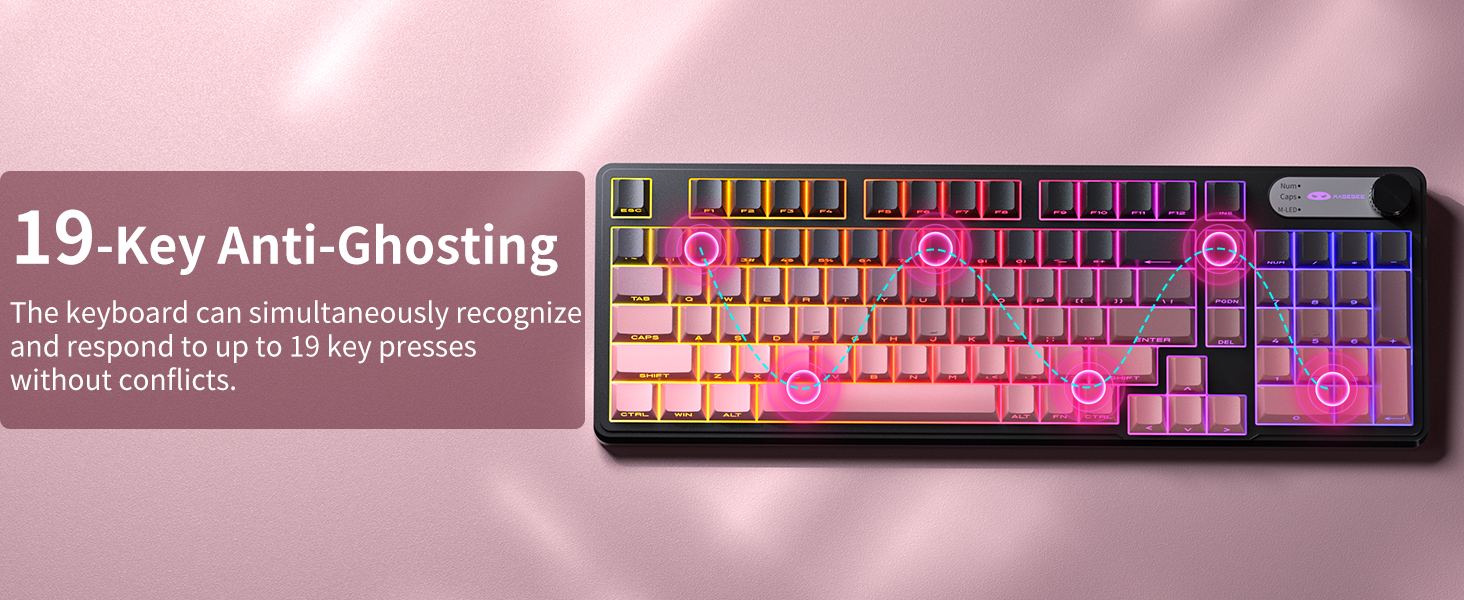
Image 4.3: Overview of function key combinations for controlling the vibrant RGB LED backlight, including switching modes, adjusting speed and brightness, and toggling logo color.
4.3. System Switching (Windows/Mac)
The GK960 keyboard supports both Windows and Mac operating systems. You can switch between them using a simple key combination.
- To switch to Windows mode: Press FN + W.
- To switch to Mac mode: Press FN + M.
4.4. 19-Key Anti-Ghosting
The GK960 features 19-key anti-ghosting, ensuring that every keystroke is registered accurately, even during rapid, simultaneous key presses. This is particularly beneficial for gaming and fast typing, preventing missed inputs.
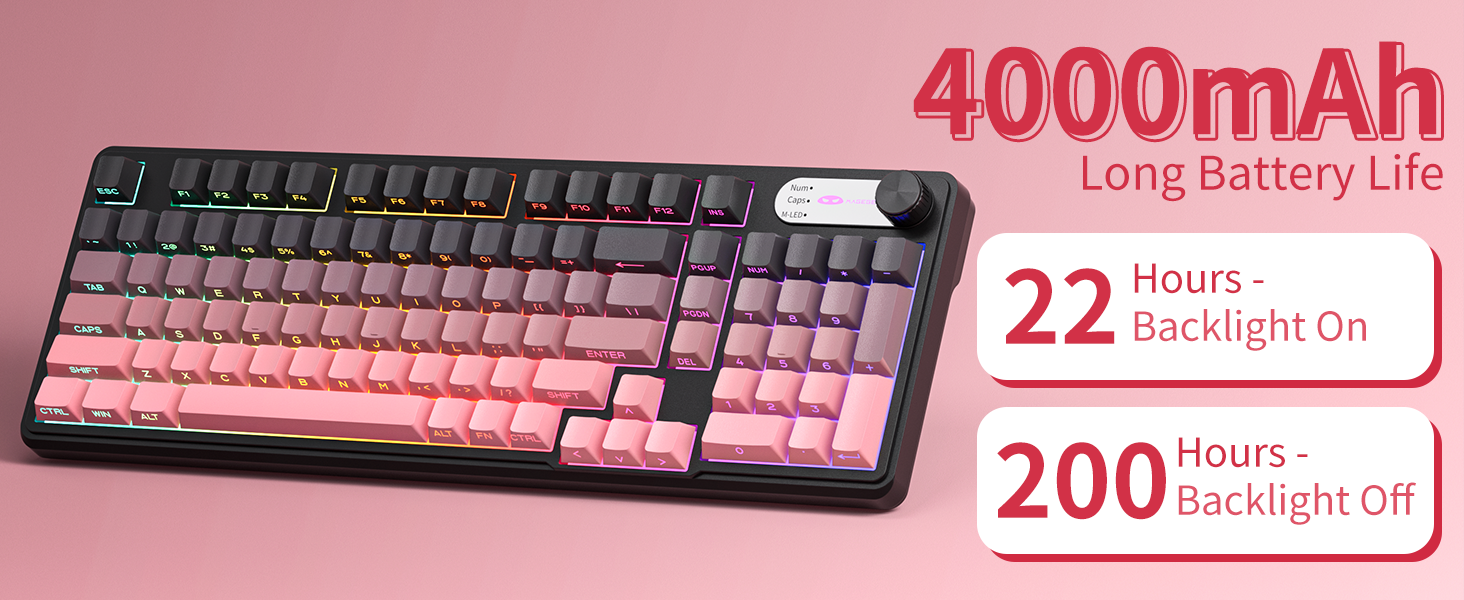
Image 4.4: Diagram illustrating the 19-key anti-ghosting feature, showing multiple simultaneous key presses being recognized.
4.5. Side-Printed Keycaps
The keycaps are crafted with double-shot injection molding, providing durability and clear legends that resist fading from prolonged use. The side-printed legends allow the backlight to shine through, enhancing visibility and aesthetics.

Image 4.5: Close-up view of the side-printed keycaps, demonstrating how the backlight illuminates the legends.
5. Battery and Charging
The GK960 keyboard is equipped with a high-capacity 4000mAh battery, providing extended usage times.
- Battery Life: Approximately 22 hours with backlight on, and up to 200 hours with backlight off.
- Charging: Connect the provided USB-C cable to the keyboard and a power source (e.g., computer USB port, USB wall adapter). The keyboard can be used in wired mode while charging.
- Low Battery Indicator: An indicator light will signal when the battery is low, prompting you to recharge.
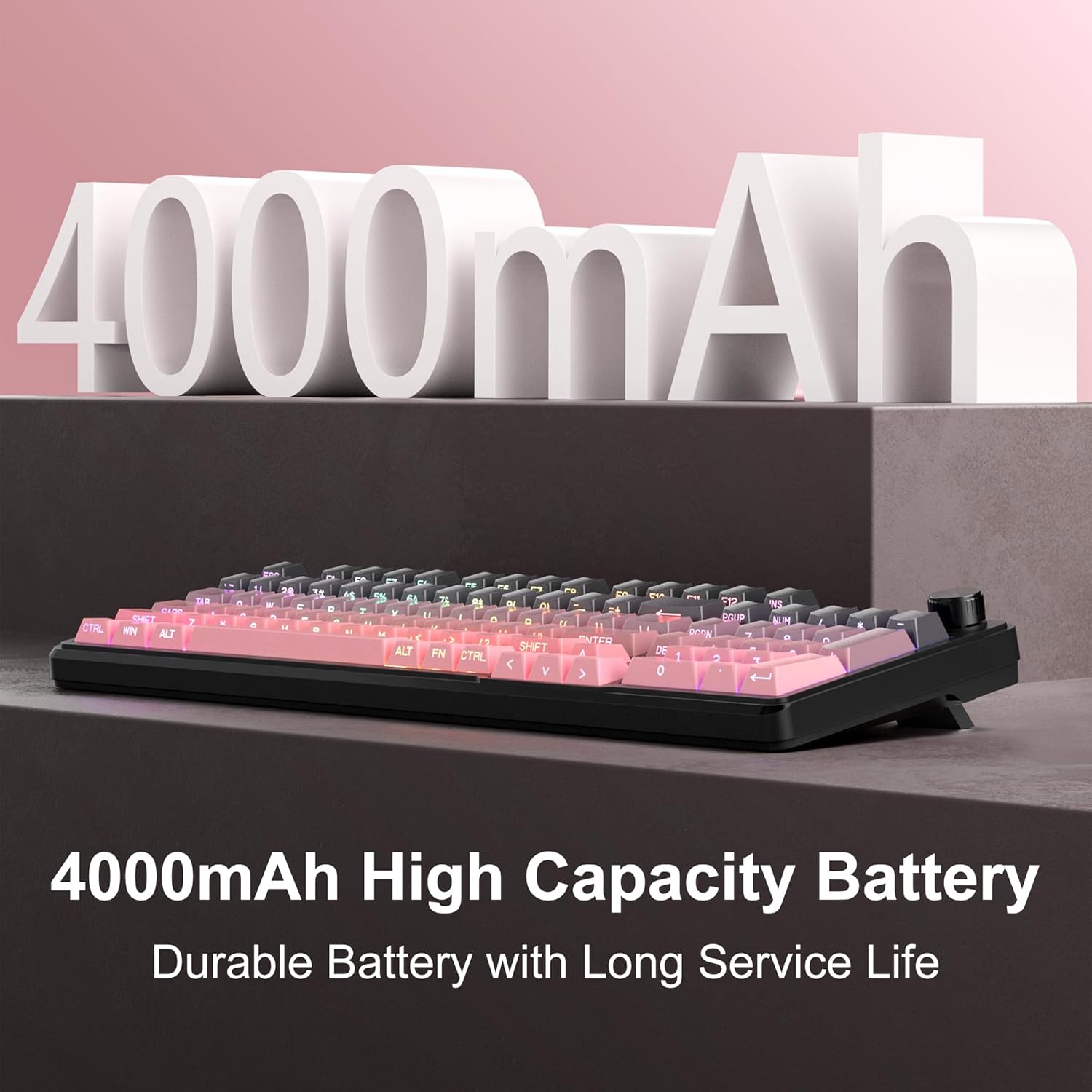
Image 5.1: Visual representation emphasizing the 4000mAh high-capacity battery for durable and long service life.
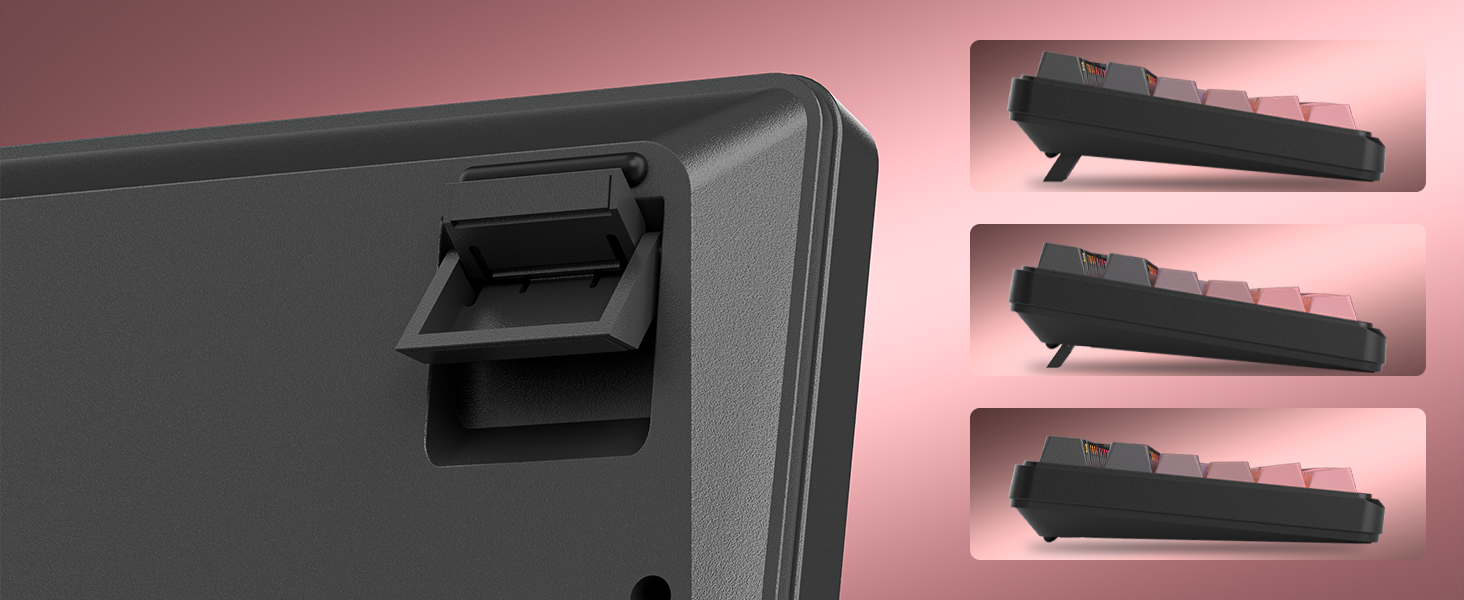
Image 5.2: Battery life estimates for the 4000mAh battery: 22 hours with backlight on and 200 hours with backlight off.
6. Maintenance
Proper maintenance ensures the longevity and optimal performance of your MageGee GK960 keyboard.
- Cleaning: Use a soft, dry cloth to wipe the surface of the keyboard. For deeper cleaning, you may use a can of compressed air to remove dust and debris from between the keycaps. Avoid using harsh chemicals or abrasive materials.
- Keycap Removal: If necessary, keycaps can be carefully removed using a keycap puller (not included) for thorough cleaning. Exercise caution to avoid damaging the switches.
- Storage: Store the keyboard in a cool, dry place away from direct sunlight and extreme temperatures.
- Liquid Exposure: Avoid spilling liquids on the keyboard. If a spill occurs, immediately disconnect the keyboard, turn it upside down to drain, and allow it to dry completely before reconnecting.
7. Troubleshooting
If you encounter issues with your GK960 keyboard, refer to the following common troubleshooting steps:
- Keyboard not responding:
- Ensure the keyboard is charged.
- Check the connectivity mode switch (Wired, 2.4G, BT) and ensure it matches your connection method.
- For 2.4G, ensure the USB receiver is securely plugged in.
- For Bluetooth, ensure the keyboard is paired correctly and selected on your device. Try re-pairing if necessary.
- Try connecting via USB-C cable to rule out wireless issues.
- Keys not registering or ghosting:
- Ensure the keyboard is clean and free of debris under the keycaps.
- The GK960 features 19-key anti-ghosting, but excessive simultaneous presses beyond this limit may still lead to issues.
- Test the keyboard on another device to determine if the issue is with the keyboard or the computer.
- RGB backlight not working or incorrect:
- Ensure the backlight is turned on using FN + Backspace.
- Adjust brightness using FN + PgUp / PgDn.
- Cycle through modes using FN + Ins.
- Check if the knob is in Light Mode and adjust brightness/effects.
- Bluetooth connection unstable:
- Ensure the keyboard is within the effective range of your device.
- Minimize interference from other wireless devices.
- Remove and re-pair the keyboard in your device's Bluetooth settings.
8. Technical Specifications
| Feature | Specification |
|---|---|
| Model Name | GK960 |
| Brand | MageGee |
| Connectivity Technology | BT/2.4G/USB-C (Tri-Mode) |
| Keyboard Layout | 98% Layout (with Number Pad) |
| Keycap Type | Side-Printed, Double-Shot Injection Molding |
| Anti-Ghosting | 19 Keys |
| Backlighting | RGB |
| Battery Capacity | 4000mAh |
| Compatible Devices | Laptop, PC, Smartphone, Tablet |
| Operating System Support | Windows, Mac |
| Special Features | Backlit, Hotkeys and Media Keys, Rechargeable, Volume Roller, Ergonomic Design |
| Item Weight | 1.88 pounds |
| Package Dimensions | 17.68 x 7.09 x 2.01 inches |

Image 8.1: Diagram showing the dimensions of the MageGee GK960 keyboard.
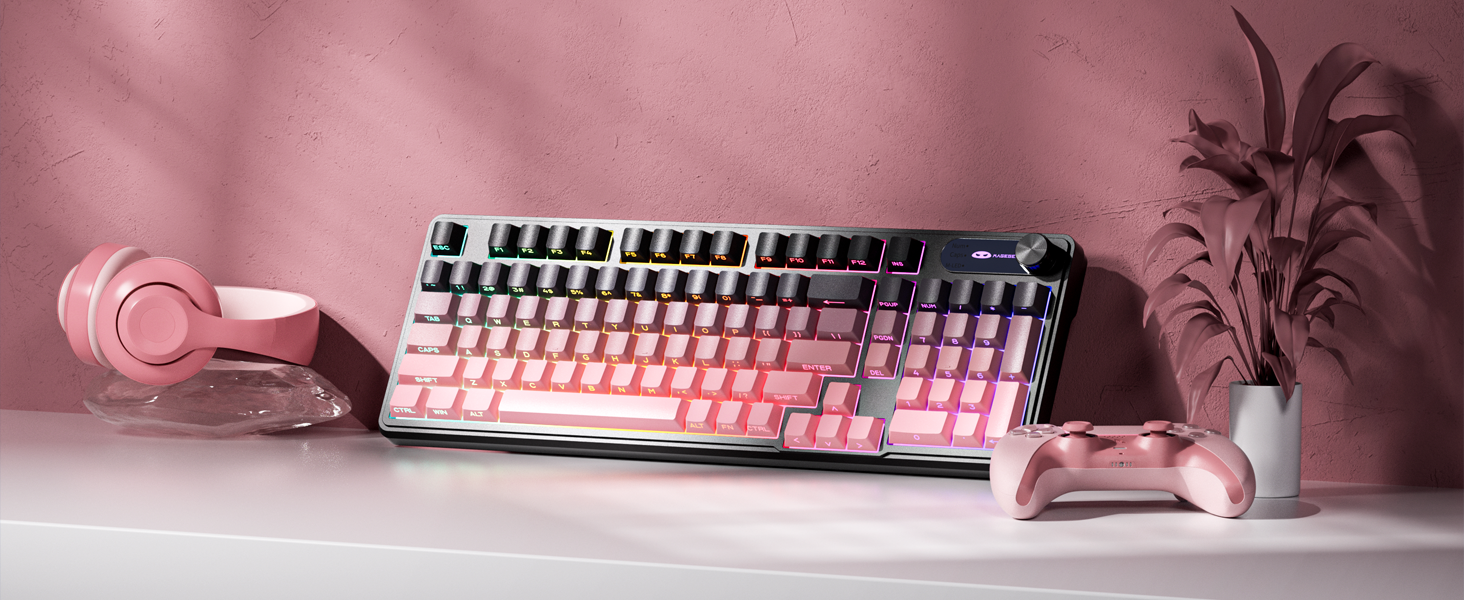
Image 8.2: Close-up view of the adjustable stands on the underside of the keyboard, illustrating the different ergonomic angles.
9. Warranty and Support
Specific warranty details and direct support contact information are not provided in this manual. For warranty claims, technical support, or further inquiries, please refer to the official MageGee website or contact the retailer from whom you purchased the product. Please retain your proof of purchase for warranty purposes.


