
1. Úvod
The TABWEE 10.1 Inch WiFi Digital Calendar, Model P10, is an interactive touchscreen display designed to streamline family organization. It integrates calendars, task management, meal planning, and digital photo frame capabilities into a single device. This manual provides detailed instructions to help you set up and utilize all features of your new digital calendar.

Obrázek 1.1: The TABWEE Digital Calendar in use, showcasing its calendar interface and mobile app synchronization.
2. Bezpečnostní informace
- Ujistěte se, že je zařízení umístěno na stabilním, rovném povrchu, aby nedošlo k náhodnému pádu.
- Používejte pouze dodaný napájecí adaptér. Použití neschválených adaptérů může poškodit zařízení a vést ke ztrátě záruky.
- Udržujte zařízení mimo dosah vody, vlhkosti a extrémních teplot.
- Do not attempt to open or repair the device yourself. Refer to qualified service personnel for any maintenance or repair needs.
- Keep out of reach of small children to prevent accidental ingestion of small parts or damage to the device.
3. Obsah balení
Ověřte, zda jsou v balení přítomny všechny položky:
- TABWEE 10.1 Inch WiFi Digital Calendar (Model P10)
- Napájecí adaptér
- Uživatelská příručka (tento dokument)
4. Konec produktuview
Familiarize yourself with the physical components of your TABWEE Digital Calendar.

Obrázek 4.1: Technical details and component layout of the TABWEE Digital Calendar.
- Tlačítko zapnutí / vypnutí: Located on the side for turning the device on or off.
- Tlačítka pro zvýšení / snížení hlasitosti: Upravte zvukový výstup zařízení.
- Světelný senzor: Automaticky upravuje jas obrazovky na základě okolního osvětlení.
- Podpůrný stojan: Integrated stand for desk placement.
5. Nastavení
5.1 První zapnutí
- Connect the provided power adapter to the device's power port.
- Plug the adapter into a standard electrical outlet. The device will automatically power on.
- Postupujte podle pokynů na obrazovce a vyberte jazyk a region.
5.2 Síťové připojení
- Na úvodní obrazovce nastavení vyberte ze seznamu svou síť Wi-Fi.
- Enter your Wi-Fi password and tap 'Connect'.
- Ensure the device is connected to a stable internet connection for full functionality.
5.3 Instalace aplikace a vytvoření účtu
To fully utilize the calendar's features, download and set up the companion 'eCalendar' app on your smartphone (iOS or Android).

Obrázek 5.1: Steps for downloading and creating an account on the eCalendar app.
- Scan the QR code displayed on the calendar screen or search for 'eCalendar' in your device's app store (Google Play Store for Android, Apple App Store for iOS).
- Stáhněte a nainstalujte aplikaci.
- Open the eCalendar app and follow the prompts to create a new account or log in if you already have one.
- Souhlasíte s uživatelskou smlouvou a zásadami ochrany osobních údajů.
5.4 Device Linking
Link your TABWEE Digital Calendar to your eCalendar app account.

Obrázek 5.2: Linking the calendar device to the eCalendar app and setting up your unique calendar email.
- In the eCalendar app, select the option to 'Add Device' or 'Activate a new eCalendar Frame'.
- Follow the on-screen instructions to pair your device. This may involve scanning a QR code displayed on the calendar or entering a pairing code.
- Once linked, you can set up your unique calendar email address within the app.
6. Provoz
6.1 Základní navigace
The TABWEE Digital Calendar features a responsive touchscreen. Navigate through menus and features by tapping, swiping, and pinching as you would on a tablet device.
6.2 Správa kalendáře
The core function of your device is calendar management, allowing for seamless synchronization and event organization.
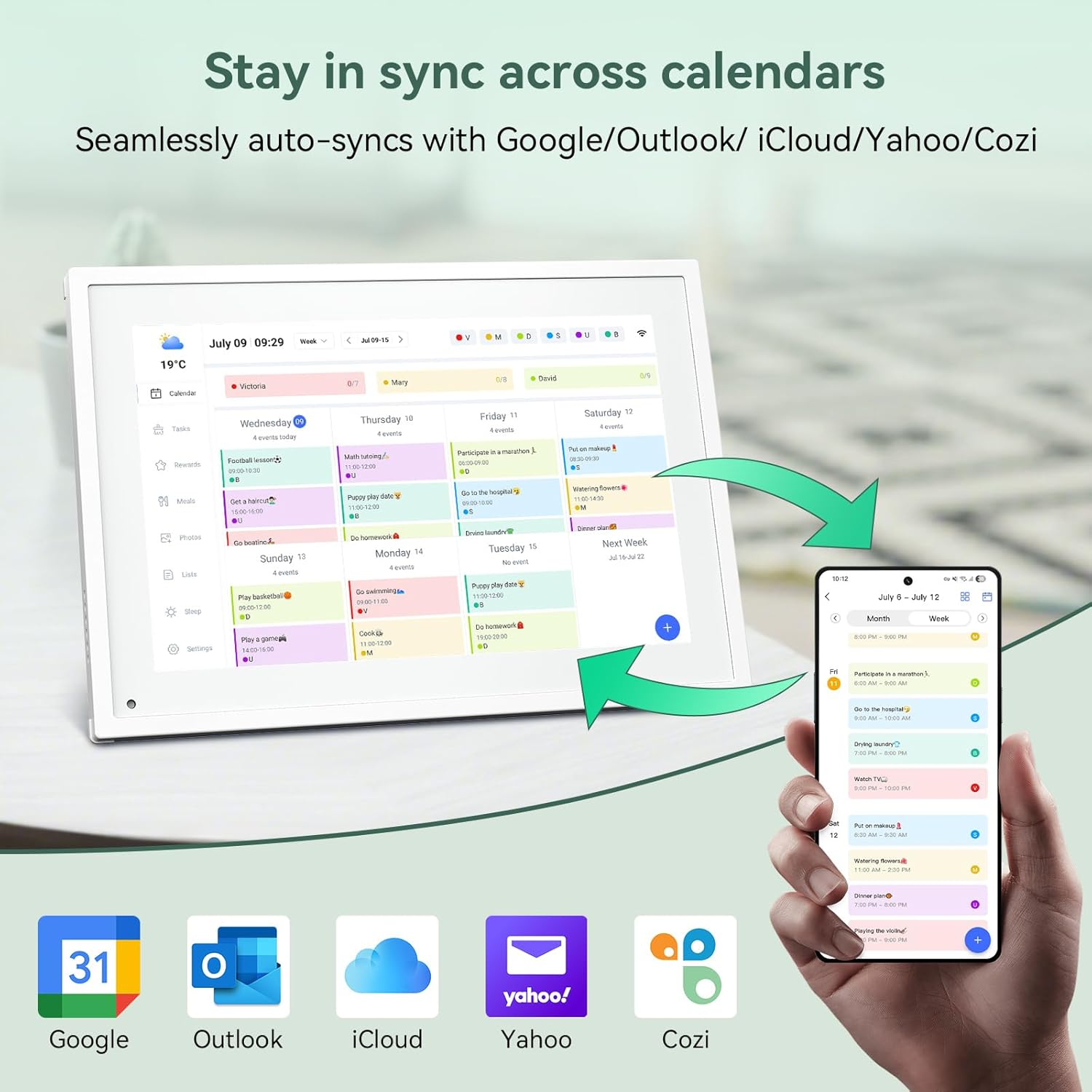
Obrázek 6.1: Seamless synchronization of the digital calendar with various external calendar services.
- Syncing External Calendars: Within the eCalendar app settings, you can link your Google, Apple, Outlook, Yahoo, or Cozi calendars. Events from these linked accounts will automatically appear on your TABWEE Digital Calendar.
- Adding/Editing Events: Tap on a date or time slot on the calendar display or use the eCalendar app to add new events. You can specify event details, set reminders, and assign participants.
- Přizpůsobené Views: Switch between day, week, or month views directly on the device or through the app.
6.3 Task Management (Chore Chart)
Organize tasks and chores for family members with a built-in reward system.
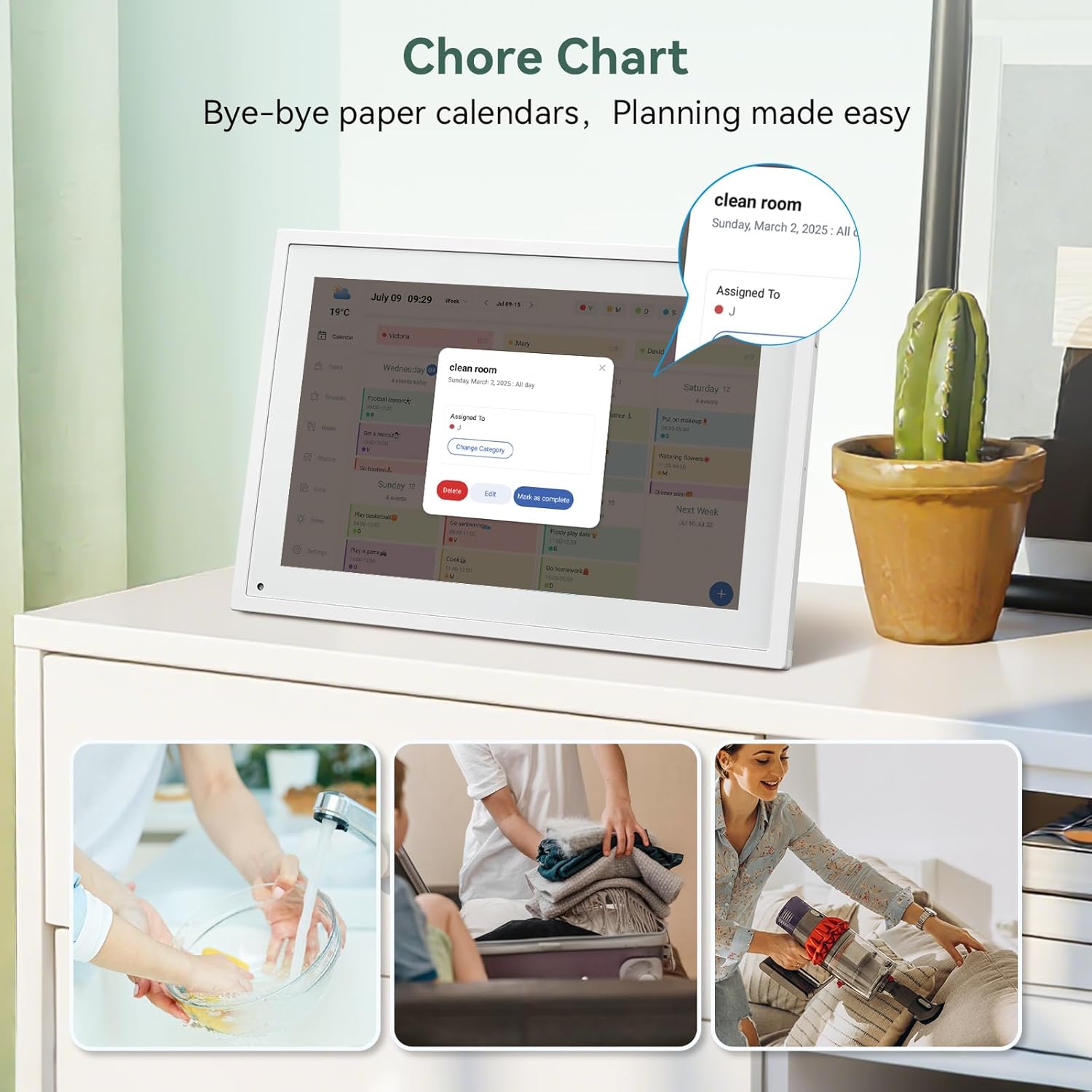
Obrázek 6.2: Managing tasks and chores on the digital calendar interface.
- Vytváření úkolů: Use the 'Tasks' section on the device or app to create new tasks. Assign them to specific individuals, set due dates, and configure recurring tasks.
- Sledování průběhu: Users can mark tasks as complete. The system tracks completion and can be configured to award points.
- Systém odměn: Set up a star-point reward system within the app. Points earned from completed tasks can be redeemed for custom rewards, encouraging participation.

Obrázek 6.3: The task manager and rewards interface, designed for engaging users.
6.4 Meal Planning
Plan your meals directly on the device or through the app.

Obrázek 6.4: Visual meal planning interface on the digital calendar.
- Create Meal Plans: Access the 'Meals' section to plan breakfasts, lunches, dinners, and snacks for the week.
- Vlastní recepty: Upload and store your favorite recipes.
- Grocery Lists: Generate grocery lists based on your meal plans.
6.5 Digital Photo Frame Functionality
The device can also function as a digital photo frame.

Obrázek 6.5: The digital calendar switching between calendar and photo frame modes, in both landscape and portrait orientations.
- Přepínací režimy: Navigate to the 'Photos' section on the device or app to activate the digital photo frame mode.
- Nahrávání fotografií: Upload your favorite memories directly from your smartphone via the eCalendar app.
- Orientace: The device supports both landscape and portrait orientations, automatically adjusting the display.
6.6 Další funkce
The TABWEE Digital Calendar includes additional smart features to enhance usability.
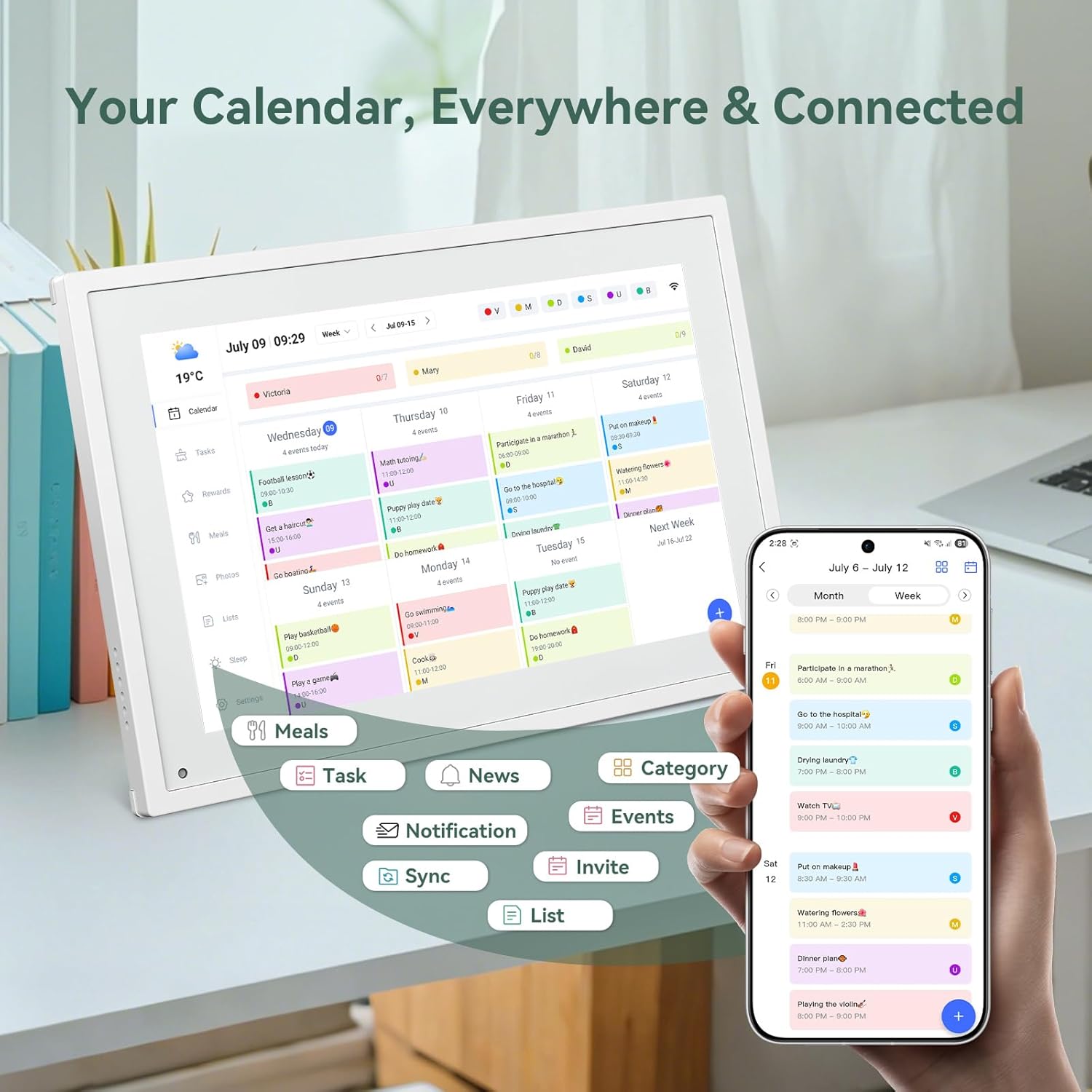
Obrázek 6.6: Nadview of smart features and app connectivity.
- Live Weather Forecasts: Zobrazuje aktuální počasí a předpovědi.
- Automatický jas: The built-in light sensor automatically adjusts screen brightness for optimal viewIng.
- Režim spánku: Configure scheduled times for the device to enter a low-power sleep mode.
- Custom Lists: Create and manage various lists (e.g., shopping lists, packing lists).
- Barevné kódování: Assign different colors to events or tasks for easy visual identification.
7. Údržba
7.1 Čištění zařízení
- Jemně otřete obrazovku měkkým hadříkem, který nepouští vlákna. V případě odolných šmouh lehceamphadřík vodou nebo roztokem na čištění obrazovky.
- Nepoužívejte agresivní chemikálie, abrazivní materiály ani aerosolové spreje přímo na zařízení.
- Před čištěním se ujistěte, že je zařízení vypnuté a odpojené ze zásuvky.
7.2 Aktualizace softwaru
The device may receive periodic software updates to improve performance and add new features. Ensure your device is connected to Wi-Fi to receive these updates. You will typically be notified on-screen when an update is available.
8. Řešení problémů
| Problém | Možná příčina | Řešení |
|---|---|---|
| Zařízení se nezapne. | Napájecí adaptér není připojen nebo je vadný. | Ujistěte se, že je napájecí adaptér bezpečně připojen k zařízení a k funkční zásuvce. |
| Nelze se připojit k Wi-Fi. | Nesprávné heslo, mimo dosah nebo problém se sítí. | Verify Wi-Fi password. Move the device closer to the router. Restart your router. |
| Calendar events are not syncing. | App not linked, external calendar not connected, or internet issue. | Check app-device linking. Ensure external calendars are correctly linked in the eCalendar app. Verify internet connection. |
| Obrazovka nereaguje. | Dočasná softwarová závada. | Restart the device by holding the power button until it turns off, then power it back on. |
9. Specifikace
| Funkce | Detail |
|---|---|
| Číslo modelu | P10 |
| Velikost obrazovky | 10.1 palce |
| Typ zobrazení | Dotyková obrazovka |
| Konektivita | WiFi |
| Rozměry produktu | 10.51 x 0.91 x 7.32 palce (26.7 x 2.3 x 18.6 cm) |
| Hmotnost položky | 2.58 libry (1.17 kg) |
| Typ montáže | Desk Mount (not wall-mountable) |
| Zdroj napájení | Plug-in (no internal battery) |
| Barva | Bílý |
10. Záruka a podpora
The TABWEE Digital Calendar comes with a standard manufacturer's warranty. For specific warranty terms and conditions, please refer to the warranty card included in your product packaging or visit the official TABWEE webmísto.
For technical support, troubleshooting assistance, or any inquiries regarding your product, please contact TABWEE customer service through their official webwebu nebo kontaktních informací uvedených v dokumentaci k produktu.