
1. Úvod
The FIREBAT X3 Wired RGB Gaming Mouse is designed for precision and comfort, suitable for various computing tasks including gaming, office work, and general use. This manual provides detailed instructions for setting up, operating, and maintaining your mouse.

Nadview of the FIREBAT X3 Wired RGB Gaming Mouse highlighting its main features.
2. Nastavení
2.1 Připojení myši
The FIREBAT X3 Gaming Mouse features a simple plug-and-play design for easy setup.
- Locate an available USB-A port on your computer or laptop.
- Vložte USB konektor myši do portu USB-A.
- Your operating system will automatically detect and install the necessary drivers. No additional software installation is required for basic functionality.

The FIREBAT X3 mouse connects via a standard USB-A port for immediate use.
3. Provoz
3.1 Funkce tlačítek
The FIREBAT X3 Gaming Mouse is equipped with 6 programmable buttons for enhanced control.
- Levé tlačítko: Standardní funkce kliknutí.
- Pravé tlačítko: Standardní funkce kliknutí pravým tlačítkem myši.
- Rolovací kolečko: Scrolls up and down. Can also be pressed for a middle-click function.
- DPI Adjustment Key: Changes the mouse sensitivity (DPI).
- Tlačítko vpřed: Naviguje vpřed web prohlížeče popř file průzkumníci.
- Tlačítko Zpět: Naviguje zpět web prohlížeče popř file průzkumníci.

Illustration of the 6-button layout on the FIREBAT X3 Gaming Mouse.
3.2 Nastavení DPI (citlivosti)
The mouse features 4 adjustable DPI levels to suit different tasks and preferences.
- Stiskněte tlačítko DPI Adjustment Key (located behind the scroll wheel) to cycle through the preset DPI settings.
- The default DPI levels are 1200, 1800, 2400, and 3600.
- Each press will switch to the next DPI level, allowing you to find the optimal sensitivity for your current activity.

The DPI adjustment key allows for quick changes in mouse sensitivity.
3.3 režimů RGB osvětlení
The FIREBAT X3 mouse features 7 dynamic RGB backlit modes to enhance your setup.
- The RGB lighting automatically cycles through its 7 distinct modes.
- There is no manual button to change the RGB mode; the mouse will continuously display various lighting effects.
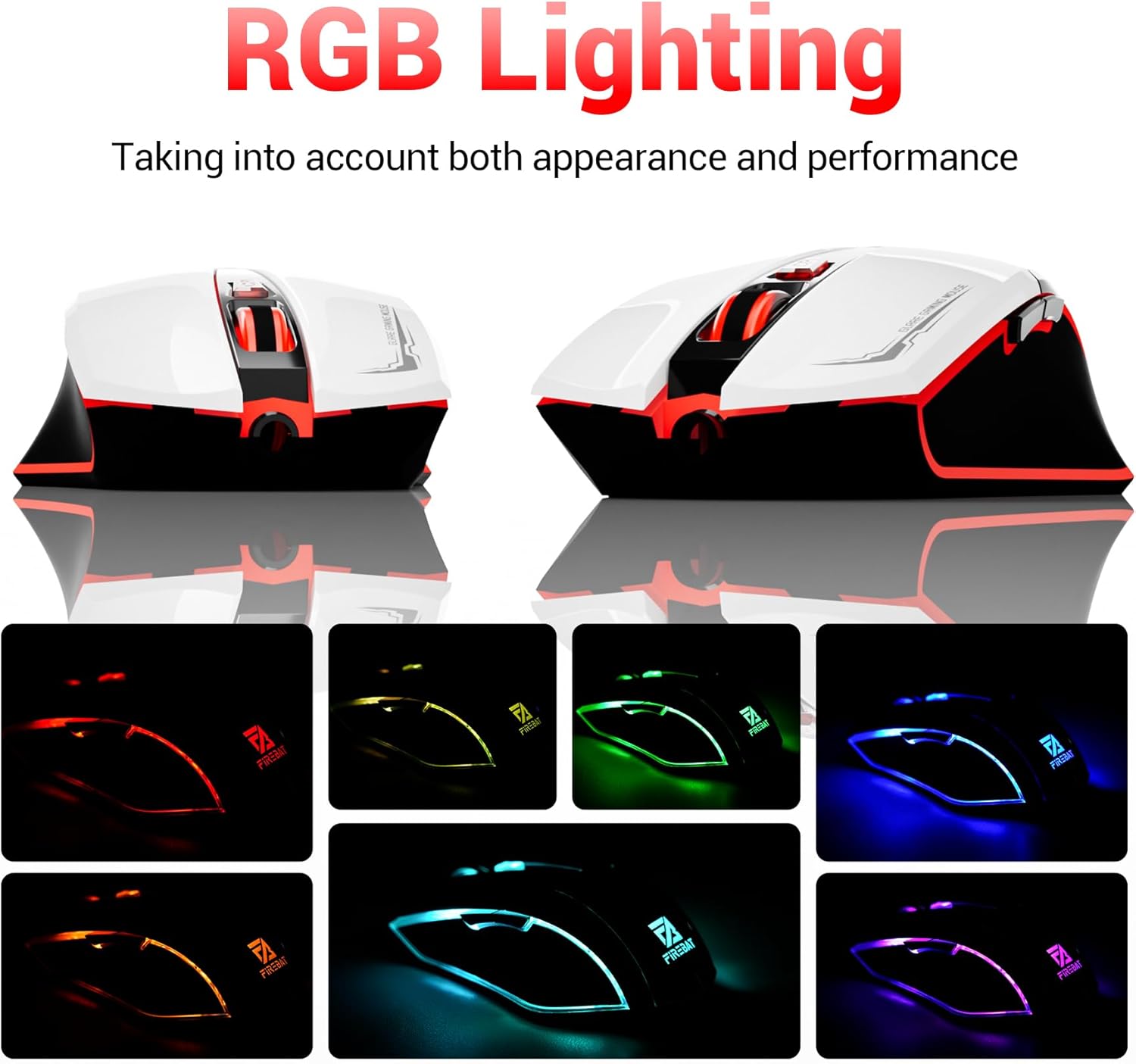
The mouse features vibrant RGB lighting with multiple dynamic modes.
3.4 Ergonomický design a pohodlí
The mouse is designed with an ergonomic shape to provide a comfortable grip and reduce hand fatigue during extended use, suitable for both right and left-hand users.

The ergonomic design ensures comfort during prolonged use.
3.5 Quiet Click Feature
The mouse incorporates a 'Heavy Bass Design' for its key sounds, ensuring soft clicks without excessive noise, which is beneficial in quiet environments.

The mouse features quiet clicks, minimizing noise during use.
4. Údržba
4.1 Čištění
To ensure optimal performance and longevity, keep your mouse clean.
- Před čištěním odpojte myš od počítače.
- Lehce používejte měkký hadřík, který nepouští vlákna dampPovrch myši otřete vodou nebo jemným čisticím roztokem.
- Nepoužívejte agresivní chemikálie, abrazivní čisticí prostředky ani nadměrnou vlhkost, protože by mohly myš poškodit.
- For the optical sensor, use a cotton swab to gently remove any dust or debris.
4.2 Skladování
Pokud myš nepoužíváte, skladujte ji v čistém a suchém prostředí mimo dosah extrémních teplot a přímého slunečního záření.
5. Řešení problémů
5.1 Myš nereaguje
- Zkontrolujte připojení USB: Ujistěte se, že je kabel USB bezpečně zapojený do funkčního portu USB v počítači. Zkuste jiný port USB.
- Restartujte počítač: Někdy může problémy s připojením vyřešit jednoduchý restart.
- Test na jiném počítači: If possible, test the mouse on another computer to determine if the issue is with the mouse or your computer's setup.
5.2 Pohyb kurzoru je nepravidelný nebo skokatý
- Čistý optický senzor: Dust or debris on the optical sensor can cause erratic movement. Refer to the cleaning instructions in the Maintenance section.
- Use a Mouse Pad: Ensure you are using the mouse on a suitable surface. Reflective, transparent, or uneven surfaces can interfere with the optical sensor.
5.3 RGB osvětlení nefunguje
- Zkontrolujte napájení z USB: Ensure the mouse is receiving sufficient power through the USB connection.
- Bez manuálního ovládání: Remember that the RGB lighting cycles automatically and does not have a manual control button. If the mouse is functioning otherwise, the lighting should be active.
6. Specifikace
| Funkce | Detail |
|---|---|
| Číslo modelu | X3 Gaming Mouse |
| Značka | FIREBAT |
| Technologie připojení | Kabel USB |
| Detekce pohybu | Optický |
| Úrovně DPI | 1200/1800/2400/3600 |
| Počet tlačítek | 6 (programovatelných) |
| Podsvícení | 7 režimů RGB |
| Rozměry produktu | 5 x 3 x 0.1 palce (12.7 x 7.6 x 0.25 cm) |
| Hmotnost položky | 5.1 unce (144.6 gramů) |
| Ergonomie | Right or Left Hand Use |
| Výrobce | FIREBAT |
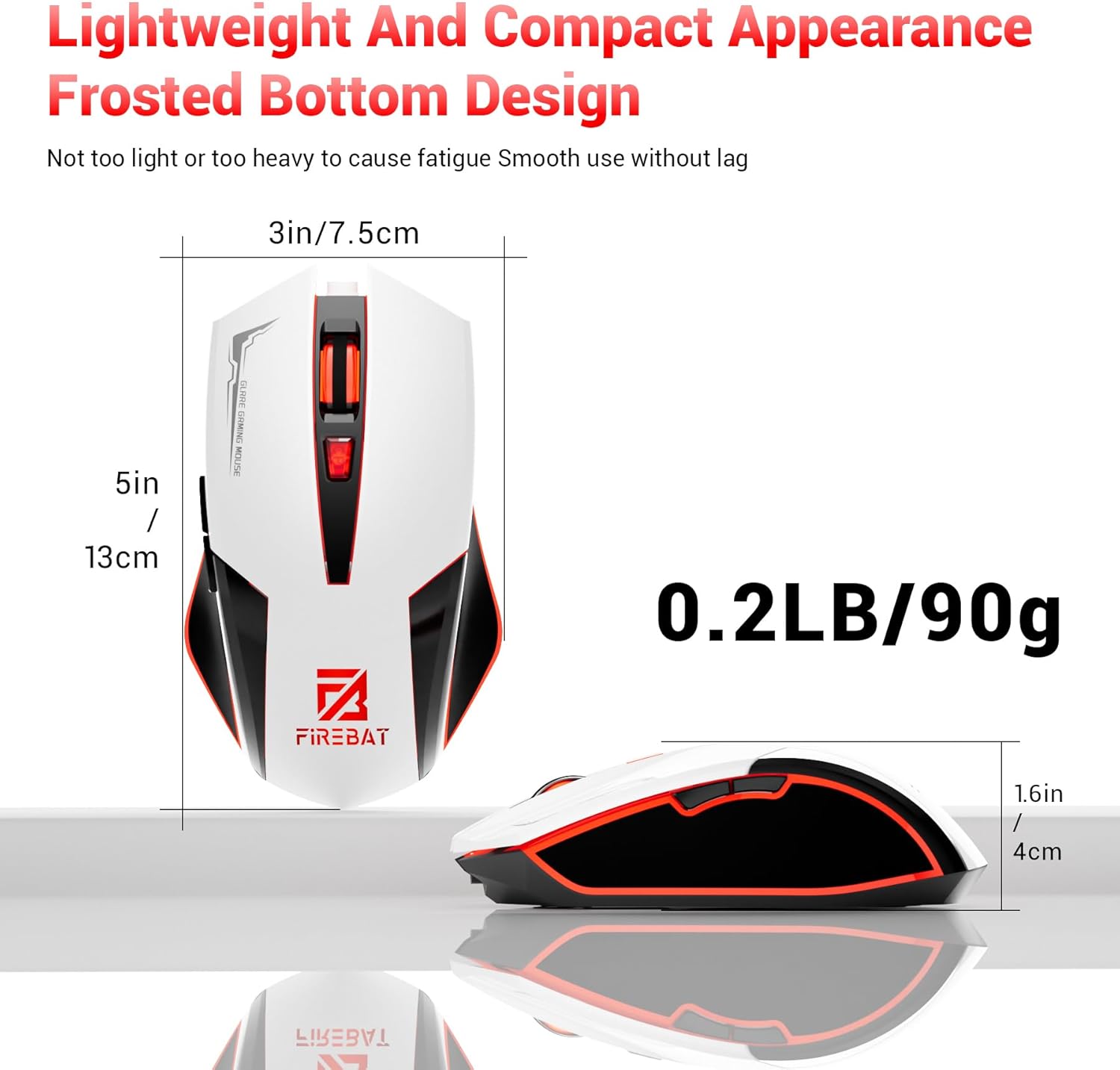
Physical dimensions and weight of the FIREBAT X3 Gaming Mouse.
7. Záruka a podpora
7.1 Informace o záruce
FIREBAT products are manufactured to high-quality standards. For specific warranty details, please refer to the warranty card included with your product or visit the official FIREBAT webwebu. Produkty se obvykle dodávají s omezenou zárukou kryjící výrobní vady.
7.2 Zákaznická podpora
If you encounter any issues or have questions regarding your FIREBAT X3 Gaming Mouse, please contact our customer support team:
- E-mail: support@firebatpc.com
- Webmísto: www.firebatpc.com
Please provide your product model number (X3 Gaming Mouse) and a detailed description of your issue when contacting support for faster assistance.