
Zavedení
This manual provides essential information for setting up, operating, maintaining, and troubleshooting your Acer AL15-33P laptop. Please read this guide thoroughly to ensure proper use and to maximize the lifespan of your device.
Nastavení
1. Rozbalení a počáteční kontrola
Carefully remove the laptop and all accessories from the packaging. Check for any visible damage. The package should include the laptop, power adapter, and this user manual.

Přední view of the Acer AL15-33P laptop with the screen displaying the Windows desktop.
2. Připojení napájení
- Connect the AC adapter cable to the power adapter.
- Plug the DC output connector of the power adapter into the power input port on the side of your laptop.
- Zapojte napájecí kabel do elektrické zásuvky.
Baterie se začne automaticky nabíjet. Před prvním použitím se doporučuje baterii plně nabít.
3. Počáteční spuštění a nastavení systému Windows
- Otevřete víko notebooku.
- Press the power button, typically located on the keyboard deck or side, to turn on the laptop.
- Follow the on-screen instructions to complete the Windows 11 setup process. This includes selecting your region, language, accepting terms, and setting up a user account.
Ovládání notebooku
1. Používání klávesnice a touchpadu
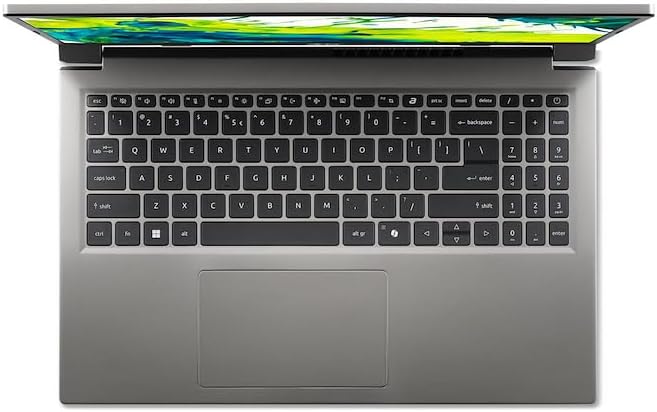
Shora dolů view klávesnice a touchpadu notebooku.
- Klávesnice: The laptop features a full-size keyboard. Use the function (Fn) key in combination with F-keys for special functions like adjusting brightness, volume, or enabling/disabling Wi-Fi.
- Touchpad: The integrated touchpad supports multi-touch gestures. Tap to click, use two fingers to scroll, and pinch to zoom.
2. Připojení periferií
Your Acer AL15-33P laptop is equipped with various ports for connecting external devices.

Right side of the laptop showing ports including USB and audio jack.

Left side of the laptop showing ports including power, USB-C, HDMI, and USB-A.
- USB porty: Připojte zařízení USB, jako jsou externí pevné disky, myši nebo klávesnice.
- Port HDMI: Connect an external monitor or TV for a larger display.
- Audio jack: Připojte sluchátka nebo externí reproduktory.
- Port USB-C: For data transfer and potentially display output or charging, depending on the specific model configuration.
3. Bezdrátové připojení
- Wi-Fi: Chcete-li se připojit k bezdrátové síti, klikněte na ikonu Wi-Fi na hlavním panelu, vyberte síť a v případě potřeby zadejte heslo.
- Bluetooth: To pair Bluetooth devices, go to Windows Settings > Bluetooth & devices, and turn on Bluetooth.
4. Řízení spotřeby
- Režim spánku: Close the lid or select 'Sleep' from the Start menu to put the laptop into a low-power state.
- Vypnutí: To turn off the laptop completely, go to the Start menu, click the Power icon, and select 'Shut down'.
- Restartovat: To restart the laptop, go to the Start menu, click the Power icon, and select 'Restart'.
Údržba
1. Čištění notebooku
- Použijte měkký hadřík, který nepouští vlákna dampDisplej opláchněte vodou nebo čističem obrazovek.
- Na klávesnici a šasi používejte měkký hadřík. Nepoužívejte agresivní chemikálie ani abrazivní materiály.
- Periodically use compressed air to clear dust from the cooling vents to prevent overheating.
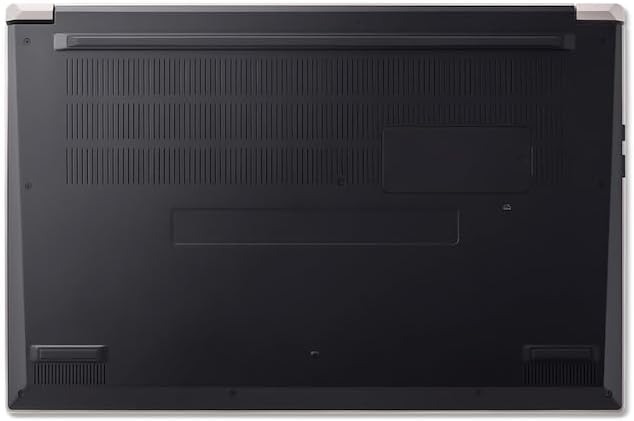
Dno view of the laptop, highlighting the ventilation grilles.
2. Péče o baterie
- Vyhněte se častému úplnému vybíjení baterie.
- Pokud notebook skladujete delší dobu, ujistěte se, že je baterie nabitá přibližně na 50–70 %.
- Operate the laptop in a moderate temperature environment.
3. Aktualizace softwaru
Regularly update your operating system and drivers to ensure optimal performance and security. Windows Update can be accessed via Settings > Windows Update.
4. Správa úložiště
Pravidelně znovuview a smažte nepotřebné files to free up storage space. Utilize cloud storage or external drives for backups of important data.
Odstraňování problémů
This section addresses common issues you might encounter with your Acer AL15-33P laptop.
| Problém | Možné řešení |
|---|---|
| Notebook se nezapne. | Ujistěte se, že je napájecí adaptér bezpečně připojen a zásuvka funguje. Zkuste jinou zásuvku. Pokud je baterie zcela vybitá, může po zapojení trvat několik minut, než se začne projevovat známky života. |
| Displej je prázdný nebo černý. | Check if the laptop is powered on. Try pressing Fn + F6 (or the corresponding display toggle key) to cycle through display modes. Connect an external monitor to check if the issue is with the laptop's screen. |
| Problémy s připojením k Wi-Fi. | Ensure Wi-Fi is enabled (Fn + F3 or check Windows settings). Restart your router and modem. Check if other devices can connect to the Wi-Fi network. Update Wi-Fi drivers. |
| Notebook běží pomalu. | Close unnecessary applications. Check Task Manager for processes consuming high CPU or memory. Run a disk cleanup. Ensure Windows and drivers are up to date. |
Specifikace
The following are key specifications for the Acer AL15-33P model. Note that specific configurations may vary.
- Model: Acer AL15-33P
- Procesor: Intel Core i3-N355
- BERAN: 8 GB
- Skladování: 512GB SSD
- Zobrazit: 15.6-palcový
- Operační systém: Windows 11
- Značka: Acer
Záruka a podpora
Your Acer AL15-33P laptop comes with a standard manufacturer's warranty. Please refer to the warranty card included with your product for specific terms and conditions, including the warranty period and coverage details.
Pro technickou podporu, stažení ovladačů nebo servisní dotazy navštivte oficiální stránky podpory Acer. website or contact Acer customer service directly. Have your laptop's serial number ready when contacting support.
Podpora Acer Webmísto: www.acer.com/support