
1. Úvod
This user manual provides essential information for the proper setup, operation, maintenance, and troubleshooting of your new acer Aspire Laptop. Please read this manual thoroughly before using your device to ensure optimal performance and longevity. Keep this manual for future reference.

Image 1.1: The acer Aspire Laptop, showcasinjeho elegantní design a displej.
2. Obsah balení
Verify that all items listed below are included in your product package. If any items are missing or damaged, please contact your retailer or acer support.
- acer Aspire Laptop
- Napájecí adaptér USB Type-C
- Napájecí kabel
- TWE Mouse Pad (bundled accessory)
3. Nastavení
3.1 První zapnutí a nabíjení
- Vybalte notebook a veškeré příslušenství z krabice.
- Connect the USB Type-C Power Adapter to the laptop's USB Type-C port (which supports Power Delivery) and then plug the power cord into an electrical outlet.
- Před prvním použitím nechte notebook nabíjet alespoň 30 minut nebo dokud indikátor baterie neukazuje dostatečné nabití.
- Otevřete víko notebooku. Notebook se může zapnout automaticky nebo může být nutné stisknout tlačítko napájení.
3.2 Počáteční nastavení systému Windows 11
Follow the on-screen instructions to complete the Windows 11 Home setup process. This typically includes:
- Výběr regionu a rozložení klávesnice.
- Connecting to a Wi-Fi network (IEEE 802.11ax, Wi-Fi 6E supported).
- Přijetí licenční smlouvy.
- Vytvoření účtu Microsoft nebo přihlášení pomocí něj.
- Setting up security features like Windows Hello (if applicable).
3.3 Připojení periferních zařízení
Your acer Aspire Laptop offers various ports for connecting external devices:
- Porty USB 3.2 1. generace: Pro připojení USB zařízení, jako jsou myši, klávesnice nebo externí úložiště.
- USB Type-C Ports (USB4, Thunderbolt 4): Versatile ports for data transfer (up to 40 Gbps), video output, and power delivery.
- Port HDMI 2.1: Pro připojení k externím displejům nebo projektorům.
- 3.5 mm Headphone/Microphone Combo Jack: Pro audio vstup/výstup.
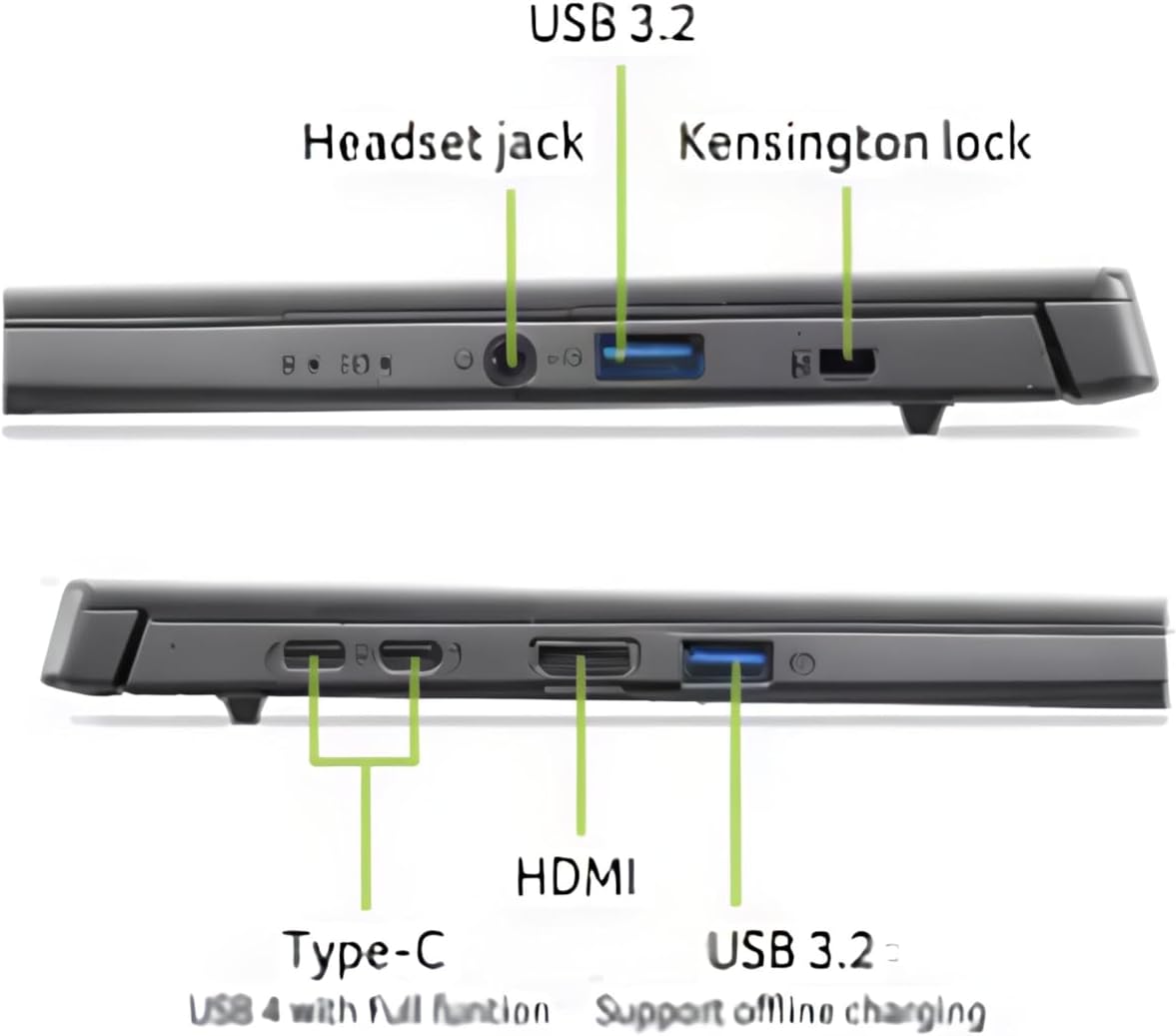
Obrázek 3.1: Konecview z portů připojení notebooku.
4. Ovládání notebooku
4.1 Displej a dotyková obrazovka
The laptop features a 14-inch WUXGA (1920 x 1200) IPS LED Backlit TFT LCD Touchscreen display. This display supports touch input for intuitive interaction with Windows 11. Use gestures similar to a smartphone or tablet for navigation.
4.2 Klávesnice a touchpad
The integrated keyboard is backlit, allowing for comfortable typing in various lighting conditions. The touchpad supports multi-touch gestures for navigation and control. Refer to Windows settings for customizing touchpad gestures.

Obrázek 4.1: Nahoře view klávesnice a touchpadu.
4.3 Řízení spotřeby
Your laptop is equipped with a battery providing approximately 8 hours of usage. To optimize battery life, adjust power settings in Windows 11. Always use the provided USB Type-C Power Adapter for charging.
4.4 AI Copilot+PC Features
This laptop is an AI Copilot+PC, integrating advanced AI capabilities through its Intel Core Ultra 5 processor with CPU, GPU, and NPU. Key AI features include:
- Druhý pilot: An AI-powered assistant in Windows 11 for productivity, creativity, and information retrieval.
- AcerSense: Acer's experience zone for managing system performance and features.
- AcerLiveArt & Acer AlterView: Tools for creative applications.
- Acer Assist: Your smart AI assistant for system optimization and support.
- Acer PurifiedView™ 2.0 & Acer PurifiedVoice™: Enhanced video call and audio quality.

Image 4.2: The Copilot+PC branding on the laptop screen, indicating advanced AI capabilities.

Image 4.3: Users interacting with the laptop, demonstrating features like Acer PurifiedView and PurifiedVoice for enhanced communication.
5. Údržba
5.1 Čištění notebooku
- Použijte měkký hadřík, který nepouští vlákna dampDisplej opláchněte vodou nebo čističem obrazovek. Nestříkejte tekutinu přímo na obrazovku.
- For the keyboard and chassis, use a soft, dry cloth. A can of compressed air can help remove dust from between keys.
- Před čištěním se ujistěte, že je notebook vypnutý a odpojený od sítě.
5.2 Aktualizace softwaru
Regularly check for and install Windows updates to ensure your system has the latest security patches and performance improvements. Acer may also provide driver and firmware updates through AcerSense or their official support webmísto.
5.3 Skladování a manipulace
- Nevystavujte notebook extrémním teplotám, přímému slunečnímu záření nebo vysoké vlhkosti.
- Nepokládejte na notebook těžké předměty.
- Notebook přepravujte v ochranném pouzdře nebo tašce, abyste zabránili poškrábání a nárazům.

Image 5.1: The laptop's 180-degree hinge design and durable aluminum chassis.
6. Řešení problémů
This section addresses common issues you might encounter with your acer Aspire Laptop.
6.1 Problémy s napájením
- Notebook se nezapne: Ensure the power adapter is securely connected to both the laptop and a working electrical outlet. Check if the battery is charged. Try holding the power button for 10-15 seconds to perform a hard reset.
- Baterie se nenabíjí: Verify the power adapter and cable are not damaged. Try a different outlet. Ensure the USB Type-C port used for charging is functional.
6.2 Problémy se zobrazením
- Žádné zobrazení na obrazovce: Connect an external monitor via the HDMI port to check if the issue is with the laptop's internal display. If the external monitor works, the internal display may require service.
- Blikající nebo zkreslený obraz: Aktualizujte ovladače grafické karty. Upravte rozlišení displeje a obnovovací frekvenci v nastavení systému Windows.
6.3 Problémy s připojením
- Nelze se připojit k Wi-Fi: Ensure Wi-Fi is enabled in Windows settings. Restart your router and the laptop. Check for updated wireless drivers.
- Zařízení Bluetooth se nespáruje: Ujistěte se, že je Bluetooth povoleno na notebooku i zařízení. Umístěte zařízení blízko sebe. Odeberte a znovu přidejte zařízení v nastavení Bluetooth.
6.4 Problémy s výkonem
- Notebook je pomalý: Close unnecessary applications. Check Task Manager for processes consuming high CPU or RAM. Ensure sufficient free space on the 512GB PCIe Gen 4 SSD. Run a malware scan.
7. Specifikace
| Funkce | Specifikace |
|---|---|
| Značka | acer |
| Název modelu | Notebook Acer Aspire |
| Velikost obrazovky | 14 palce |
| Rozlišení displeje | 1920 1200 x (WUXGA) |
| Typ zobrazení | IPS LED Backlit TFT LCD, Touchscreen |
| Procesor | 2nd Gen Intel Ultra 5-226V (8 Cores, 2.1GHz ~ 4.5 GHz) |
| Grafika | Intel ARC 130V Integrated Graphics |
| BERAN | 16GB LPDDR5X RAM |
| Skladování | 512GB SSD disk PCIe 4. generace |
| Operační systém | Windows 11 Home |
| Bezdrátové připojení | IEEE 802.11ax (Wi-Fi 6E), Bluetooth 5.3 |
| Porty | 1x HDMI 2.1, 2x USB 3.2 Gen 1, 2x USB Type-C (USB4, Thunderbolt 4, Power Delivery), 1x 3.5mm Headphone/Mic Combo Jack |
| Webvačka | 1080p FHD |
| Klávesnice | Podsvícený |
| Životnost baterie | Až 8 hodin |
| Rozměry (D x Š x V) | 12.56" x 8.86" x 0.46"-0.67" |
| Hmotnost | 3.04 lb (1.38 kg) |
8. Informace o záruce
Your acer Aspire Laptop comes with a Omezená záruka. The specific terms and duration of the warranty may vary by region and retailer. Please refer to the warranty card included in your product packaging or visit the official acer support website for detailed warranty information, including coverage, limitations, and how to make a claim.
Uschovejte si doklad o koupi (účtenku nebo fakturu), bude potřeba pro případný záruční servis.
9. Podpora
For further assistance, technical support, or to download updated drivers and manuals, please visit the official acer support webmísto:
You may also contact acer customer service directly through the contact information provided on their webweb pro váš konkrétní region.