
Zavedení
This manual provides detailed instructions for the Keychron K8 HE TKL Wireless Mechanical Keyboard. It covers setup, operation, maintenance, and troubleshooting to ensure optimal performance and user experience. The K8 HE features Hall Effect magnetic switches, tri-mode connectivity (2.4 GHz, Bluetooth, Wired), and extensive customization options via the Keychron Launcher web aplikace
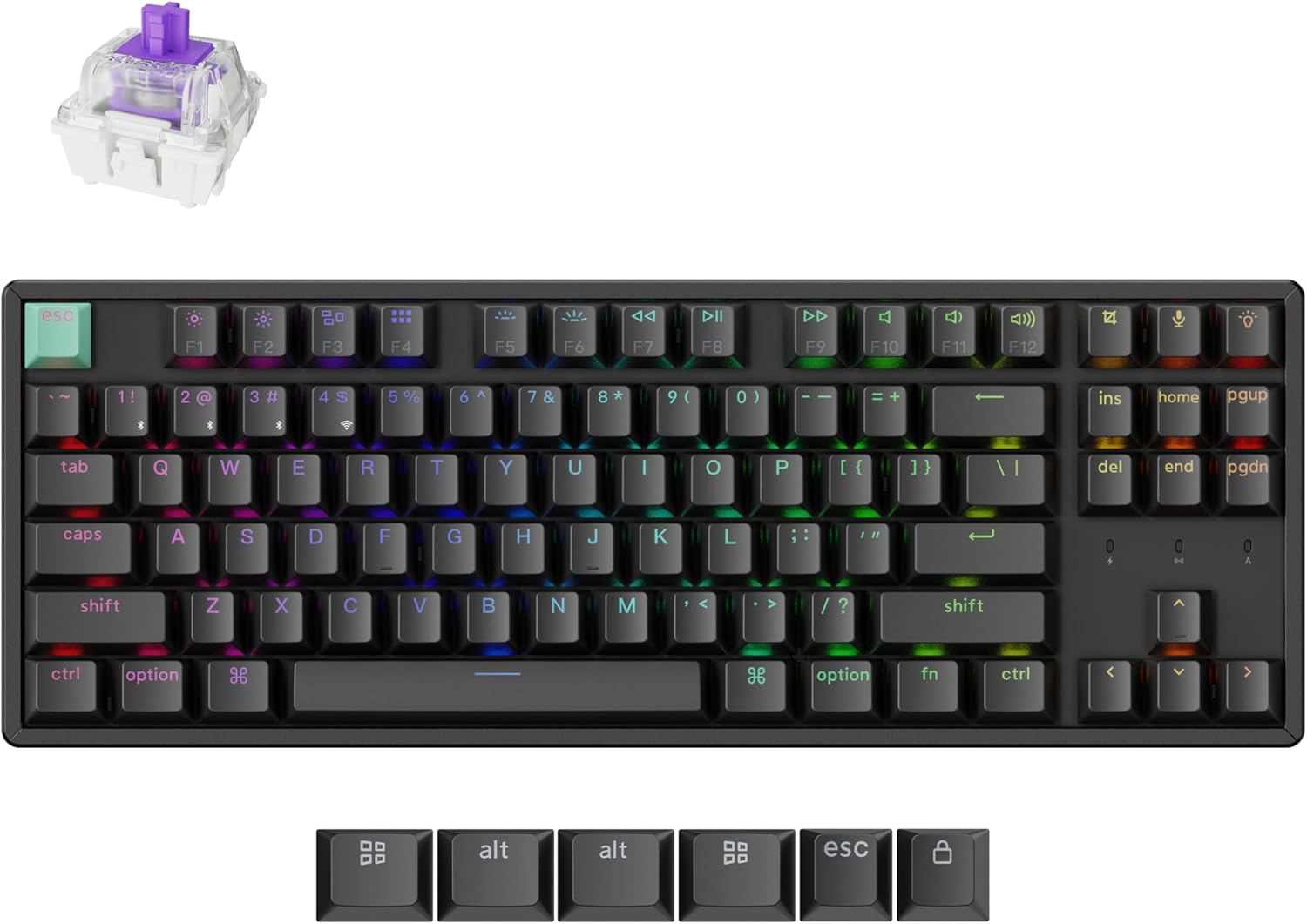
Image: The Keychron K8 HE TKL Wireless Mechanical Keyboard, showcasinjeho kompaktní design a zářivé RGB podsvícení.
Nastavení
Co je v krabici

Image: An illustration detailing the components included with the Keychron K8 HE Special Edition, such as the keyboard, cables, receiver, and tools.
The Keychron K8 HE package includes:
- 1x plně sestavená klávesnice
- 1x kabel Type-A to Type-C
- 1x přijímač typu A 2.4 GHz
- 1x prodlužovací adaptér pro přijímač
- 1x stahovák klíčenky a spínače
- 1x Šroubovák
- 1x hexadecimální klíč
- Additional components for Special Edition: Case, PCB, Aluminum Plate, Sound Absorbing Foam, EPDM Foam, Bottom Case PET Film, Silicone Bottom Pad, Stabilizers, Keycaps (PBT Double-shot), Magnetic Switches.
Počáteční připojení
The K8 HE supports three connection modes: 2.4 GHz wireless, Bluetooth 5.1, and USB-C wired. Use the switch on the side of the keyboard to select your desired mode.

Image: A close-up of the keyboard's side, highlighting the USB-C port, 2.4 GHz/Bluetooth/Wired mode switch, and Mac/Windows toggle.
- Bezdrátové připojení 2.4 GHz:
- Plug the included 2.4GHz receiver into your device's USB-A port.
- Set the keyboard switch to "2.4G".
- The keyboard should connect automatically, indicated by a stable light.
- Bluetooth 5.1:
- Set the keyboard switch to "BT".
- On your device, search for Bluetooth devices and select "Keychron K8 HE".
- The keyboard can pair with up to three devices. Switch between paired devices using Fn + 1, Fn + 2nebo Fn + 3.
- Kabelové USB-C:
- Connect the keyboard to your device using the provided USB-C cable.
- Set the keyboard switch to "Cable".
Přepínač operačního systému
The K8 HE is compatible with Mac, Windows, and Linux. Use the OS switch located next to the connectivity mode switch to select your operating system for proper key mapping.
Návod k obsluze
Key Functions and Backlight Control
The keyboard features standard TKL layout keys and dedicated function keys. Backlight settings can be adjusted directly on the keyboard or through the Keychron Launcher web aplikace
- Funkční klávesy (F1–F12): Access media controls and other system functions.
- Ovládání podsvícení: Use the dedicated backlight key (usually top right) or Fn + arrow keys to cycle through RGB effects and adjust brightness.
Customization with Keychron Launcher
The Keychron Launcher is a web-based application that allows extensive customization of your keyboard without requiring software downloads. Access it via your web prohlížeč.

Image: A visual representation of the Keychron Launcher web interface, demonstrating options for key remapping, macro creation, and firmware updates.
- Přemapování klíčů: Assign custom functions to any key.
- makra: Create complex sequences of commands.
- Nastavení bodu aktivace: Fine-tune the distance at which a keypress registers (0.2mm to 3.8mm).
- Rychlé spouštění: Enable faster key response by activating and resetting keystrokes based on real-time travel distance.
- Dynamické stisky kláves (DKS): Assign up to four actions per key based on press depth, allowing for layered input.

Image: A diagram illustrating the Rapid Trigger functionality of magnetic switches, showing how activation and reset points are dynamic compared to fixed points in traditional mechanical switches.
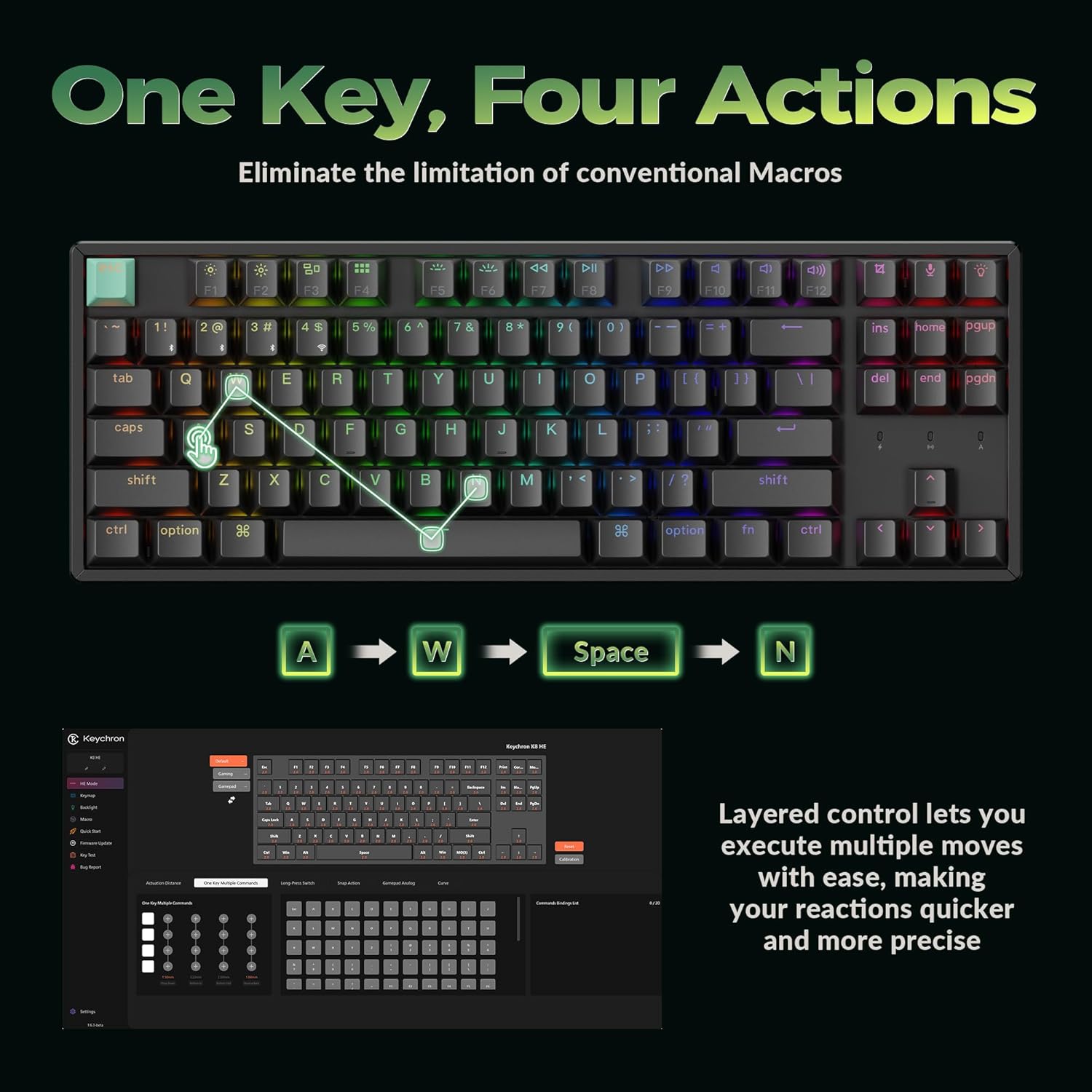
Image: A visual explanation of Dynamic Keystrokes (DKS), demonstrating how a single key can perform up to four different actions based on the depth of the press.
Hallovy magnetické spínače
The K8 HE utilizes Hall Effect magnetic switches, which detect keypresses using magnetic sensors instead of physical contact. This design reduces wear and tear, offering enhanced durability and a smooth typing experience. These switches are hot-swappable, allowing for easy replacement without soldering.
Video: An official Keychron video demonstrating the features of the K8 HE Wireless Hot Swappable Hall Effect Keyboard, including its magnetic switches and customization options.
Údržba
Čištění klávesnice
Pro zachování vzhledu a funkčnosti klávesnice:
- Disconnect the keyboard from your device.
- Use a soft, lint-free cloth to wipe down the keycaps and frame.
- Pro důkladnější čištění použijte k odstranění krytů kláves přiložený stahovák a spodní část vyčistěte stlačeným vzduchem nebo malým kartáčkem.
- Vyhněte se používání agresivních chemikálií nebo abrazivních materiálů.
Hot-Swapping Switches and Keycaps
The K8 HE features hot-swappable switches, allowing you to change them without soldering. The included keycap and switch puller facilitate this process.

Image: The Keychron K8 HE keyboard with several keycaps and switches removed, illustrating the hot-swappable nature of the magnetic switches.
- Odstranění krytek kláves: Use the keycap puller to gently lift keycaps straight up.
- Odstranění spínačů: Use the switch puller to grasp the top and bottom clips of the switch and pull it straight out.
- Instalace přepínačů: Align the new switch with the holes on the PCB and press down firmly until it clicks into place. Ensure the pins are not bent.
- Instalace kláves: Align the keycap with the switch stem and press down gently.
Odstraňování problémů
- Klávesnice nereaguje:
- Check the connection mode switch (2.4G, BT, Cable) and ensure it matches your connection method.
- V případě bezdrátového režimu se ujistěte, že je klávesnice nabitá.
- Try reconnecting the USB-C cable or re-pairing Bluetooth.
- Ensure the OS switch is set correctly for your operating system.
- Klávesy se neregistrují nebo se píší dvakrát:
- This can sometimes be resolved by recalibrating the switches using the Keychron Launcher web aplikace
- Ensure switches are fully seated. If a switch is faulty, it can be hot-swapped.
- Podsvícení nefunguje:
- Zkontrolujte nastavení jasu podsvícení pomocí Fn + arrow keys or the dedicated backlight key.
- Ujistěte se, že klávesnice není v režimu nízké spotřeby energie.
- Problémy s připojením (zpoždění, výpadky):
- For 2.4 GHz, ensure the receiver is not obstructed and is close to the keyboard. Use the extension adapter if needed.
- For Bluetooth, ensure no other devices are interfering and try re-pairing.
- Update firmware via the Keychron Launcher if available.
Specifikace

Image: A technical diagram illustrating the dimensions and TKL (80%) layout of the Keychron K8 HE keyboard.
| Funkce | Detail |
|---|---|
| Model | K8 HE |
| Rozložení | TKL (80%), 87 Keys |
| Spínače | Hallovy magnetické spínače, vyměnitelné za provozu |
| Akční bod | Nastavitelná od 0.2 mm do 3.8 mm |
| Konektivita | Bezdrátové připojení 2.4 GHz, Bluetooth 5.1, kabelové USB-C |
| Míra hlasování | 1000 Hz (2.4G and Wired modes) |
| Klíčenky | Cherry Profile Double-shot PBT (Shine-Through) |
| Materiál rámu | Hliník |
| Podsvícení | RGB |
| Kompatibilní OS | Mac, Windows, Linux |
| Zdroj napájení | Napájení z baterie |
Záruka a podpora
The Keychron K8 HE TKL Wireless Mechanical Keyboard comes with a 1 roky záruka výrobce.
For technical support, firmware updates, or additional resources, please visit the official Keychron website or contact Keychron customer service. The Keychron Launcher web app is also a valuable resource for customization and troubleshooting.
Online zdroje:
- Oficiální Keychron Webmísto: www.keychron.com
- Spouštěč Keychronu Web Aplikace: www.keychron.com/launcher


