
MageGee MK-Storm
MageGee Mechanical Gaming Keyboard MK-Storm User Manual
Brand: MageGee | Model: MK-Storm
1. Introduction
Thank you for choosing the MageGee MK-Storm Mechanical Gaming Keyboard. This 104-key wired keyboard is designed for an enhanced typing and gaming experience, featuring durable brown switches, blue backlighting, and anti-ghosting technology. This manual provides essential information for setup, operation, and maintenance to ensure optimal performance.
2. Key Features
- Blue Backlit Gaming Keyboard: Features 20 different backlit modes, 5 brightness levels, and 5 speed adjustments. The backlight can be easily turned off.
- Mechanical Brown Switches: Offers moderate trigger key travel and force, suitable for both typing and gaming. Provides tactile feedback with a slight sound.
- Anti-Ghosting Keyboard: All 104 keys have individual switches with full N-key rollover, ensuring faster response and simultaneous key presses without conflict.
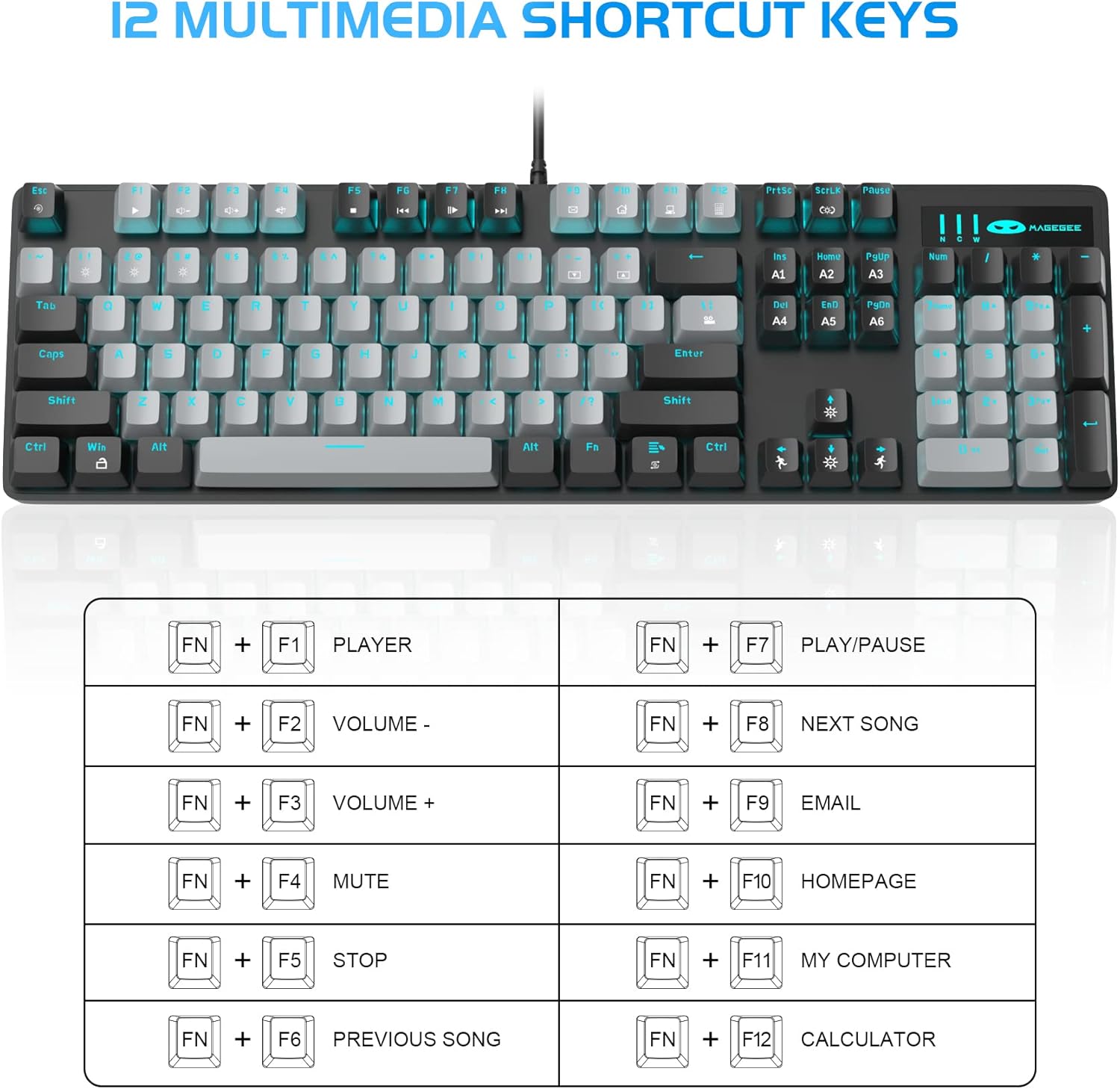
- 12 Multimedia Combination Keys: Quick operations via FN+ F1~F12 for media control and office functions.
- Ergonomic Design: Premium metal panel construction for stability. Ergonomic key layout and two-step adjustable feet for comfortable typing angles.
- Wide Compatibility: USB wired connection compatible with Windows 2000/Vista/Win7/Win8/Win10/MAC/Linux.

3. Package Contents
The MageGee MK-Storm Mechanical Gaming Keyboard package includes the following items:
- MageGee Mechanical Gaming Keyboard (MK-Storm)
- USB Wired Cable (attached to keyboard)
- Keycap Puller Tool
- 16 Extra Keycaps (color scheme varies by keyboard variant)
- User Manual
4. Setup
- Connect the Keyboard: Plug the USB connector of the keyboard cable into an available USB port on your computer (PC, laptop, or desktop).
- Driver Installation: The keyboard is plug-and-play. Your operating system should automatically detect and install the necessary drivers. No additional software installation is typically required for basic functionality.
- Adjust Keyboard Angle: Flip out the two-step feet on the underside of the keyboard to adjust the typing angle to your preference.

5. Operating Instructions
5.1 Backlight Control
The MK-Storm keyboard features a single blue backlight with multiple modes and adjustable settings.
- Change Backlight Mode: Press FN + INS to cycle through 20 different backlight modes.
- Adjust Brightness: Press FN + ↑ (Up Arrow) to increase brightness (5 levels). Press FN + ↓ (Down Arrow) to decrease brightness.
- Adjust Speed: Press FN + ← (Left Arrow) to decrease animation speed (5 levels). Press FN + → (Right Arrow) to increase animation speed.
- Turn Off Backlight: The backlight can be turned off by cycling through the brightness levels until it is off, or by selecting a mode that has no illumination.

5.2 Multimedia Keys
Access multimedia and system functions quickly using the FN key in combination with the F1-F12 keys.
| Key Combination | Function |
|---|---|
| FN + F1 | Player |
| FN + F2 | Volume - |
| FN + F3 | Volume + |
| FN + F4 | Mute |
| FN + F5 | Stop |
| FN + F6 | Previous Song |
| FN + F7 | Play/Pause |
| FN + F8 | Next Song |
| FN + F9 | |
| FN + F10 | Homepage |
| FN + F11 | My Computer |
| FN + F12 | Calculator |
5.3 Custom Profiles (If applicable)
The keyboard supports custom lighting profiles. Refer to the manufacturer's website or included software (if any) for detailed instructions on programming and saving custom lighting zones or key assignments. Once programmed, these profiles can often be accessed directly from the keyboard using FN key combinations (e.g., FN+1, FN+2, FN+3 for different profiles).
6. Customization
The MageGee MK-Storm keyboard allows for customization of keycaps and switches.
- Keycap Replacement: Use the included keycap puller tool to carefully remove existing keycaps. Align the new keycap with the switch stem and press down gently until it clicks into place.
- Switch Replacement: The keyboard comes with extra brown switches. To replace a switch, first remove the keycap. Then, use a switch puller (not included, but often similar to a keycap puller) to gently extract the switch from the PCB. Insert the new switch, ensuring the pins align correctly, and press firmly until it seats properly.


7. Maintenance
- Cleaning: The floating keys design makes cleaning easier. Use a soft brush or compressed air to remove dust and debris from between the keycaps. For stubborn dirt, remove keycaps using the provided tool and wipe the keyboard surface with a slightly damp cloth. Ensure the keyboard is disconnected before cleaning.
- Storage: Store the keyboard in a dry, cool place away from direct sunlight and extreme temperatures.
- Cable Care: Avoid bending or twisting the USB cable excessively to prevent damage.
8. Troubleshooting
- Keyboard Not Responding:
- Ensure the USB cable is securely plugged into both the keyboard and the computer.
- Try plugging the keyboard into a different USB port on your computer.
- Restart your computer.
- Test the keyboard on another computer to rule out a system-specific issue.
- Backlight Not Working/Incorrect:
- Ensure the backlight is not turned off (FN + ↓ to increase brightness).
- Cycle through backlight modes using FN + INS.
- Check if any specific software is interfering with the lighting settings.
- Keys Not Registering:
- Clean around the affected key to ensure no debris is obstructing the switch.
- If a specific switch is faulty, consider replacing it with one of the spare switches provided, following the customization instructions.
9. Specifications
| Feature | Detail |
|---|---|
| Brand | MageGee |
| Model Number | MK-Storm |
| Keys Layout | 104 Keys (Full Size) |
| Switch Type | Mechanical Brown Switches |
| Backlight | Blue Backlit (20 modes, 5 brightness, 5 speed) |
| Connectivity | USB Wired |
| Anti-Ghosting | Full N-Key Rollover |
| Multimedia Keys | 12 (FN + F1-F12) |
| Material | Metal Panel Construction |
| Compatible Devices | Laptop, PC |
| Operating Systems | Windows 2000/Vista/Win7/Win8/Win10/MAC/Linux |
| Item Weight | 2.77 pounds |
| Package Dimensions | 17.63 x 12.36 x 1.89 inches |

10. Warranty and Support
For warranty information, technical support, or any product-related inquiries, please contact MageGee customer service through the retailer where the product was purchased or visit the official MageGee website. Keep your purchase receipt for warranty claims.
Related documentsMK-Storm


Ask a question about this manual
Ask about setup, troubleshooting, compatibility, parts, safety, or missing instructions. Manuals+ will review the question and use this page’s manual context to help answer it.