
Zavedení
Welcome to the user manual for your new TECLAST F16 Plus 15.6-inch Laptop. This guide provides essential information to help you set up, operate, maintain, and troubleshoot your device. Please read this manual carefully to ensure proper use and to maximize the performance and lifespan of your laptop.
Nastavení
Rozbalení a počáteční nastavení
Carefully remove the laptop and all accessories from the packaging. Ensure all components are present: the TECLAST F16 Plus laptop, power adapter, and this user manual. Connect the power adapter to the laptop's charging port and then to a power outlet. Allow the laptop to charge for at least 30 minutes before its first use.
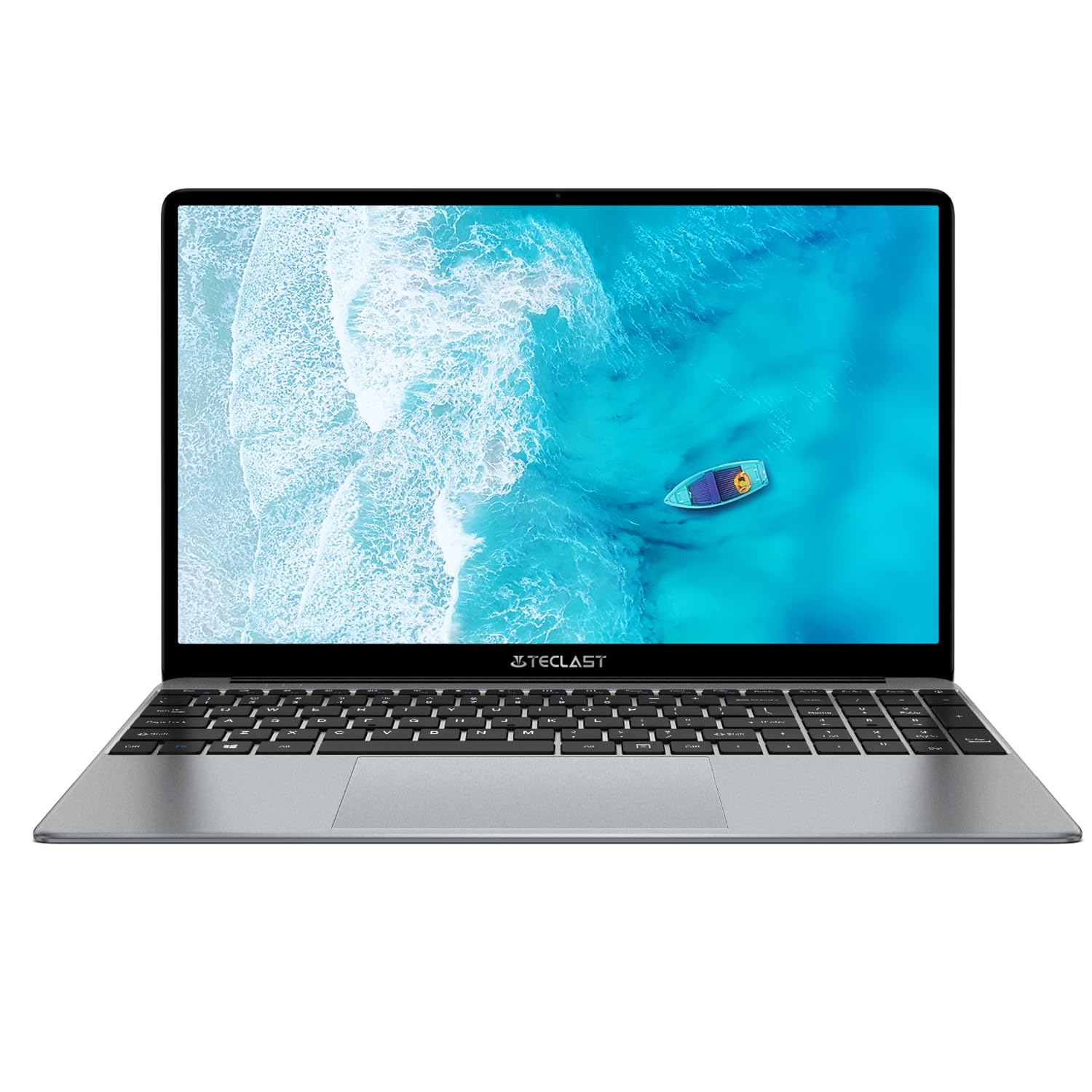
Image: The TECLAST F16 Plus laptop, showcasing its sleek design and 15.6-inch display with the Windows 11 operating system interface.
Zapnutí/vypnutí
- Zapnutí: Press and hold the power button located on the top right of the keyboard until the screen illuminates.
- Vypnout: Click the Start button in Windows 11, then select the Power icon, and choose 'Shut down'.
- Restartovat: Click the Start button, select the Power icon, and choose 'Restart'.
Připojení periferií
Your TECLAST F16 Plus laptop is equipped with multiple ports for connecting external devices. Insert USB devices such as mice, keyboards, or external storage drives into the available USB ports. For external displays, use the appropriate video output port (e.g., HDMI) if available, and configure display settings in Windows.
Provozní
Klávesnice a touchpad
The laptop features a full-sized keyboard and a responsive touchpad. Use the touchpad for navigation and gestures. Many function keys (F1-F12) have secondary functions, activated by pressing the 'Fn' key simultaneously. For example, 'Fn + F5' may control keyboard backlighting.
Nastavení zobrazení
Adjust screen brightness using the dedicated function keys (often Fn + F5/F6 or similar). To change display resolution or scaling, right-click on the desktop, select 'Display settings', and make your adjustments.
Nastavení zvuku
Control volume using the dedicated function keys (often Fn + F2/F3 or similar) or through the sound icon in the Windows taskbar. Connect headphones or external speakers to the audio jack for private listening or enhanced sound.
Připojení k síti
To connect to Wi-Fi, click the network icon in the taskbar, select your desired network, enter the password, and click 'Connect'. Bluetooth devices can be paired via 'Settings > Bluetooth & devices'.
Základy Windows 11
Your laptop runs on Windows 11. Familiarize yourself with the Start menu, taskbar, and File Explorer for efficient navigation and file management. Regular Windows updates are crucial for security and performance.
Údržba
Čištění notebooku
Použijte měkký hadřík, který nepouští vlákna dampened with water or a screen cleaner to clean the display. For the keyboard and chassis, use a soft brush or compressed air to remove dust. Avoid harsh chemicals or abrasive materials.
Péče o baterie
Chcete-li prodloužit životnost baterie, vyvarujte se častého úplného vybíjení. Doporučuje se udržovat baterii nabitou, pokud je to možné, mezi 20 % a 80 %. Pokud notebook delší dobu nepoužíváte, skladujte jej na chladném a suchém místě.
Aktualizace softwaru
Regularly check for and install Windows updates and driver updates to ensure your system has the latest security patches and performance enhancements. This can be done through 'Settings > Windows Update'.
Správa úložiště
The 256GB SSD provides fast storage. To maintain optimal performance, regularly delete unnecessary files, empty the recycle bin, and consider using cloud storage for large files to free up local space.
Odstraňování problémů
Běžné problémy a řešení
- Notebook se nezapíná: Ujistěte se, že je napájecí adaptér bezpečně připojen a baterie je dostatečně nabitá. Zkuste podržet tlačítko napájení po dobu 15–20 sekund pro tvrdý reset.
- Žádné zobrazení na obrazovce: Connect an external monitor to check if the issue is with the laptop's display. Ensure brightness is not set to minimum.
- Nelze se připojit k Wi-Fi: Check if Wi-Fi is enabled in Windows settings. Restart your router and the laptop. Verify the Wi-Fi password.
- Pomalý výkon: Close unnecessary applications. Check for background processes in Task Manager. Ensure sufficient free storage space.
- USB zařízení nebyla rozpoznána: Zkuste zařízení připojit k jinému portu USB. Ujistěte se, že jsou nainstalovány ovladače zařízení. Restartujte notebook.
Pokud narazíte na přetrvávající problémy, které zde nejsou uvedeny, podívejte se prosím do sekce podpory, kde vám poskytnou další pomoc.
Specifikace
Technické detaily
| Funkce | Detail |
| Značka | TECLAST |
| Model | F16 Plus |
| Velikost obrazovky | 15.6 palce |
| Procesor | Intel Celeron N (4 Cores) |
| BERAN | 12 GB |
| Skladování | 256 GB SSD |
| Operační systém | Windows |
| Barva | New Gray |
| Složení baterie | Lithium-polymer |
| Vstupní rozhraní | Klávesnice |
| Rozměry balení | 50.79 x 29.2 x 7.9 cm |
| Hmotnost balení | 2.62 kg |
Záruka a podpora
Your TECLAST F16 Plus laptop comes with a standard manufacturer's warranty. Please refer to the warranty card included in your product packaging for specific terms and conditions. For technical support, driver downloads, or service inquiries, visit the official TECLAST webnebo se obraťte na jejich oddělení zákaznických služeb. Při hledání podpory mějte po ruce doklad o koupi a sériové číslo produktu.