
1. Introduction
Thank you for choosing the MageGee V550 Wireless Gaming Keyboard and Mouse Combo. This product is designed to provide a seamless and responsive experience for both gaming and everyday use. Featuring a 2.4GHz wireless connection, vibrant RGB backlighting, and a comfortable design, this combo aims to enhance your computing experience. Please read this manual carefully to ensure proper setup, operation, and maintenance of your new devices.
2. Package Contents
Please verify that all items listed below are included in your package:
- MageGee V550 Wireless Keyboard
- MageGee V550 Wireless Mouse
- 2.4GHz USB Receiver (typically stored in the mouse's battery compartment)
- Type-C Charging Cable
- User Manual
3. Setup Guide
3.1. Connecting the Devices
- Locate the USB Receiver: The 2.4GHz USB receiver is conveniently stored in a slot on the bottom of the wireless mouse. Gently remove it.
- Plug in the Receiver: Insert the USB receiver into an available USB port on your computer or laptop.
- Power On: Turn on the power switch located on the bottom of both the keyboard and the mouse. The devices should automatically connect to your computer.

3.2. Initial Charging
For optimal performance, it is recommended to fully charge both the keyboard and mouse before first use.
- Connect the included Type-C charging cable to the charging port on the keyboard and mouse, and then to a USB power source.
- The power indicator light on the keyboard will flash slowly when the battery is low and during charging. It will typically stop flashing or change color when fully charged.

4. Operating Instructions
4.1. Keyboard Functions
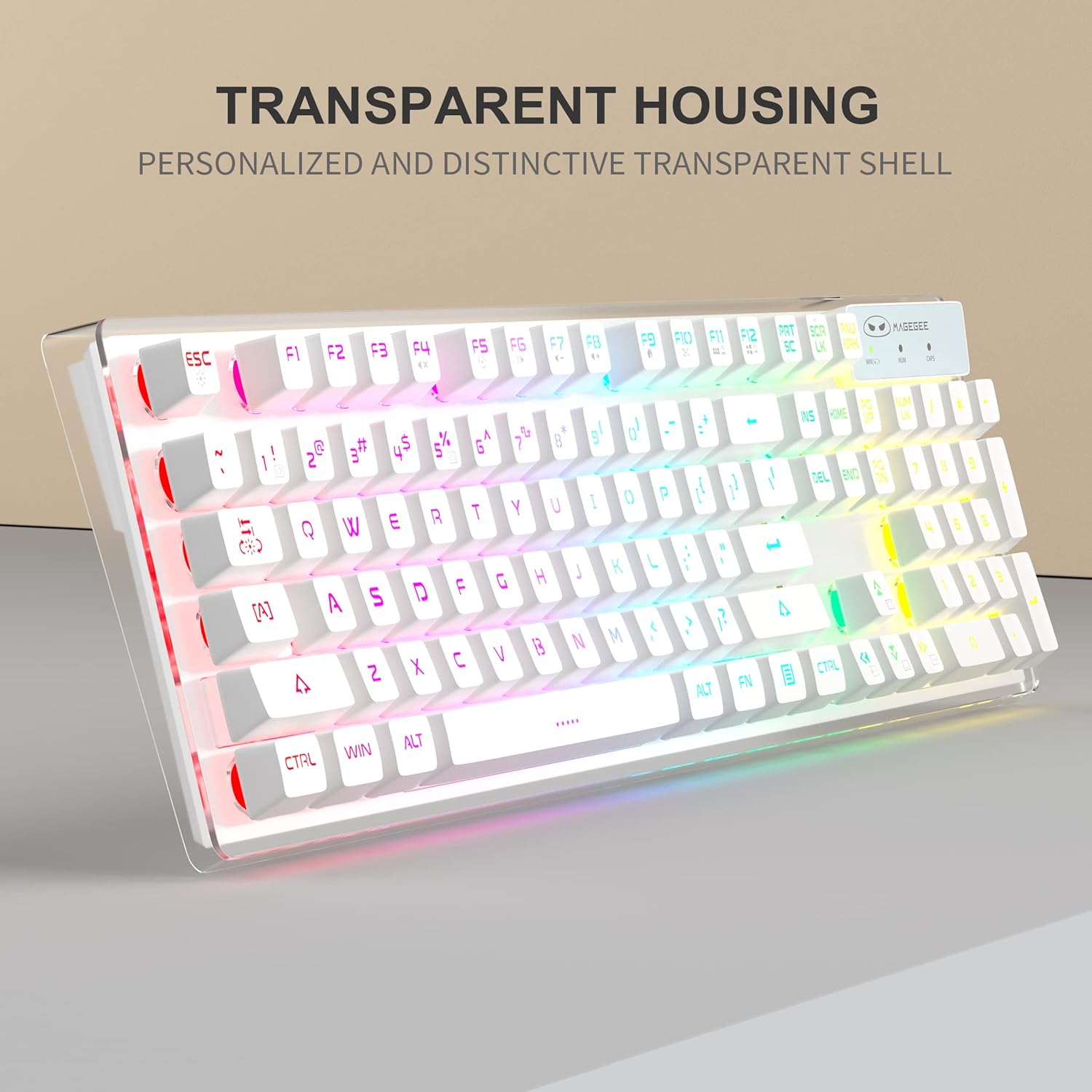
The MageGee V550 keyboard features a full-size layout with dedicated function keys and multimedia controls.
- RGB Backlight Control: The keyboard offers 5 light modes, 7 solid color backlights, and 1 rainbow backlight.
- To switch between light modes: Press FN + 1~5.
- To turn the backlight on/off: Press FN + Scroll.
- To adjust brightness levels (3 levels): Press FN + Up Arrow or FN + Down Arrow.
- To adjust light speed (4 speeds): Press FN + Left Arrow or FN + Right Arrow.
- Indicator Lights: The keyboard includes indicator lights for Caps Lock, Num Lock, and Win Lock status.
- Smart Sleep Mode: The keyboard will automatically enter sleep mode after 5 minutes of inactivity to conserve battery. Press any key to wake it up.



4.2. Mouse Functions
The MageGee V550 mouse is designed for precision and comfort.
- DPI Adjustment: The mouse offers 3 adjustable DPI (Dots Per Inch) levels: 1000, 1200, and 1600. Press the DPI button (usually located behind the scroll wheel) to cycle through these settings.
- Silent Clicking: The mouse features silent click buttons, reducing noise during use.
- Rechargeable: The mouse is rechargeable via the Type-C cable, eliminating the need for battery replacement.


4.3. Official Product Video
Watch the official product video for a visual guide on the MageGee V550 Wireless Gaming Keyboard and Mouse Combo's features and operation.
5. Maintenance
Proper maintenance ensures the longevity and optimal performance of your keyboard and mouse.
- Cleaning: Use a soft, slightly damp cloth to clean the surfaces of the keyboard and mouse. Avoid using harsh chemicals, abrasive cleaners, or excessive moisture, as these can damage the devices.
- Keycap Cleaning: For thorough cleaning, keycaps can be carefully removed. Ensure the devices are powered off before attempting this.
- Battery Care: Charge the devices regularly. Avoid fully draining the battery frequently, as this can reduce its lifespan. Do not expose the devices to extreme temperatures.
- Storage: When not in use for extended periods, store the keyboard and mouse in a dry, cool place away from direct sunlight.
6. Troubleshooting
If you encounter any issues with your MageGee V550 combo, please refer to the following troubleshooting steps:
- Devices Not Connecting:
- Ensure the 2.4GHz USB receiver is securely plugged into a working USB port on your computer.
- Verify that both the keyboard and mouse power switches are in the 'ON' position.
- Check the battery levels of both devices. Recharge if necessary.
- Try plugging the USB receiver into a different USB port.
- Restart your computer.
- Keyboard Backlight Not Working:
- Press FN + Scroll to ensure the backlight is not turned off.
- Check the keyboard's battery level. Low battery can affect backlight functionality.
- Keys Not Responding or Registering Incorrectly:
- Ensure the keyboard is properly connected (see 'Devices Not Connecting' above).
- Check for any debris or obstructions under the affected keycaps.
- If specific keys consistently fail, contact customer support for further assistance.
- Mouse Not Responding or Lagging:
- Ensure the mouse power switch is 'ON'.
- Check the mouse's battery level and recharge if needed.
- Ensure the USB receiver is close to the mouse and not obstructed.
- Try using the mouse on a different surface.
7. Specifications
| Brand | MageGee |
| Model Number | V550 |
| Color | White |
| Connectivity Technology | 2.4GHz Radio Frequency, USB |
| Special Features | RGB Backlit, Hotkeys and Media Keys, Rechargeable, Spillproof, Transparent Base, Silent Mouse Clicks |
| Compatible Devices | Gaming Console, Personal Computer |
| Item Weight | 2.47 ounces (mouse) |
| Package Dimensions | 17.6 x 8.7 x 1.85 inches |
8. Warranty and Support
MageGee products are designed for reliability and performance. For warranty information or technical support, please refer to the warranty card included in your package or visit the official MageGee website. Keep your purchase receipt as proof of purchase for any warranty claims.