
1. Konec produktuview
The MAIWO K3016CL is a versatile M.2 SATA/NVMe Docking Station designed for efficient data management. It supports both M.2 NVMe and M.2 SATA SSDs, as well as SD Express 7.0/7.1 cards, offering high-speed data transfer and convenient offline cloning capabilities. This device is ideal for system disk migration, data backup, and recovery tasks.

Figure 1.1: MAIWO K3016CL Docking Station with M.2 SSDs
This image displays the MAIWO K3016CL M.2 SATA/NVMe Docking Station from a front-top perspective, showcasing two M.2 SSDs vertically inserted into its slots. The device features an SD Express slot at the front and LED indicators for clone progress.
2. Klíčové vlastnosti
- One-Key Offline Clone: Easily duplicate drives without a computer. Supports 4 clone modes: NVMe to SATA, SATA to NVMe, SD to NVMe, and SD to SATA. Perfect for system disk migration, backup, and data recovery.
- 10Gbps High-Speed USB-C: Features USB 3.1 Gen 2 Type-C interface, delivering transfer speeds up to 10Gbps. Plug & play, no drivers or tools required. LED indicators clearly display the working status.
- Stabilní napájení: Comes with a 5V 3A power adapter, ensuring faster and more stable SSD performance. Provides reliable and consistent power for long-term operation.
- Efektivní odvod tepla: Equipped with bottom cooling holes and non-slip silicone pads, ensuring stable performance and extended SSD lifespan while keeping the docking station secure on your desk.
- Široká kompatibilita: Works with M.2 SATA SSDs, M.2 NVMe SSDs, and SD Express 7.0/7.1 cards. Supports reading/writing of two M.2 SSDs simultaneously. Fully compatible with Windows / Mac / Linux systems.
3. Obsah balení
Po otevření balení se prosím ujistěte, že jsou všechny součásti přítomny a v dobrém stavu:
- MAIWO K3016CL M.2 Clone Duplicator (Docking Station)
- 5V 3A napájecí adaptér
- Kabel USB-C na USB-C
- Uživatelská příručka (tento dokument)
4. Průvodce nastavením
4.1 Instalace disků M.2 SSD
- Identify the M.2 SATA and M.2 NVMe slots on the docking station. The slots are clearly labeled.
- Gently insert your M.2 SSD (SATA or NVMe) into the corresponding slot, ensuring the notch on the SSD aligns with the key in the slot.
- Push the SSD down until it clicks into place. No screws are typically required for this vertical design.
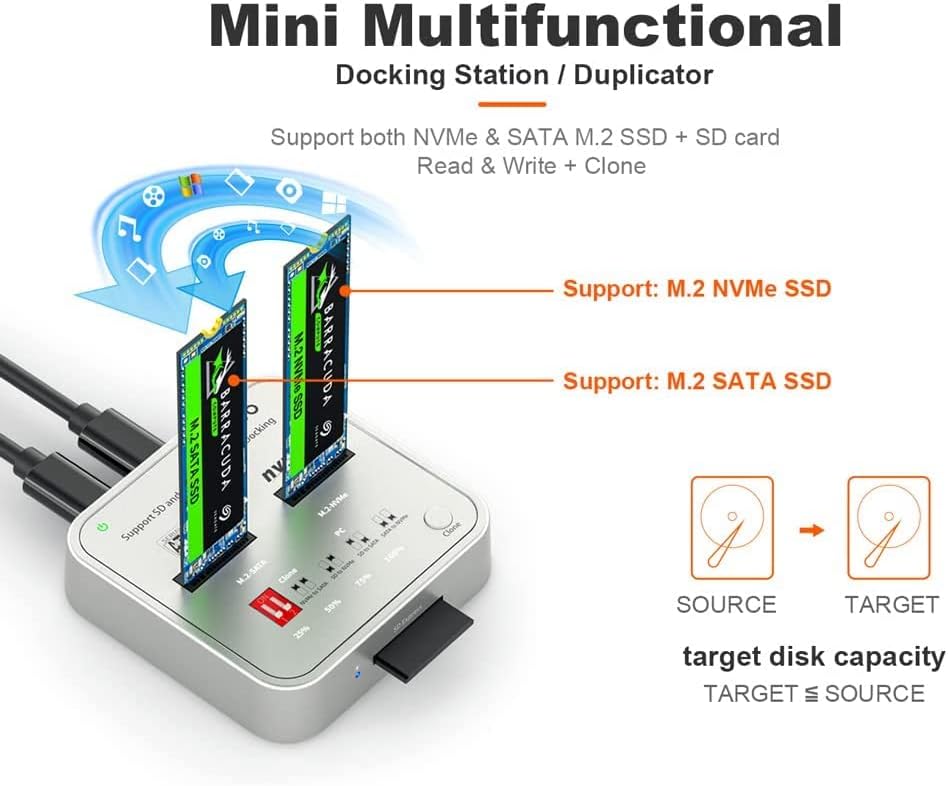
Figure 4.1: M.2 SSD Slot Identification
This image illustrates the MAIWO K3016CL docking station, highlighting the distinct slots for M.2 NVMe SSD and M.2 SATA SSD. It also shows the concept of source and target drives for cloning operations.
4.2 Connecting to Power and Host Device
- Connect the provided 5V 3A power adapter to the DC IN port on the docking station and then to a power outlet.
- For data transfer, connect the docking station to your computer (PC or Mac) using the supplied USB-C cable. The device is plug-and-play and does not require driver installation.
5. Návod k obsluze
5.1 Data Transfer (PC Mode)
When connected to a computer via USB-C, the MAIWO K3016CL functions as an external SSD reader/writer. Both M.2 SSDs can be accessed simultaneously. The USB 3.1 Gen 2 Type-C interface supports data transfer speeds up to 10Gbps.
- Ensure the docking station is powered on and connected to your computer.
- The installed SSDs will appear as removable drives in your operating system.
- Nyní můžete přetahovat files, or use disk management tools to format or partition the drives.

Obrázek 5.1: Vysokorychlostní přenos dat
This image shows the MAIWO K3016CL docking station connected to a laptop, illustrating its 10Gbps Super-Speed capability for data transfer. A comparison chart highlights the significant speed advantage over USB 2.0.
5.2 One-Key Offline Clone Function
The offline clone function allows you to duplicate an SSD without connecting to a computer. Ensure the target SSD capacity is equal to or greater than the source SSD capacity.

Figure 5.2: Offline Clone Function Diagram
This diagram details the four offline clone modes (NVMe to SATA, SD to NVMe, SD to SATA, SATA to NVMe) available on the MAIWO K3016CL. It also provides step-by-step instructions for initiating a clone and shows the LED progress indicators (25%, 50%, 75%, 100%).
Kroky pro offline klonování:
- Unplug Data Cable: Ensure the USB data cable is disconnected from the docking station. The device must be in standalone mode for offline cloning.
- Připojte napájení: Connect the 5V 3A power adapter to the docking station and a power outlet.
- Insert SSDs/SD Card:
- For M.2 to M.2 clone: Insert the Zdrojový SSD into the designated Source slot (e.g., M.2 SATA or M.2 NVMe) and the Cílový SSD into the other slot.
- For SD to M.2 clone: Insert the Source SD Express card into the SD slot and the Target M.2 SSD into the desired M.2 slot.
- Select Clone Mode: Use the dial key on the docking station to select the desired clone mode (e.g., NVMe to SATA, SD to NVMe). Refer to Figure 5.2 for dial key positions and corresponding modes.
- Zahájit klonování: Short press the 'Clone' button twice. The 25% LED indicator will start flashing, indicating the cloning process has begun.
- Sledovat průběh: The LED indicators (25%, 50%, 75%, 100%) will light up sequentially to show the cloning progress. When the 100% LED is solid, the clone is complete.
- Vypnout: Once cloning is complete, power off the docking station before removing the SSDs/SD card.
Important: Data on the Target SSD will be overwritten during the cloning process. Ensure you have backed up any important data from the Target SSD before proceeding.
6. Odvod tepla
The MAIWO K3016CL is designed with efficient heat dissipation in mind to ensure stable performance and extend the lifespan of your SSDs. It features:
- Vertikální design: Allows for natural convection and easier heat escape from the SSDs.
- Bottom Cooling Holes: Strategically placed vents at the base facilitate airflow.
- Metal Heat Dissipation Plate: An internal metal plate helps to draw heat away from the circuit board and SSDs, ensuring stable operation even during prolonged use.

Figure 6.1: Internal Design for Heat Dissipation
Tento obrázek poskytuje rozložený pohled view of the MAIWO K3016CL, illustrating its vertical design, high-strength ABS shell, high-precision circuit board, and the crucial metal heat dissipation plate that contributes to stable and long-term operation.
7. Kompatibilita
The MAIWO K3016CL offers broad compatibility with various storage devices and operating systems:
- M.2 SSD disky: Supports both M.2 SATA SSDs and M.2 NVMe SSDs.
- M.2 Form Factors: Compatible with M.2 SSDs of sizes 2230, 2242, 2260, 2280, and 22110.
- SD karty: Supports SD Express 7.0/7.1 cards.
- Operační systémy: Fully compatible with Windows, macOS, and Linux operating systems.
- Zařízení: Can be used with laptops, desktop PCs, smart TVs, PS4, mobile phones (with OTG support), XBOX, and other compatible devices for storage expansion.

Figure 7.1: Broad Compatibility
This image illustrates the extensive compatibility of the MAIWO K3016CL, showing supported M.2 SSD sizes (2230 to 22110), various M.2 key types (M Key, B+M Key, B Key), and compatibility with PCI Express, Serial ATA, and NVMe standards. It also confirms support for Windows, Mac, and Linux operating systems.
8. Specifikace
| Funkce | Specifikace |
|---|---|
| Rozměry produktu | 3.07 x 2.99 x 0.75 palce |
| Hmotnost položky | 5.4 unce (154 gramů) |
| Číslo modelu | M.2 SATA/NVMe/SD Clone |
| Značka | MAIWO |
| Barva | Černý |
| Hardwarové rozhraní | USB 3.1 Gen 2 Type-C (10 Gb/s) |
| Kompatibilní zařízení | Laptops, PC, Smart TVs, PS4, Mobile Phones (OTG), XBOX |
| Celkový počet portů USB | 1 (typ C) |
| Napájení | 5V 3A napájecí adaptér |
| Podporované disky SSD | M.2 SATA SSD, M.2 NVMe SSD |
| Podporované SD karty | SD Express 7.0/7.1 |
| Offline Clone Modes | NVMe to SATA, SATA to NVMe, SD to NVMe, SD to SATA |
9. Řešení problémů
If you encounter issues with your MAIWO K3016CL docking station, please refer to the following common troubleshooting steps:
- Zařízení nebylo rozpoznáno:
- Ensure the power adapter is securely connected and the device is powered on.
- Verify the USB-C cable is properly connected to both the docking station and your computer. Try a different USB port or cable.
- Check your computer's Disk Management (Windows) or Disk Utility (macOS) to see if the SSD is detected but uninitialized or unformatted.
- Ensure the M.2 SSD is correctly seated in its slot.
- Pomalé přenosové rychlosti:
- Ensure you are connected to a USB 3.1 Gen 2 (10Gbps) compatible port on your computer. Older USB 2.0 or 3.0 ports will result in lower speeds.
- Check the health and performance of your SSDs.
- Ukončete všechny aplikace na pozadí, které by mohly spotřebovávat systémové prostředky nebo diskové I/O operace.
- Offline Clone Fails or Does Not Start:
- Ensure the USB data cable is disconnected from the docking station. Offline cloning requires the device to be standalone.
- Verify that the target SSD's capacity is equal to or greater than the source SSD's capacity.
- Double-check that the source and target SSDs are correctly inserted into their respective slots.
- Confirm the correct clone mode is selected using the dial key.
- Press the 'Clone' button twice quickly to initiate the process.
- Přehřívání:
- Ensure the docking station is placed on a flat, stable surface with adequate ventilation.
- Avoid blocking the bottom cooling holes.
- Prolonged heavy use can generate heat; allow the device to cool down if it feels excessively hot.
If the issue persists after trying these steps, please contact MAIWO customer support for further assistance.
10. Údržba
To ensure the longevity and optimal performance of your MAIWO K3016CL docking station, follow these maintenance guidelines:
- Čištění: K otření vnější strany zařízení používejte měkký, suchý hadřík. Nepoužívejte tekuté čisticí prostředky ani abrazivní materiály.
- Skladování: Pokud dokovací stanici nepoužíváte, skladujte ji na chladném a suchém místě mimo dosah přímého slunečního záření a extrémních teplot.
- Zacházení: S přístrojem zacházejte opatrně. Zabraňte jeho pádu nebo silným nárazům.
- Vypnout: Always power off the docking station and disconnect it from the power source when not in use or before moving it.
11. Záruka a podpora
MAIWO products are designed for reliability and performance. For warranty information and technical support, please refer to the warranty card included with your product or visit the official MAIWO webUschovejte si účtenku jako doklad o koupi pro případ reklamace.
For further assistance, you may contact MAIWO customer support through their official channels. Please provide your product model number (K3016CL) and a detailed description of the issue when seeking support.