
1. Úvod
Welcome to the user manual for your new Alcatel Pixi 3 10 Tablet with TypeCase. This guide provides essential information on setting up, operating, maintaining, and troubleshooting your device. Please read this manual thoroughly to ensure optimal performance and longevity of your tablet.
2. Konec produktuview
The Alcatel Pixi 3 10 Tablet is a versatile 10-inch device designed for everyday use, featuring a responsive touchscreen and a bundled TypeCase for enhanced productivity and protection.
2.1. Součásti tabletu
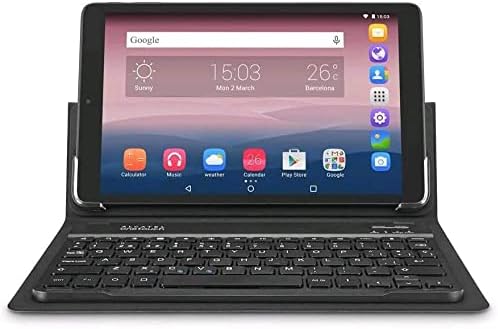
Přední view of the Alcatel Pixi 3 10 Tablet with its integrated keyboard case, displaying the home screen.

Přední view of the Alcatel Pixi 3 10 Tablet without the case, highlighting the display and front camera.

Zadní view of the Alcatel Pixi 3 10 Tablet, displaying the brand logos and the rear camera lens.

Close-up of the keyboard component of the TypeCase, showing the power and connect switches.
Your tablet includes a 10-inch LCD display, front and rear cameras, a USB charging port, a headphone jack, and a microSD card slot for expandable storage. The TypeCase provides a protective cover and a physical keyboard for typing.
3. Nastavení
3.1. Počáteční nabíjení
Before first use, fully charge your tablet. Connect the provided USB cable to the tablet's charging port and the other end to a power adapter. The battery indicator on the screen will show charging progress.
3.2. Zapnutí/vypnutí
- Zapnutí: Press and hold the Power button located on the side of the tablet until the Alcatel logo appears.
- Vypnutí: Stiskněte a podržte tlačítko Napájení, dokud se nezobrazí nabídka možností napájení, a poté vyberte možnost „Vypnout“.
3.3. Connecting the TypeCase Keyboard
The TypeCase keyboard connects to your tablet via Bluetooth. Ensure the keyboard is charged. Turn on the keyboard using its power switch. On your tablet, go to Settings > Connected devices > Bluetooth, and pair with the keyboard. Follow any on-screen prompts to complete the pairing process.
3.4. Průvodce počátečním nastavením
Upon first power-on, the tablet will guide you through an initial setup wizard. This includes selecting your language, connecting to a Wi-Fi network, setting up your Google account, and configuring basic device settings.
4. Návod k obsluze
4.1. Navigace
- Gesta na dotykové obrazovce: Klepnutím vyberete, přejetím prstem posouváte, přiblížením rozevřením prstů.
- Domovská obrazovka: Přístup k aplikacím, widgetům a oznámením.
- Stavový řádek: Displays notifications, time, battery status, and connectivity icons. Swipe down from the top to access quick settings and full notifications.
4.2. Wi-Fi připojení
To connect to a Wi-Fi network, go to Settings > Network & internet > Wi-Fi. Select your desired network from the list and enter the password if required.
4.3. Použití kamer
Open the Camera app from your home screen or app drawer. You can switch between the front and rear cameras, take photos, and record videos. Tap the screen to focus before capturing.
4.4. Správa aplikací
Download new applications from the Google Play Store. To uninstall an app, go to Settings > Apps & notifications, select the app, and tap 'Uninstall'.
5. Údržba
5.1. Čištění tabletu
K čištění obrazovky a těla tabletu použijte měkký hadřík, který nepouští vlákna. V případě odolných šmouh je lehceampOtřete hadřík vodou nebo čističem obrazovek. Nepoužívejte agresivní chemikálie ani abrazivní materiály.
5.2. Péče o baterie
- Nevystavujte tablet extrémním teplotám.
- Nenechávejte baterii často úplně vybít.
- Používejte pouze originální nebo certifikované kompatibilní nabíječky.
5.3. Aktualizace softwaru
Periodically check for software updates to ensure your tablet has the latest features and security patches. Go to Settings > System > System update.
6. Řešení problémů
| Problém | Možné řešení |
|---|---|
| Tablet se nezapne. | Ensure the tablet is charged. Connect it to a charger for at least 30 minutes. If it still doesn't turn on, try a forced restart by holding the Power button for 10-15 seconds. |
| Obrazovka nereaguje. | Restartujte tablet. Pokud problém přetrvává, proveďte obnovení továrního nastavení (data budou ztracena). |
| Nelze se připojit k Wi-Fi. | Ensure Wi-Fi is enabled on the tablet. Restart your Wi-Fi router. Forget the network and try reconnecting. |
| Keyboard not connecting. | Ensure the keyboard is charged and powered on. Re-pair the keyboard via Bluetooth settings. Check if the keyboard's 'Connect' button needs to be pressed for pairing. |
| Aplikace padají nebo jsou pomalé. | Close background apps. Clear app cache (Settings > Apps & notifications > [App Name] > Storage & cache > Clear cache). Restart the tablet. |
7. Specifikace
| Funkce | Detail |
|---|---|
| Název značky | Alcatel |
| Název modelu | Alcatel Pixi 3 |
| Velikost displeje | 10 palce |
| Rozlišení displeje | 1280 x 800 pixelů |
| Technologie displeje | LCD |
| Kapacita paměti | 8 GB |
| Nainstalovaná paměť RAM | 8 GB (Note: This likely refers to total storage, not RAM. Product description states 1GB RAM.) |
| Hlavní fotoaparát | 5 MP |
| Selfie kamera | 2 MP |
| Výkon baterie | 4060 XNUMX mAh |
| Popis procesoru | MediaTek (Quad-core) |
| Bezdrátová komunikace | Wi-Fi (802.11 b/g/n) |
| Barva | Černý |
| Form Factor | Skládací pouzdro |
8. Záruka a podpora
For warranty information, please refer to the warranty card included with your purchase or visit the official Alcatel website. For technical support, product registration, or service inquiries, please contact Alcatel customer service through their official channels.