
MageGee Storm Pink
MageGee Pink Gaming Keyboard User Manual
Model: Storm Pink
Zavedení
Thank you for choosing the MageGee Pink Gaming Keyboard. This mechanical keyboard is designed to enhance your gaming and typing experience with its responsive blue switches, dynamic backlighting, and durable construction. This manual provides detailed instructions for setup, operation, maintenance, and troubleshooting to ensure optimal performance.

Nastavení
The MageGee Pink Gaming Keyboard is designed for simple plug-and-play functionality, requiring no additional drivers for most operating systems.
Připojení klávesnice
- Vyhledejte volný USB port na vašem počítači (PC nebo Mac).
- Insert the USB connector of the keyboard into the USB port. The keyboard features a gold-plated USB port for stable data transmission.
- Wait for your operating system to recognize the device. This usually happens automatically within a few seconds.
- The keyboard's backlight will illuminate upon successful connection, indicating it is ready for use.

Návod k obsluze
This section details the various functions and features of your MageGee Gaming Keyboard.
Klíčové vlastnosti
- Professional Blue Switches: Equipped with linear, top-to-bottom switches that offer a smooth and responsive typing experience with a distinct tactile and audible click.
- Přejetí klávesou N: Features 100% anti-ghosting across all 104 keys, ensuring that every simultaneous key press is registered accurately, crucial for fast-paced gaming.
- Dynamické podsvícení: Offers 18 distinct backlight models to customize your typing environment.
- Extrémní odolnost: Built with a solid base and double injection ABS keycaps, designed for long-term use and resistance to wear.
- Široká kompatibilita: Supports Windows 10, Windows 8, Windows 7, Mac OS X, Windows XP, Windows VISTA, and other common operating systems.
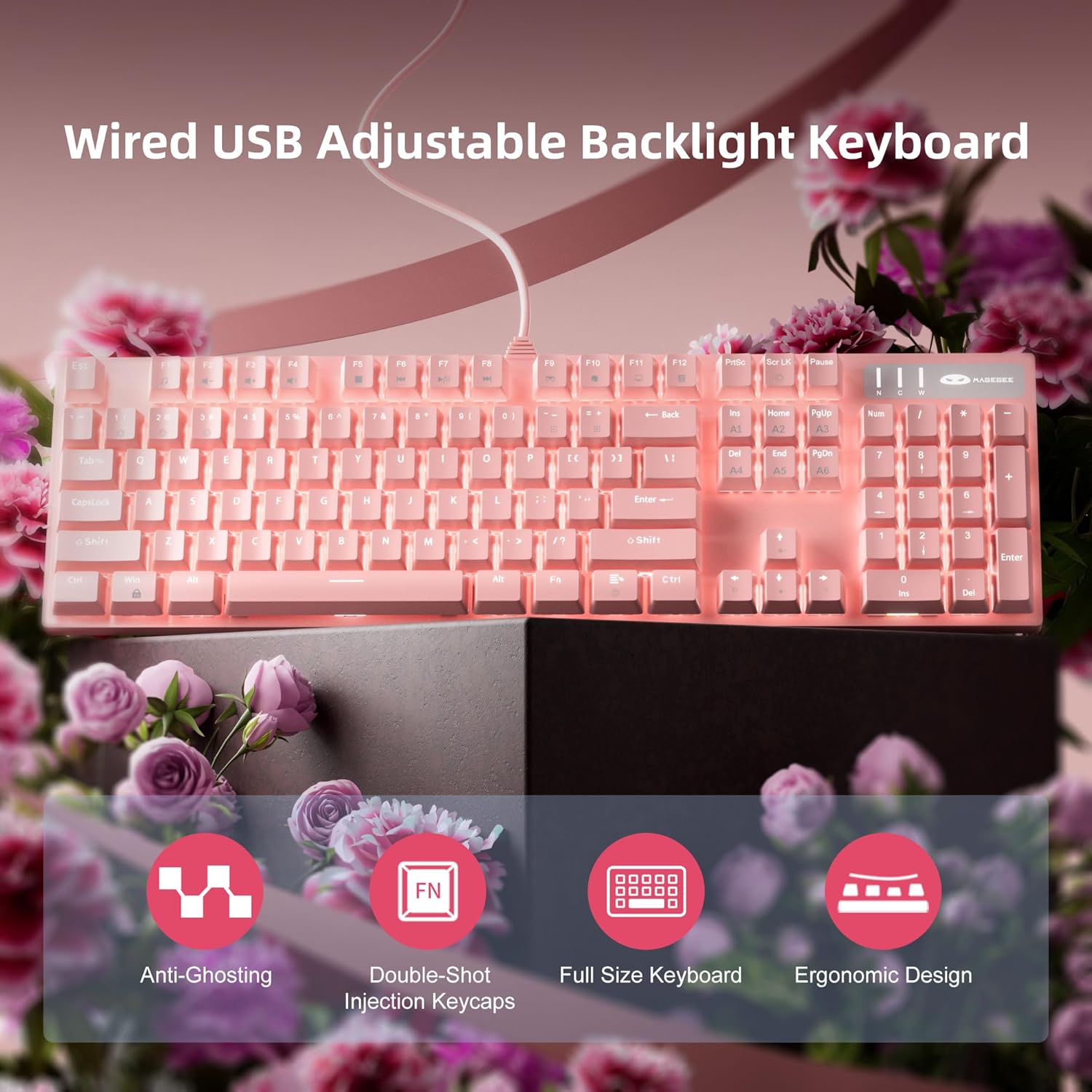
Ovládání podsvícení
The keyboard offers various backlight settings for customization:
- Upravit jas: Stiskněte FN + Up Arrow Key to increase backlight brightness. Press FN + Down Arrow Key pro snížení jasu podsvícení.
- Změna režimu podsvícení: The keyboard has 18 different backlight modes. Refer to the keyboard's function key combinations (e.g., FN + F1-F12, or specific keys) to cycle through these modes. Detailed mode switching instructions may vary; experimentation is encouraged.

Údržba
Proper care will extend the life and maintain the performance of your keyboard.
- Čištění: Use a soft, dry cloth to wipe down the keyboard surface. For deeper cleaning, use compressed air to remove dust and debris from between the keycaps.
- Demontáž krytky kláves: The double injection ABS keycaps are designed for durability. If you need to remove keycaps for cleaning or replacement, use a keycap puller to avoid damaging the switches. Gently pull straight up on the keycap.
- Rozlití kapaliny: While the keyboard is designed to be splash-proof, avoid direct exposure to large amounts of liquid. In case of a spill, immediately disconnect the keyboard from your computer and allow it to dry completely before reconnecting.

Odstraňování problémů
Pokud máte problémy s klávesnicí, vyzkoušejte následující řešení:
| Problém | Možné řešení |
|---|---|
| Klávesnice nereaguje |
|
| Podsvícení nefunguje nebo je slabé |
|
| Klávesy se neregistrují nebo se píší dvakrát |
|
Specifikace
| Funkce | Detail |
|---|---|
| Rozměry produktu | 17 x 5 x 1.5 palce |
| Hmotnost položky | 2.74 libry |
| Výrobce | MageGee |
| Číslo modelu | Storm Pink |
| Technologie připojení | USB |
| Popis klávesnice | Mechanické |
| Doporučená použití | Hraní |
| Speciální funkce | Lighting, Multimedia Keyboard |
| Barva | Růžový |
| Počet klíčů | 104 (plná velikost) |
| Podpora barev podsvícení | RGB (nastavitelné) |
| Styl | Moderní |
| První dostupný termín | 17. dubna 2020 |
Záruka a podpora
MageGee products are built with quality and durability in mind. For specific warranty information, please refer to the warranty card included with your product or visit the official MageGee website. If you require technical assistance or have questions not covered in this manual, please contact MageGee customer support through their official channels.
Pro více informací a aktualizace produktů navštivte Obchod MageGee na Amazonu.
Ask a question about this manual
Ask about setup, troubleshooting, compatibility, parts, safety, or missing instructions. Manuals+ will review the question and use this page’s manual context to help answer it.