
1. Konec produktuview
The cimetech Bluetooth Numeric Keypad is a slim, wireless 18-key device designed to extend the functionality of your laptop, desktop, or notebook. It connects via Bluetooth 3.0, offering a cable-free experience. Its ergonomic design provides comfort for extended use, particularly for data entry in spreadsheets and financial applications.

Image 1.1: The cimetech Bluetooth Numeric Keypad in a typical workspace setup, demonstrating its compact size next to a laptop, mouse, and tablet.
2. Obsah balení
- 1 x cimetech Bluetooth Numeric Keypad (Model G1MINI-BK)
Poznámka: 1 AAA battery is required for operation and is not included in the package.
3. Nastavení a párování
3.1 Instalace baterie
- Locate the battery compartment on the back of the numeric keypad.
- Otevřete kryt bateriového prostoru.
- Vložte jednu (1) baterii AAA a dbejte na správnou polaritu (+/-).
- Bezpečně zavřete kryt bateriového prostoru.

Obrázek 3.1: Detailní view of the battery compartment on the back of the keypad, illustrating the process of inserting a single AAA battery.
3.2 Párování Bluetooth
The keypad uses Bluetooth 3.0 for connection and does not require a USB dongle.
- Ensure the keypad has a fresh AAA battery installed.
- On the keypad, simultaneously press and hold the NUM LOCK klíč a Vstupte po dobu přibližně 3 sekund.
- The green indicator light on the keypad will begin to flash, indicating it is in pairing mode.
- On your device (laptop, desktop, tablet, or smartphone), navigate to the Bluetooth settings.
- Hledat available Bluetooth devices. The keypad should appear as "digital Keypad" or similar.
- Select "digital Keypad" from the list to initiate pairing.
- Once paired, the green indicator light on the keypad will stop flashing and remain solid for a moment, then turn off.
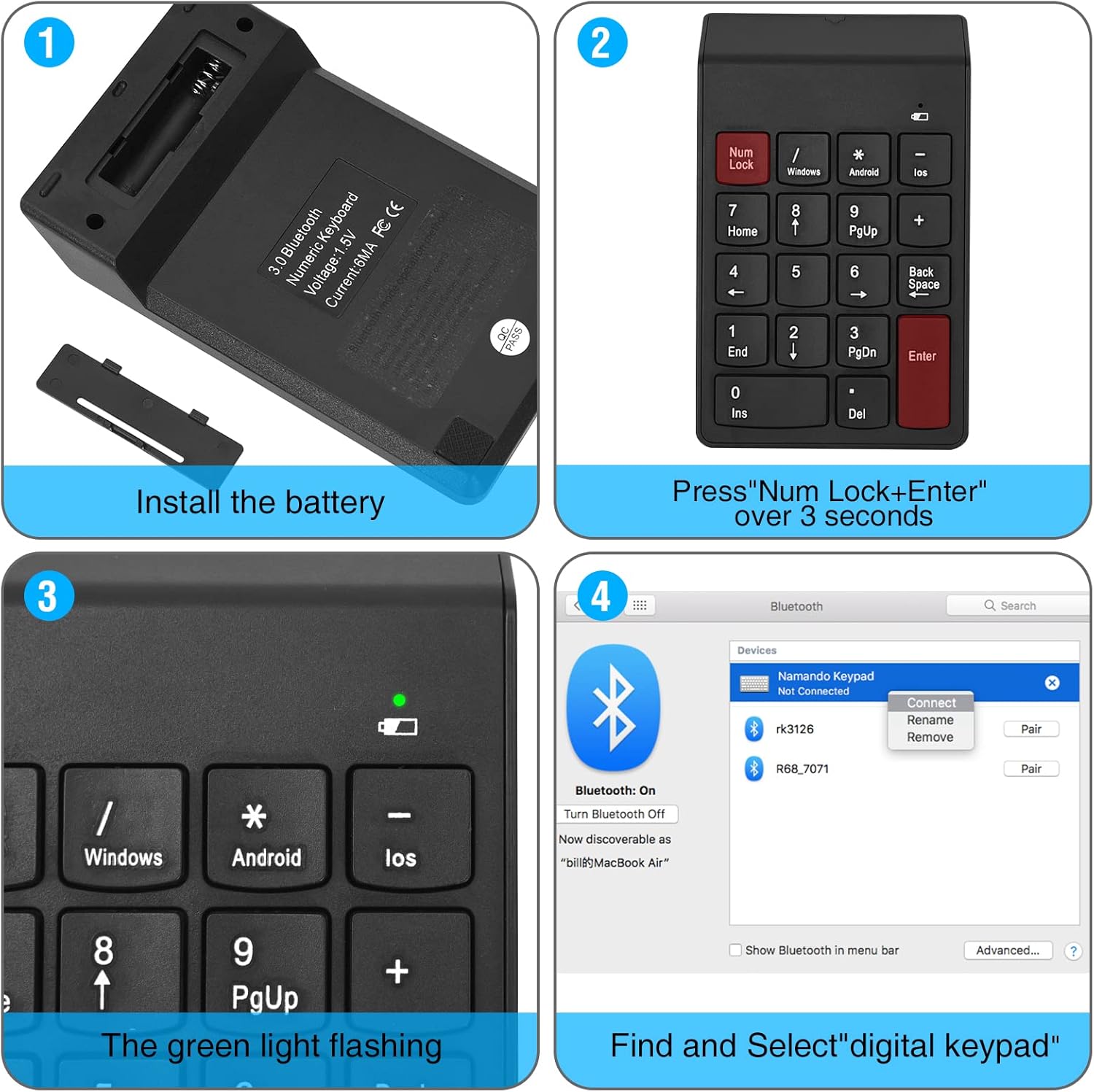
Image 3.2: Step-by-step visual guide for installing the battery and pairing the numeric keypad via Bluetooth to a computer.

Image 3.3: The keypad connects directly via Bluetooth, eliminating the need for a USB dongle for a clean, wireless setup.
4. Provoz
4.1 Basic Keypad Use
After successful pairing, the numeric keypad functions like a standard 18-key numeric pad. Use the number keys for data entry and arithmetic operations. The Num Lock key toggles the numeric function of the keys.
4.2 Operating System Switching
The keypad supports Windows, Android, and iOS operating systems. To switch between modes, use the following key combinations:
- Pro Windows: Stiskněte Vstupte + / zároveň.
- Pro Android: Stiskněte Vstupte + * zároveň.
- Pro iOS: Stiskněte Vstupte + - zároveň.
Chcete-li resetovat Num Lock funkce, stiskněte Vstupte + Num Lock zároveň.

Image 4.1: Key combinations for switching operating system modes and resetting Num Lock on the keypad.
4.3 Indikátor stavu baterie
The keypad features a low voltage alarm. A red light will flash when the battery voltage drops below 0.9V, indicating that the AAA battery needs to be replaced soon.
4.4 Sleep Mode and Wake-up
To conserve battery life, the keypad enters standby mode after 3 seconds of inactivity and sleep mode after 10 minutes of inactivity. To wake the keypad from sleep mode, press any button.
5. Údržba
5.1 Výměna baterie
Když nízký objemtage indicator flashes, replace the AAA battery promptly to ensure uninterrupted operation. Refer to section 3.1 for battery installation instructions.
5.2 Čištění
To clean the keypad, gently wipe the surface with a soft, dry cloth. Avoid using harsh chemicals or abrasive materials.
6. Řešení problémů
- Keypad not pairing:
- Ujistěte se, že je baterie správně nainstalována a je dostatečně nabitá.
- Confirm the keypad is in pairing mode (green light flashing) by pressing NUM LOCK + Vstupte po dobu 3 sekund.
- Make sure Bluetooth is enabled on your device and it is discoverable.
- Try removing any previous pairings of "digital Keypad" from your device's Bluetooth list and attempt to pair again.
- Ensure the keypad is within the 10-meter operating range of your device.
- Klávesy nereagují:
- Check if the keypad is properly paired and connected to your device.
- Verify the battery level; replace if low.
- Ensure the correct operating system mode is selected (Windows, Android, iOS) using the key combinations described in section 4.2.
- Pokud Num Lock function is not working as expected, try resetting it by pressing Vstupte + Num Lock.
- Keypad frequently disconnects:
- Vyměňte baterii za novou.
- Ensure there are no significant obstructions or sources of interference between the keypad and your device.
- Keep the keypad within the recommended 10-meter operating distance.
7. Specifikace
| Číslo modelu | G1MINI-BK |
| Technologie připojení | Bluetooth 3.0 |
| Počet klíčů | 18 |
| Typ přepínače | Membrána |
| Zdroj napájení | 1 x AAA baterie (nejsou součástí balení) |
| Nízký objemtage Alarm | Red light flashes below 0.9V |
| Pohotovostní doba | Keyboard enters standby after 3 seconds of inactivity |
| Režim spánku | Po 10 minutách nečinnosti |
| Wake Method | Stiskněte libovolné tlačítko |
| Pracovní vzdálenost | Až 10 metrů (33 stop) |
| Rozměry (D x Š x V) | 5.51" × 3.39" × 0.39" (140 mm × 86 mm × 10 mm) |
| Materiál | Plast |
| Barva | BT-Black |
7.1 Kompatibilita
- Windows: Suggested above Windows 8.0
- macOS: Suggested above macOS 10.10
- Android: Suggested above Android 4.3

Image 7.1: The keypad features a 15-degree ergonomic tilt designed for comfortable use during extended periods of data entry.
8. Informace o záruce
For detailed warranty information, please refer to the product packaging or contact cimetech customer support directly. Warranty terms may vary by region and retailer.
9. Zákaznická podpora
If you encounter any issues or have questions regarding your cimetech Bluetooth Numeric Keypad, please visit the official cimetech website or contact their customer service department for assistance. Contact information can typically be found on the product packaging or the manufacturer's webmísto.