
Zavedení
This manual provides instructions for the setup, operation, and maintenance of your Cimetech 2.4GHz Wireless Ergonomic Optical Mouse. This device offers reliable wireless connectivity, ease of use, and a comfortable design for various computing tasks.
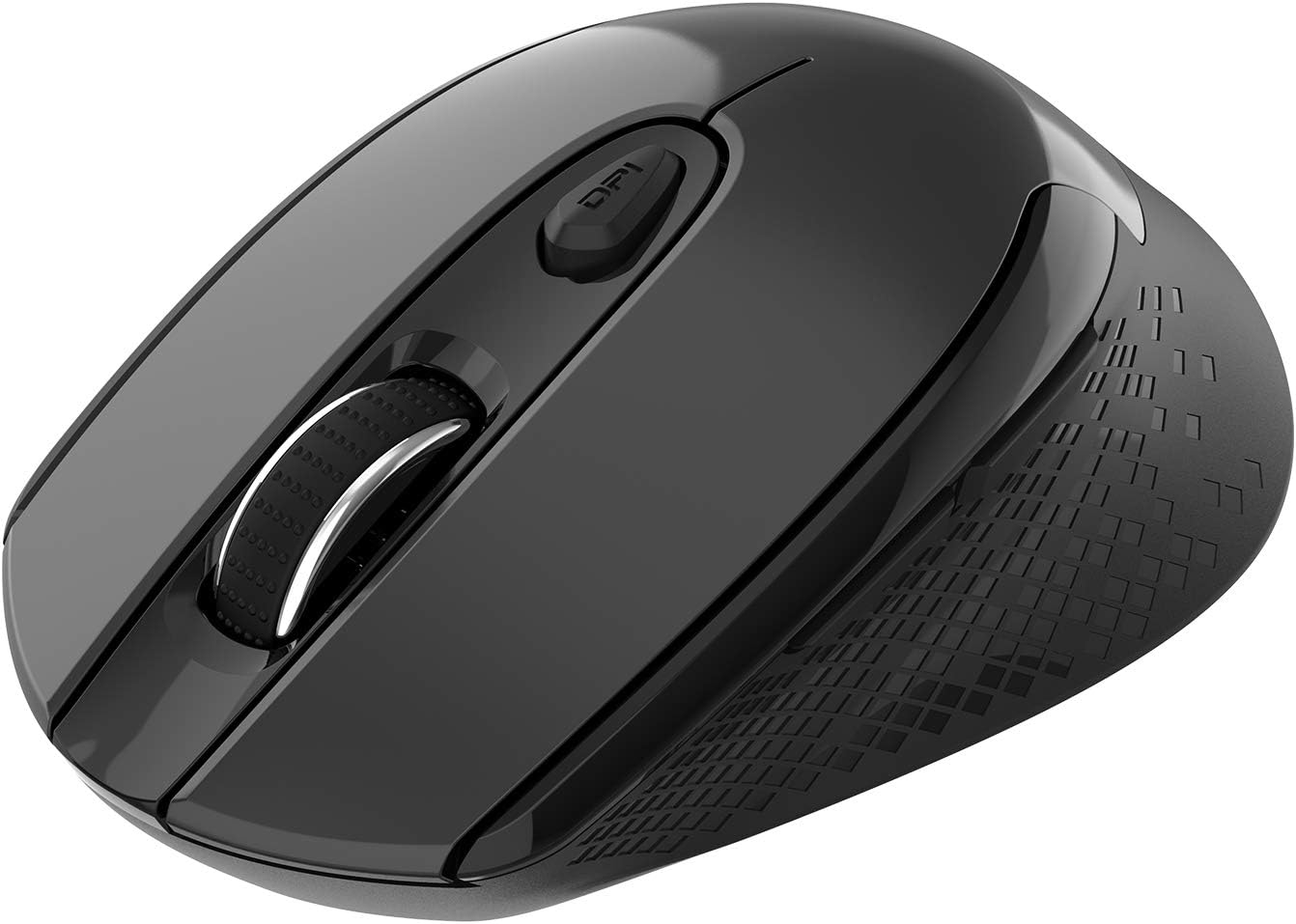
Obrázek: Shora dolů view of the Cimetech Wireless Ergonomic Optical Mouse.

Image: The mouse connected via 2.4G wireless technology, showing the USB receiver plugged into a laptop.
Obsah balení
Ověřte, zda jsou v balení přítomny všechny položky:
- 1 x Cimetech Cordless Mouse
- 1 x USB Receiver (stored in the battery compartment of the mouse)
- 1 x Uživatelská příručka
Nastavení
1. Instalace baterie
- Najděte kryt přihrádky na baterie na spodní straně myši.
- Jemně posuňte nebo zvedněte kryt a otevřete přihrádku.
- Vložte jednu baterii typu AA (není součástí balení) do přihrádky a dbejte na správnou polaritu (+/-).
- Nasaďte kryt prostoru pro baterie.
2. Připojení USB přijímače
- Open the battery compartment cover and carefully remove the USB receiver.
- Plug the USB receiver into an available USB port on your computer (laptop, desktop, Mac, or PC).
- Myš by se měla automaticky připojit k vašemu zařízení. Obvykle nejsou vyžadovány žádné další ovladače.

Image: Visual guide for installing the AA battery and connecting the USB receiver.
Návod k obsluze
Funkce tlačítek
The Cimetech Wireless Mouse features 6 buttons for enhanced functionality:
- Levé tlačítko myši: Standardní funkce primárního kliknutí.
- Kliknutí pravým tlačítkem: Standardní funkce sekundárního kliknutí.
- Rolovací kolečko: Pro vertikální rolování. Lze stisknout i pro funkci kliknutí prostředním tlačítkem myši.
- Tlačítko přepínání DPI: Upravuje citlivost myši (DPI).
- Tlačítko vpřed: Naviguje vpřed web prohlížeče popř file průzkumníci.
- Tlačítko zpět: Naviguje zpět web prohlížeče popř file průzkumníci.

Image: Labeled diagram showing the location of the Left Click, Right Click, Scroll Wheel, DPI Switch, Forward, and Backward buttons, along with mouse dimensions.
Úprava DPI
The mouse offers three adjustable DPI (Dots Per Inch) levels to control cursor speed and sensitivity. To change the DPI setting:
- Stiskněte tlačítko Tlačítko DPI once: DPI is set to 800.
- Stiskněte tlačítko Tlačítko DPI a second time: DPI is set to 1200 (default setting).
- Stiskněte tlačítko Tlačítko DPI a third time: DPI is set to 1600.
The mouse retains the last selected DPI setting even after being turned off and on.
Intelligent Power-Saving Modes
The mouse is designed with three power-saving stages to conserve battery life:
- Stage 1 (Standby): Enters after 3 seconds of inactivity. Move the mouse to wake it up.
- Stage 2 (Auto Shut-off): Enters after 60 seconds of inactivity. Move the mouse to wake it up.
- Stage 3 (Deep Sleep): Enters after 15 minutes of inactivity. Move the mouse to wake it up.
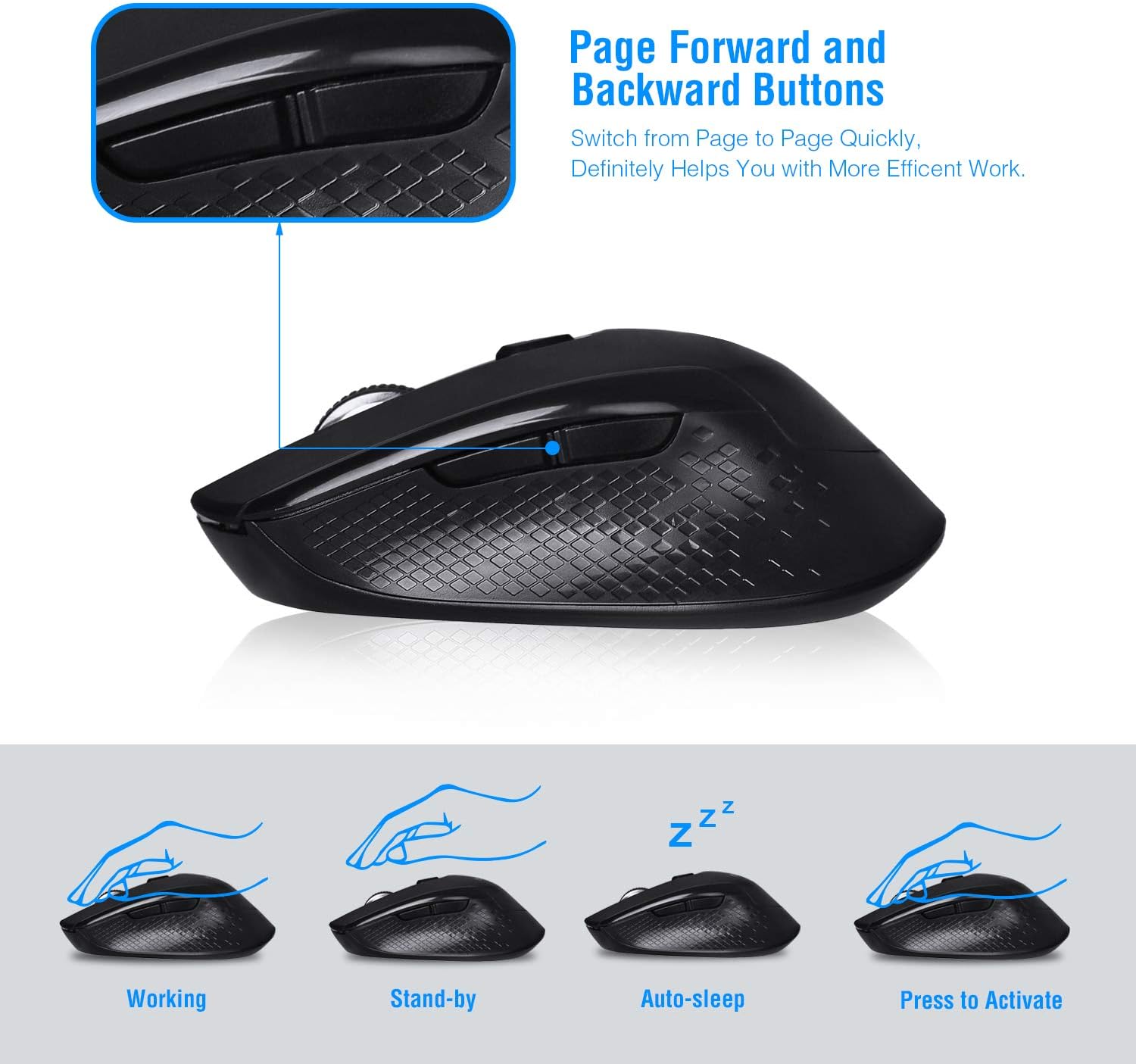
Image: Visual representation of the mouse's working, standby, auto-sleep, and activation states.
Údržba
- Udržujte myš v čistotě otíráním měkkým suchým hadříkem.
- Avoid exposing the mouse to extreme temperatures, direct sunlight, or liquids.
- Pokud se zařízení delší dobu nepoužívá, zvažte vyjmutí baterie, abyste zabránili vytečení.
- Store the USB receiver inside the mouse's battery compartment when traveling to prevent loss.
Odstraňování problémů
| Problém | Řešení |
|---|---|
| Myš neodpovídá |
|
| Pohyb kurzoru je nepravidelný nebo nepřesný |
|
| Tlačítka vpřed/vzad nefungují |
|
Specifikace
| Číslo modelu | CQ-TM004 |
| Úrovně DPI | 800/1200 (výchozí)/1600 |
| Míra hlasování | 125 Hz |
| Provozní rozsah | Až 50 stop (přibližně 15 metrů) |
| Konektivita | 2.4GHz Wireless via USB Receiver |
| Typ baterie | 1 x AA baterie (není součástí balení) |
| Kompatibilita | Windows 2000/ME/XP/7/8/10, VISTA, Mac OS |
| Rozměry produktu | 4.13 x 2.64 x 0.1 palce (10.5 x 6.7 x 0.25 cm) |
| Hmotnost položky | 2.82 unce (80 gramů) |
Kompatibilita
The Cimetech Wireless Mouse is compatible with a wide range of operating systems, including:
- Windows 2000
- Windows ME
- Windows XP
- Windows Vista
- Windows 7
- Windows 8
- Windows 10
- Mac OS
It is suitable for use with desktops, laptops, PCs, and MacBooks.
Záruka a podpora
Specific warranty information is not provided in this manual. For warranty details, technical support, or further assistance, please refer to the official Cimetech webwebu nebo se přímo obraťte na jejich zákaznický servis.
You can often find support resources, FAQs, and contact information on the manufacturer's product support page.