
1. Úvod
The Wacom Intuos Small Bluetooth Graphics Drawing Tablet is designed for digital drawing, painting, and photo editing. It offers a natural pen-on-paper feel with its pressure-sensitive, battery-free Wacom Pen 4K. This portable device is compatible with Mac, PC, Chromebook, and select Android devices, providing flexibility for various creative and educational applications.

Image: Wacom Intuos Small Bluetooth Graphics Drawing Tablet with its accompanying pen.
Video: Overview of the Wacom Intuos drawing tablet, showcasinjeho design a základní funkčnost.
2. Nastavení
2.1 Co je v krabici
- Wacom Intuos Small Bluetooth Graphics Drawing Tablet
- Pressure-sensitive, battery-free Wacom Pen 4K
- PVC-free USB-A cable with cable tidy and L-shaped connector
- 3 extra standard nibs (located inside the pen)
- Nib removal tool (on the end of the pen)
- Průvodce rychlým startem
- Regulační list
- Online User Guide and Important product information (found in Wacom Desktop Center)
2.2 Připojení tabletu
The Wacom Intuos tablet offers two connection methods:
- USB-A kabel: Connect the tablet directly to your computer using the included USB-A cable.
- Bluetooth: For wireless operation, connect via Bluetooth. Ensure your device has Bluetooth capabilities.

Image: The Wacom Intuos tablet connected via USB and Bluetooth, highlighting its compatibility with macOS, Windows, Chromebook, and Android.
2.3 Instalace ovladače
For optimal performance and full functionality, it is recommended to install the latest drivers for your operating system.
- Windows 7 or later / macOS 10.10 or later: Download and install the drivers from the official Wacom website. An internet connection is required for this process.
- Chromebook: The Wacom Intuos is plug-and-play with Chromebooks, meaning no driver installation is needed.
3. Ovládání tabletu
3.1 Wacom Pen 4K
The Wacom Pen 4K is pressure-sensitive and battery-free, offering a natural and precise drawing experience. It features two programmable buttons for quick access to functions.

Image: The Wacom Pen 4K in use on the tablet, emphasizing its ergonomic design and battery-free functionality.
3.2 Customizable ExpressKeys
The tablet features 4 customizable ExpressKeys located at the top. These buttons can be programmed to perform various functions, such as undo, redo, zoom, or specific tool selections, to streamline your workflow.

Obrázek: Detailní záběr view of the Wacom Intuos tablet, highlighting the customizable ExpressKeys and a hand using the pen.
3.3 Kompatibilita softwaru
The Wacom Intuos tablet is compatible with a wide range of creative software programs, allowing you to draw, paint, edit photos/videos, create designs, and annotate documents. Wacom provides access to creative software and online tutorials upon registration of your tablet.

Image: A visual representation of different software applications that can be used with the Wacom Intuos tablet for digital drawing, painting, photo editing, and visual effects.
4. Údržba
4.1 Výměna hrotu pera
The Wacom Pen 4K comes with 3 extra standard nibs stored inside the pen itself. To replace a nib:
- Unscrew the end of the pen to access the nib storage.
- Use the nib removal tool (located on the end of the pen) to gently pull out the old nib.
- Insert a new nib firmly into the pen.
- Screw the end cap back onto the pen.
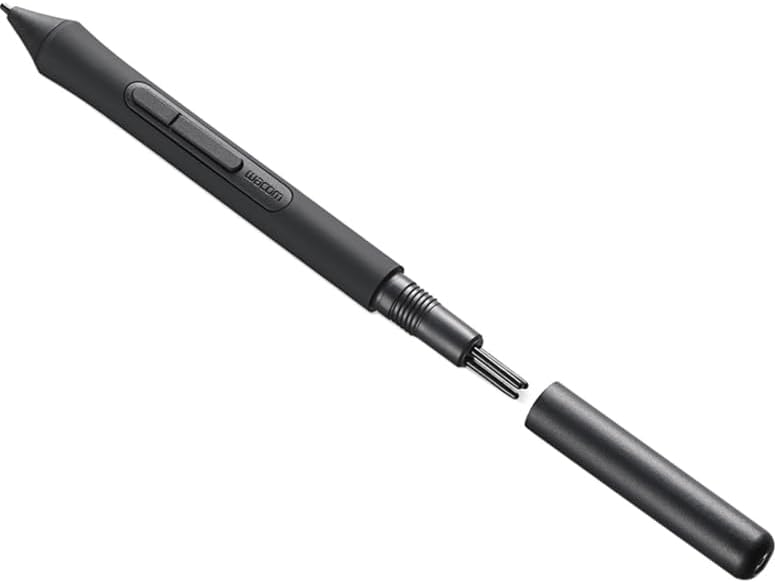
Image: The Wacom Pen 4K with its cap removed, revealing the storage compartment for replacement nibs.

Obrázek: Podrobný view of the Wacom Pen 4K, demonstrating how to access and replace the pen nibs.
4.2 Čištění
To clean your tablet and pen, use a soft, damp cloth. Avoid harsh chemicals or abrasive materials that could damage the surface.
5. Řešení problémů
- Pero nereaguje:
- Ensure the tablet is properly connected via USB or Bluetooth.
- Verify that the correct drivers are installed (for Windows/macOS).
- Check if the pen nib is securely inserted.
- Problémy s připojením Bluetooth:
- Ujistěte se, že je v počítači nebo zařízení povoleno rozhraní Bluetooth.
- Try re-pairing the tablet with your device.
- Ensure the tablet battery is charged.
- Software not recognizing tablet:
- Restartujte počítač a tablet.
- Ensure your software is up-to-date.
- Check the Wacom Desktop Center for any alerts or updates.
6. Specifikace
| Funkce | Detail |
|---|---|
| Značka | Wacom |
| Číslo modelu | CTL4100WLK0 |
| Technologie připojení | Bluetooth, USB-A |
| Citlivost na tlak | 4096 úrovní |
| Aktivní oblast | Approximately 6.0 x 3.7 inches (Small size) |
| Rozměry položky (DxŠxV) | 7.87 x 6.3 x 0.35 palce |
| Hmotnost položky | 8.8 unce |
| Kompatibilita operačního systému | Windows 7 or later, macOS 10.10 or later, ChromeOS |
| Baterie | 1 lithium-polymerová baterie (součástí balení) |
7. Záruka a podpora
For warranty information, technical support, and additional resources, please refer to the Wacom Desktop Center application installed on your computer or visit the official Wacom support website. The Wacom Desktop Center provides access to online user guides and important product information.
Wacom has been a global leader in pen display and tablet technology for over 40 years, ensuring reliable products for your creative needs.