
1. Important Safety Information
Please read all safety instructions before using the projector. Keep this manual for future reference.
- Do not block ventilation openings. Ensure adequate space around the projector for proper airflow.
- Avoid direct exposure to the projector lens light.
- Do not place the projector near heat sources or in direct sunlight.
- Use only the power adapter provided with the device.
- Do not attempt to open or repair the projector yourself. Refer all servicing to qualified personnel.
- Keep the projector away from water or other liquids.
2. Package Contents
Verify that all items are present in the package:
- Aurzen Roku TV Smart Projector (D1R Cube)
- Power Cord
- Remote Control (2 AAA Batteries Required, not included)
- User Manual (this document)
3. Product Overview
The Aurzen D1R Cube is a compact smart projector featuring built-in Roku TV for integrated streaming. It offers 1080P Full HD resolution, Dolby Audio, and a sealed optical engine for enhanced durability and clarity.
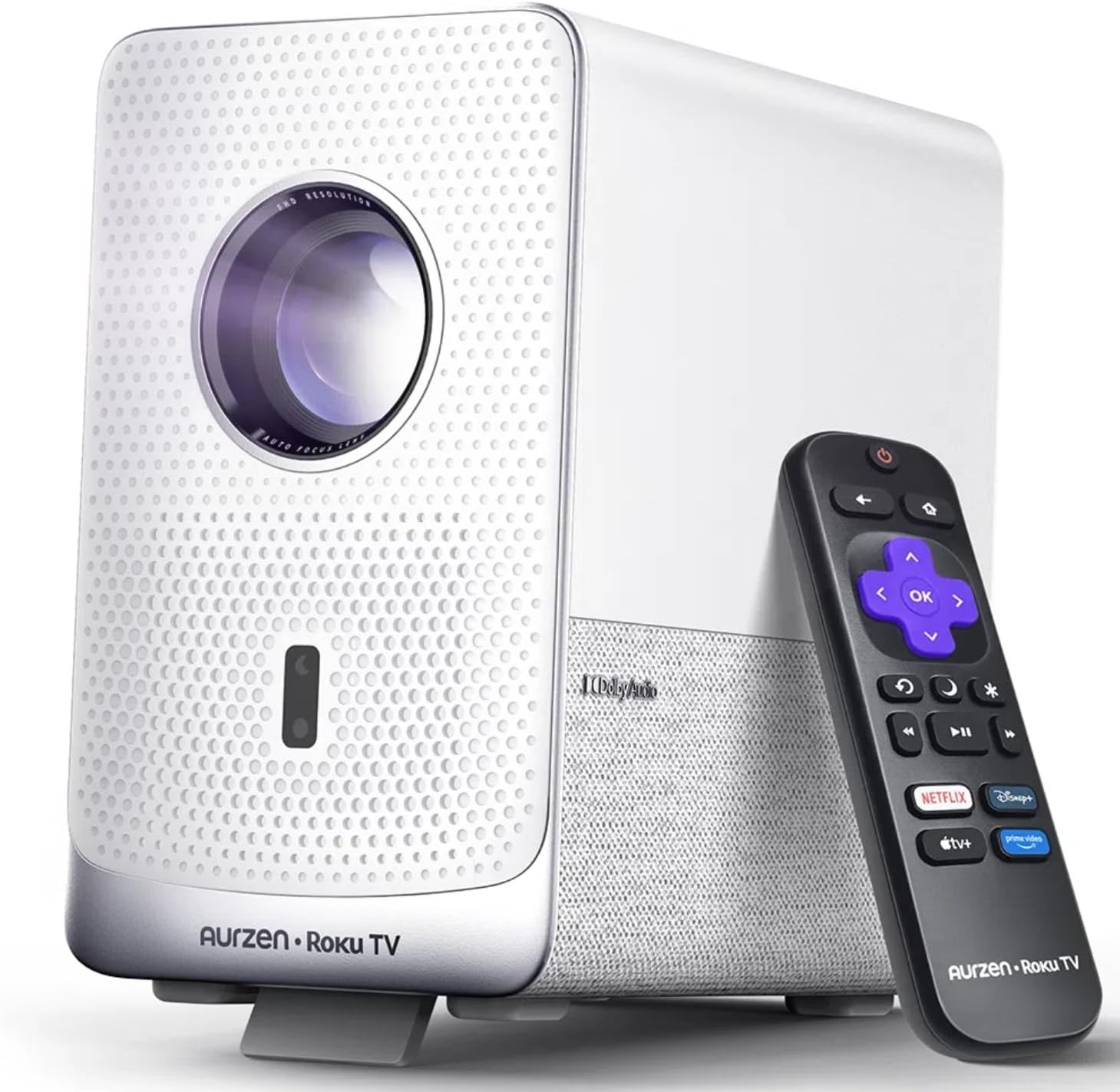
Image: The Aurzen D1R Cube Smart Projector shown with its remote control. The projector is white with a textured front panel and a visible lens.
Key Features:
- Roku TV Built-in: Access popular streaming services directly.
- Sealed Optical Engine: Protects against dust, maintaining image quality and extending lifespan.
- 1080P FHD Resolution: Delivers crisp and clear visuals.
- Dolby Audio: Provides enhanced sound experience.
- Auto Focus & Keystone Correction: Automatic image adjustment for quick setup.
- Dual-band WiFi & Bluetooth 5.2: For seamless connectivity.
- Apple AirPlay: Effortless content sharing from Apple devices.
- Smart Home Compatibility: Works with Apple HomeKit, Siri, Alexa, and Google Assistant.

Image: An internal diagram illustrating the sealed optical engine of the Aurzen D1R Cube projector, highlighting its dust-proof design.
4. Setup
4.1 Initial Placement
Place the projector on a stable, flat surface. For optimal viewing, position it directly in front of your projection surface (wall or screen). The projector features automatic focus and keystone correction to adjust the image, but a relatively straight angle is recommended.

Image: A visual representation of the projector's auto-focus and auto-keystone correction features, showing how the image automatically adjusts to create a perfect rectangular display.
4.2 Power Connection
- Connect the power cord to the projector's power input port.
- Plug the other end of the power cord into a suitable electrical outlet.
- The projector will power on automatically or can be turned on using the power button on the device or remote.
4.3 Remote Control Setup
Insert two AAA batteries (not included) into the remote control. Ensure correct polarity. The remote is pre-paired with the projector.
4.4 Initial Roku TV Setup
Upon first power-on, follow the on-screen instructions to set up your Roku TV. This includes:
- Selecting your language.
- Connecting to a Wi-Fi network (a stable internet connection is required).
- Activating your Roku account. If you do not have one, you will be prompted to create a free account.
- Installing desired streaming channels.
5. Operating Instructions
5.1 Powering On/Off
Press the power button on the projector or the remote control to turn the device on or off.
5.2 Roku Home Screen Navigation
Use the directional pad and OK button on the remote to navigate the Roku home screen. Access streaming channels, search for content, and adjust settings.

Image: A screenshot of the Roku TV home screen, displaying various streaming app icons and navigation options.
5.3 Streaming Applications
The Roku TV platform provides access to a wide range of streaming applications such as Netflix, Prime Video, Disney+, Hulu, YouTube, and more. Select an app from the home screen to begin streaming.

Image: A graphic showcasing various popular streaming service logos available on the Roku TV platform, including Netflix, Disney+, and Hulu.
5.4 Connecting External Devices
The projector includes HDMI and USB ports for connecting external devices.
- HDMI: Connect gaming consoles, Blu-ray players, or other HDMI-enabled devices. Select the corresponding HDMI input from the Roku TV menu.
- USB: Play media files (photos, videos, music) from a USB storage device.
5.5 Bluetooth Connectivity
Connect Bluetooth headphones or speakers for an enhanced audio experience.
- Go to the Roku TV settings menu.
- Select 'Remotes & devices' then 'Bluetooth devices'.
- Put your Bluetooth device into pairing mode.
- Select your device from the list on the projector screen to pair.

Image: A diagram illustrating the Bluetooth connectivity of the Aurzen D1R Cube projector, showing it connecting to various external audio devices.
5.6 Apple AirPlay
Effortlessly share content from your Apple devices (iPhone, iPad, Mac) to the projector using Apple AirPlay.
- Ensure your Apple device and the projector are connected to the same Wi-Fi network.
- On your Apple device, open the content you wish to share (e.g., photos, videos).
- Tap the AirPlay icon (usually a rectangle with an upward-pointing arrow).
- Select your Aurzen D1R Cube projector from the list of available devices.

Image: A family watching content projected from an Apple device onto a large screen via Apple AirPlay using the Aurzen D1R Cube projector.
5.7 Voice Control and Smart Home Integration
The projector supports voice control via the Roku mobile app and is compatible with Apple HomeKit, Siri, Alexa, and Google Assistant for broader smart home integration.
- Roku Mobile App: Download the Roku mobile app to use voice commands, type easily, and control your projector from your smartphone.
- Smart Home Assistants: Link your Roku account to your preferred smart home ecosystem (Apple Home, Amazon Alexa, Google Home) to control the projector with voice commands.
6. Maintenance
6.1 Sealed Optical Engine
The Aurzen D1R Cube features a sealed optical engine designed to prevent dust accumulation on internal components. This reduces the need for routine internal cleaning and helps maintain consistent image quality over time.

Image: A side-by-side comparison showing the difference in dust accumulation between a sealed optical engine (left) and an open optical engine (right) after a period of use.
6.2 General Cleaning
- Exterior: Wipe the exterior of the projector with a soft, dry cloth. Do not use abrasive cleaners or solvents.
- Lens: Gently clean the projector lens with a lens cleaning cloth or specialized lens cleaning solution. Avoid touching the lens with your fingers.
- Ventilation: Ensure ventilation openings are clear of dust and debris. Use a soft brush or compressed air to gently clean them if necessary.
6.3 Storage
When not in use for extended periods, store the projector in a cool, dry place, away from direct sunlight and extreme temperatures. Consider using a protective cover or case to prevent dust accumulation.
7. Troubleshooting
If you encounter issues with your Aurzen D1R Cube projector, refer to the following common solutions:
| Problem | Possible Solution |
|---|---|
| No Power | Ensure the power cord is securely connected to both the projector and the electrical outlet. Test the outlet with another device. |
| No Picture | Check if the projector is powered on. Verify the input source (HDMI, USB) is correctly selected. Ensure the lens cap is removed. |
| Blurry Image | The projector has auto-focus. If the image remains blurry, try repositioning the projector or restarting it to trigger auto-focus again. Ensure the lens is clean. |
| No Sound | Check the volume level on the projector and any connected external audio devices. Ensure Bluetooth audio is correctly paired or external speakers are properly connected. |
| Wi-Fi Connectivity Issues | Ensure your Wi-Fi router is working. Restart the projector and your router. Verify the Wi-Fi password is correct in the Roku TV settings. |
| Remote Not Responding | Replace the AAA batteries in the remote control. Ensure there are no obstructions between the remote and the projector. |
For further assistance, please refer to the online support resources or contact Aurzen customer service.
8. Specifications
Detailed technical specifications for the Aurzen D1R Cube Smart Projector:
| Feature | Specification |
|---|---|
| Brand | Aurzen |
| Model | D1R Cube |
| Display Resolution Maximum | 1920 x 1080 (1080P FHD) |
| Connectivity Technology | WiFi (Dual-band 2.4G/5G), Bluetooth 5.2, HDMI, USB, Audio |
| Special Features | Roku TV Smart Projector, Sealed Optical Engine, Dolby Audio, Apple AirPlay, Smart Home Compatibility |
| Item Weight | 5.68 pounds |
| Product Dimensions | 7.42 x 7 x 7.83 inches |
| Color | White |
9. Warranty and Support
9.1 Product Warranty
Aurzen products are covered by a manufacturer's warranty. Please refer to the warranty card included with your product or visit the official Aurzen website for specific warranty terms and conditions.
9.2 Customer Support
For technical support, troubleshooting assistance, or warranty claims, please contact Aurzen customer service through their official channels. You can find more information and contact options on the Aurzen Brand Store on Amazon.