1. Introduction
The CAMMHD C2 is a compact, head-mounted 4K video camera designed for hands-free recording. It features anti-shake technology, APP control, and a long-lasting battery, making it suitable for various activities such as vlogging, travel, meetings, and home use.
1.1 What's in the Box

Image: Package contents of the CAMMHD C2 camera.
- 1 x C2 Head Camera
- 1 x 128GB TF Card
- 1 x English User Manual
- 1 x Earhook Bracket
- 1 x Helmet Double-sided Tape
- 1 x Installation Accessories (including 3M glue and fixing bracket tool)
- 1 x Type-C Cable
- 1 x Charger
2. Product Features
- 4K HD Video Recording: Equipped with a 335CMOS sensor for clear 4K resolution video.
- Advanced Anti-Shake: Features electronic 6-axis image stabilization for smooth footage.
- APP Control: Seamless control via the Viidure APP for setting parameters, saving, and deleting videos.
- Extended Battery Life: Integrated 2200mAh lithium battery provides over 5 hours of continuous operation.
- Lightweight & Comfortable Design: Weighs 75g with an upgraded ear-hook bracket for secure and comfortable wear.
- Versatile Mounting Options: Includes head strap and helmet fixing brackets for various uses.
- H.265 Video Code: Efficient compression for better image quality, faster transfer, and reduced storage.
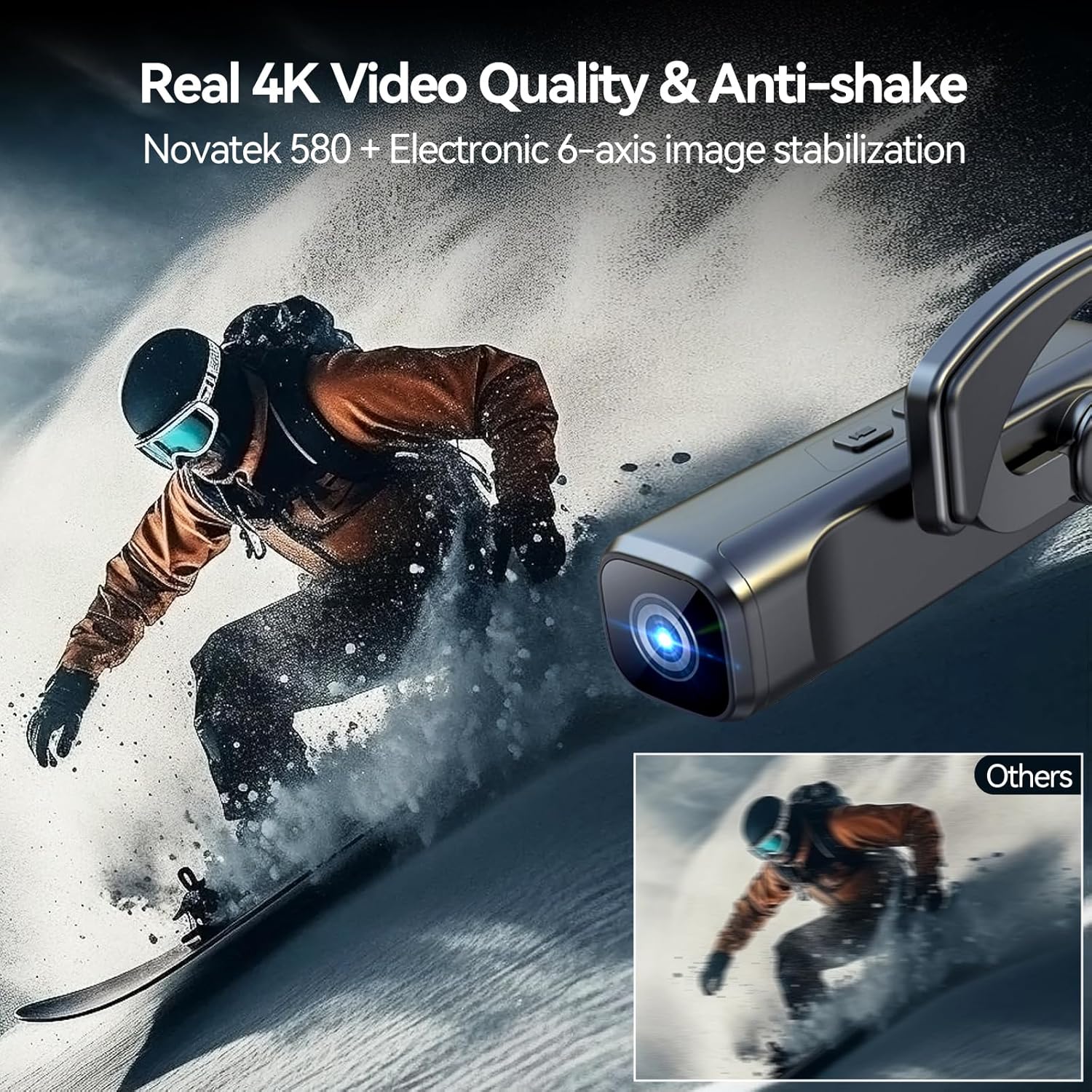
Image: Real 4K video quality and anti-shake feature demonstration.

Image: Six-axis image stabilization in action.

Image: 2200mAh battery life comparison.

Image: H.265 video code benefits.
3. Setup
3.1 Initial Charging
Before first use, fully charge the CAMMHD C2 camera using the provided Type-C cable and charger. The charging indicator light will provide status updates.
3.2 Inserting the TF Card
Locate the TF card slot on the camera. Gently insert the included 128GB TF card until it clicks into place. Ensure the card is inserted correctly to avoid damage.
3.3 Mounting the Camera
The CAMMHD C2 offers flexible mounting options:
- Head-Mounted Bracket: Attach the camera to the ear-hook bracket. Adjust for a comfortable and secure fit on your head.
- Helmet Fixing Bracket: Use the helmet fixing bracket and 3M glue to securely attach the camera to a helmet. Ensure the surface is clean and dry before applying the adhesive.

Image: Easy installation guide for head and helmet mounting.
4. Operating Instructions
4.1 Power On/Off
Press and hold the power button on the camera to turn it on or off. The camera will indicate its status via LED lights or voice prompts.
4.2 Recording Video and Taking Photos
Once powered on, use the dedicated buttons on the camera to start/stop video recording or to take still photos. Refer to the specific button functions in the included user manual for detailed operation.
4.3 APP Control (Viidure APP)
The Viidure APP allows for remote control, parameter settings, and file management (saving/deleting videos) on your CAMMHD C2 camera. It is available for both Android and iOS devices.

Image: Viidure APP control interface.
4.3.1 Wi-Fi Connection Steps:
- Turn on the camera's Wi-Fi.
- On your mobile device, search for the Wi-Fi network named "M20S-20.XXXXXX" (the XXXXXX will be unique to your device).
- Enter the connection password: 12345678 or 123456789.
- Confirm the connection is successful.
- Open the Viidure APP. The camera should now be connected.

Image: Wi-Fi and APP connection guide with QR codes.
4.3.2 Download the Viidure APP:
- For iOS: Download iOS App
- For Android: Download Android App
- Alternative Android: Download Android App (Alternative)
5. Maintenance
5.1 Cleaning
Use a soft, dry cloth to clean the camera body. For the lens, use a specialized lens cleaning cloth and solution to avoid scratches. Do not use harsh chemicals or abrasive materials.
5.2 Storage
Store the camera in a cool, dry place away from direct sunlight and extreme temperatures. Remove the TF card if storing for extended periods. Ensure the battery is partially charged (around 50%) before long-term storage to maintain battery health.
6. Troubleshooting
6.1 Camera Not Recording/Taking Pictures
- Check TF Card: Ensure the TF card is properly inserted and has sufficient free space.
- Wi-Fi Connection Interference: If the camera is attempting to connect to Wi-Fi, it may temporarily prevent recording. After powering on, immediately press the power button again to disconnect from Wi-Fi if you intend to record without APP control. If issues persist, try restarting the camera and the APP.
- Battery Level: Ensure the camera has adequate battery charge.
6.2 Poor Video Quality
- Clean Lens: Ensure the camera lens is clean and free from smudges or dust.
- Lighting Conditions: Optimal video quality is achieved in well-lit environments.
- Anti-Shake: Ensure the anti-shake feature is enabled for smoother footage, especially during movement.
6.3 APP Connection Issues
- Verify Wi-Fi Name and Password: Double-check that you are connecting to the correct Wi-Fi network ("M20S-20.XXXXXX") and using the correct password ("12345678" or "123456789").
- Restart Devices: Try restarting both the camera and your mobile device.
- APP Version: Ensure you have the latest version of the Viidure APP installed.
7. Specifications
| Feature | Specification |
|---|---|
| Brand | CAMMHD |
| Model Number | CAMMHD20241024 |
| Item Weight | 7.1 ounces (approx. 201g) |
| Package Dimensions | 4.06 x 1.14 x 1.06 inches |
| Battery | 2200mAh Lithium (1 P76 battery required) |
| Color | Black |
| Special Features | 2200mAh Battery, 4K, APP Control, Anti-Shake, Head Mounted |
| Photo Sensor Technology | CMOS |
| Video Capture Resolution | 4K |
| Flash Memory Type | Micro SD |
| Video Capture Format | MP4 (H.265) |
| Supported Audio Format | WAV |
| Connectivity Technology | Wi-Fi (2.4GHz) |
| Camcorder Type | Video Camera |
8. Warranty and Support
For information regarding warranty coverage, technical support, or service, please refer to the official CAMMHD website or contact their customer service directly. Details can typically be found on the product packaging or the manufacturer's official online resources.


