1. Product Overview
The Philips SRP5016/10 is a modern and elegant 6-in-1 universal remote control designed to simplify your home entertainment experience. It allows you to control up to six different devices, such as televisions, DTVs, DVRs, home theater systems, soundbars, and streaming devices. This remote features a learning function, enabling it to receive and store infrared codes from your original remote controls, providing comprehensive control over various brands and models.
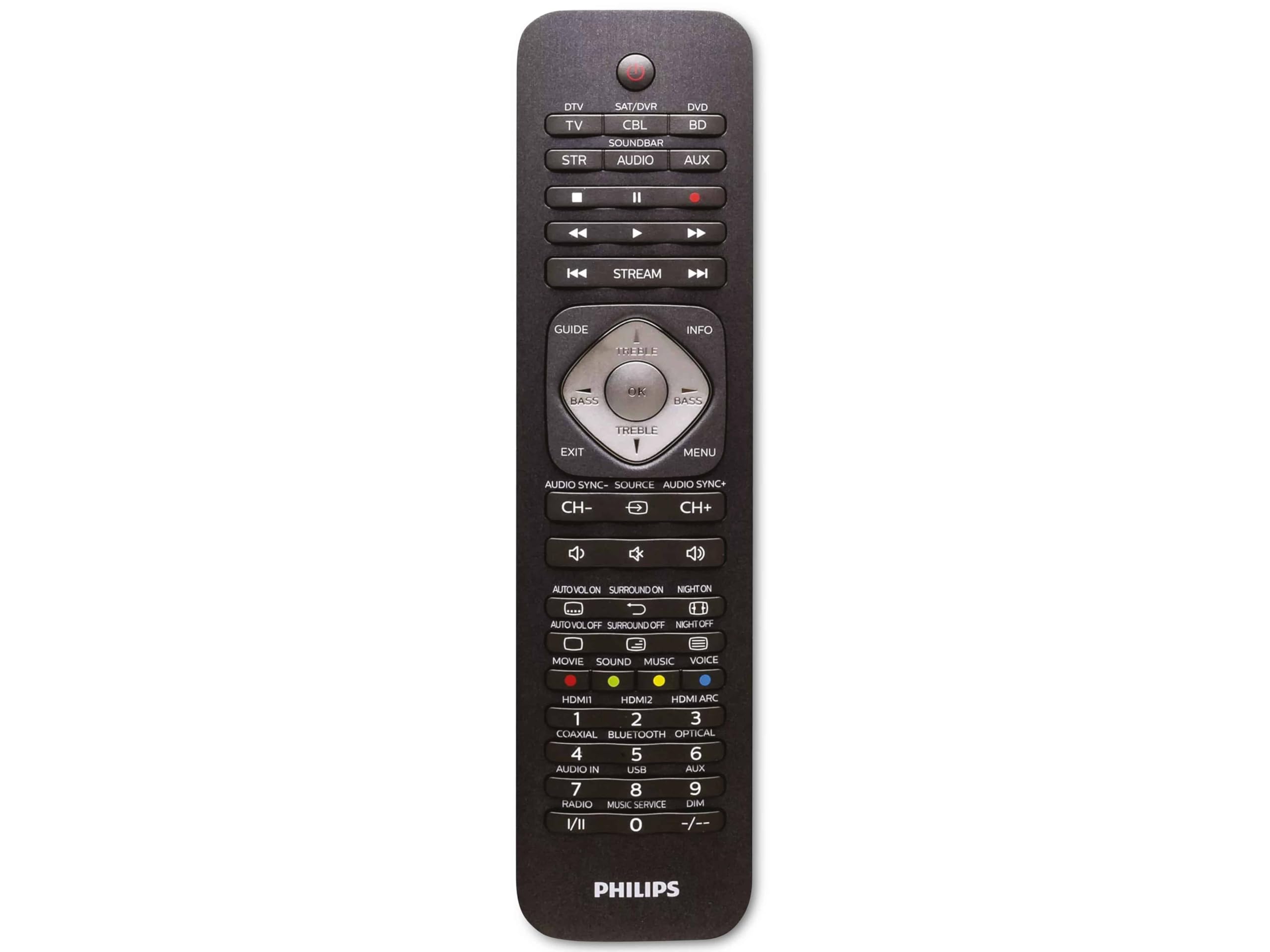
Image 1.1: Philips SRP5016/10 6-in-1 Universal Remote Control. This image displays the front view of the black universal remote control, highlighting its ergonomic design and button layout.
2. Setup
2.1. Battery Installation
- Open the battery compartment cover located on the back of the remote control.
- Insert two AAA batteries, ensuring the correct polarity (+ and -) as indicated inside the compartment.
- Close the battery compartment cover securely.
Note: Batteries are not included and must be purchased separately.
2.2. Programming Devices
The Philips SRP5016/10 can be programmed using either direct code entry or the learning function.
2.2.1. Direct Code Entry (Recommended for common brands)
- Turn on the device you wish to control (e.g., TV, DVD player).
- Press and hold the desired device button on the universal remote (e.g., TV, DVD) for approximately 3 seconds until the device button lights up.
- Enter the 4-digit code for your device's brand (refer to the code list provided with your remote, if available, or search online for Philips universal remote codes).
- If the device turns off or responds, the code is correct. Press the device button again to save the code. If not, try the next code for your brand.
2.2.2. Learning Function (For devices not in the code list or advanced functions)
- Place the universal remote and your original remote control head-to-head, approximately 1-3 cm apart.
- Press and hold the desired device button on the universal remote (e.g., TV) for approximately 3 seconds until the device button lights up.
- Press and hold the LEARN button on the universal remote until the device button starts blinking.
- On your original remote, press the button you wish to teach (e.g., POWER). The device button on the universal remote will blink rapidly and then stay solid, indicating successful learning.
- Repeat step 4 for all other buttons you wish to learn.
- Press the LEARN button again to exit learning mode.
3. Operating Instructions
3.1. Selecting a Device
To control a specific device, press the corresponding device button (e.g., TV, DVD, SAT, AUX, SOUNDBAR, STREAM) once. The selected device button will light up briefly to confirm your selection. You can then use the remote's buttons to control that device.
3.2. Basic Functions
- POWER: Turns the selected device on or off.
- VOLUME +/-: Adjusts the volume of the selected audio device.
- CHANNEL +/-: Changes channels on the selected TV or DTV device.
- MUTE: Mutes the audio.
- NUMBER BUTTONS (0-9): For direct channel entry or other numerical inputs.
- NAVIGATION (Arrow buttons, OK): For menu navigation and selection.
4. Maintenance
4.1. Battery Replacement
When the remote control's range decreases or buttons become unresponsive, it is time to replace the batteries. Follow the battery installation steps in Section 2.1. Always replace both AAA batteries simultaneously with new ones.
4.2. Cleaning
To clean the remote control, use a soft, dry cloth. For stubborn dirt, slightly dampen the cloth with water or a mild cleaning solution. Avoid using abrasive cleaners, solvents, or alcohol, as these can damage the remote's surface or internal components.
5. Troubleshooting
- Remote not working:
- Check if the batteries are inserted correctly and are not depleted. Replace if necessary.
- Ensure there are no obstructions between the remote and the device.
- Verify that the correct device button (e.g., TV, DVD) is selected.
- Device not responding to commands:
- The device code may be incorrect. Try reprogramming the device using a different code from the code list or use the learning function.
- Ensure the remote's infrared emitter is pointed directly at the device's infrared receiver.
- Learning function not working:
- Ensure the original remote's batteries are fresh and it is functioning correctly.
- Make sure the remotes are positioned correctly (head-to-head, 1-3 cm apart) during the learning process.
- Try learning the button again. Some original remotes have weaker IR signals that require multiple attempts.
6. Specifications
| Feature | Specification |
|---|---|
| Brand | Philips |
| Model Name | 6-in-1 |
| Model Number | SRP5016/10 |
| Compatible Devices | Home Theater, DVD/Blu-ray Player, SoundBar, Television, Streaming Device |
| Special Feature | Universal, Learning Function |
| Connectivity Technology | Infrared |
| Maximum Number of Supported Devices | 6 |
| Controller Type | Button Control |
| Number of Buttons | Not specified (typical universal remote layout) |
| Maximum Range | 10 Meters |
| Power Source | 2 x AAA Batteries (not included) |
| Material Type | Plastic |
| Product Dimensions | 21.4 x 5.3 x 2.2 cm |
| Product Weight | 130 g |
7. Warranty and Support
For warranty information, please refer to the documentation provided at the time of purchase or contact your retailer. Philips offers customer support for their products. If you encounter issues that cannot be resolved using this manual, please visit the official Philips support website or contact their customer service for assistance.
Please retain your proof of purchase for warranty claims.