
Introducció
This manual provides comprehensive instructions for the HP 14-inch Laptop, Model 2026 Essential. It covers initial setup, daily operation, maintenance tips, and troubleshooting common issues. Please read this manual thoroughly to ensure proper use and longevity of your device.

Figura 1: HP 14-inch Essential Laptop highlighting key features like Intel Processor N150, 4GB LPDDR5 RAM, 628GB storage, Windows 11 Pro, HD anti-glare display, Intel Graphics, Wi-Fi 6, Microsoft Copilot Key, HD camera, integrated digital mics, and stereo speakers.
1. Configuració
1.1 Desembalatge i contingut del paquet
Carefully unpack your HP 14-inch Laptop and verify all components are present.
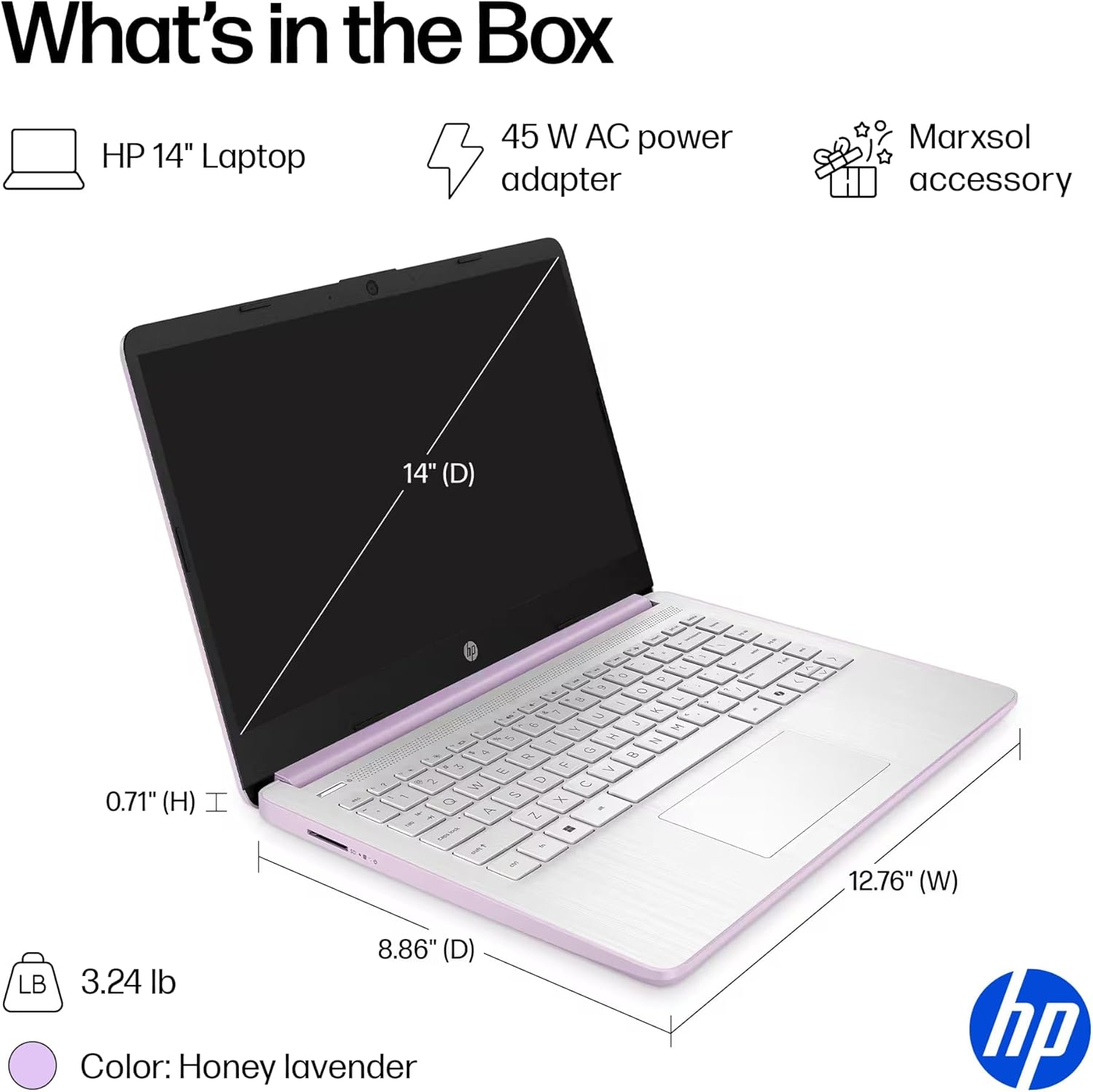
Figura 2: The package includes the HP 14-inch Laptop, a 45W AC power adapter, and the Marxsol accessory bundle. The laptop dimensions are 12.76" (W) x 8.86" (D) x 0.71" (H) and it weighs 3.24 lbs.
El vostre paquet ha de contenir:
- HP 14-inch Laptop
- Adaptador d'alimentació CA de 45 W
- Marxsol Accessory Bundle:
- 6-in-1 USB-C Docking Station Hub
- 500GB External Drive
- Cable d'extensió USB
- Cable HDMI
- Coixinet de ratolí
- Ratolí sense fil

Figura 3: The Marxsol accessory bundle includes a 6-in-1 USB-C Docking Station, Wireless Mouse, Mouse Pad, USB Extension Cable, HDMI Cable, and a 500GB External Drive.
1.2 Connexió de potència
Connect the AC power adapter to the laptop's AC Smart pin port and then plug the adapter into a power outlet. The battery will begin charging automatically. It is recommended to fully charge the battery before first use.
1.3 Arrencada inicial i configuració del Windows 11 Pro
Press the power button to turn on the laptop. Follow the on-screen instructions to complete the initial setup of Windows 11 Pro. This process typically involves selecting your region, language, connecting to a Wi-Fi network, and creating a user account.

Figura 4: The laptop comes pre-installed with Windows 11 Pro and includes Microsoft Office 2024.
2. Com fer servir el portàtil
2.1 Engegada/Apagada i Mode de repòs
- Encès: Premeu el botó d'engegada que es troba al teclat.
- Apagar: Feu clic al botó Inici, després a Engegada i seleccioneu "Apagar".
- Mode de repòs: Tanqueu la tapa o feu clic al botó Inici, després a Engegada i seleccioneu "Repos".
2.2 Teclat i touchpad
The laptop features a full-size English keyboard and a multi-touch touchpad.
- Gestos del touchpad: Refer to Windows 11 settings for customizable touchpad gestures (e.g., two-finger scroll, pinch-to-zoom).
- Tecles de funció: Utilitza el Fn key in combination with the function keys (F1-F12) for quick access to features like volume control, screen brightness, and Wi-Fi toggle.
2.3 Connexió de perifèrics (ports)
El vostre portàtil està equipat amb diversos ports per connectar dispositius externs.
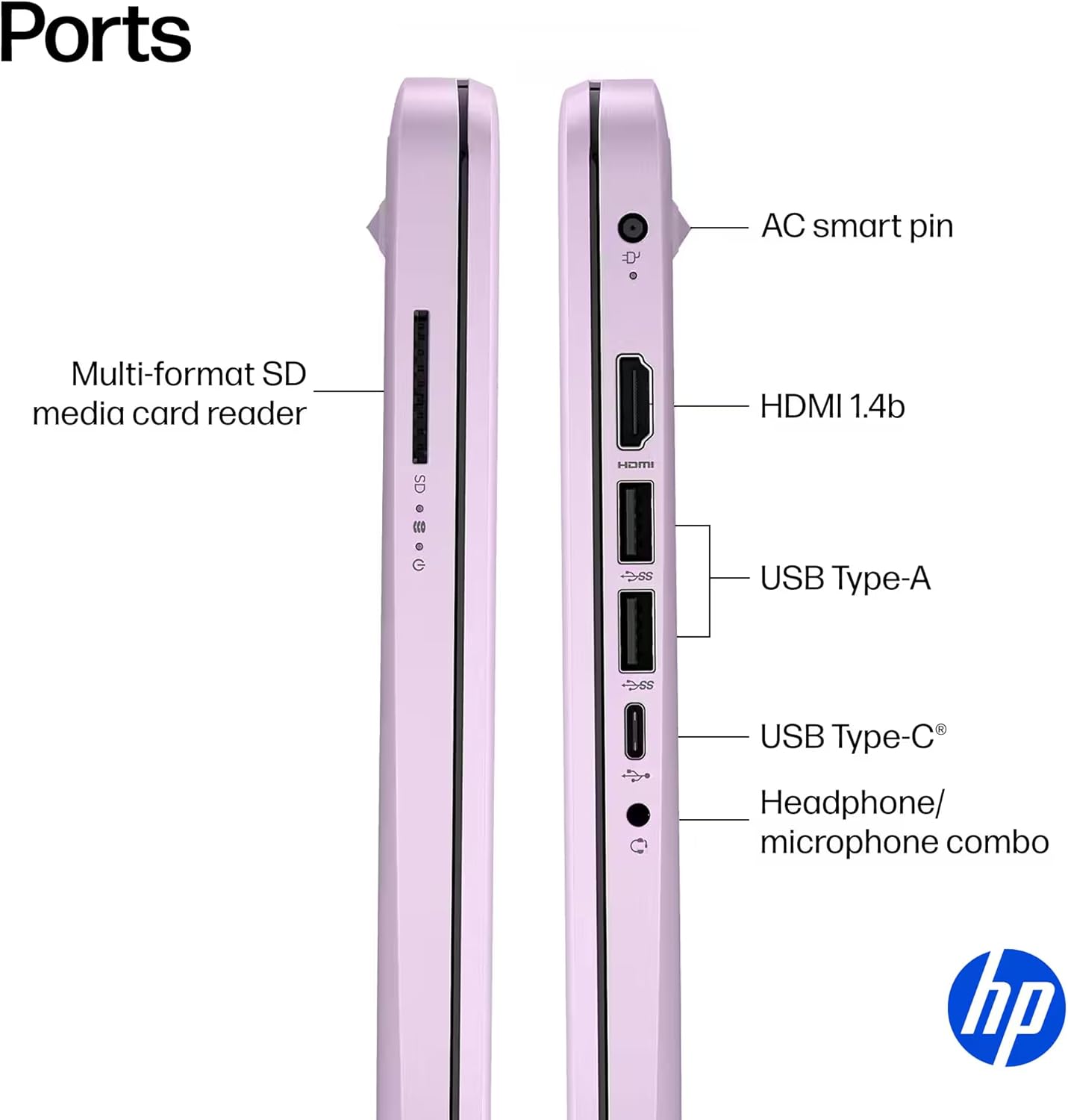
Figura 5: lateral view of the HP 14-inch laptop showing available ports.
- USB tipus C (velocitat de senyalització de 5 Gbps): Només per a transferència de dades.
- USB tipus A (velocitat de senyalització de 5 Gbps): For connecting USB devices like external drives, keyboards, and mice.
- HDMI 1.4b: Per connectar pantalles o projectors externs.
- Presa combinada per a auriculars/micròfon: Per connectar auriculars o uns auriculars amb micròfon.
- Lector de targetes multimèdia SD multiformat: Per llegir targetes SD.
- Pin intel·ligent de CA: Per connectar l'adaptador de corrent.
2.4 Connectivitat sense fil
The laptop supports Wi-Fi 6 (802.11ax) and Bluetooth 5.4 for high-speed wireless connections.
- Wi-Fi: Per connectar-vos a una xarxa sense fil, feu clic a la icona Wi-Fi de la barra de tasques, seleccioneu la xarxa i introduïu la contrasenya si cal.
- Bluetooth: To pair Bluetooth devices, go to Windows Settings > Bluetooth & devices, and follow the pairing instructions.
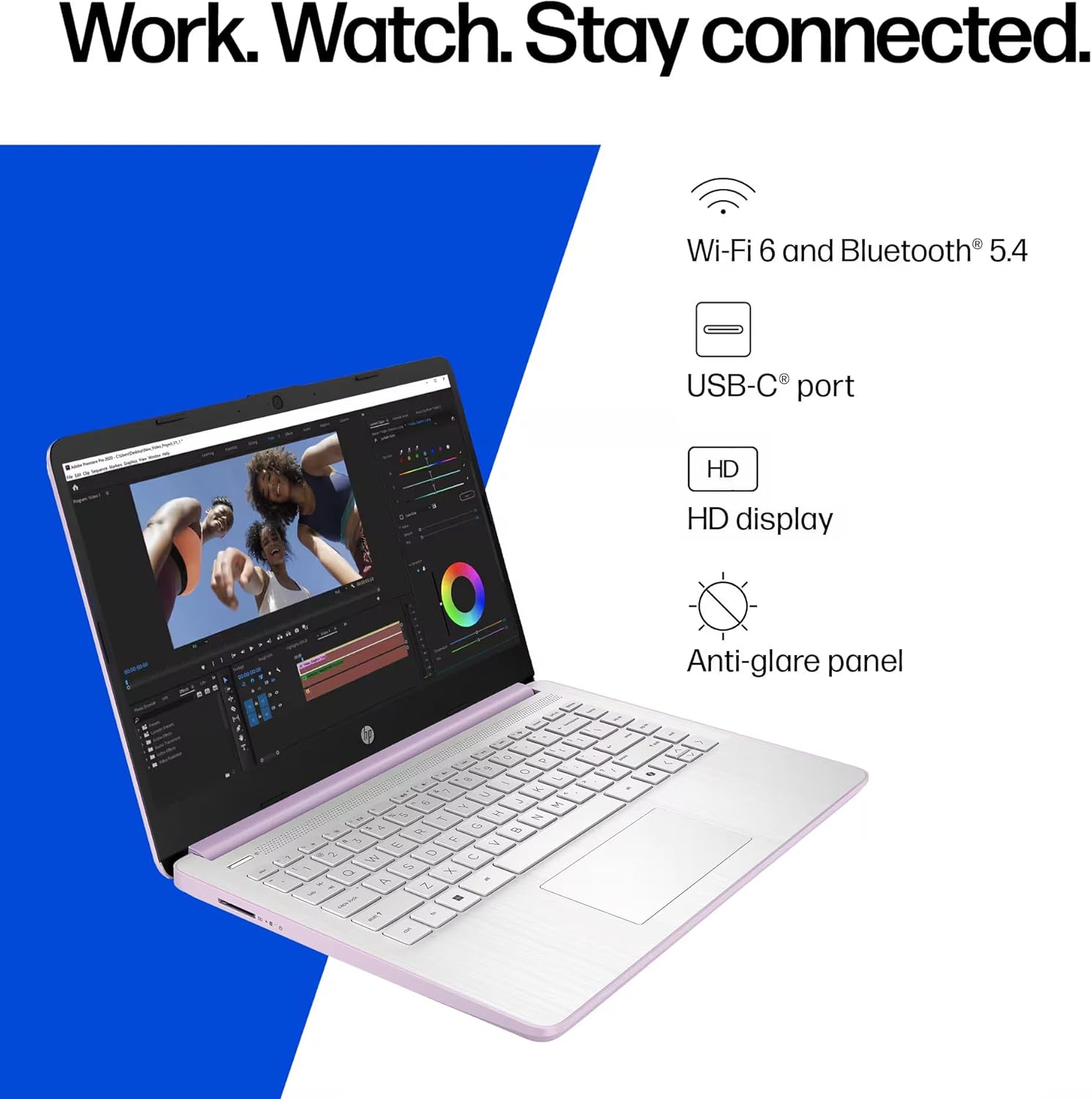
Figura 6: The laptop offers Wi-Fi 6 and Bluetooth 5.4 for robust wireless connectivity, alongside a USB-C port, HD display, and anti-glare panel.
2.5 Microsoft Copilot Key
The dedicated Microsoft Copilot key provides instant access to AI assistance. Press this key to launch Copilot and interact with it for various tasks, information, and creative assistance.

Figura 7: The Microsoft Copilot key on the keyboard provides quick access to AI features.
3. Manteniment
3.1 Cura de la bateria
- To maximize battery lifespan, avoid frequently discharging the battery completely.
- Guardeu el portàtil en un lloc fresc i sec si no el feu servir durant períodes prolongats.
- The laptop features a 3-cell, 41 Wh Li-ion battery, providing up to 9 hours of usage.
3.2 Neteja del portàtil
- Pantalla: Utilitzeu un drap suau i sense pelusa dampNetegeu amb aigua o un netejador de pantalles. No ruixeu líquid directament sobre la pantalla.
- Teclat i xassís: Feu servir un drap suau i sec. Per a la brutícia persistent, feu servir un drap lleugerament sec.amp es pot fer servir un drap, assegurant-se que no entri líquid a les obertures.
- Ports: Mantingueu els ports nets de pols i deixalles. Feu servir aire comprimit si cal, mantenint la llauna en posició vertical.
3.3 Actualitzacions de programari
Regularly update your Windows 11 Pro operating system and drivers to ensure optimal performance, security, and compatibility.
- Vés a Configuració > Actualització de Windows per comprovar i instal·lar actualitzacions.
- Ensure your antivirus software is up-to-date.
4. Solució De Problemes
This section addresses common issues you might encounter with your HP 14-inch Laptop.
4.1 Problemes d'energia
- El portàtil no s'encén:
- Assegureu-vos que l'adaptador de CA estigui connectat correctament tant al portàtil com a una presa de corrent que funcioni.
- Verifiqueu que la presa de corrent funciona connectant-hi un altre dispositiu.
- Si la bateria està completament esgotada, deixeu-la carregar durant almenys 30 minuts abans d'intentar encendre-la.
- La bateria no es carrega:
- Comproveu si l'adaptador de corrent i el cable estan danyats.
- Ensure the AC adapter is correctly seated in the laptop's charging port.
- Try restarting the laptop.
4.2 Problemes de visualització
- La pantalla està en blanc o negra:
- Ensure the laptop is powered on and not in sleep mode.
- Connect an external monitor via HDMI to check if the issue is with the laptop's display or graphics output.
- Ajusteu la brillantor de la pantalla amb les tecles de funció.
- Pantalla parpellejant:
- Actualitzeu els vostres controladors de gràfics.
- Check display settings in Windows for refresh rate compatibility.
4.3 Problemes de connectivitat (Wi-Fi/Bluetooth)
- No es pot connectar a Wi-Fi:
- Assegureu-vos que el Wi-Fi estigui habilitat (comproveu les tecles de funció o la configuració del Windows).
- Reinicieu el router i el mòdem.
- Forget the network in Windows settings and try reconnecting.
- Actualitza els controladors de xarxa.
- El dispositiu Bluetooth no s'emparella:
- Assegureu-vos que el Bluetooth estigui habilitat tant al portàtil com al dispositiu.
- Place the Bluetooth device in pairing mode.
- Remove previously paired instances of the device from Windows settings and try pairing again.
Per obtenir més ajuda, consulteu el servei d'assistència d'HP weblloc o contacteu amb el servei d'atenció al client.
5. Especificacions
Detailed technical specifications for the HP 14-inch Laptop (Model 2026 Essential).
| Característica | Descripció |
|---|---|
| Nom del model | 2026 Essential HP 14 Laptop |
| Processador | Quad-Core Intel Processor N150 (Up to 3.6 GHz Max Turbo Frequency, 6 MB Intel Smart Cache, 4 cores, 4 threads) |
| Gràfics | Gràfics Intel integrats |
| Sistema operatiu | Windows 11 Pro |
| Programari inclòs | Microsoft Office 2024 |
| Memòria (RAM) | 4GB LPDDR5 RAM |
| Emmagatzematge | 128GB UFS (Universal Flash Storage) + 500GB External Drive |
| Mostra | 14-inch diagonal, HD (1366 x 768), micro-edge, anti-glare, 250 nits, LED |
| Connectivitat | Combinació de Wi-Fi 6 (802.11ax) i Bluetooth 5.4 |
| Àudio | Àudio HD amb altaveus estèreo |
| Weblleva | Càmera HD HP True Vision 720p amb reducció temporal de soroll i micròfons digitals de doble matriu integrats |
| Ports |
|
| Bateria | 3-cell, 41 Wh Li-ion battery, Up to 9 hours usage |
| Dimensions (L x P x A) | 12.76 x 8.86 x 0.71 polzades |
| Pes | 3.24 lliures |
| Color | Mel de lavanda |

Figura 8: Intel Processor N150 specifications, highlighting its 4 cores, 4 threads, 6 MB cache, and up to 3.6 GHz Turbo Boost frequency.
6. Garantia i Suport
For warranty information, please refer to the documentation included with your product or visit the official HP support weblloc web. HP ofereix diversos recursos d'assistència, com ara controladors, actualitzacions de programari i guies de resolució de problemes.
If you encounter issues that cannot be resolved using the troubleshooting steps in this manual, please contact HP Customer Support for assistance. Have your product model number (2026 Essential HP 14 Laptop) and serial number ready when contacting support.
Assistència en línia: Visita support.hp.com