
Samsung SM-X230
Samsung Galaxy Tab A11+ SM-X230 User Manual
Model: SM-X230
1. Introducció
This manual provides essential information for setting up, operating, maintaining, and troubleshooting your Samsung Galaxy Tab A11+ SM-X230 tablet. Please read this manual carefully to ensure safe and optimal use of your device.
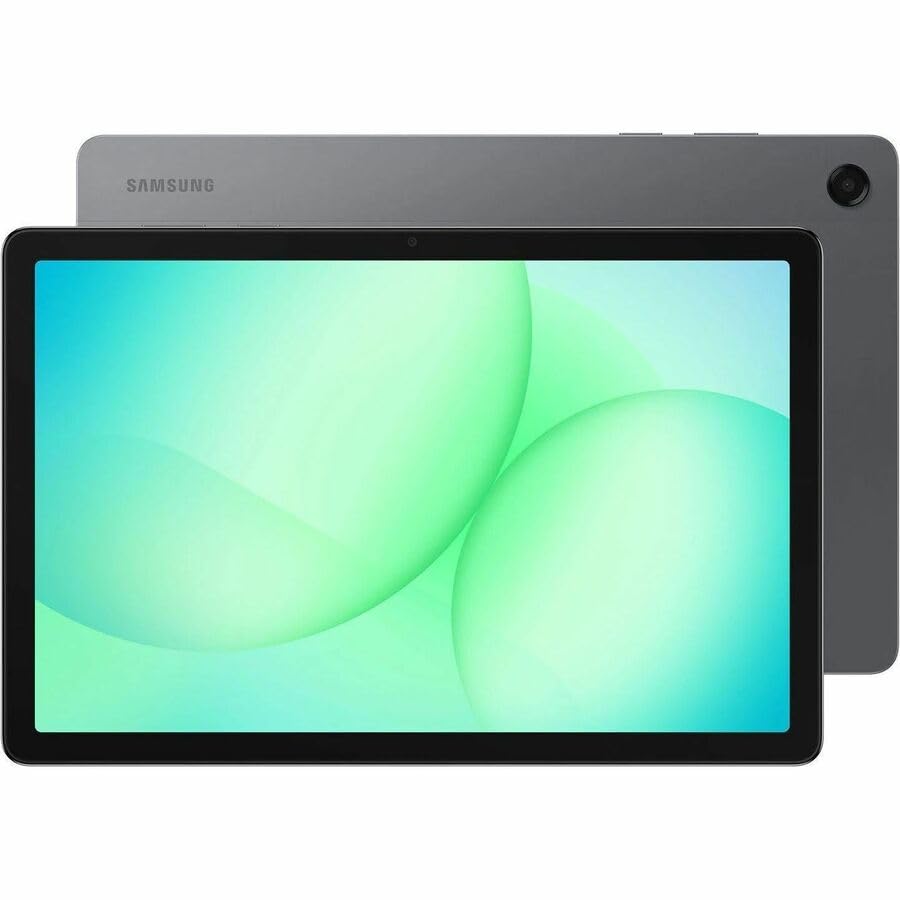
Image: Samsung Galaxy Tab A11+ tablet, showcasing its sleek design and available colors.
The Samsung Galaxy Tab A11+ SM-X230 is an 11-inch WUXGA tablet powered by a MediaTek Dimensity 7300 Octa-core processor, offering 6 GB of RAM and 128 GB of internal storage, expandable via microSD. It features a modern design, a vibrant 90 Hz display, and Dolby-engineered Quad Speakers for an immersive experience.
2. Introducció (Configuració)
2.1 Desembalatge i inspecció inicial
Carefully remove all components from the packaging. Verify that all items are present: the Samsung Galaxy Tab A11+ tablet, a USB-C charging cable, and any included documentation. Inspect the tablet for any physical damage before proceeding.
2.2 Càrrega del dispositiu
Before first use, fully charge your tablet. The device is equipped with a 7040 mAh battery and supports 25W Super Fast Charging.
- Connecteu el cable USB-C al port de càrrega de la tauleta.
- Connect the other end of the cable to a compatible power adapter (not always included) and plug it into a wall outlet.
- The charging indicator will appear on the screen. Allow the tablet to charge until the battery icon shows a full charge.

Image: Visual representation of the tablet charging, highlighting its 7040mAh battery and 25W Super Fast Charging capability.
2.3 Engegada/apagada
- Per encendre: Premeu i manteniu premut el botó d'engegada (situat al lateral) fins que aparegui el logotip de Samsung.
- Per apagar: Mantingueu premut el botó d'engegada i, a continuació, seleccioneu "Apagar" de les opcions que apareixen a la pantalla.
2.4 Assistent de configuració inicial
Upon first power-on, the tablet will guide you through an initial setup process:
- Seleccioneu el vostre idioma preferit.
- Connecteu-vos a una xarxa Wi-Fi.
- Review and accept the End User License Agreement and Privacy Policy.
- Inicia la sessió amb el teu compte de Google o crea'n un de nou. Això és essencial per accedir a Google Play Store i altres serveis de Google.
- Configura el bloqueig de pantalla (PIN, patró, contrasenya).
- Follow any additional prompts to customize your device settings.
2.5 Inserció d'una targeta microSD
The Galaxy Tab A11+ supports microSD cards up to 2 TB for expanded storage.
- Localitza la safata de la targeta SIM/microSD al lateral de la tauleta.
- Insert the ejection pin (if provided, or a paperclip) into the small hole on the tray to eject it.
- Place the microSD card into the tray with the gold contacts facing down.
- Empenyeu suaument la safata cap enrere a la ranura fins que encaixi al seu lloc.
3. Com utilitzar la tauleta
3.1 Navegació amb pantalla tàctil
The tablet's primary interface is its 11-inch WUXGA (1920 x 1200 pixels) touchscreen with a 90 Hz refresh rate for smooth interactions.
- Toca: Selecciona un element o obre una aplicació.
- Toca i mantén premut: Accedir a menús contextuals o moure elements.
- Llisca: Navigate through screens, scroll lists, or dismiss notifications.
- Pessiga per fer zoom: Ampliar o reduir el view d'imatges i web pàgines.
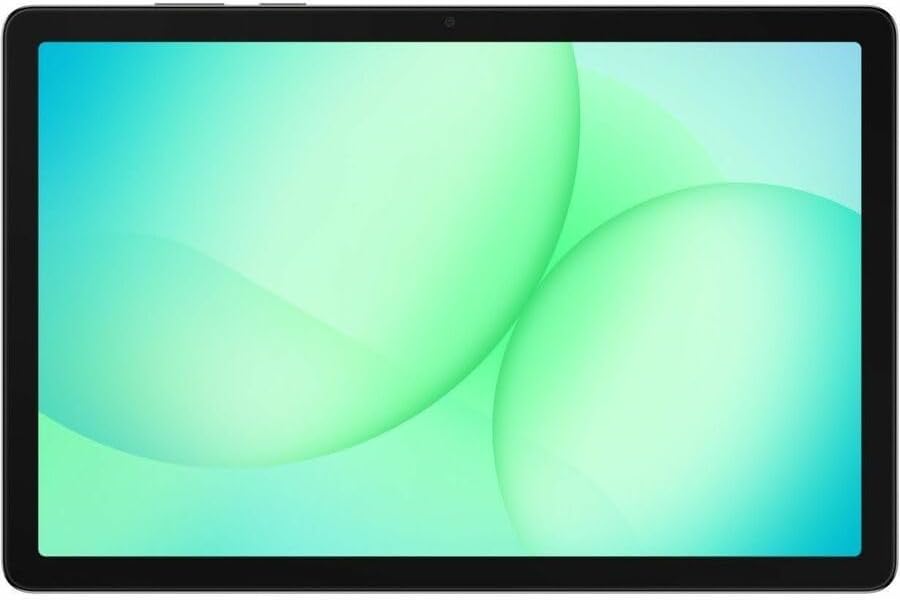
Image: The Samsung Galaxy Tab A11+ display, showcasing its vibrant and clear screen.
3.2 Rendiment
The tablet is powered by a MediaTek Dimensity 7300 (4 nm) Octa-core processor with 6 GB of RAM, ensuring responsive performance for various tasks, from gaming to multitasking.

Image: A visual representation of the tablet's enhanced CPU and GPU performance.
3.3 Gestió d'emmagatzematge
Your tablet comes with 128 GB of internal storage. You can expand this by up to 2 TB using a microSD card.
- To check storage: Go to Configuració > Cura de la bateria i del dispositiu > Emmagatzematge.
- To free up space: Delete unnecessary files, desinstal·leu les aplicacions no utilitzades o moveu fitxers grans files a l'emmagatzematge al núvol o a una targeta microSD externa.

Image: The tablet displaying various media, illustrating its ample internal storage and microSD expansion capabilities.
3.4 Funcions de la càmera
The tablet features an 8 MP rear camera and a 5 MP front camera for photos and video calls.
- Obriu el Càmera app from the home screen or app drawer.
- Toqueu el botó de l'obturador per fer una foto.
- Canvieu entre la càmera frontal i la posterior mitjançant la icona de canvi de càmera.
- Select video mode to record videos (up to HD 720p).
3.5 Configuració d'àudio
Experience rich, multidimensional audio with Dolby-engineered Quad Speakers. The tablet also includes a 3.5 mm audio jack for wired headphones.
- Adjust volume using the physical volume buttons on the side of the tablet.
- Access detailed audio settings via Settings > Sounds and vibration.
- Connect wired headphones to the 3.5 mm jack for private listening.

Imatge: La tauleta que es mostraasing its immersive audio experience with Dolby Atmos technology.
3.6 Connectivitat (Wi-Fi, Bluetooth)
- Wi-Fi: Vés a Configuració > Connexions > Wi-Fi to connect to available networks. The tablet supports 802.11ac wireless compatibility.
- Bluetooth: Vés a Configuració > Connexions > Bluetooth per emparellar-se amb dispositius Bluetooth com ara auriculars o altaveus.
3.7 Using Google Gemini
The Galaxy Tab A11+ integrates with Google Gemini. You can interact with Gemini to get assistance based on what you see on your screen or through your camera.
- To activate: Long press the side button to launch Google Gemini.
- Share your screen or camera view to ask for advice or information.

Image: The tablet demonstrating Google Gemini's capability to provide real-time assistance based on visual input.
3.8 File Compartint
Comparteix fàcilment files between your tablet and other compatible devices.
- Use built-in sharing options within apps (e.g., Gallery, Files) to send content via Bluetooth, Wi-Fi Direct, or cloud services.
- Connect to a computer via USB-C cable to transfer files directament.

Image: Multiple Samsung devices illustrating the ease of file sharing across the ecosystem.
4. Manteniment i cura
4.1 Neteja de la tauleta
- Feu servir un drap suau i sense borrissol per netejar la pantalla i la carcassa.
- Per a taques persistents, lleugerament dampNetegeu el drap amb aigua o un netejador de pantalles dissenyat específicament per a electrònica.
- Eviteu l'ús de productes químics agressius, materials abrasius o humitat excessiva.
4.2 Actualitzacions de programari
Comproveu i instal·leu regularment si hi ha actualitzacions de programari per garantir un rendiment òptim, seguretat i accés a noves funcions.
- Vés a Configuració > Actualització de programari.
- Toqueu Descarrega i instal·la.
- Ensure your tablet is connected to Wi-Fi and has sufficient battery charge before starting an update.
4.3 Durada de la bateria
Per maximitzar la durada de la bateria:
- Eviteu temperatures extremes.
- No deixeu la tauleta completament carregada o completament descarregada durant períodes prolongats.
- Adjust screen brightness and use power-saving modes when possible.
4.4 Storage Optimization
Periòdicament review your storage to remove unnecessary files and apps. This helps maintain device performance.
- Utilize cloud storage for backups of photos and videos.
- Moure suports grans files to an inserted microSD card.
5. Solució De Problemes
5.1 Problemes comuns i solucions
- El dispositiu no s'encén:
- Assegureu-vos que la bateria estigui carregada. Connecteu la tauleta a un carregador durant almenys 30 minuts.
- Feu un reinici forçat prement i mantenint premut el botó d'engegada i el botó per baixar el volum simultàniament durant uns 7-10 segons.
- Problemes de connectivitat Wi-Fi:
- Activa i desactiva el Wi-Fi a Configuració.
- Reinicieu el vostre encaminador Wi-Fi.
- Oblida't de la xarxa i torna a connectar-te.
- Rendiment lent:
- Tanca les aplicacions no utilitzades que s'executen en segon pla.
- Esborra les dades de la memòria cau de les aplicacions que s'utilitzen amb freqüència.
- Check available storage and free up space if necessary.
- Reinicieu la tauleta.
- Les aplicacions es bloquegen:
- Esborra la memòria cau i les dades de l'aplicació (Configuració > Aplicacions > [Nom de l'aplicació] > Emmagatzematge).
- Desinstal·leu i torneu a instal·lar l'aplicació.
- Assegureu-vos que l'aplicació estigui actualitzada a la seva darrera versió.
5.2 Restabliment de fàbrica
If you encounter persistent issues, a factory reset can resolve many software-related problems. Avís: Això esborrarà totes les dades de la tauleta. Fes una còpia de seguretat de les dades importants abans de continuar.
- Vés a Configuració > Gestió general > Restablir > Restablir dades de fàbrica.
- Review la informació i toca Restableix.
- Enter your screen lock credentials if prompted.
- Toqueu Suprimeix-ho tot to confirm. The tablet will restart and begin the reset process.
6. Especificacions del producte
| Característica | Especificació |
|---|---|
| Marca | Samsung |
| Nom del model | Galaxy Tab A11+ |
| Número de model | SM-X230 |
| Mida de la pantalla | 11 polzades |
| Tipus de visualització | LCD TFT |
| Resolució nativa | 1920 x 1200 píxels (WUXGA) |
| Mostra la taxa d'actualització | 90 Hz |
| Processador | MediaTek Dimensity 7300 (4 nm) Octa-core, 2.5 GHz |
| Memòria RAM | 6 GB |
| Emmagatzematge intern | 128 GB |
| Emmagatzematge ampliable | microSD (fins a 2 TB) |
| Sistema operatiu | Android |
| Càmera posterior | 8 MP |
| Càmera frontal | 5 MP |
| Resolució de captura de vídeo | HD 720p |
| Capacitat de la bateria | 7040 mAh (polímer de liti) |
| Durada mitjana de la bateria | 10 hores |
| Carregant | Càrrega súper ràpida de 25 W |
| Connectivitat | Wi-Fi (802.11ac), Bluetooth, USB Type C |
| Funcionalitat GPS | GPS-Enabled (GLONASS, Galileo, Beidou, QZSS) |
| Funcions d'àudio | Dolby-engineered Quad Speakers, 3.5 mm audio jack |
| Dimensions (L x W x Thickness) | 10.1 cm de llargada x 0.3 cm d'amplada x 6.6 cm de gruix |
| Pes de l'article | 1.4 lliures |
7. Informació de la garantia
The Samsung Galaxy Tab A11+ SM-X230 comes with a 12-month Manufacturer Warranty. This warranty covers defects in materials and workmanship under normal use. For specific terms and conditions, please refer to the warranty card included with your product or visit the official Samsung support weblloc.
Conserveu el vostre comprovant de compra per a reclamacions de garantia.
8. Suport i Servei
For further assistance, technical support, or service inquiries, please contact Samsung customer support through the following channels:
- Assistència en línia: Visita el suport oficial de Samsung weblloc web per a preguntes freqüents, guies de resolució de problemes i descàrregues de programari. www.samsung.com/us/support/
- Suport telefònic: Consulteu l'embalatge del producte o el servei d'assistència de Samsung. weblloc per als números de contacte regionals.
- Centres de servei: Locate authorized Samsung service centers for in-person assistance.
When contacting support, please have your tablet's model number (SM-X230) and serial number ready.
Ask a question about this manual
Ask about setup, troubleshooting, compatibility, parts, safety, or missing instructions. Manuals+ will review the question and use this page’s manual context to help answer it.