
1. Introducció
This manual provides detailed instructions for the setup, operation, maintenance, and troubleshooting of your ATTACK SHARK G3PRO Wireless Gaming Mouse. Please read this manual thoroughly to ensure proper use and to maximize your gaming experience.

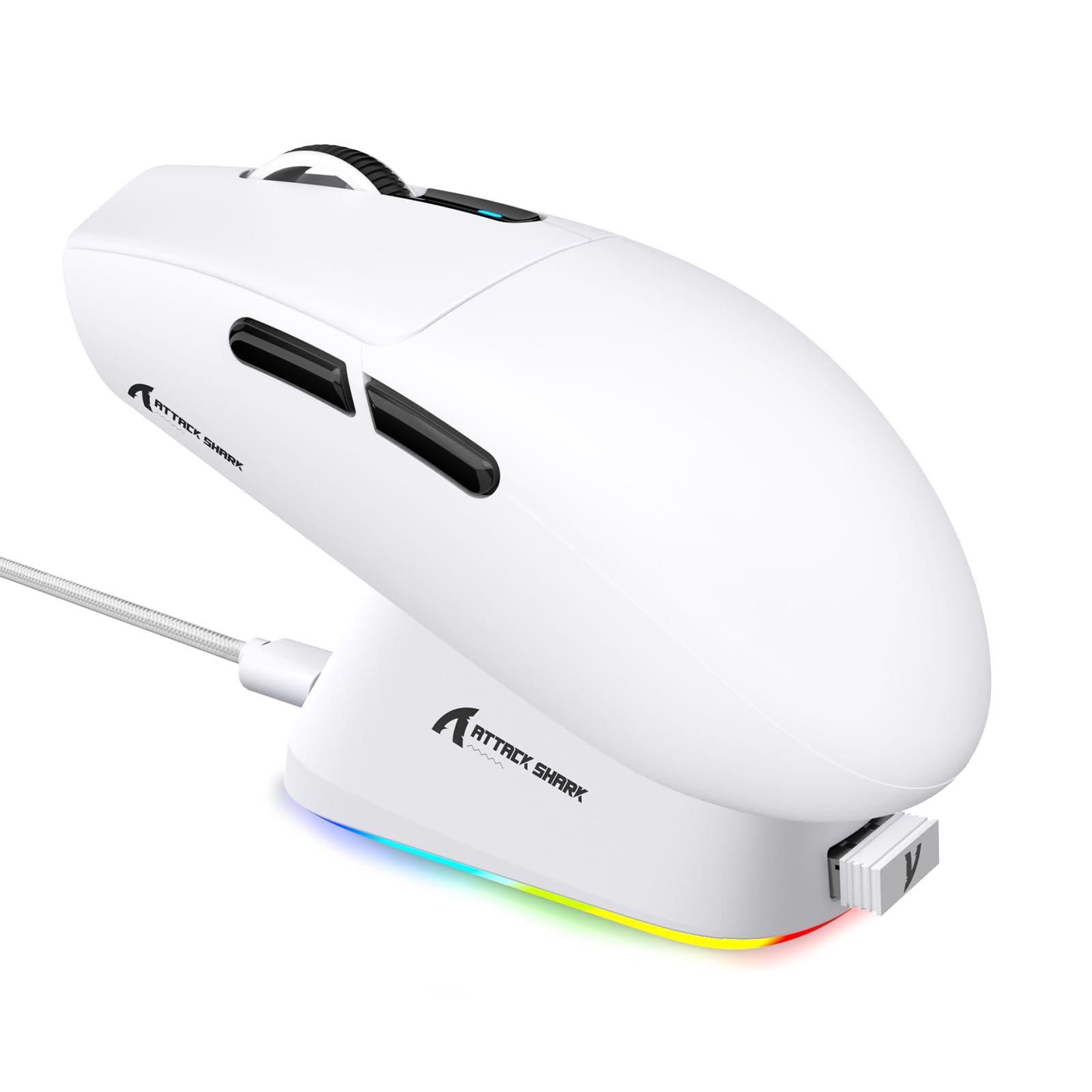
Imatge: Un cop mésview of the ATTACK SHARK G3PRO mouse and its features, including magnetic fast charging, PAW3311 sensor, web cloud drive, RGB rapid charging dock, and lightweight design.
2. Contingut del paquet
Verifiqueu que tots els elements siguin presents al vostre paquet:
- ATTACK SHARK G3PRO Wireless Gaming Mouse
- RGB Magnetic Charging Dock
- Receptor USB 2.4G
- Cable de càrrega/dades USB-C a USB-A
- Manual d'usuari
3. Configuració
3.1 Càrrega inicial
Before first use, it is recommended to fully charge the mouse. Connect the USB-C cable to the charging dock and a power source. Place the mouse onto the magnetic charging dock. The RGB lighting on the dock will indicate charging status.
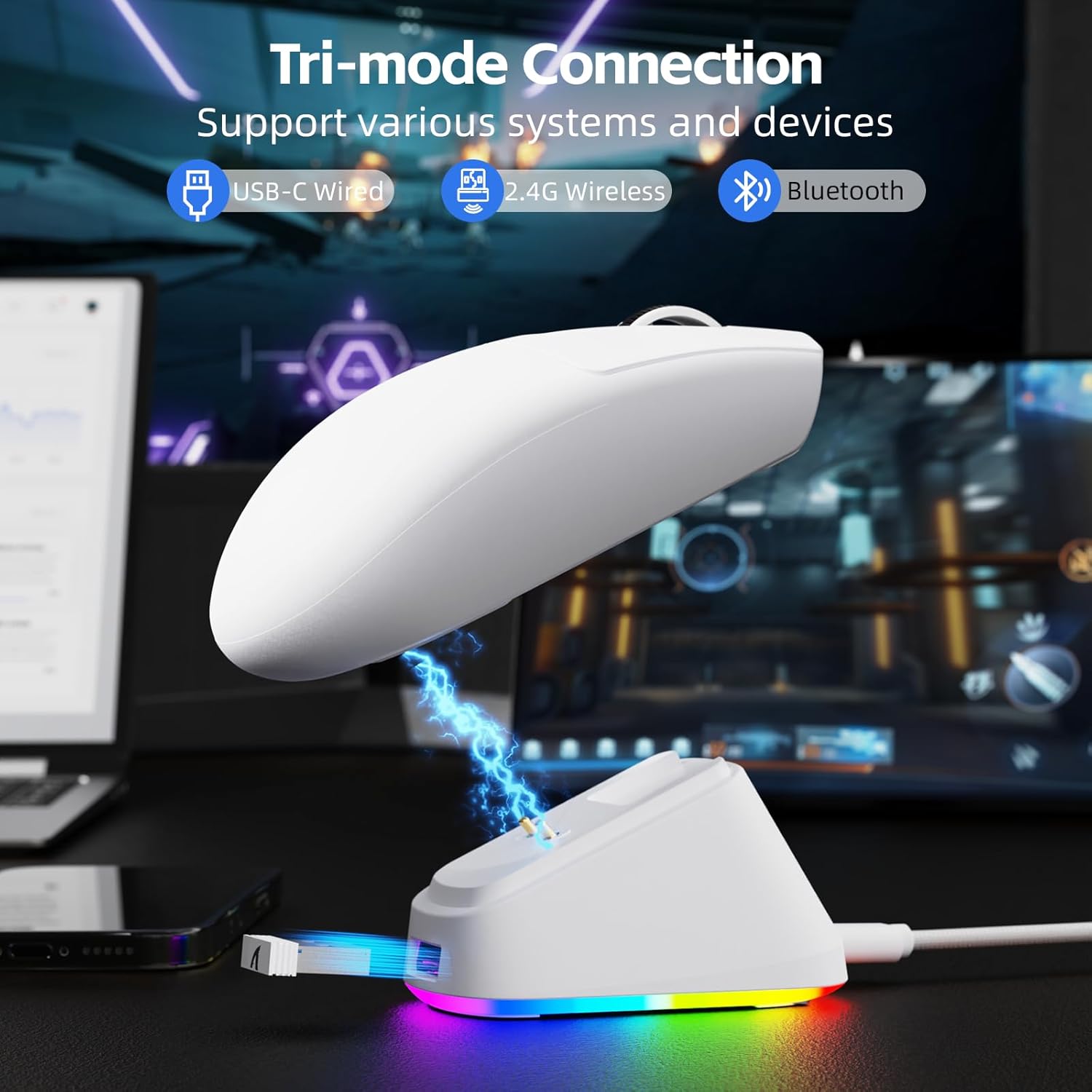
Image: The ATTACK SHARK G3PRO mouse magnetically attached to its RGB charging dock, showing the charging thimbles and USB-C port.
For a visual guide on charging, please watch the following video:
Video: This video demonstrates the magnetic charging dock and its features for the ATTACK SHARK G3PRO Wireless Gaming Mouse.
3.2 Connexió del ratolí
The G3PRO supports three connection modes: 2.4GHz Wireless, Bluetooth, and USB-C Wired. A switch on the bottom of the mouse allows you to select the desired mode.

Image: The ATTACK SHARK G3PRO mouse with visual indicators for Wired, 2.4G, and Bluetooth connectivity modes.
Mode sense fil de 2.4 GHz:
- Locate the 2.4G USB receiver, typically stored within the charging dock or the mouse itself.
- Connecteu el receptor USB a un port USB disponible de l'ordinador.
- Set the switch on the bottom of the mouse to "2.4G".
- El ratolí s'hauria de connectar automàticament.
Mode Bluetooth:
- Set the switch on the bottom of the mouse to "BT".
- A l'ordinador o dispositiu, navega fins a la configuració de Bluetooth i activa el Bluetooth.
- Cerca new devices and select "ATTACK SHARK G3PRO" to pair.
Mode amb cable USB-C:
- Connect the USB-C cable directly from the mouse to your computer.
- El ratolí funcionarà com un ratolí amb cable i es carregarà simultàniament.
For a visual guide on product features and connectivity, please watch the following video:
Video: This video demonstrates the various color options and the magnetic charging feature of the ATTACK SHARK G3PRO Wireless Gaming Mouse, showcasing el seu disseny i funcionalitat.
4. Funcionament del ratolí
4.1 Funcions dels botons
The ATTACK SHARK G3PRO features 5 programmable buttons:
- Clic esquerre: Acció primària.
- Clic dret: Menú contextual/d'acció secundària.
- Clic central/Roda de desplaçament: Scroll up/down, middle click for universal scroll or other functions.
- Botó Endavant: Default for navigating forward in web browsers/folders.
- Botó enrere: Default for navigating backward in web browsers/folders.
- Commutador DPI: Canvia ciclísticament pels nivells de DPI preestablerts.

Image: A detailed diagram illustrating the location and default functions of the multi-functional buttons on the ATTACK SHARK G3PRO mouse.

Imatge: Una explosió view and labeled diagram of the G3PRO mouse components, including buttons, switches, charging points, and the 2.4G/OFF/BT mode switch.
4.2 Ajust de DPI
The mouse features a dedicated DPI switch to cycle through various sensitivity levels, ranging from 800 to 25,000 DPI. The current DPI setting is indicated by an LED light.

Image: A visual representation of the 25,000 DPI optical sensor's precision and how mouse movement trajectory sensitivity scales with DPI settings.
4.3 Taxa de sondeig
The G3PRO supports a 1000Hz polling rate in both wired and 2.4GHz wireless modes, ensuring rapid response times for competitive gaming.

Image: A diagram illustrating the 1000Hz polling rate capability in both wired and wireless modes, highlighting millisecond response times.
5. Software and Customization
Customize your G3PRO mouse settings using the intuitive web driver or downloadable software from ATTACK SHARK. This allows for personalization of DPI, polling rate, macros, and more.
- Web Conductor: Accedeix al web-based configuration tool for quick adjustments without installation.
- Downloadable Software: Per a una personalització avançada i professionalfile management, download the dedicated software.

Image: A screenshot of the ATTACK SHARK Hub software interface, showing options for mouse settings, DPI settings, parameter settings, macro editing, and personal center.

Image: The cloud-driven programming interface for the G3PRO mouse, displaying options for button settings, DPI adjustments, polling rate settings, and power management.
6. Manteniment
6.1 Neteja
Per mantenir un rendiment òptim, netegeu el ratolí regularment. Feu servir un drap suau i sec per netejar la superfície. Per a la brutícia persistent, netegeu lleugerament.amp es pot fer servir un drap, assegurant-se que no entri humitat als components interns. Eviteu productes químics agressius o materials abrasius.
6.2 Emmagatzematge
When not in use for extended periods, store the mouse and charging dock in a cool, dry place. Ensure the USB receiver is securely stored, ideally within the charging dock's designated slot, to prevent loss.
7. Solució De Problemes
| Problema | Causa possible | Solució |
|---|---|---|
| El ratolí no respon (2.4G) | Low battery; Receiver not plugged in; Incorrect mode selected; Driver issue. | Charge the mouse; Ensure receiver is firmly plugged in; Set mouse to "2.4G" mode; Reinstall mouse drivers. |
| El ratolí no respon (Bluetooth) | Low battery; Bluetooth not enabled on device; Not paired; Incorrect mode selected. | Charge the mouse; Enable Bluetooth on your device; Re-pair the mouse in Bluetooth settings; Set mouse to "BT" mode. |
| Charging dock RGB not lighting up | Cable not connected; Power source issue. | Ensure USB-C cable is securely connected to dock and power source; Try a different USB port or power adapter. |
| Inconsistent tracking | Dirty sensor; Uneven surface; Interference (wireless). | Clean the optical sensor; Use a clean, even mouse pad; Reduce wireless interference by moving other devices or using wired mode. |
| Els botons no responen | Conflicte de programari; Danys físics. | Check software settings for button remapping; Test on another computer; Contact support if physical damage is suspected. |
8. Especificacions
| Característica | Detall |
|---|---|
| Marca | ATACA AL TAURON |
| Model | G3PRO |
| Color | Blanc |
| Tecnologia de connectivitat | 2.4Ghz Wireless, Bluetooth, USB-C Wired |
| Tecnologia de detecció de moviment | Òptic (sensor PAW3311) |
| DPI màxim | 25,000 DPI |
| Taxa de votació | 1000 Hz |
| Acceleració | 40G |
| Velocitat de seguiment | 400 IPS |
| Interruptors | Mechanical (100 Million Clicks) |
| Capacitat de la bateria | 500 mAh |
| Durada de la bateria | Fins a 200 hores |
| Pes | 59 g ± 3 g |
| Botons | 5 |
| Orientació de la mà | Ambidextre |
| Dispositius compatibles | Ordinador portàtil, ordinador personal, telèfon intel·ligent, tauleta |
| Sistema operatiu | Windows, macOS |
For a comparison of G3 and G3PRO models, refer to the image below:

Image: A table comparing the specifications of the ATTACK SHARK G3 and G3PRO models, highlighting differences in components and features.
9. Informació de seguretat
- No exposeu el dispositiu a temperatures o humitat extremes.
- Eviteu deixar caure o sotmetre el dispositiu a forts impactes.
- Mantenir fora de l'abast dels nens.
- No intenteu desmuntar ni modificar el dispositiu, ja que això anul·larà la garantia i pot causar danys.
- Feu servir només el cable de càrrega i la base proporcionats.
10. Garantia i Suport
The ATTACK SHARK G3PRO Wireless Gaming Mouse comes with a standard manufacturer's warranty. For detailed warranty information, please refer to the warranty card included in your package or visit the official ATTACK SHARK weblloc.
For technical support, troubleshooting assistance, or to inquire about replacement parts, please contact ATTACK SHARK customer service through their official weblloc web o la informació de contacte que es proporciona a l'embalatge del producte.
Oficial Weblloc: Botiga ATTACK SHARK a Amazon