
WAYXYZ UTR-232
Starlink Wi-Fi 6 Tri-Band Router
Model: UTR-232
Brand: WAYXYZ
1. Producte acabatview
This manual provides instructions for the WAYXYZ Starlink Wi-Fi 6 Tri-Band Router, Model UTR-232. This device is designed to extend and enhance your Wi-Fi coverage, offering high-speed connectivity for various applications.
Característiques principals:
- Comprehensive Compatibility: Works with Starlink Gen 1, Gen 2, and Gen 3 routers.
- Tri-Band Wi-Fi 6: Delivers speeds up to 3 Gbps for optimal performance.
- Àmplia cobertura: Extends Wi-Fi coverage up to 3200 sq ft.
- Ports Ethernet: Includes 2 LAN ports with a removable cover for wired connections.
- Xarxa en malla: Supports mesh configurations to eliminate dead zones.
Què hi ha a la caixa:
- 1x Starlink Gen 3 Wifi Router (UTR-232)
- 1x Starlink Gen 3 Power Cable
- 1x Starlink Gen 3 Ethernet Router Cable
- 1x RJ 45 Cover
- 1x Starlink Power Supply

Image 1.1: The WAYXYZ Starlink Gen 3 Wi-Fi 6 Tri-Band Router and its retail packaging.

Image 1.2: The contents included in the box: the router, power cable, Ethernet cable, RJ45 cover, and power supply.
2. Instruccions de configuració
Follow these steps to set up your WAYXYZ Starlink Wi-Fi 6 Tri-Band Router.
2.1 Col·locació inicial
Place the router in a central location within your desired coverage area, away from obstructions and other electronic devices that may cause interference.

Image 2.1: The router positioned on a table, ready for connection.
2.2 Connexió d'alimentació
- Connect the Starlink Gen 3 Power Cable to the power port on the router.
- Plug the Starlink Power Supply into a standard electrical outlet.

Image 2.2: A hand connecting the power cable to the router's power input.
2.3 Ethernet Connection (Optional)
The router includes 2 LAN ports for wired connections. For Gen 2 routers, a Starlink Ethernet Adapter is required for wired mesh network capabilities.
- Remove the protective cover from the Ethernet ports located at the base of the router.
- Connect one end of the Starlink Gen 3 Ethernet Router Cable to a LAN port on the router.
- Connect the other end to your Starlink dish or existing network device (e.g., Ethernet Adapter for Gen 2).
- If not using the Ethernet ports, ensure the RJ 45 Cover is securely in place to protect the ports.

Imatge 2.3: Primer pla view of the Ethernet ports with their removable cover at the base of the router.
2.4 Configuració de la xarxa
Once powered on, the router will broadcast a Wi-Fi network. Use the Starlink app or a web browser to complete the network setup, including setting up your Wi-Fi name (SSID) and password.
3. Instruccions de funcionament
Your WAYXYZ Starlink Wi-Fi 6 Tri-Band Router provides advanced networking capabilities.
Connectivitat Wi-Fi 3.1
The router utilizes Wi-Fi 6 (802.11ax) technology across three frequency bands (Tri-Band) to provide high-speed and efficient wireless communication. Connect your devices (smartphones, tablets, computers) to the Wi-Fi network using the SSID and password you configured during setup.
3.2 Xarxa de malla
This router supports mesh networking, allowing you to create a seamless Wi-Fi network throughout your home or office. It is compatible with Gen 2 and Gen 3 Starlink routers for mesh configurations. Refer to the Starlink app for detailed instructions on adding mesh nodes.
3.3 indicador LED
The router features an LED indicator to show its operational status. Consult the Starlink app or online resources for specific LED patterns and their meanings.
4. Manteniment
Per garantir un rendiment òptim i una llarga vida útil del vostre encaminador, seguiu aquestes pautes de manteniment:
- Neteja: Netegeu suaument el router amb un drap suau i sec. No utilitzeu netejadors líquids ni materials abrasius.
- Ventilació: Ensure the router is placed in a well-ventilated area to prevent overheating. Do not block ventilation openings.
- Actualitzacions de firmware: Regularly check for and install firmware updates through the Starlink app to benefit from performance improvements and security enhancements.
- Condicions ambientals: Operate the router within recommended temperature and humidity ranges as specified by the manufacturer.
5. Solució De Problemes
Si teniu problemes amb el vostre encaminador, consulteu els passos habituals següents per a la resolució de problemes:
- Sense connexió a Internet:
- Check all cable connections, including power and Ethernet.
- Restart the router by unplugging it from the power outlet for 30 seconds and then plugging it back in.
- Verify your Starlink dish is properly aligned and receiving a signal.
- Velocitats Wi-Fi lentes:
- Assegureu-vos que el router estigui situat en un lloc central i lliure d'obstacles.
- Comproveu si hi ha interferències d'altres dispositius electrònics.
- Perform a speed test to confirm the issue is with Wi-Fi and not your internet service.
- Consider adding additional mesh nodes for larger coverage areas.
- No es pot connectar a Wi-Fi:
- Verifiqueu que esteu introduint la contrasenya Wi-Fi correcta.
- Ensure the router's LED indicator shows normal operation.
- Prova d'oblidar-te de la xarxa al dispositiu i de tornar-te a connectar.
Gen 3 Router vs. Gen 2 Router Comparison:
Understanding the differences between router generations can assist in troubleshooting compatibility and performance issues.
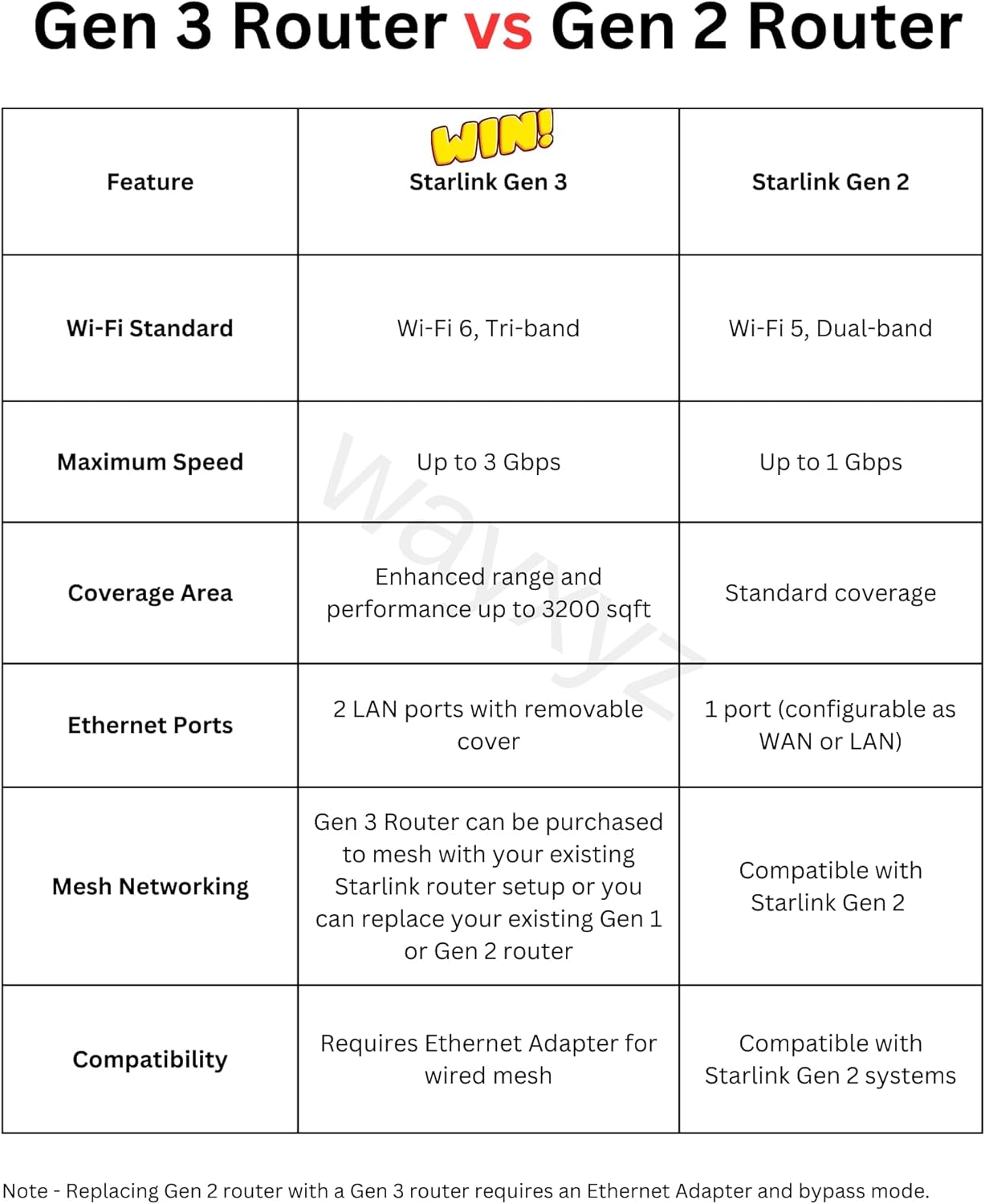
Image 5.1: A table comparing key features of the Starlink Gen 3 Router with the Gen 2 Router, including Wi-Fi standard, maximum speed, coverage area, Ethernet ports, and mesh networking capabilities.
6. Especificacions
| Característica | Detall |
|---|---|
| Nom del model | Starlink Gen 3 Mesh Router |
| Número de model de l'article | UTR-232 |
| Marca | WAYXYZ |
| Dimensions del producte | 11.8 x 2.4 x 4.7 polzades |
| Pes de l'article | 3 lliures |
| Tecnologia de connectivitat | Ethernet, Wi-Fi |
| Comunicació sense fils estàndard | 802.11ax (Wi-Fi 6) |
| Classe de banda de freqüència | Tri-banda |
| Velocitat màxima | Fins a 3 Gbps |
| Àrea de cobertura | Fins a 3200 peus quadrats |
| Ports Ethernet | 2 LAN ports with removable cover |
| Dispositius compatibles | Smartphone, Starlink Gen 1, Starlink Gen 2, Starlink Gen 3, Tablet |
| Característiques especials | Access Point Mode, Guest Mode, Internet Security, LED Indicator, Remote Access |
7. Garantia i Suport
For warranty information, please refer to the documentation included with your purchase or contact the retailer. For technical support, please visit the official WAYXYZ weblloc o poseu-vos en contacte amb el seu departament d'atenció al client.
Ask a question about this manual
Ask about setup, troubleshooting, compatibility, parts, safety, or missing instructions. Manuals+ will review the question and use this page’s manual context to help answer it.