
1. Introducció
The IHSENO ZigBee Smart Scene Remote is a versatile wireless control device designed to enhance your smart home experience. It allows you to control various ZigBee-compatible smart devices, such as smart sockets, switches, and lights, through the Tuya Smart Life APP. This remote requires a ZigBee hub for functionality and offers customizable scene modes with single click, double click, and long press actions for each button.
1.1 Què hi ha a la caixa
- Scene Remote X1
- Manual d'usuari X1
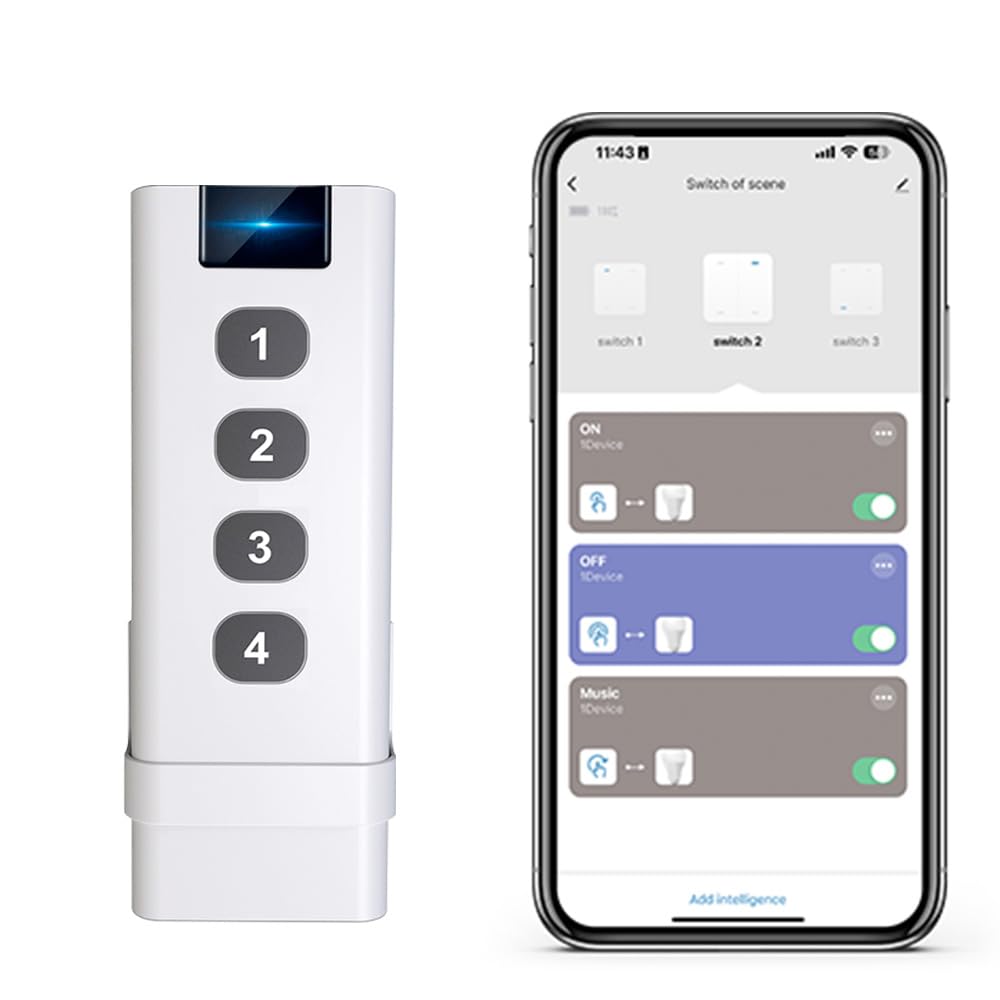
Image: The IHSENO ZigBee Smart Scene Remote, a white rectangular device with four numbered buttons.
2. Configuració i emparellament
The IHSENO ZigBee Smart Scene Remote requires a Tuya ZigBee Gateway (hub) to function. The gateway is not included in the package and must be purchased separately. Once connected to the gateway, the remote can be integrated with the Tuya Smart Life APP and supports voice control through platforms like Alexa and Google Home.
2.1 Connecting to a Tuya ZigBee Gateway
- Ensure your Tuya ZigBee Gateway is powered on and connected to your home network.
- Open the Tuya Smart Life APP on your smartphone.
- Add the ZigBee Gateway to your APP if you haven't already.
- In the APP, select your ZigBee Gateway and choose to add a new sub-device.
- On the remote, press and hold any button for approximately 5 seconds until the blue LED indicator starts blinking rapidly. This indicates pairing mode.
- The APP will detect the remote. Follow the on-screen prompts to complete the pairing process.
- Once successfully added, you can rename the remote and assign functions to its buttons within the APP.

Image: Illustration demonstrating the connection flow: ZigBee remote connects to a Tuya ZigBee gateway, which then connects to a WiFi router, enabling control via a smartphone app.
Video: A demonstration of pairing the Tuya ZigBee Scene Remote Control with a Tuya ZigBee Gateway and the Smart Life APP. The video shows the remote being put into pairing mode and successfully added to the application.
3. Instruccions de funcionament
The IHSENO ZigBee Smart Scene Remote features four programmable buttons, each capable of performing three distinct actions: single click, double click, and long press. This allows for up to 12 different scene controls or device actions.
3.1 Funcions dels botons
- Un sol clic: Una ràpida pulsació i alliberament d'un botó.
- Feu doble clic: Dues pulsacions ràpides d'un botó seguides.
- Premsa llarga: Press and hold a button for approximately 3.5 seconds until the blue LED turns off.
Each of these actions can be customized within the Tuya Smart Life APP to trigger specific scenes or control individual smart devices.

Image: Visual guide showing the three types of button interactions: single press, double press, and long press, and their corresponding icons.
3.2 Customizing Scene Modes
After connecting the remote to your ZigBee gateway and adding it to the Smart Life App, you can create and customize various scene modes. For exampLI:
- Mode d'inici: A single press can turn on all lights, air conditioners, fans, and other electronic devices when you arrive home.
- Mode de repòs: A tap can turn off all your lights before sleeping.
- Mode de despertador: A press can activate a scene to start your day, perhaps by turning on specific lights or opening smart curtains.

Image: A hand holding the remote in a modern living room setting, illustrating the 'One Tap to Home Mode' function to activate multiple devices.

Image: A hand holding the remote in a bedroom, demonstrating the 'Tap to Run Sleep Mode' function to turn off lights before sleeping.
Image: A hand holding the remote in a bright bedroom, illustrating the 'Wake-up Mode' to start the day with a pleasant mood.
4. Instal·lació
The Scene Remote is designed for flexible placement. It can be easily mounted on a wall or placed on any flat surface you prefer.
4.1 Mounting the Remote
The remote comes with a plastic mount/dock. You can attach this mount to a wall using adhesive strips (not included) or screws (not included) through the provided holes. Once the mount is secured, the remote slides into place.
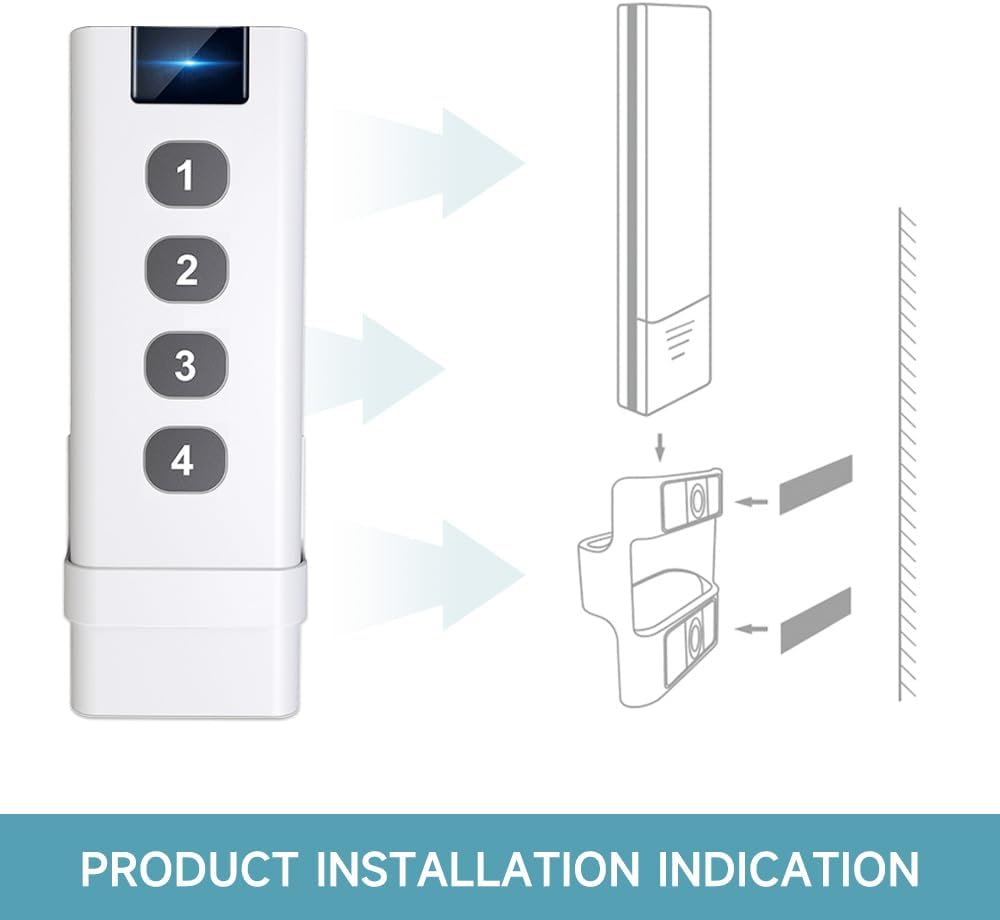
Image: A diagram illustrating the simple installation process of sliding the remote into its wall-mounted bracket.
Image: A visual representation of the remote being inserted into its wall-mounted holder, indicating easy installation.
5. Especificacions
| Característica | Detall |
|---|---|
| Potència d'entrada | Alkaline Battery LR23A 12V (included) |
| Comunicació | ZigBee 3.0 |
| Dimensions | 1.4 x 0.5 x 4.3 polzades (110 x 37 x 14 mm) |
| Pes de l'article | 1.76 unces |
| Corrent d'espera | 10 µA |
| Temperatura de treball | -10 °C ~ 45 °C |
| Humitat de treball | <90% HR |
| Button Lifecycle | 500K presses |
| Color | Blanc |
| Material | coure |
Image: A visual representation of the remote's dimensions and a detailed table of its technical specifications.
6. Solució De Problemes
- El comandament a distància no respon: Ensure the remote is within range of your ZigBee gateway. Check the battery level and replace if necessary. Re-pair the device if connection issues persist.
- Difficulty with double-press action: Ensure there is minimal delay between the two presses. The remote requires quick, successive presses for this action to register correctly.
- Long press duration: The long press action typically requires holding the button for about 3.5 seconds. The blue LED will turn off when the action is registered.
- Accidental pairing mode: If you hold any button for an extended period (longer than a long press action), the remote may enter pairing mode again. Avoid holding buttons unnecessarily if you have automations assigned to long presses.
- Not working with Alexa/Google Home: Ensure the remote is successfully paired with your Tuya ZigBee Gateway and integrated with the Tuya Smart Life APP. Verify that your Tuya account is linked correctly to your Alexa or Google Home account.
7. Manteniment
7.1 Substitució de la bateria
The IHSENO ZigBee Smart Scene Remote uses one 12V LR23A alkaline battery. When the remote's performance degrades or it stops responding, it is likely time to replace the battery. To replace the battery:
- Carefully open the battery compartment on the remote.
- Remove the old 12V LR23A battery.
- Insert a new 12V LR23A alkaline battery, ensuring correct polarity.
- Tanqueu el compartiment de la bateria de manera segura.
Eliminar les bateries usades d'acord amb la normativa local.
8. Garantia i Suport
For any questions regarding this product, please contact our customer service team. We are committed to providing support and will respond to your inquiries within 24 hours.
Please refer to your purchase documentation for specific warranty details and return policies.