
1. Introducció
This manual provides essential information for setting up, operating, maintaining, and troubleshooting your Alienware X17 R1 Gaming Laptop. Please read this manual thoroughly to ensure optimal performance and longevity of your device.

Figure 1: Alienware X17 R1 Gaming Laptop
2. Contingut del paquet
Ensure all items are present in your Alienware X17 R1 package:
- Alienware X17 R1 Notebook
- Adaptador d'alimentació
- Cable d'alimentació
- Manual d'usuari (aquest document)
3. Producte acabatview
3.1 Design and Dimensions
The Alienware X17 R1 features a sleek, thin design in Lunar Light (white) with Dark Side of the Moon (black) accents for the keyboard and deck. Its dimensions are approximately 11.79 x 15.72 x 0.82 inches (LxWxH) and it weighs around 7.05 pounds.

Figure 2: Alienware X17 R1 Side Profile
3.2 Ports i connectors
The Alienware X17 R1 is equipped with a comprehensive set of ports, primarily located at the rear for efficient cable management and thermal performance.
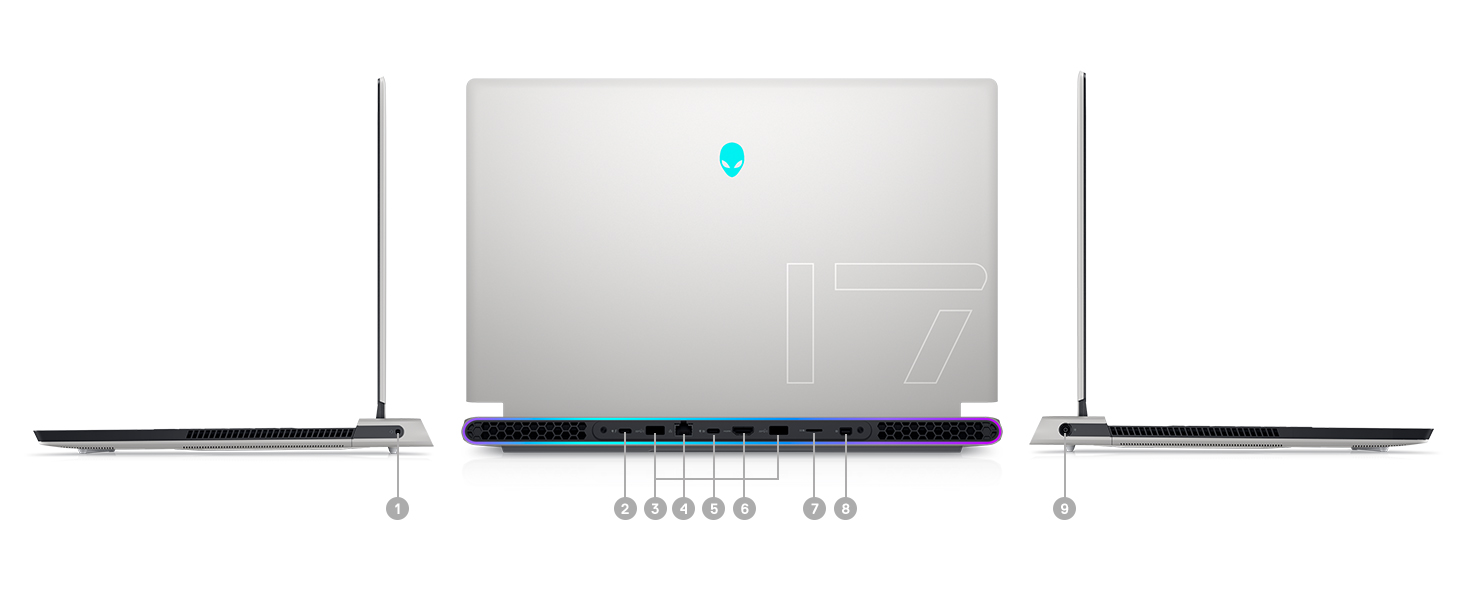
Figure 3: Rear Ports and Connectors
- Power/DC-in Port
- Mini Display Port 1.4
- HDMI 2.1 (for up to 4K/120Hz output)
- Type-C USB 3.2 Gen 2 Port with Power Delivery (5V/3A)
- Killer E3100 RJ-45 2.5G Ethernet
- Lector de targetes Micro SD
- USB 3.2 Gen 1 Type-A with Powershare
- Type-C Thunderbolt™ 4/USB 3.2 Gen 2 Port with Power Delivery (5V/3A)
- Global Headset Jack
3.3 Teclat i touchpad
The laptop features an AlienFX keyboard with per-key RGB lighting and an AlienFX Lighting design supporting 16.8 million colors. The touchpad is glass, offering solid tracking and responsive gestures.

Figure 4: AlienFX Keyboard and Touchpad
3.4 Pantalla
The 17.3-inch Full HD (1920 x 1080) display boasts a 360Hz refresh rate and 1ms response time, enhanced with ComfortView Plus, NVIDIA G-SYNC, and Advanced Optimus for a smooth visual experience.

Figure 5: 360Hz Display
3.5 Sistema de refrigeració
The Alienware X17 R1 incorporates advanced thermal management with its Cryo-Tech™ Technologies. This includes an exclusive Quad Fan design and Element 31, an encapsulated gallium-silicone thermal interface material, to ensure efficient heat dissipation during intensive use.

Figure 6: Cryo-Tech Cooling System
Video 1: Official Alienware X17 R1 Product Overview, highlighting key features including the cooling system.
4. Configuració
4.1 Engegada inicial
- Unpack your Alienware X17 R1 laptop and all accessories.
- Connecteu l'adaptador de corrent al port d'alimentació del portàtil i després a una presa de corrent.
- Open the laptop lid and press the power button (Alienware head logo) to turn on the device.
- Follow the on-screen instructions to complete the Windows 11 setup process.
4.2 Connexió de perifèrics
Utilize the various ports on the rear and sides of the laptop to connect external monitors, keyboards, mice, and other accessories. For optimal display performance, use the HDMI 2.1 or Mini Display Port 1.4 for external monitors.

Figure 7: Connecting External Peripherals
5. Com fer servir el portàtil
5.1 Gestió de l'energia
The Alienware X17 R1 offers tailored power states to optimize performance or battery life. These can be managed through the Alienware Command Center software:
- Mode silenciós: Reduces fan noise and power consumption.
- Mode equilibrat: Offers a balance between performance and acoustics.
- Mode de velocitat completa: Maximizes fan speed for peak performance.
- Mode d'estalvi de bateria: Optimizes settings for extended battery life.
- Mode de rendiment: Prioritizes performance for demanding tasks.
5.2 Windows Hello
The laptop supports Windows Hello for secure and convenient login using facial recognition via the integrated weblleva.
5.3 Alienware Command Center
This software allows you to customize various aspects of your laptop, including RGB lighting, power profiles, and overclocking settings. It is recommended to keep the software updated for the best experience.

Figure 8: Alienware Command Center
6. Manteniment
6.1 Neteja
- Feu servir un drap suau i sense borrissol per netejar la pantalla i les superfícies exteriors.
- Per a marques difícils, esbandiu lleugeramentampNetegeu el drap amb aigua o un netejador de pantalles segur.
- Regularly clean the air vents to prevent dust buildup, which can affect cooling performance.
6.2 Actualitzacions de programari
Keep your operating system, drivers, and Alienware Command Center software updated to ensure optimal performance, security, and compatibility. Use the Alienware Update utility or visit the Dell support weblloc per a les darreres actualitzacions.
6.3 Upgradable Components
The Alienware X17 R1 offers upgradable slots for memory and storage:
- 2 x RAM Slots (DDR4)
- 1 x M.2 PCIe Gen 4 SSD Slot
- 1 x M.2 PCIe Gen 3 SSD Slot
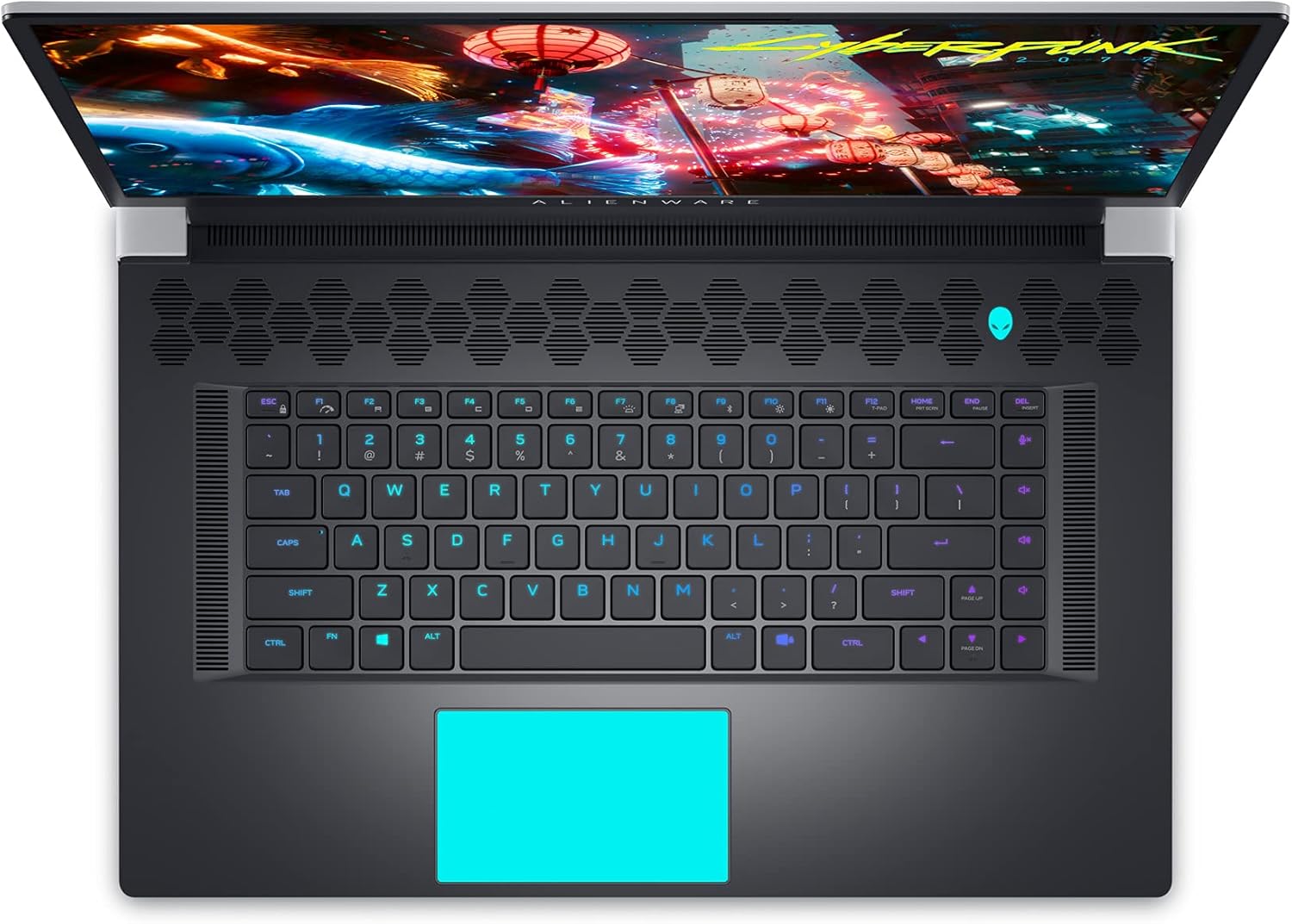
Figure 9: Internal Components and Upgradable Slots
7. Solució De Problemes
If you encounter issues with your Alienware X17 R1, try the following basic troubleshooting steps:
- Sense energia: Ensure the power adapter is securely connected to both the laptop and the power outlet. Try a different outlet.
- Problemes de visualització: If the screen is blank, try connecting an external monitor to verify if the issue is with the laptop's display or the graphics card. Update graphics drivers.
- Retard de rendiment: Check your power management settings in Alienware Command Center. Ensure all drivers are up to date. Monitor temperatures to prevent thermal throttling.
- Problemes de connectivitat: For Wi-Fi or Ethernet issues, restart your router and the laptop. Check network adapter drivers.
- Errors de programari: Restart the application or the laptop. Ensure your operating system and applications are updated.
For more advanced troubleshooting or persistent issues, refer to the Dell support weblloc o contacteu amb el servei d'atenció al client.
8. Especificacions
| Característica | Especificació |
|---|---|
| Nom del model | Alienware x17 R1 |
| Processador | 11th Generation Intel Core i7-11800H (8 Cores, up to 4.6 GHz) |
| RAM | 32 GB de DDR4 a 3200 MHz |
| Emmagatzematge | 1 TB M.2 PCIe NVMe Solid State Drive |
| Targeta gràfica | NVIDIA GeForce RTX 3080 de 16 GB de GDDR6 |
| Mostra | 17.3-inch FHD (1920 x 1080) 360Hz 1ms with ComfortView Plus, NVIDIA G-SYNC and Advanced Optimus |
| Sistema operatiu | Windows 11 Home |
| Connectivitat sense fil | Killer AX 1675 + Bluetooth 5.2 |
| Ports | 3x USB 3.0, 2x Type-C (Thunderbolt 4/USB 3.2 Gen 2), HDMI 2.1, Mini DisplayPort 1.4, Ethernet, Micro SD, Headset Jack |
| Pes de l'article | 7.05 lliures |
| Dimensions del producte | 11.79 x 15.72 x 0.82 polzades |
| Color | Lunar Light (White) |
9. Garantia i Suport
Your Alienware X17 R1 laptop is covered by Dell's standard warranty. For detailed warranty information, technical support, or service requests, please visit the official Dell support website or contact their customer service. Keep your purchase receipt and product serial number handy for faster assistance.
Suport de Dell Weblloc: www.dell.com/support