
1. Introduction
This manual provides essential information for setting up, operating, maintaining, and troubleshooting your HP 24-F0047C All-in-One PC. Please read these instructions carefully to ensure proper use and longevity of your device.
2. Product Overview
The HP 24-F0047C is an All-in-One desktop computer featuring a 23.8-inch Full HD IPS WLED-backlit touchscreen display. It integrates all computer components into a single unit, offering a compact and streamlined computing experience.
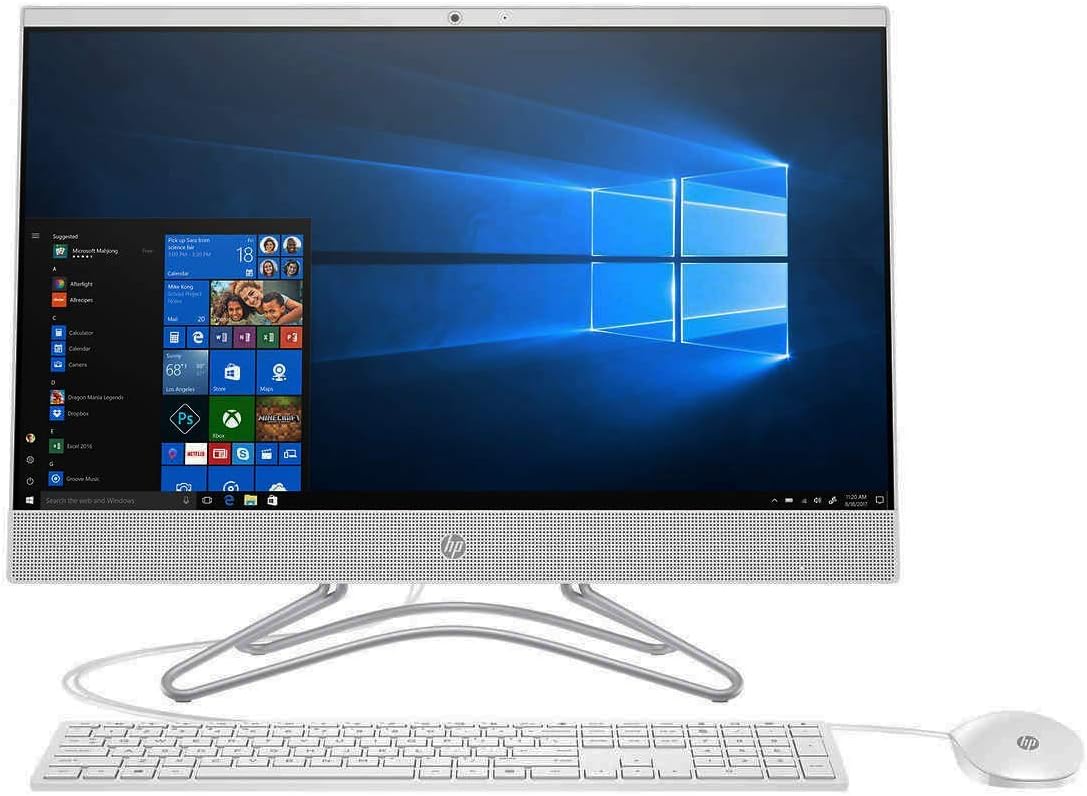
Figure 2.1: Front view of the HP 24-F0047C All-in-One PC with keyboard and mouse.
Front Components
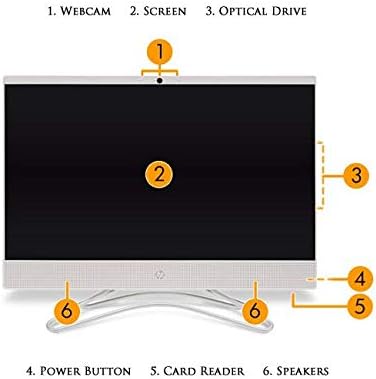
Figure 2.2: Front component identification.
- Webcam: Integrated HP HD Privacy Camera for video calls and conferencing.
- Screen: 23.8-inch Full HD IPS WLED-backlit Touchscreen Micro Edge Display.
- Optical Drive: DVD Writer (located on the side, indicated by diagram).
- Power Button: Used to turn the PC on or off.
- Card Reader: 3-in-1 Media Card Reader.
- Speakers: Integrated stereo speakers.
Rear Components and Ports
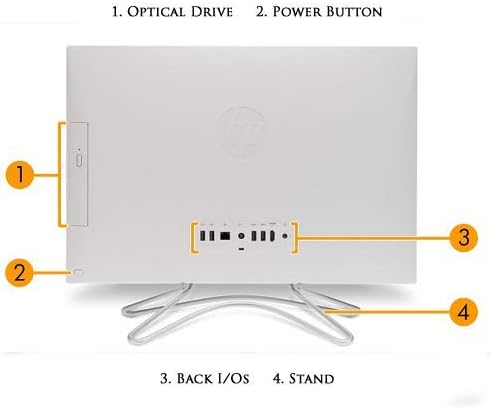
Figure 2.3: Rear component and port identification.
- Optical Drive: DVD Writer.
- Power Button: Secondary power button location or indicator.
- Back I/O (Input/Output) Ports: Includes USB ports, HDMI, LAN, and audio jacks.
- Stand: Provides stable support for the All-in-One PC.
3. Setup
Follow these steps to set up your HP 24-F0047C All-in-One PC.
3.1 Unpacking
- Carefully remove the PC and all accessories from the packaging.
- Ensure all components listed in the 'What's in the Box' section are present: HP 24-F0047C All-in-One PC, USB Keyboard, and USB Optical Mouse.
3.2 Connecting Peripherals
- Keyboard and Mouse: Connect the USB keyboard and USB optical mouse to the available USB ports on the rear of the PC.
- Power: Connect the power adapter to the power input port on the rear of the PC, then plug the power cord into a wall outlet.
3.3 Initial Power-On and Windows Setup
- Press the power button located on the front or rear of the PC to turn it on.
- The PC will boot up and guide you through the initial Windows 10 setup process. Follow the on-screen instructions to configure your region, language, network connection, and user account.
- Once Windows 10 is set up, your PC is ready for use.
4. Operation
This section covers the basic operation of your HP 24-F0047C All-in-One PC.
4.1 Using the Touchscreen
- The 23.8-inch display supports touch input. You can interact with Windows 10 and applications directly on the screen using gestures similar to a tablet or smartphone.
- Use a light touch and ensure your screen is clean for optimal responsiveness.
4.2 Keyboard and Mouse
- The included USB keyboard and mouse provide traditional input methods for typing, navigation, and executing commands.
- Ensure they are securely connected to the USB ports.
4.3 Optical Drive (DVD Writer)
- The integrated DVD Writer allows you to read and write data to CDs and DVDs.
- To open the tray, press the eject button usually located near the drive slot. Insert the disc with the label side facing up.
4.4 Media Card Reader
- Insert compatible memory cards (e.g., SD cards) into the 3-in-1 Media Card Reader slot to access photos, videos, and other files.
4.5 Connectivity
- Wi-Fi: Connect to wireless networks using the integrated 802.11ac Wireless module. Access network settings through Windows 10.
- LAN: For a wired network connection, plug an Ethernet cable into the 10/100/1000 Gigabit LAN port on the rear of the PC.
- Bluetooth: Pair Bluetooth-enabled devices such as headphones, speakers, or other peripherals using Bluetooth 4.2. Manage Bluetooth devices through Windows settings.
- USB Ports: Utilize the 2 USB 3.1 ports and 2 USB 2.0 ports for connecting external devices like printers, external hard drives, or USB flash drives.
- HDMI: Connect an external display or projector using the HDMI output port.
4.6 HP HD Privacy Camera
- The integrated front-facing HP HD Privacy Camera can be used for video conferencing, online meetings, or capturing photos/videos.
- Ensure the camera is enabled in your privacy settings and within the application you are using.
5. Maintenance
Proper maintenance helps ensure the longevity and optimal performance of your PC.
5.1 Cleaning the PC
- Screen: Use a soft, lint-free cloth slightly dampened with water or a screen-cleaning solution. Avoid harsh chemicals.
- Exterior: Wipe the exterior surfaces with a soft, dry cloth. Do not use abrasive cleaners.
- Vents: Periodically check and gently clean the ventilation openings to prevent dust buildup, which can affect cooling.
5.2 Software Updates
- Regularly install Windows updates to ensure your operating system has the latest security patches and performance improvements.
- Check for driver updates from the HP support website to ensure all hardware components function correctly.
5.3 System Care
- Avoid placing the PC in direct sunlight or near heat sources.
- Ensure adequate ventilation around the PC.
- Perform regular backups of your important data.
6. Troubleshooting
This section addresses common issues you might encounter with your HP 24-F0047C PC.
6.1 Power Issues
- PC does not turn on: Ensure the power cord is securely connected to both the PC and a working electrical outlet. Try a different outlet.
- PC turns off unexpectedly: Check for proper ventilation. Overheating can cause automatic shutdowns.
6.2 Performance Issues
- PC is slow: Close unnecessary applications. Check for background processes consuming high resources (Task Manager). Ensure Windows and drivers are up to date. Consider running a disk cleanup.
- Applications are unresponsive: Try restarting the application. If the entire system is unresponsive, perform a forced shutdown by holding the power button for several seconds.
6.3 Display Issues
- No image on screen: Ensure the PC is powered on. Check display settings if an external monitor was recently connected.
- Touchscreen not responding: Restart the PC. Ensure the screen is clean and free of obstructions.
6.4 Connectivity Issues
- No Wi-Fi connection: Verify your router is working. Check Wi-Fi settings in Windows. Restart your PC and router.
- Bluetooth device not pairing: Ensure the device is in pairing mode and within range. Check Bluetooth settings in Windows.
7. Specifications
Below are the technical specifications for the HP 24-F0047C All-in-One PC.
| Feature | Specification |
|---|---|
| Brand | HP |
| Model Name | HP 24-F0047C |
| Operating System | Windows 10 Home |
| CPU Model | AMD A9-9425 Dual Core Processor |
| CPU Speed | 3.1 GHz (up to 3.7 GHz turbo boost) |
| RAM Memory Installed Size | 8 GB DDR4-2133 SDRAM |
| Memory Storage Capacity | 1 TB 7200RPM Hard Drive |
| Screen Size | 23.8 inches |
| Display Resolution Maximum | 1920x1080 (Full HD) |
| Display Type | IPS, WLED-backlit Touchscreen Micro Edge Display |
| Graphics Coprocessor | AMD Radeon R5 Graphics (Integrated) |
| Connectivity Technology | 802.11ac Wireless, Bluetooth 4.2, 10/100/1000 Gigabit LAN |
| USB Ports | 2 USB 3.1, 2 USB 2.0 |
| Video Output Interface | 1 HDMI |
| Additional Features | HP HD Privacy Camera, 3-in-1 Media Card Reader, DVD Writer, Integrated Audio with Stereo speakers |
| Item Dimensions | 9.6 x 20.1 x 26.2 inches |
| Item Weight | 16 ounces |
8. Warranty and Support
8.1 Warranty Information
This HP 24-F0047C All-in-One PC, if purchased as a certified refurbished unit, typically comes with a 90-day HP factory warranty. Please refer to your purchase documentation for specific warranty terms and conditions.
8.2 Technical Support
For technical assistance, driver downloads, or further troubleshooting, please visit the official HP support website. You will need your product model number (HP 24-F0047C) to access relevant support resources.
HP Support Website: https://support.hp.com


